Part 2. Raise the cart
7 The thank-you page, which catches everyone the first page missed
Every buyer lands here, whatever they paid with. Build the page from blocks, decide who sees each one, and add the item to the order they already placed.
Chapter 2 gave you a number: the share of your orders that can receive a one-click offer. This chapter is about the rest of them, and on plenty of stores the rest is the majority.
Every buyer reaches the order confirmation page. Wallets, PayPal, gift cards, bank redirects, cash on delivery, all of them land here. So this is the surface with no eligibility problem at all.
Place the block once
Shopify only shows an app on this page where you put it. Open your checkout editor in Shopify, switch to the Thank you page, and add the Thank you page offer block. It takes two minutes and you do it once. Skip it and nothing you build in the app ever appears, with no error anywhere to tell you why.
Build the page from blocks
Inside each funnel there is a Thank-you page tab. The page is made of blocks, shown in the order you set:
- Text and Banner, for a heading, a reassurance line, a coloured message.
- Single product, Carousel (up to eight products) and Bundle (two to four products bought together at one rate). Each product carries its own discount, and you can add quantity tiers.
- Sequence, which shows several offers one at a time and charges once at the end. It has its own chapter, the next one.
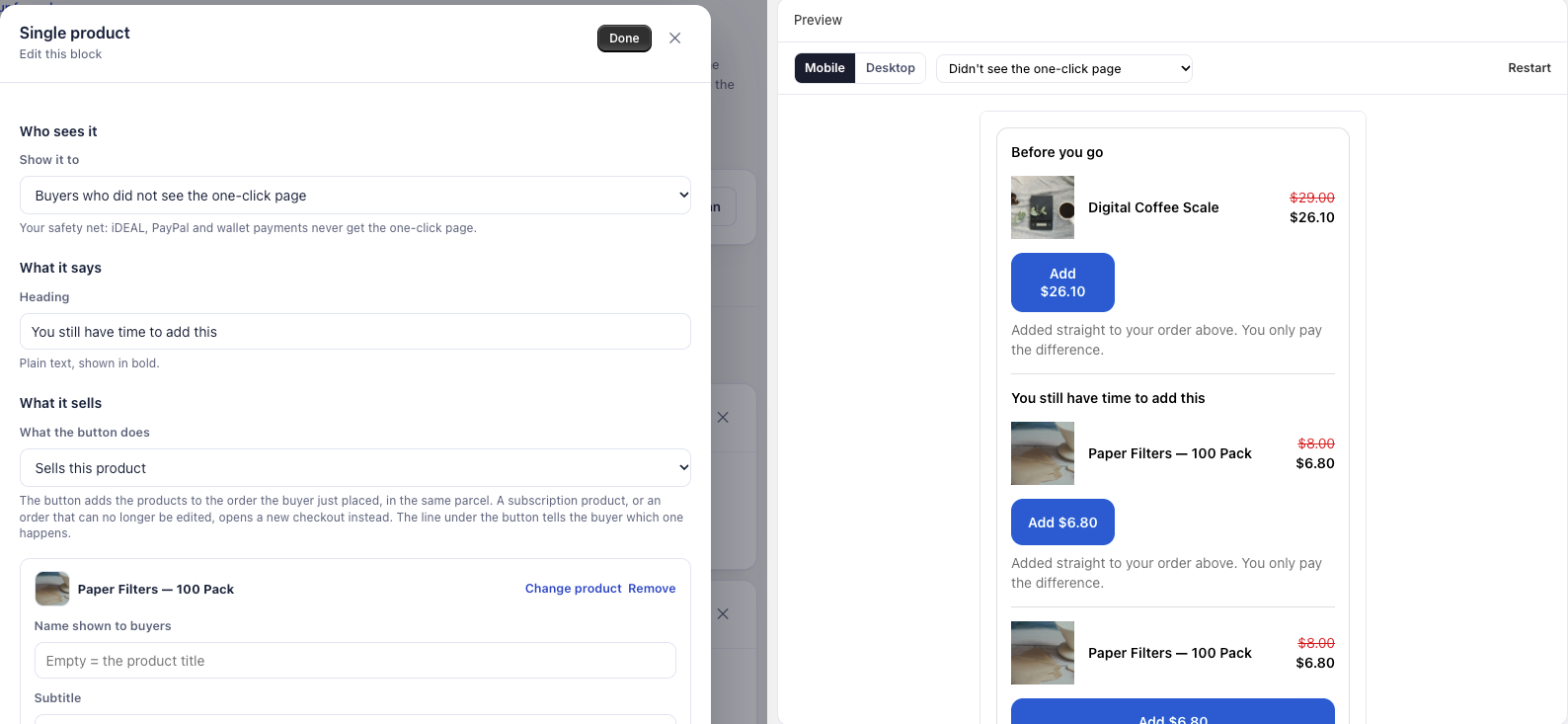
Up to six blocks per page, per funnel. The editor shows a preview next to the settings, and you can switch it between the cases that matter here: a buyer who never saw the one-click page, one who declined everything, one who accepted a given offer.
Who sees each block
Every block has a Show it to setting:
- Everyone. Every buyer who reaches the page.
- Buyers who did not see the one-click page. Your safety net: iDEAL, PayPal, wallets, cash on delivery.
- Buyers who accepted a specific offer. You pick the offer. Someone who took the wax is a good candidate for the tuning kit.
- Buyers who accepted at least one offer.
- Buyers who refused everything. Only buyers who saw the one-click page and took nothing. Not seeing the page is not refusing.
Each block checks its own rule, so several blocks can show at once. There is no “first rule wins” any more: a buyer who refused everything can see a text block set to Everyone and a product block set to Buyers who refused everything, one under the other.
If you build one thing after your first funnel, build a product block set to Buyers who did not see the one-click page. On a store where most buyers skip the one-click page, it is the block that does the work.
On the Free plan, thank-you blocks are shown to every buyer, including those who saw the one-click page. Sorting buyers by what happened there (did not see it, accepted, refused) comes with Pro and above. On Free, put an offer on this page that differs from the one on the one-click page, since both groups see it.
Which funnel’s blocks a buyer gets
A buyer who saw the one-click page gets the blocks of the funnel they went through there. A buyer who did not see it gets the blocks of the funnel their order matches, using the same conditions and order as your funnel list.
Blocks only apply inside their own funnel. This is the single most common support question we get. A buyer who went through funnel B never meets a block you built in funnel A. If a block seems to do nothing, check which funnel the buyer actually went through before assuming anything is broken.
Same order, same parcel
By default, a product added from this page goes onto the order the buyer already placed. One order in Shopify, one picking list, one shipping label. A buyer who paid by card is taken to a Shopify payment page for the difference. A buyer paying on delivery is not sent to any payment page: the item joins the order and the amount is added to what they owe.
Each product block has a Where the purchase goes setting:
- Same order, unless it has fully shipped. The default.
- Same order, only until the first parcel ships. As soon as one parcel has left, the buyer pays in a new checkout and gets a separate order.
- Always a new checkout. A separate order, with your usual shipping rates.
Some cases always open a new checkout, whatever you choose: a product sold as a subscription, an order that was cancelled, and an order that already carries an added item still waiting for payment. Chapter 10 covers what happens after the click, cash on delivery included.
Under the button, a short line tells the buyer which of the two happens. You can hide it per block with Show the line that says what the button does, but that hides the sentence, not the behaviour. If you hide it, say it somewhere else in the block.
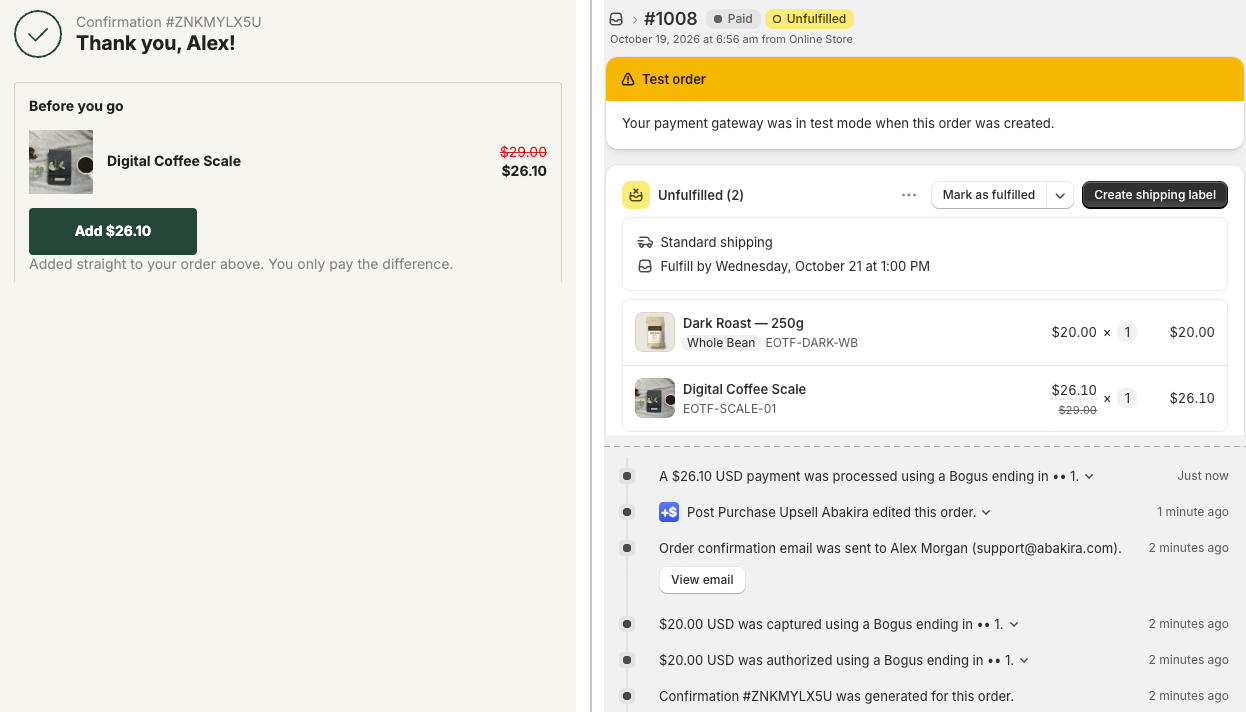
This is the setting that convinced the merchant we mentioned in chapter 2, the one whose buyers mostly pay by bank redirect. Without it they had no working post-purchase surface at all.
A countdown, if you want one
A product block can carry a countdown of up to 72 hours. It is counted from the moment the order was placed, not from when the page opens, so a reload or a second device shows the same deadline. At zero you choose what happens: the block disappears, stays at full price, or shows a message in place of the button. Chapter 11 says when a timer helps and when it hurts.
What you should have now
The Thank you page offer block placed in your checkout editor, a product block set to Buyers who did not see the one-click page, and a test order paid with a method that skips the one-click page, so you see the net do its job.
Last updated