Part 2. Raise the cart
10 After the buyer taps Add, cash on delivery, and the price you show
What happens when an offer on the thank-you or order status page adds to the existing order, how unpaid and cash on delivery orders are handled, and how to make sure buyers pay the price they saw.
This page is the detail behind the default you met in chapter 7: an item added from the thank-you or order status page goes onto the order the buyer already placed. Most stores never need to read it. Stores that take cash on delivery, or that run discount codes, should.
When it goes on the same order, and when it does not
The block’s Where the purchase goes setting decides first. Then the app checks the order itself, twice: when it shows the block, and again when the buyer taps. A new checkout opens instead of an edit when:
- the product is sold as a subscription (Shopify cannot add a subscription to a placed order),
- the order was cancelled,
- the order has fully shipped, or has started shipping with the “only until the first parcel ships” option,
- the order already carries an added item that is still waiting for payment.
The sequence block from chapter 8 is the exception: it never opens a new checkout, so in those cases it is simply not shown.
What the buyer sees after tapping
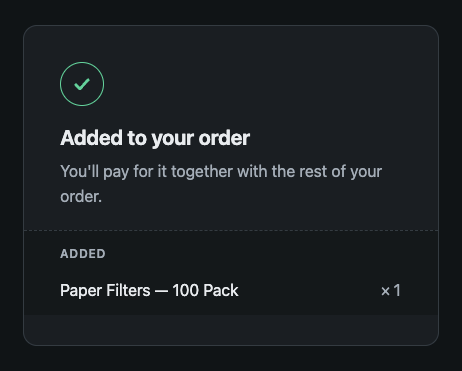
A page opens in a new tab and says what happened, in the buyer’s language. You can rewrite its title and its success messages on the Buyer page of the app, under After the buyer clicks Add. The error messages stay ours, because they describe what the app actually did.
- Paid by card. The buyer is taken to a Shopify payment page for the difference. If they close it without paying, the added line stays on the order, unpaid, and shows as a balance due in Shopify.
- Cash on delivery or bank transfer. The buyer is never sent to an online payment. The item joins the order and its price is added to what they will pay.
If you use the Picqer connector, an item added to a card order and still unpaid when the hold runs out is taken back off the order before it goes to the warehouse. Cash on delivery orders keep it. Chapter 16 has the details.
Emailing a buyer who pays on delivery
On the Buyer page, under Orders paid on delivery or by bank transfer, there is a setting called Email the buyer when they add an item to an order they haven’t paid yet. It is off by default. When it is on, Shopify emails the buyer the updated order. Card orders never get this email, since those buyers go through the payment page instead.
Shopify sends the wrong template for cash on delivery. On an order with a balance due, Shopify does not send its "Order edited" email. It sends "Order invoice", which says payment is due and carries a Pay now button. That is exactly what a cash on delivery buyer should not receive.
The app cannot choose which template Shopify sends. The fix lives in your own notification template: “Order invoice” is adjusted so that cash on delivery orders get the content of your “Order edited” email, and every other invoice stays as it is. We set this up with you. Write to us from the chat in the app, or at support@abakira.com, and we go through it together on a test order. We never edit your store ourselves, and you keep a copy of your original template so you can go back.
Buyers pay the price they saw
When an item is added to an existing order, Shopify also applies that order’s discount code, or an automatic percentage discount on all products, to the new line. The buyer then pays less than the price your block showed. Pleasant for them, but your margin takes two discounts.
The setting Buyers pay the price shown, even with a discount code, on the Buyer page, fixes that. When it is on, the app lowers its own discount by what Shopify is about to apply, so the total comes out at the price shown. If the buyer’s code is worth more than the whole offer discount, the item is still added and they pay a little less than shown. A sale is never refused over it. Shopify’s own rounding can leave a one-cent gap on some percentage discounts.
It is off by default, and available on the Scale and Scale Plus plans.
What you should have now
If you take cash on delivery: a decision on the buyer email, and a message to us in the chat if you turn it on. If you run discount codes and are on Scale: the price setting switched on, and one test order with a code to see the result on the order.
Last updated