Part 4. Higher plans
18 Offers and blocks inside the checkout
Product offers from your funnels, plus a stock check, a free shipping bar, a badge, a slider of cards and a progress card. What each one does, and the step without which none of them shows. Shopify Plus only.
This chapter needs Shopify Plus and the Scale Plus plan. Checkout extensions do not render on other Shopify plans. The app's Checkout page tells you when it could not confirm your store is on Plus, or when your checkout refuses added lines, instead of letting you build something nobody will see.
Two kinds of thing live in the checkout. Offer blocks belong to a funnel and are built in the app, like the thank-you blocks. Checkout blocks stand on their own and are set up entirely in Shopify’s checkout editor. Both have to be placed in that editor before anything appears.
Placing blocks: the step nobody sees missing
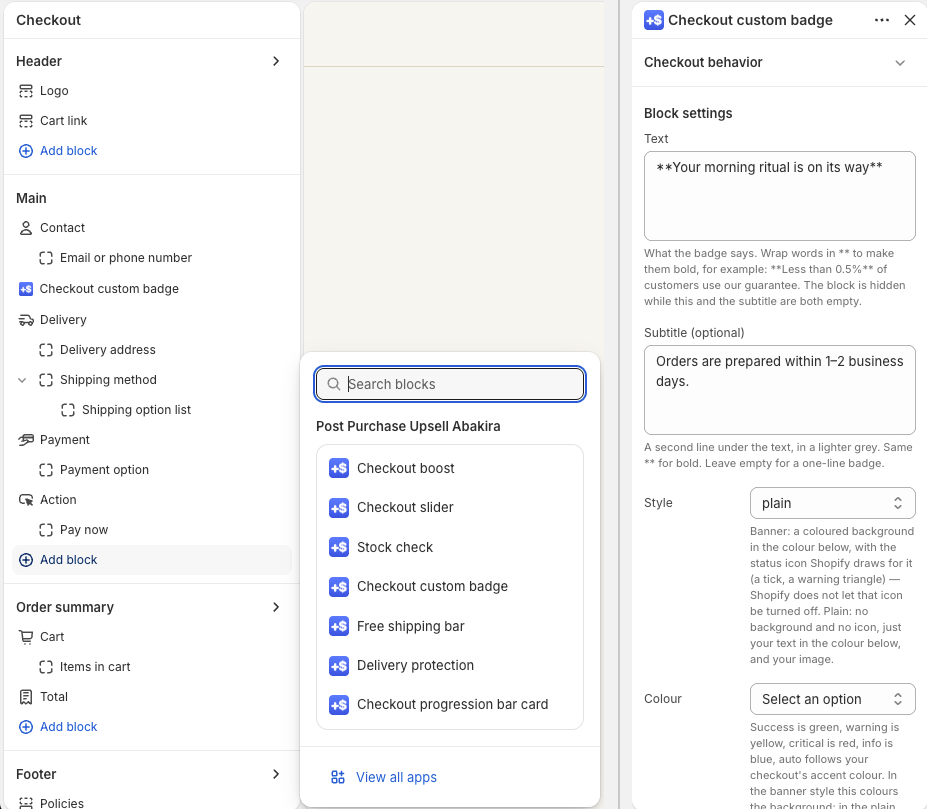
Open your checkout editor in Shopify and use Add block. Each of the app’s blocks appears there under its own name. A block that is not placed shows nothing, and nothing anywhere tells you it is missing. You can place the same block twice; it then appears twice, and each copy is set up on its own.
Under the Pay now button. Shopify offers no spot directly below the button. On a phone, the order summary moves below it, so the last block of the order summary sits under the button. On a computer, that same block sits in the right-hand column. If "under the button" matters to you, put the block at the end of the order summary and check both.
Offer blocks from your funnels
On Scale Plus, each funnel gets an In the checkout tab. It takes text, banner, single product, carousel and bundle blocks, built the same way as on the thank-you page. To show them, place the Checkout boost block once in the checkout editor.
A few rules differ from the pages after payment:
- One funnel, as everywhere. A buyer sees the checkout blocks of the funnel their cart matches, by the same conditions and order as your funnel list.
- No “Show it to” rules. The buyer has not paid yet, so “saw the one-click page” or “accepted an offer” cannot be true.
- Shopify applies the discount at checkout, so the price the buyer sees is the price they pay. A product carries one rate in a checkout: if two blocks set a discount on the same product, the first block wins. A bundle applies its bundle discount to every item in it.
- A subscription product goes into the cart with its plan.
- No countdown. Shopify’s App Store rules forbid timers in the checkout.
Before adding anything, the app checks that your checkout accepts added lines. If it does not, the block stays hidden rather than failing under the buyer’s tap.
Changes you make in the app reach the checkout when you save them.
Stock check
A short message that checks, live, that every item in the cart is in stock, then confirms it. If one item is out of stock, or the check fails, the block shows nothing: an unknown answer is never shown as “in stock”. You set two texts in the editor, the one shown while checking and the one shown once everything is confirmed. Left empty, buyers read our default, in their language.
Free shipping bar
A banner with a progress bar towards your free shipping amount, with your text before and after the amount is reached. You enter the amount and its currency. The block cannot read your Shopify shipping settings, so the amount has to match them, and if you change your free shipping amount in Shopify, change it here too. Buyers checking out in another currency do not see the bar, so it never compares euros with dollars.
Checkout custom badge
A badge or banner of your own: text with bold, an optional second line, a colour, and an optional image on the left or right. Two styles. Banner draws a coloured background with the status icon Shopify attaches to that colour, and that icon cannot be turned off. Plain draws no background and no icon. The image must be one of your own Shopify files: upload it under Content, then Files, and paste its link.
Checkout slider
A horizontal row of up to five cards you write yourself, each with text and an image from your Shopify files. The checkout cannot measure an image, so you type its width and height for it to keep its shape. Leave them empty and the image is squeezed into a square.
What goes on the cards is yours, and so is its accuracy. If you show reviews, show real ones, and not only the good ones.
Checkout progression bar card
A card with a title, a message and a bar. The bar shows the percentage you type, and is tied to nothing in the cart. Use it for something you state yourself, never as if it measured the buyer’s progress or your stock.
Delivery protection
It has its own chapter, the previous one.
Testing a checkout block
The stock check, free shipping bar, badge, slider, progress card and delivery protection can each be limited to one group of buyers, using a cart attribute written by an external A/B testing tool. Leave the two A/B fields empty unless you run such a tool: anything typed there hides the block from every buyer whose cart does not carry that attribute. Offer blocks from your funnels are tested in the app instead, as chapter 14 explains.
Last updated