Upsell after checkout on Shopify: which page to build first
Shopify gives you three pages after payment. Read your payment mix first: under half of orders by card, build the thank-you page before the one-click page.
2026-10-30 — Abakira, updated 2026-11-10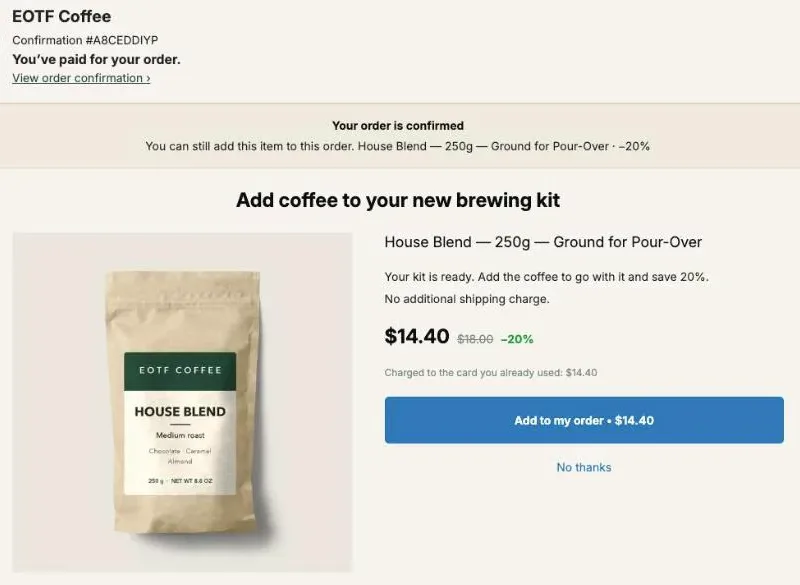
To upsell after checkout on Shopify, you have three pages to work with: the one-click post-purchase page between payment and confirmation, the thank-you page, and the order status page. Which one to build first depends on how your buyers pay. If half of your orders or more are paid by card, start with the one-click page. Under half, start with the thank-you and order status pages, because every buyer reaches them.
That 50% line is the exact rule our own app uses when it lays out a setup order for a store. Below: what each page does, how to read your payment mix in ten minutes, the build order for each case, and how the three pages pass information to each other so a buyer who said no on one page doesn’t get the same pitch on the next.
What pages can I upsell on after checkout on Shopify?
Shopify stores have three pages after checkout that can carry an upsell. The one-click post-purchase page appears between payment and the order confirmation. The thank-you page is the confirmation itself. The order status page is the one buyers open later from the link in their confirmation email.
They don’t behave alike, and most “post-purchase upsell” advice blurs them into one.
| One-click post-purchase page | Thank-you page | Order status page | |
|---|---|---|---|
| When the buyer sees it | Right after paying, before the confirmation | Right after, on the confirmation | Later, from the confirmation email |
| Who sees it | Buyers who paid by credit card, in the cases Shopify allows | Every buyer who completes checkout | Every buyer who opens the link |
| How the extra item is paid | Charged to the card already used, one tap | Added to the same order, the buyer pays the difference | Same as the thank-you page |
| Where you turn it on | Settings > Checkout > Post-purchase page | Checkout editor, Thank you page | Checkout editor, Order status page |
| Shopify plan needed | Basic and up | Basic and up | Basic and up |
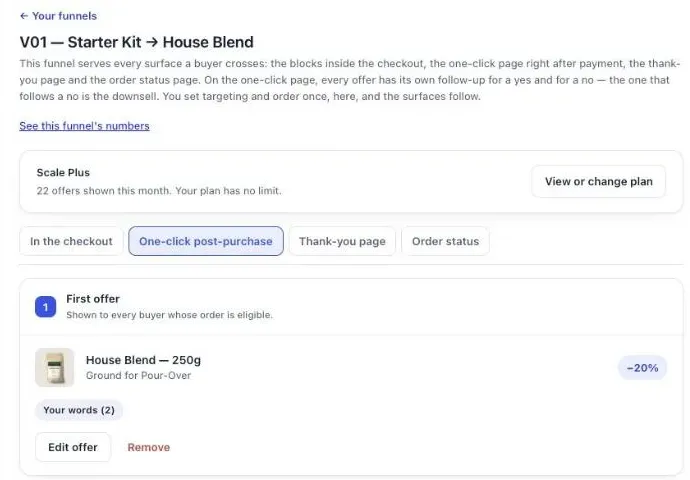
There’s a fourth spot on Shopify Plus stores: blocks inside the checkout, before payment. That one is an order bump rather than an upsell after checkout, and our article on order bumps in the checkout and after payment covers it, and our guide to the checkout upsell on Shopify, inside the checkout or right after compares who each side reaches. In Post Purchase Upsell Abakira, all four live in one funnel, with one tab each: In the checkout, One-click post-purchase, Thank-you page and Order status.
What does the one-click post-purchase page do best?
The one-click post-purchase page sells the most per buyer who sees it, because the buyer pays with one tap: no card to type, no second checkout. The item is charged to the card already used and joins the same order. Its weakness is reach, since Shopify shows it only for certain payments.
On our demo coffee store, a buyer who paid $49.00 for a pour-over starter kit landed on the page in the header image above: House Blend at $14.40 instead of $18.00, with the line “Charged to the card you already used: $14.40”. One tap on Add to my order and the order went to $63.40, still one order and one parcel.
As of October 2026, Shopify does not show the one-click post-purchase page when:
- the buyer checks out with an installment service or a wallet service;
- the first payment was made with a gift card, or with any payment method other than a credit card;
- the order has duties, or is paid in more than one currency;
- the order is for local delivery;
- the order comes from another sales channel than the online store.
“Any payment method other than a credit card” covers more than wallets: PayPal, buy now pay later, bank redirects like iDEAL, and cash on delivery all fall outside. Our article on why Apple Pay, PayPal and Google Pay orders skip the post-purchase page goes through each one.
The page also stays empty until you choose which app owns it. In Shopify admin, open Settings > Checkout and, in the Post-purchase page section, select the app. Shopify allows one app there at a time. The guide chapter on turning the one-click page on in Shopify shows the screen.
What does the thank-you page do best?
The thank-you page reaches every buyer who completes checkout, whatever they paid with: card, PayPal, Apple Pay, iDEAL, a gift card or cash on delivery. It’s the page that catches everyone the one-click page skips, and with Post Purchase Upsell Abakira the item added there joins the order already placed.
How the buyer pays depends on what’s still owed. A buyer who already paid is sent to Shopify’s payment page for the difference only. A buyer paying on delivery sees “You’ll pay for it together with the rest of your order.” and nothing else is asked. The cash on delivery upsell article covers that second case.
Shopify only shows an app on this page where you place it. In the checkout editor, select the Thank you page, click Add block, choose Thank you page offer and save. Skip that and nothing you build appears, with no error anywhere.
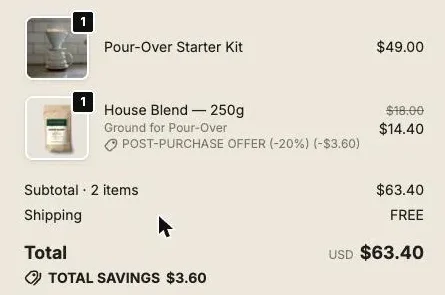
For blocks, settings and offer ideas on this page, see our full walkthrough of the thank you page upsell that adds to the same order.
What does the order status page add?
The order status page is a second chance at the same order, opened later, when the buyer clicks the link in the confirmation email or checks on delivery. It carries its own blocks, and an item added there joins the same order under the same rules as the thank-you page.
It’s a different moment. On the thank-you page the buyer has just paid. On the order status page they’re waiting for the parcel, sometimes a day later. Content that helps them wait does well there: a care tip, what to expect at delivery, the refill they’ll need in a month. In our demo, a simple text block reads “Need help with your order?” under the order total.
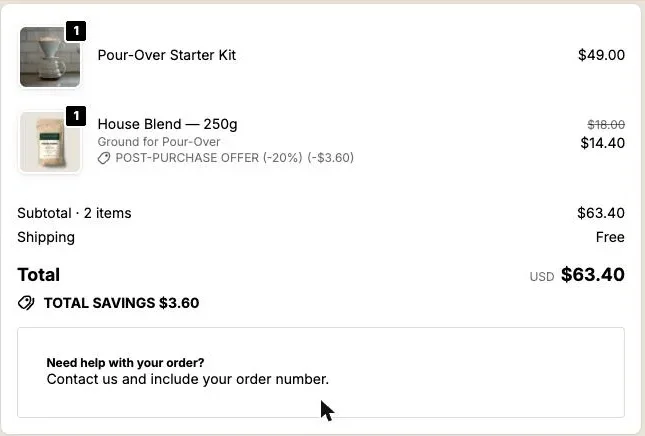
The block is placed the same way: checkout editor, Order status page, Apps in the sidebar, Order status page offer. The order status page chapter of our guide lists its settings, and our article on what to offer on the order status page once the order ships covers the offers.
How do I find out how my buyers pay?
Your payment mix is the share of recent orders paid by each kind of method: card, wallets and PayPal, buy now pay later, bank redirects, cash on delivery, gift cards. The card share is the most buyers your one-click page can reach. Everyone else goes straight to the thank-you page.
You can count it by hand. Open your last 50 orders in Shopify and note how each one was paid. That takes about ten minutes, and it’s the number that decides everything else in this article.
Post Purchase Upsell Abakira can do the count for you through its Claude connector (the AI assistants page in the app’s menu walks through connecting it). Ask Claude for your payment mix and the app reads up to your 100 most recent orders over a window you choose, from 7 to 60 days, 30 by default. It sorts each order into one of six families:
| Family | What falls into it | One-click page? |
|---|---|---|
| Card | Card payments, and anything the order data can’t tell apart from a card | Yes, when Shopify allows it |
| Wallets | PayPal, Apple Pay, Google Pay, Amazon Pay, Klarna, Affirm, Afterpay, Sezzle, Zip | No |
| Cash on delivery | Gateways named cash on delivery, COD and their local names | No |
| Redirect methods | iDEAL, Bancontact, Sofort, giropay, EPS, Przelewy24, BLIK, Trustly, Multibanco, MB Way, MobilePay, Swish, Vipps, TWINT and others | No |
| Gift card | Orders paid with a gift card | No |
| Other | Point of sale, digital-only orders with nothing to ship, multi-currency orders | No |
Two details make the number honest. First, the card share is a ceiling: Apple Pay and Google Pay paid through Shopify Payments look like card payments in the order data, so a few wallet orders can hide in it. Second, a read that fails returns an error, never a zero. “I don’t know” is never shown as “nobody”.
The guide chapter who will actually see your offers explains how to check that estimate against what the app measures once it’s live.
Which page should I build first?
Build first the page that reaches the most of your buyers. When half of your orders or more are paid by card, that’s the one-click page. When fewer than half are, it’s the thank-you and order status pages, because every buyer sees them. Post Purchase Upsell Abakira applies exactly this 50% line when it proposes a setup order. If your add-ons live in a cart drawer today, test the cart upsell against the same offer after payment before you move them.
Here is that setup order, as the app lays it out for a store:
- Read the payment mix. Without it, every later step is a guess.
- Select the app for the post-purchase page in Settings > Checkout. Only you can do this, in Shopify.
- Build the one-click funnel if at least half of orders are paid by card.
- Place the thank-you and order status blocks. If fewer than half of orders are paid by card, steps 3 and 4 swap: these blocks come before the funnel.
- Add checkout blocks only on a Shopify Plus store whose plan includes them.
A worked example. Say 35 of your last 100 orders were paid by card. A perfect one-click funnel can then reach 35 buyers in 100 at most, and fewer if some of those are hidden wallet payments. A thank-you block reaches all 100. Spend the first hour on the page that 65 buyers would otherwise never see an offer on.
Flip it: 80 card orders in 100. The one-click page now reaches most buyers with the strongest format there is, a one-tap charge to a card already on file. Build it first, then add a thank-you block for the other 20.
Should I still build the one-click page if most buyers pay another way?
Yes, build the one-click page anyway, just second. The buyers who do pay by card get the fastest yes on offer: one tap, no form. And a buyer who sees it carries what they did there to the thank-you page, which can then show them something different from what it shows everyone else.
On a store where most orders arrive through iDEAL, PayPal or cash on delivery, the one-click page is a bonus for the card minority. It doesn’t need to be elaborate. One offer, the product people most often buy next, at a clear discount. The free plan of Post Purchase Upsell Abakira covers exactly that: one funnel, one offer level, up to 100 offers shown a month.
How do the three pages work together?
The three pages work together through rules: the thank-you page knows what the buyer did on the one-click page a few seconds earlier, and the order status page knows what they bought on the thank-you page. So a buyer who just said no isn’t pitched the same thing twice.
In Post Purchase Upsell Abakira, the link between the first two pages is Shopify’s checkout token. The one-click page records each offer seen, accepted or declined under that token, and the thank-you page sends the same token when it loads, so it reads the outcome directly. Every thank-you block has a Show it to setting with five rules:
| Rule in the admin | Who sees the block |
|---|---|
| Everyone | Every buyer who reaches the page |
| Buyers who did not see the one-click page | On the Pro plan and above: wallet, PayPal, redirect, COD and gift card buyers, among others |
| Buyers who accepted a specific offer | Only buyers who took the offer you pick |
| Buyers who accepted at least one offer | Buyers who took anything on the one-click page |
| Buyers who refused everything | Buyers who saw the one-click page and took nothing |
The admin is strict about one distinction, and it matters: under Buyers who refused everything it says “Not seeing it is not refusing.” A PayPal buyer never declined anything, so they belong to the second rule, never the fifth. Rules that tell buyers apart by what happened on the one-click page are on the Pro plan and above; Everyone works on every plan.
The order status page can’t read the one-click outcome. It only knows the order, and the record that links an order back to its checkout token exists only for buyers who accepted something, which leaves out exactly the buyers who refused. So it has its own three rules, built on what happened on the thank-you page of the same order: Buyers who bought on the thank-you page, Buyers who bought from a specific thank-you block and Buyers who bought nothing on the thank-you page. Those are on the Scale plan.
A sequence that uses all of it, on a coffee store. This sequence uses the paid rules: the steps keyed to what the buyer did on the one-click page need the Pro plan, and the order status step needs the Scale plan.
- One-click page, card buyers: a bag of the House Blend at 20% off.
- Thank-you page, rule Buyers who did not see the one-click page: the same bag at 20% off, so PayPal and wallet buyers get the offer card buyers got.
- Thank-you page, rule Buyers who accepted at least one offer: paper filters for the coffee they just added.
- Thank-you page, rule Buyers who refused everything: something cheaper than the bag they declined.
- Order status page, rule Buyers who bought nothing on the thank-you page: a last offer for buyers who passed on both pages.
Where does the extra item go when the buyer says yes?
The extra item goes onto the order the buyer already placed, on all three pages. On the one-click page Shopify adds it and charges the same card. On the thank-you and order status pages, Post Purchase Upsell Abakira edits the existing order, so there is one order, one picking list and one parcel.
On the thank-you and order status pages, each product block has a Where the purchase goes setting with three options:
- Same order, unless it has fully shipped (the default): added to the order the buyer placed, in the same parcel; if the whole order already shipped, the buyer pays in a new checkout.
- Same order, only until the first parcel ships: added while nothing has shipped; as soon as one parcel has left, the buyer gets a separate order.
- Always a new checkout: a separate order every time, with your usual shipping rates.
The second option suits warehouses that ship within hours. If a 3PL pulls your orders, our article on keeping a post-purchase upsell in one parcel with a 3PL explains the timing.
How do I check that each page is doing its job?
Check each page against the buyers it can reach, not against all your orders. In Post Purchase Upsell Abakira, the Results screen shows revenue earned and “Buyers who said yes” out of those who saw an offer, and a separate Thank-you page tile with the revenue from that page and the number of orders behind it.
Three readings worth doing each month:
- The one-click acceptance rate against the card share. If 35% of orders can see the page, judge the offer on those 35 buyers in 100, not on all of them.
- The thank-you tile against the non-card share. If most orders skip the one-click page and the thank-you tile stays small, change the product on that page before anything else.
- The payment mix itself, 7 days against 30. A new payment method or a sale season can move the card share past the 50% line in either direction, and the build order moves with it.
Two test orders settle whether each page is live at all: one paid by card, which should reach the one-click page, and one paid with a method that skips it, which should land on a thank-you block. On a paid plan, one set to Buyers who did not see the one-click page.
To see what else those pages can answer besides the offer, read our map of the Shopify post-purchase experience, question by question. Once you’ve picked the page, our post purchase upsell guide covers what to offer and how to price it. More offers and price tests are on our method topic page.
Post Purchase Upsell Abakira runs the one-click page, the thank-you page and the order status page from one funnel. The free plan shows up to 100 offers a month on a live store; the listing has the current plans.
Choose where to upsell after checkout on Shopify
- Read your payment mix Count how your last 30 days of orders were paid: card, wallets and PayPal, buy now pay later, bank redirects, cash on delivery, gift cards. The card share is the most buyers the one-click page can reach.
- Select the app for the post-purchase page In Shopify admin, go to Settings > Checkout and, in the Post-purchase page section, select Post Purchase Upsell Abakira. Click Save.
- Build the page that reaches the most buyers first If half of your orders or more are paid by card, build the one-click funnel first. Under half, start with the thank-you page block and the order status page block.
- Place the two app blocks In the checkout editor, add the Thank you page offer block on the Thank you page and the Order status page offer block on the Order status page, then click Save.
- Link the pages with rules On the thank-you page, set Show it to on each block. On the Pro plan and above, start with Buyers who did not see the one-click page. On the free plan, use one block set to Everyone with a different offer from the one-click page.
- Check each page with a test order Pay one test order by card and one with a method that skips the one-click page, and confirm each buyer saw the page you built for them.
Frequently asked questions
Can I run two post-purchase upsell apps at the same time on Shopify?
Not on the one-click page. Shopify lets only one app add post-purchase features at a time, and you pick it in Settings > Checkout, in the Post-purchase page section. Apps that place blocks on the thank-you and order status pages are a different kind of app.
Do I need Shopify Plus to upsell after checkout?
No. As of October 2026, Shopify makes post-purchase page apps and thank-you and order status page apps available from the Basic plan up. Shopify Plus is only required for apps that change the information, shipping and payment steps of the checkout itself.
Does the order status page show the same offer as the thank-you page?
Not unless you build it that way. In Post Purchase Upsell Abakira each page has its own tab and its own blocks. The order status page can't see what the buyer did on the one-click page, but on the Scale plan it can see what they bought on the thank-you page of the same order.
Should I run the same offer on the one-click page and on the thank-you page?
Yes, for different buyers. Show the offer on the one-click page to card buyers, then put the same offer in a thank-you block set to Buyers who did not see the one-click page, so PayPal, wallet and other non-card buyers get it too. That rule is on the Pro plan and above. On the free plan, a block set to Everyone reaches every buyer, so give it a different offer from the one-click page.
How often should I check my payment mix again?
Whenever something changes how people pay: a new payment method, a new country, a switch to Shopify Payments, or a sale season that brings in new buyers. Compare the last 7 days with the last 30 days to see whether the mix is moving.
Does an item added on the thank-you page ship in the same parcel?
By default, yes. The Where the purchase goes setting of each block starts on Same order, unless it has fully shipped, so the item joins the order the buyer already placed. The other two options are Same order, only until the first parcel ships and Always a new checkout.
Related articles
Written by Abakira. We make small software: Shopify apps, web tools and iPhone apps. This article is about Post Purchase Upsell Abakira.