Order bump on Shopify: in the checkout and after payment
An order bump on Shopify sits in the checkout on Plus stores. On every other plan it moves after payment, added to the same order in one tap.
2026-10-29 — Abakira, updated 2026-11-08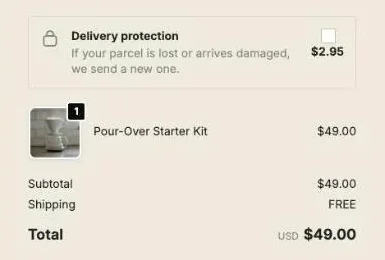
An order bump on Shopify is a small add-on offered at the moment of paying, accepted with one tick or one button, and paid with the rest of the order. Inside the checkout itself, Shopify only lets apps show it on Shopify Plus. On every other plan, the same idea works one step later: the offer appears right after payment and the item joins the order that was just paid, charged to the same card.
This page covers both. We built both versions in Post Purchase Upsell Abakira. On order #1010, a $49.00 pour-over kit became $63.40 with one tap after payment, on a single order and a single shipment.
What is an order bump on Shopify?
An order bump on Shopify is an extra product shown next to the order summary while the buyer pays, usually cheap, related to what is already in the cart, and added without leaving the page. It differs from a cart upsell (shown before checkout) and from a post-purchase offer (shown after payment), though the three share the same goal: a bigger order from the same buyer.
The classic shape is a checkbox. Tick it and a line joins the cart. Delivery protection works as a checkbox bump, and it’s the one in the image at the top of this page: a $2.95 line added from the Delivery protection block, in the order summary, left unticked, with a one-line promise. It is a separate checkout block from the product cards below, on Shopify Plus and the Scale Plus plan.
The other shape is a small product card with an image, a price and an Add button. That’s the one to use when the bump is a real product (a refill, a filter pack, a second color) rather than a service.
Which Shopify plans can show an order bump inside the checkout?
Shopify Plus is required for any app block on the information, shipping and payment steps of the checkout. As of October 2026, Shopify’s help center says apps built for those pages are available only to Shopify Plus, while app blocks on the thank-you and order status pages are available from the Basic plan up.
So the question is less “can I have an order bump” and more “where can it go on my plan”:
| Where the bump appears | When | Shopify plan needed | How the buyer pays |
|---|---|---|---|
| Checkout page | Before payment | Shopify Plus | In the same payment as the order |
| One-click post-purchase page | Right after payment | Any plan | One tap, charged to the card already used |
| Thank-you page | After the post-purchase page | Basic and up | Added to the order, then the difference is paid |
| Order status page | Whenever the buyer comes back | Basic and up | Same as the thank-you page |
Some older guides tell you to edit checkout.liquid or to look for an “Order Bump” option in your checkout settings. Shopify stopped running checkout.liquid customizations on the information, shipping and payment pages on August 13, 2024. Today a bump reaches the checkout as an app block, placed in Shopify’s checkout editor.
What does an order bump look like in a Shopify Plus checkout?
An order bump in a Shopify Plus checkout is a block drawn by Shopify’s own components, so it takes your checkout’s fonts and colors and can’t be restyled with CSS. In Post Purchase Upsell Abakira it is a product card under a heading you write, with the product image, the discounted price next to the regular one struck through, and an Add button.
Once the buyer clicks Add, the line appears in the order summary and the same button turns into Remove. The app only removes the line it added itself: if the buyer had already put the same product in their cart from the product page, that line stays theirs.
The price on the card is read live from your store when the checkout loads. If that read fails, the card shows no price rather than a guessed one. And when the buyer pays, Shopify applies the discount through a discount function, so the price on the card is the price on the order.
How do I add an order bump to a Shopify Plus checkout?
Adding an order bump to a Shopify Plus checkout takes two places: the app, where you choose the product and its discount, and Shopify’s checkout editor, where you place the block that displays it. In Post Purchase Upsell Abakira, checkout offers are part of the Scale Plus plan and live in each funnel, next to its one-click and thank-you offers.
- Open a funnel in the app and click the In the checkout tab.
- Click Add a block and choose Single product. Pick the product, then set its discount. A Single product block takes a discount of up to 90 percent, a cap that stops a typo from giving the item away.
- Click Save. Changes reach the checkout as soon as they’re saved.
- In Shopify admin, open your checkout editor from Settings > Checkout, click Add block in the section where you want the offer, choose Checkout boost and click Save.
- Open your store, add a product that matches the funnel, go to checkout and click Add on the card.
Step 4 is the one that gets skipped. The app’s checkout tab says it plainly: “Shopify only shows this where you put it: open your checkout editor and add the “Checkout boost” block. One time, two minutes. Without that step, nothing you set up here is ever shown.”
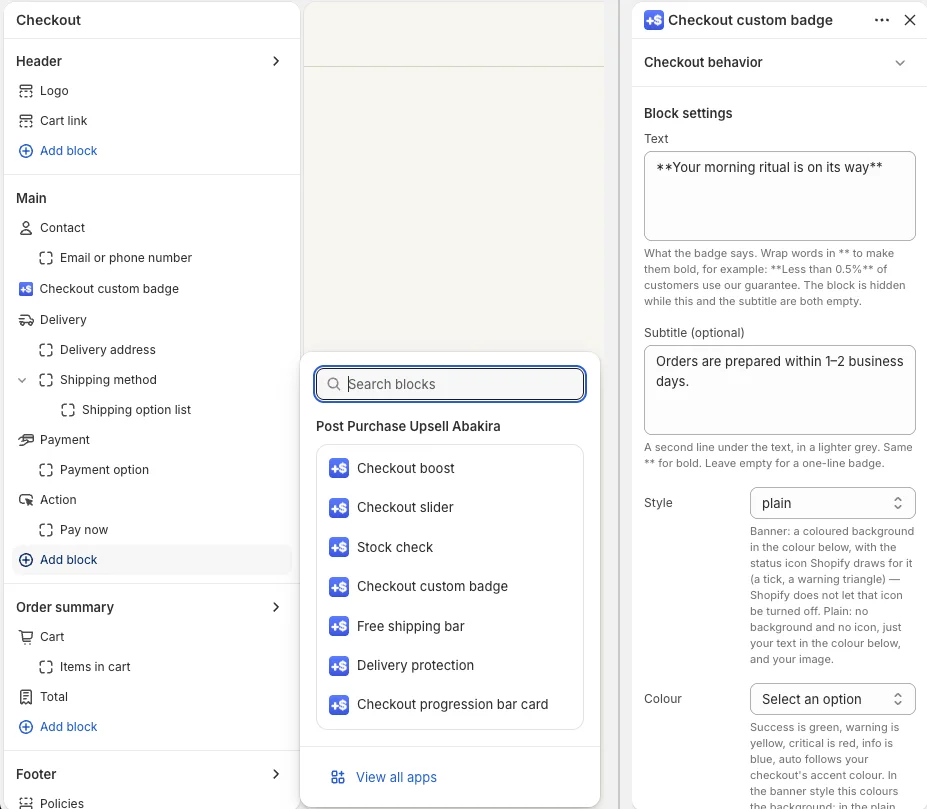
The funnel matters here. A buyer sees the checkout blocks of the one funnel their cart matches, checked in the order of your funnel list, the same rule as on the pages after payment. So a store selling kits and refills can bump filters on kit carts and a second bag on refill carts, with two funnels. Several funnels and cart conditions are paid features; the chapter on multiple funnels and targeting shows how the list order decides.
What does the app check before it shows the bump?
Before Post Purchase Upsell Abakira shows an order bump in the checkout, it reads Shopify’s own answer to one question: can an app add a line to this checkout right now? Shopify exposes it as canAddCartLine. If the answer is anything but yes, the card stays hidden, so a buyer never clicks a button that was going to fail.
Shopify’s developer documentation names the cases where adding a line is refused: draft order checkouts, where cart lines can’t be modified, and accelerated checkouts such as Apple Pay, Google Pay and Meta Pay. A few more checks run on our side:
- Availability. When Shopify reports the product as not available for sale, the button turns grey and reads “Unavailable” instead of “Add”. A bundle with one unavailable item isn’t shown at all.
- A failed add. If Shopify refuses the line anyway, the buyer reads “This could not be added. Nothing in your order has changed.” The button doesn’t spin and nothing pretends the line is there.
The app’s Checkout page also tells you when the store can’t show checkout blocks at all, with a heading such as “Your checkout refuses added lines” or “Your store is not on Shopify Plus”, instead of letting you build something nobody sees. Our guide chapter on checkout blocks lists every block and that placement step in detail.
How many order bumps should one checkout have?
One order bump per checkout is the number to start with. Fewer choices at the moment of paying is the technique: one recommended add-on, the rest after payment. A store that cut its cart upsells from three to one saw both average order value and conversion go up.
The app allows up to six blocks per surface in each funnel, and the first time you add a second product block it’s worth asking what it adds. Pick the one product that most obviously belongs with the cart, and move the others after payment, where they can’t cost you the order.
There is also a pricing reason. In a Shopify checkout, a product carries one discount rate. If two blocks set a discount on the same product, the first block wins, and the app flags the second one in the editor: “Another block above already sets a discount on one of these products. In the checkout a product carries a single rate, and the first block wins — so this one’s rate is not applied to it.”
What should the order bump offer, and at what price?
A good order bump is a product the buyer will need with what’s already in the cart, priced well under the main item, so that saying yes takes no thought. Think consumables and companions: paper filters with a pour-over kit, a second bag of coffee with a grinder, a cleaning kit with sneakers, refills with a starter set.
Three rules for picking it, with prices from our coffee demo store:
- Below the cart, never above it. On a $49 kit, the bump is an $8 filter pack or an $18 bag of beans, not a second kit.
- A visible discount. The card shows the old price struck through next to the new one. Our demo store’s after-payment offer runs at 20 percent; the 90 percent cap is there for typos, not as a target.
- The free shipping gap. If you offer free shipping above an amount, price a bump that closes the gap for a typical cart, and put the app’s Free shipping bar block above it. The bar shows progress toward an amount you enter; it doesn’t read your Shopify shipping rates, so keep the two in step.
For a product sold on subscription, the line goes into the cart with its plan. The card shows the plan’s name in bold (or “Subscription” when Shopify gives no name) and the note “This is a subscription. It renews automatically until you cancel it.”
Delivery protection works as a bump too, as a checkbox with a fixed price. The app has a separate screen for it. One rule decides whether the box can start ticked: our settings explain that “Shopify requires the buyer to tick the box themselves before you can charge them for it”, so a pre-ticked box is only saved when the protection is free. How to set its price is in pricing shipping protection on Shopify.
What is the order bump for stores that are not on Shopify Plus?
For a store that is not on Shopify Plus, the order bump moves to the one-click post-purchase page, which Shopify shows right after payment and before the thank-you page. The buyer sees one product and one button, and accepting adds the item to the order they just paid, charged to the card already used, with no form to fill in again.
Here is that page on our demo store, after the buyer paid for the $49 pour-over kit:
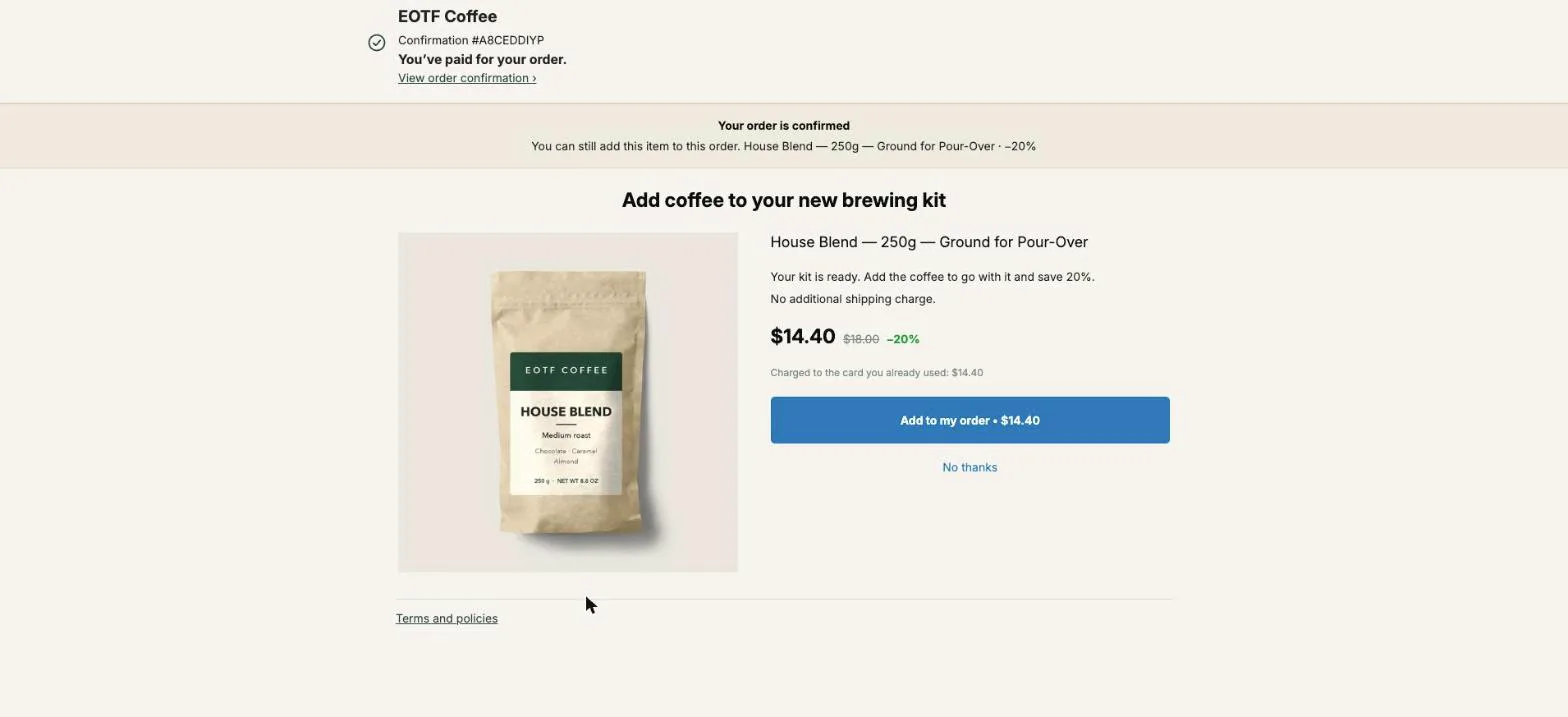
The button reads “Add to my order • $14.40” and the line under the price says “Charged to the card you already used: $14.40”. The buyer knows the amount three times before tapping. A tap on “No thanks” sends them to the thank-you page; their order isn’t touched either way.
The accepted item lands on the same order. This is order #1010 in the Shopify admin, with the kit and the discounted House Blend on one order and one shipment:
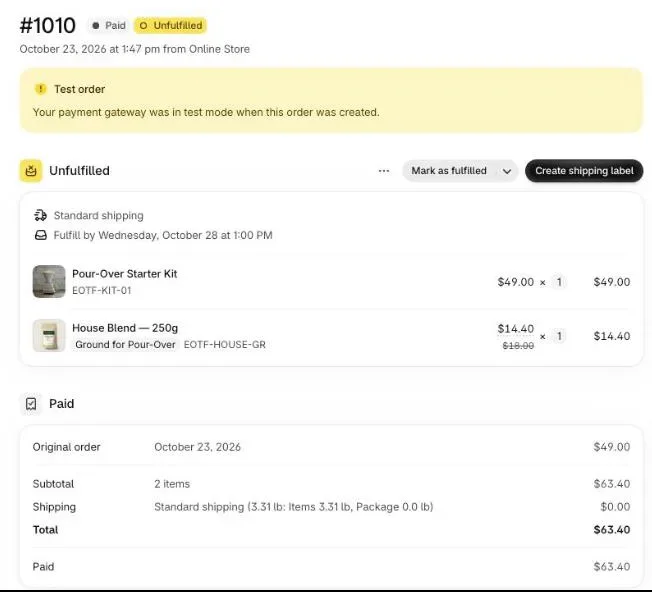
Shopify holds fulfillment while the buyer is on the post-purchase page, and lifts the hold when they reach the order status page, or one hour after checkout if they never do. That’s why the extra item goes in the same box. Setup is one setting in Shopify plus a funnel in the app: select the app under Settings > Checkout > Post-purchase page, then turn on a funnel. Our article on how a one click upsell works on Shopify walks through it step by step.
Should the order bump go before or after payment?
An order bump before payment can only be shown on Shopify Plus, and it sits on the page where buyers decide whether to finish. An order bump after payment works on every plan and can’t lose the sale, because the buyer has already paid. A store on Plus can run both: one bump in the checkout and the rest of the offers after payment. For the full choice between the two sides of payment, see checkout upsell on Shopify: in the checkout or right after.
The after-payment side has one argument the checkout can’t match: an offer shown to someone who already bought can’t lower your conversion rate. That’s the reasoning behind moving most cart and checkout upsells to the page after payment and keeping at most one before it.
| Bump in the checkout | Bump after payment (one-click page) | |
|---|---|---|
| Shopify plan | Plus only | Any plan |
| Risk to the main sale | Some: it's on the page where buyers abandon | None: the order is already paid |
| Who sees it | Buyers who go through the checkout page and whose checkout accepts added lines | Card payers; Shopify skips the page for wallets, gift cards and other non-card payments |
| Number of offers | One recommended | Up to three in a row, each with its own tap |
| Countdown | Not allowed | Allowed, and real |
| Same order | Yes, same payment | Yes, charged to the stored card |
On our free plan the after-payment bump runs with one funnel and up to 100 offers shown a month on the one-click page. The checkout bump needs Plus and the Scale Plus plan; the listing has the current plans.
What about buyers who pay with PayPal, Apple Pay or cash on delivery?
Buyers who pay with PayPal, Apple Pay, other wallets or cash on delivery never see the one-click page, because Shopify only shows it after a credit card payment. They do all reach the thank-you page, and an offer there can be added to the order they already placed. That’s the bump for everyone the first two placements miss.
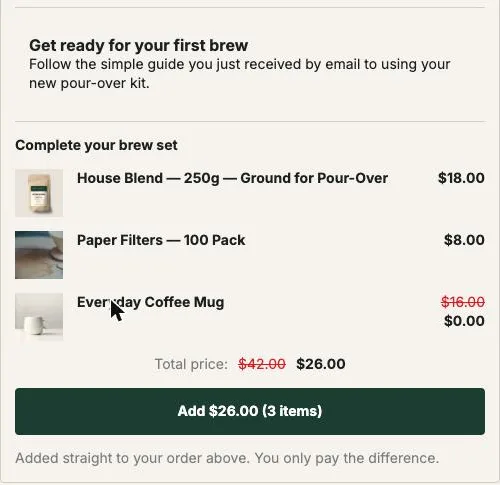
The note under the button says what happens: “Added straight to your order above. You only pay the difference.” A card buyer pays that difference on a Shopify payment page. A cash on delivery buyer pays it at the door with the rest, as our article on upselling cash on delivery orders explains. The thank-you page chapter of our guide covers placing the block and choosing who sees it.
How do I know if my order bump is working?
An order bump is working when the buyers who were shown it accept it often enough to add revenue without lowering the share of checkouts that finish. Post Purchase Upsell Abakira measures each surface separately, because a checkout bump and an after-payment bump are seen by different buyers at different moments.
At checkout, a block in a funnel can carry up to four versions, each with its own product or discount, drawn block by block. The checkout doesn’t count views: counting them would mean a network call on every render of the payment page, and we refuse to add that to your checkout. So a checkout test is read on what sold: the By product table shows the sales made inside the checkout, with no view rate, so give each version its own product to tell them apart. The guide chapter on A/B testing an offer shows where to read it. A/B testing is part of the Scale plans.
After payment, the Results screen shows extra revenue by surface and the conversion of each funnel. Change one thing at a time (the product, the discount, or the heading) and give each change a few weeks of orders. For where an order bump fits among the other ways to lift basket size, see what actually raises average order value on Shopify, and our methods page for the rest of the techniques.
Post Purchase Upsell Abakira has a free plan that runs on a live store, up to 100 offers shown a month on the one-click page.
Add an order bump to a Shopify Plus checkout
- Open the funnel's checkout tab In Post Purchase Upsell Abakira, on the Scale Plus plan, open a funnel and click the In the checkout tab.
- Add a Single product block Click Add a block, choose Single product, pick the product and set its discount. Single product blocks accept a discount of up to 90 percent.
- Save the funnel Click Save. The app sends the block to your checkout as soon as it is saved.
- Place the Checkout boost block In Shopify admin, open your checkout editor from Settings, then Checkout, click Add block in the section where you want the offer, choose Checkout boost and click Save.
- Test with a real cart Open your store, add a product that matches the funnel, go to checkout and click Add on the card. Check that the line appears in the order summary at the discounted price, then click Remove to see it go.
Frequently asked questions
Is an order bump the same as an upsell?
An order bump is one kind of upsell: a small add-on offered at the moment of paying, accepted with a tick or a single button. Other upsells replace the product with a bigger one or come after the order, on the post-purchase or thank-you page.
Can I pre-tick an order bump checkbox?
Only when the add-on is free. Our checkout settings put it this way when the add-on has a price: Shopify requires the buyer to tick the box themselves before you can charge them for it. The app only saves a pre-ticked box once it has read a price of zero.
Does an order bump in the checkout create a second order?
No. The bump is a line added to the cart before payment, so it is paid with everything else in one order. The after-payment version is added to the order that was just paid, also without a second order.
Can I show a countdown timer next to an order bump?
Not in the checkout. Shopify's App Store rules forbid apps from adding countdown timers there. A timer is allowed on the one-click post-purchase page, where it really ends the offer when it reaches zero.
Is the order bump shown in the buyer's language?
The Add and Remove buttons, the Unavailable label and the error message ship with the app's checkout block in 33 languages and follow the checkout language. The heading and product texts are the ones you write, plus your product titles from Shopify.
Related articles
Written by Abakira. We make small software: Shopify apps, web tools and iPhone apps. This article is about Post Purchase Upsell Abakira.