Shopify post-purchase experience: answer buyers first
Map each buyer question after payment to the Shopify page they're on, from the one-click page to order status, so fewer of them email or call.
2026-11-10 — Abakira, updated 2026-11-12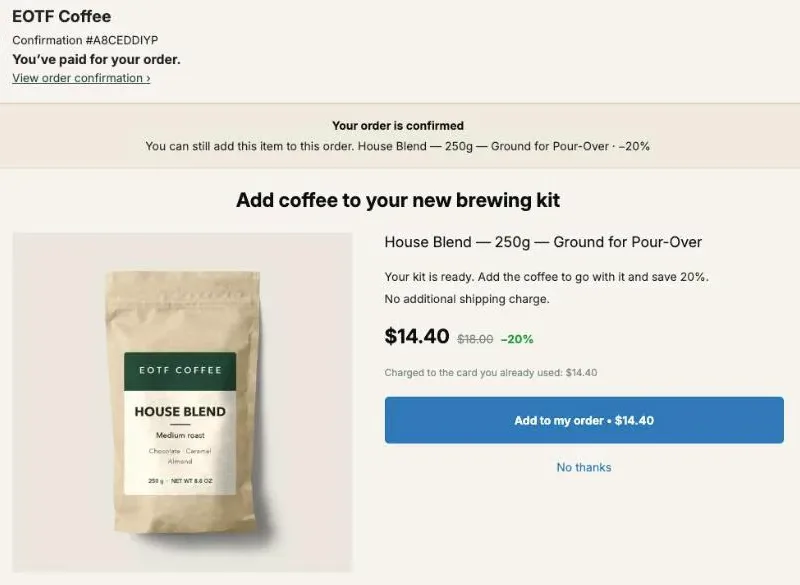
A Shopify post-purchase experience is everything a buyer sees between the moment their payment goes through and the moment they unpack the parcel. You get five places to work with: the one-click post-purchase page, the thank-you page, the confirmation email, the order status page and the shipping emails. The best setup puts the answer to each question on the page the buyer is already looking at, so they don’t have to email or call.
Most advice on this topic stops at branded tracking pages and review emails. This article starts from the questions buyers actually ask after paying, matches each one to a page, and shows what we put on those pages in Post Purchase Upsell Abakira, with screenshots from our demo coffee store.
What happens after a buyer pays on Shopify?
After a buyer pays on Shopify, they go through up to five pages and emails in a fixed order: the one-click post-purchase page (card orders only), the thank-you page, the order confirmation email, the order status page, and the shipping emails that link back to that same page. Each one comes at a different moment, so each one has a different job.
| Moment | What the buyer sees | What they’re asking | What to put there |
|---|---|---|---|
| Seconds after paying | One-click post-purchase page | ”Is my order through?” | One offer, a clear “you’ve paid” message |
| Right after | Thank-you page | ”What did I just buy, and what now?” | Order summary, next steps, a matching add-on |
| Minutes later | Order confirmation email | ”Did it work?” | A link to the order status page |
| While waiting | Order status page | ”When will it arrive? Can I add something?” | Packing time, carrier, an Add button |
| After shipping | Shipping emails, then the order status page again | ”Where is it?” | Tracking, care tips, the refill |
The questions don’t change much from store to store. What changes is where you answer them. An answer that sits on the right page is one less ticket, and an offer that sits on the right page is one more line on the order.
What should the one-click post-purchase page say?
The one-click post-purchase page should say two things in the first line: the payment went through, and here is one extra item the buyer can add with a tap. Shopify shows it between payment and the order confirmation, to card buyers, and the extra item is charged to the card already used.
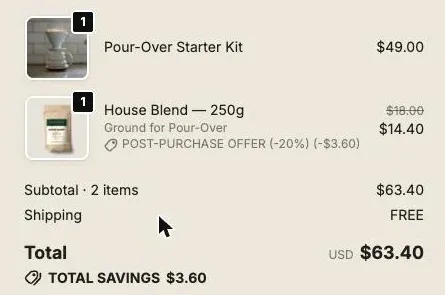
On our demo store, a buyer who paid $49.00 for a pour-over starter kit sees “You’ve paid for your order” at the top, then House Blend at $14.40 instead of $18.00, with the line “Charged to the card you already used: $14.40”. One tap on Add to my order and the order goes to $63.40. Same order, same parcel.
Three rules keep this page calm:
- Say it’s paid before you sell. A buyer who isn’t sure the order went through won’t read your offer. The page opens on a banner that confirms the payment, and Shopify requires it there.
- One offer at a time, three at most. The funnel shows the next offer only after a yes or a no, and never more than 3 in a row.
- No exclamation marks. The app refuses them on this page, in the buyer texts and in the offer copy. A buyer who has just paid doesn’t need to be shouted at.
If the offer has a time limit, make it a real one. The countdown on this page runs from 30 seconds to 30 minutes, and when it hits zero the offer is actually declined. The guide chapter on discounts, timers and proof on the one-click page covers the settings.
What should the thank-you page answer?
The thank-you page should answer “what happens now?” for every buyer, whatever they paid with: card, PayPal, Apple Pay, iDEAL, a gift card or cash on delivery. It’s the confirmation page, shown once, so it’s the place for next steps and for the add-on that goes with what they just bought.
What to put on it, in this order:
- The order summary. Shopify draws it. If the buyer said yes on the one-click page, the added item is already in it, which answers “did that work?” without a word from you.
- One line of next steps. “We pack orders within one business day” beats a paragraph about your brand. A Text block in the app holds it.
- The add-on. A Single product block with the item that goes with the order: filters with a coffee maker, a case with a phone, a refill with a starter kit.
Each block has a Show it to setting. On the Pro plan and above, Buyers who did not see the one-click page catches the PayPal, wallet and cash on delivery buyers who skipped the first offer. Buyers who refused everything can get a care tip instead of a second pitch. The thank-you page chapter of our guide lists every rule.
How do buyers add something to their order without contacting you?
Buyers add something to their order without contacting you when the thank-you or order status page carries an Add button that edits the order for them. Post Purchase Upsell Abakira does this through Shopify’s own order editing: the item goes on the order already placed, and a card buyer pays only the difference.
“Can I add something to my order?” is one of the most common questions a store gets in the first hour after checkout. Done by hand, it’s a support task: open the order, click Edit, add the product, send an invoice, wait for the payment. Done by the buyer, it’s a sale.
The line under the button tells the buyer what will happen before they tap:
- “Added straight to your order above. You only pay the difference.” when the item can go on the order;
- “Opens a new checkout. Your order above stays exactly as it is.” when it can’t, for example because the order has already shipped.
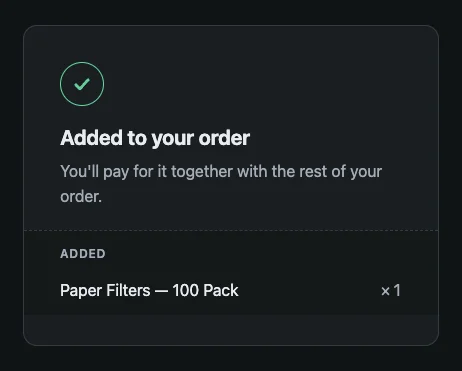
After the tap, a card buyer lands on Shopify’s payment page for the new line only. A buyer paying on delivery isn’t sent anywhere: the page reads “Added to your order” and “You’ll pay for it together with the rest of your order.”
In your admin, the order shows the new line with its discount in the same unfulfilled group, and the edit carries the note “Added from the thank you page offer (Abakira Post Purchase Upsell).” Nothing to merge, no second parcel. Our article on adding a product to an existing order on Shopify covers the manual way and every case where the order can’t take it.
What should the order status page show while the parcel is on its way?
The order status page should show what the buyer wants to know while they wait: when the order ships, who carries it, how to reach you, and the one item they’ll want next. Buyers open it from every Shopify order email, sometimes several times, so it’s the page that carries most of your post-purchase experience.
A layout that works, top to bottom:
- Shopify’s order details and tracking. You don’t touch these.
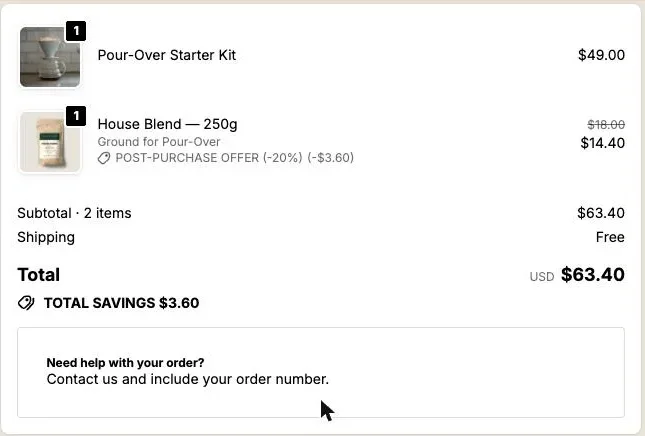
- A Text block with your support answer. On our demo store it reads “Need help with your order? Contact us and include your order number.” Add your packing time and carrier if buyers keep asking for them.
- A product block for the refill or the accessory. It’s the moment for “running low already?”, not for the item they just bought.
The Add button on this page is built fresh at each visit, and its signed link stays valid for 24 hours. A buyer who comes back from a shipping email a week later still gets a working button.
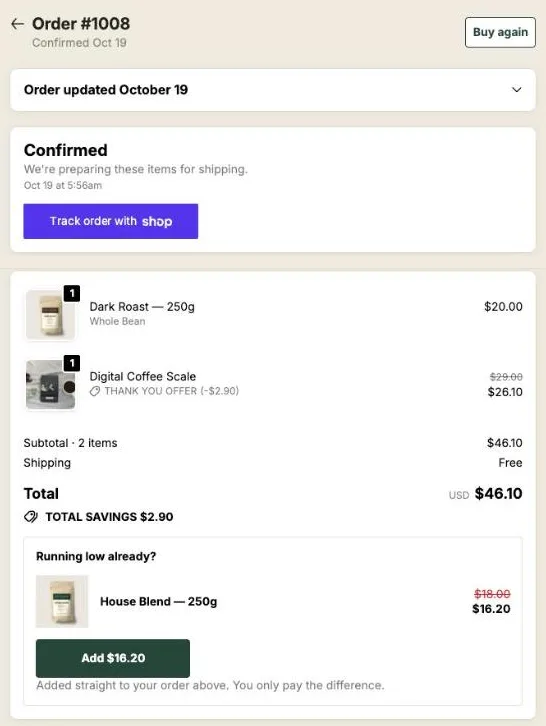
On the Scale plan, the order status page can also react to what happened on the thank-you page, with rules like Buyers who bought on the thank-you page and Buyers who bought nothing on the thank-you page. The order status page chapter shows the editor, and our article on what to offer on the order status page once the order ships has offer ideas by product type.
Which questions still need a person?
The questions that still need a person are the ones that change the order rather than add to it: a new delivery address, a cancellation before it ships, a wrong size, a damaged parcel. No page can answer them, so they arrive by email, chat or phone, often within the hour after checkout.
That’s where the post-purchase experience moves from your pages to your support. A few habits make it fast:
- Ask for the order number everywhere. The text block on the order status page says it; your contact form and your phone greeting should too. A request with an order number takes one lookup.
- Answer address changes before the warehouse pulls the order. If a 3PL picks your orders within minutes, the window is short, and the fix after shipping is a carrier redirect.
- Keep a short list of what support can do by itself. Reship, refund the shipping, swap a variant on an unfulfilled order. Anything off that list goes to you.
Phone is the channel most small stores skip, and the one buyers reach for when something feels wrong with an order they just paid for. If your store gets a steady flow of calls, it’s worth reading how an e-commerce call center handles order questions, returns and “where is my order?” calls. Ringly, an AI phone agent built for Shopify stores, answers those calls around the clock and hands the hard ones to a person. We worked out what missed calls cost a Shopify store, call type by call type, on an example store that misses 10 calls a week.
The more questions your pages answer, the fewer calls are left, and the calls that remain are the ones worth a human.
How do the order emails bring buyers back to the right page?
Shopify’s order emails can bring buyers back by linking to the order status page, through the Liquid variable {{ order_status_url }}. Every answer and offer you put on that page is reached from every email that carries it, without you writing a new email or setting up a flow. Our guide to the order confirmation email upsell shows how to reword that link and what the page behind it can sell.
That makes the emails a delivery route more than a place to write. Two things to check in Settings > Notifications:
- The link is there and prominent in the order confirmation and the shipping confirmation. If you edited the templates, make sure you didn’t remove it.
- The email doesn’t repeat the page. A long FAQ in the email and another on the page will drift apart. Keep the answers on the page and let the email point to it.
If you take cash on delivery or bank transfer, one more setting matters. When a buyer adds an item to an order they haven’t paid yet, the app can send them an email: the setting is Email the buyer when they add an item to an order they haven’t paid yet, on the Buyer page, off by default. The buyer then knows the new total before the courier arrives.
How do I know the post-purchase experience is working?
The post-purchase experience is working when two numbers move: fewer “where is my order” and “can I add something” requests reach your inbox, and more orders leave with an extra line on them. Measure both from the same starting week, so you can tell which change did what.
How to read each one:
- Support load. Count last month’s tickets and calls about order status and order changes. Add the answers to the order status page, then count again four weeks later.
- Offers taken. In Post Purchase Upsell Abakira, the Results screen shows the revenue earned and Buyers who said yes out of those who saw an offer, with a separate tile for the thank-you page.
- One order, one parcel. Open a few orders with an added item and check they stayed single orders. If your warehouse ships within the hour, look at the Where the purchase goes setting of each block: Same order, only until the first parcel ships fits fast warehouses best.
The read your numbers chapter of our guide explains every figure on the Results screen.
How do I set up these pages in Post Purchase Upsell Abakira?
Setting up the post-purchase pages takes two passes: place the app blocks once in Shopify’s checkout editor, then build what each page shows in the app’s funnel editor. The thank-you and order status pages work from Shopify’s Basic plan up; the one-click page needs the app selected in Shopify’s checkout settings.
- Turn on the one-click page. In Shopify admin, go to Settings > Checkout and, in the Post-purchase page section, select Post Purchase Upsell Abakira. Click Save.
- Place the two blocks. On the same screen, click Edit next to your checkout, pick the Thank you page, add Thank you page offer and save. Do the same on the Order status page with Order status page offer.
- Open your funnel. Its tabs are In the checkout, One-click post-purchase, Thank-you page and Order status.
- Write the answers first. Add a Text block on the Thank-you page tab with your next steps, and one on the Order status tab with your support line and packing time.
- Add one offer per page. A Single product, Carousel or Bundle block. A page holds up to 6 blocks; most stores need two.
- Test with two orders. One paid by card, which should reach the one-click page, and one paid another way, which should land on the thank-you page. Then open both orders in your admin.
Our guide to which page to build first after checkout helps you decide the order if your buyers mostly pay with PayPal or wallets. More techniques for the pages after checkout are on our method topic page.
Post Purchase Upsell Abakira runs the one-click page, the thank-you page and the order status page from one funnel. The free plan shows up to 100 offers a month; the listing has the current plans.
Set up the post-purchase pages of a Shopify store
- List the questions Read your last 30 days of support emails and calls and write down the five questions buyers ask most after paying.
- Pick the page for each question Match each question to the moment the buyer asks it: right after paying, on the confirmation, while waiting for the parcel, or after delivery.
- Place the app blocks In Shopify admin, go to Settings > Checkout, click Edit, add the Thank you page offer block on the Thank you page and the Order status page offer block on the Order status page, and save.
- Write the answers In the app's funnel editor, add a Text block with each answer on the Thank-you page or Order status tab, under the order total.
- Add one offer per moment Add a Single product, Carousel or Bundle block that fits the moment, and keep Where the purchase goes on Same order, unless it has fully shipped.
- Check with a test order Place a test order, read each page as a buyer, then open the order in your admin and confirm it is still one order.
Frequently asked questions
When does the post-purchase experience start on Shopify?
It starts the second the payment goes through. On a card order, Shopify can show a one-click post-purchase page before the confirmation. Then comes the thank-you page, the confirmation email, the order status page, the shipping emails and the delivery.
Do I need Shopify Plus to change the thank-you and order status pages?
No. As of November 2026, apps can place blocks on the thank-you and order status pages from the Basic plan up, through the checkout editor. Plus is only needed for apps that change the checkout steps before payment.
Can buyers change their order themselves after checkout?
They can add to it. With Post Purchase Upsell Abakira, an Add button on the thank-you or order status page puts the item on the order they already placed and sends a card buyer to pay only the difference. Address changes and cancellations stay with your team.
Should I answer support questions on the order status page?
Yes, the ones you get every week. A Text block under the order total can say how long packing takes, who the carrier is and how to reach you with the order number. Buyers open that page from every Shopify order email.
How many offers should a buyer see after checkout?
Few. Post Purchase Upsell Abakira shows at most 3 offers in a row on the one-click page, and each block on the thank-you page has its own Show it to rule, so a buyer who just said no to an offer can get a care tip instead of another pitch.
Related articles
Written by Abakira. We make small software: Shopify apps, web tools and iPhone apps. This article is about Post Purchase Upsell Abakira.