Order status page upsell on Shopify: sell until delivery
Buyers reopen the order status page from Shopify's shipping emails. What to offer there, and where the item goes once the order has shipped.
2026-11-01 — Abakira, updated 2026-11-12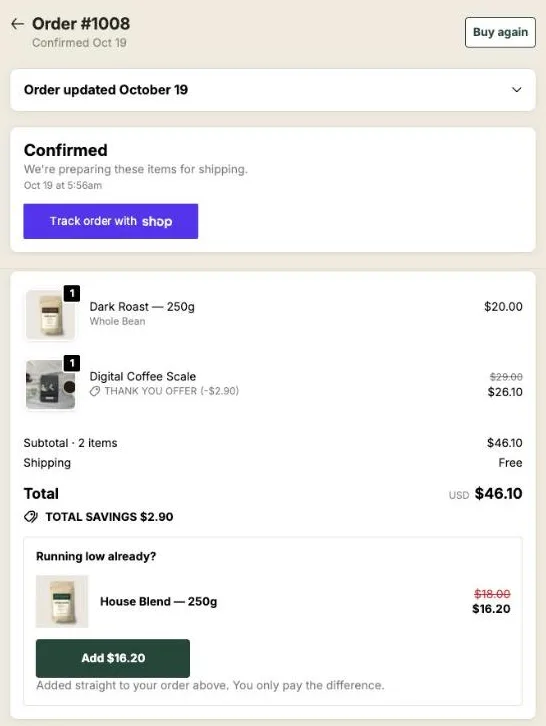
An order status page upsell is an offer placed on the Shopify page buyers reopen to track their parcel, from the link your order emails can carry. It sells for days after checkout, right up to delivery. With Post Purchase Upsell Abakira, an item added there joins the original order while it can still ship in the same parcel, and moves to a new checkout once the whole order has shipped.
The thank-you page is shown once. The order status page is linked from every shipping email.
What is the order status page on Shopify?
The order status page on Shopify is the page that shows a buyer’s order after checkout: the items, the total, and the fulfillment and tracking status. Buyers reach it from the link in Shopify’s order emails, and for supported carriers Shopify updates the shipment status on it in real time.
Shopify’s order emails reach it through the Liquid variable order_status_url, which returns the link to the order status page for that order. The ones to check are Order confirmation, Shipping confirmation and Shipping update. As of November 2026, Shopify lets a buyer open the page from the confirmation email for 3 weeks without logging in, in the same browser. After that, the buyer has to log in.
If you edited those templates, check that the link survived. A customized template doesn’t get it automatically; the Liquid variable is {{ order_status_url }}, added in Settings > Notifications. No link in the email, no visit, no offer. To turn that link into a reason to visit, see how to word an order confirmation email upsell.
| Thank-you page | Order status page | |
|---|---|---|
| When the buyer sees it | Once, right after paying | Every time they open the link in an order email |
| Order state at that moment | Just placed, nothing shipped | Anything from unfulfilled to delivered |
| What the buyer came for | Confirmation | Where is my parcel |
| Countdown | Up to 72 hours from the order | The same deadline, counted from the same moment |
| Block in the checkout editor | Thank you page offer | Order status page offer |
Our article on the thank you page upsell that joins the same order covers the first page. This one is about the second, and about time.
Why put an upsell on the order status page?
An upsell on the order status page reaches the buyer at moments the thank-you page never sees: when the shipping confirmation arrives, when the parcel is out for delivery, and when the product is in their hands.
There are three practical reasons to build it:
- It’s a repeat visit you don’t pay for. Shopify sends the shipping emails anyway. Each one carries the link back to the page.
- It reaches every buyer. The one-click post-purchase page only shows for card payments in the cases Shopify allows. The order status page shows for every order, PayPal, wallets and cash on delivery included.
- Each stage of the order has an offer that fits it. Before shipping, an add-on that rides in the same box; after delivery, the refill. The table below sets them out.
What should I offer on the order status page?
The best order status page offer matches where the parcel is. Before shipping, offer what can still ride in the same box. After delivery, offer what the buyer needs once the product is in use: the refill, the consumable, the accessory that only makes sense after unboxing. One funnel can’t time blocks to the parcel, so pick offers that work at both moments.
Here’s what we’d put there, by order state:
| Order state | Offer that fits | Example on a coffee store |
|---|---|---|
| Confirmed, nothing shipped | A small add-on that can join the same parcel | Paper filters with a pour-over kit, under $10 |
| Partly shipped | An item from the part still in the warehouse | A second bag of the coffee that hasn’t left yet |
| Fully shipped, in transit | Something worth a separate order | A grinder or a scale, at a clear discount |
| Delivered | The refill or the next size up | The 1 kg bag of the coffee they’re drinking now |
Three offers stay useful from the first day to the last:
- The consumable that runs out. Refills, filters, blades, cartridges. It’s needed whether the parcel left yesterday or arrived this morning. The full setup, subscriptions included, is in replenishment offers on the order status page.
- One more of what they bought, with a discount. A Single product block on the same product. The heading in our test, “Running low already?”, reads naturally at any point.
- A bundle that completes the set. A Bundle block adds 2 to 4 products in one tap, and one of them can be free at 100%.
Keep it short. The page is there to answer “where is my parcel”, and Shopify puts the order and tracking first. A Text block can sit next to the offer with what you’d answer in a support email: delivery times, how to reach you, what to do on arrival.
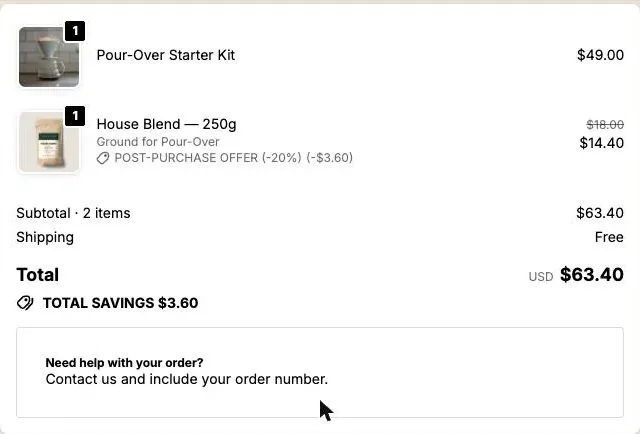
In January, the same page can sell the second step of a buyer’s program; see a January order status offer timed before week three.
Where does the added item go once the order has shipped?
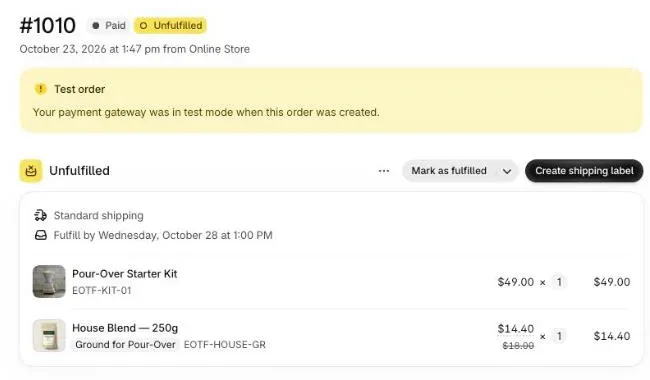
An item added from the order status page goes into the original order while the order can still take it. Once the whole order has shipped, Post Purchase Upsell Abakira sends the buyer to a new checkout instead, and the item becomes a separate order with your usual shipping rates. The setting Where the purchase goes, on each block, decides where that switch happens.
The three options, with the wording from the admin:
| Order state when the page loads | Same order, unless it has fully shipped (default) | Same order, only until the first parcel ships | Always a new checkout |
|---|---|---|---|
| Nothing shipped yet | Same order, same parcel | Same order, same parcel | New checkout |
| One parcel left, the rest waiting | Same order, ships with what’s left | New checkout | New checkout |
| Everything shipped, delivered included | New checkout | New checkout | New checkout |
| Cancelled | New checkout | New checkout | New checkout |
| An earlier added item still unpaid | New checkout | New checkout | New checkout |
The app reads the order’s fulfillment status from Shopify every time the page loads, before it draws the button. So the buyer never taps “add to my order” and lands on an error: the line under the button already says which of the two will happen. For the same order it reads “Added straight to your order above. You only pay the difference.” For a new checkout it reads “Opens a new checkout. Your order above stays exactly as it is.”
The order is checked again at the tap. If a tab stayed open while your warehouse shipped the order, the buyer sees “This order has already shipped” and nothing is added to it.
Which option should I pick?
Pick by how your warehouse handles a line that arrives late:
- Same order, unless it has fully shipped suits most stores. On a partly shipped order, the new item joins the part still waiting, so it goes out with the next parcel.
- Same order, only until the first parcel ships suits warehouses that ship fast and split orders. Once anything has left, an extra line on that order would make another shipment, so the buyer gets a separate order instead.
- Always a new checkout suits items that ship from somewhere else, such as a print-on-demand product next to stock you hold.
When a new checkout opens, the buyer doesn’t type a code. The button carries the block’s attribution, and a Shopify discount function installed by the app applies the discount to that product in the checkout. If your orders go to a warehouse system, our article on keeping the upsell in one parcel with a 3PL explains the timing on that side.
How do I set up an order status page upsell on Shopify?
Setting up an order status page upsell on Shopify takes two parts: placing the app block once in Shopify’s checkout editor, then building the blocks in the app. Shopify only shows an app on this page where you place it, so a funnel with order status blocks and no placed block shows nothing, and nothing warns you.
- Place the block. In Shopify admin, go to Settings > Checkout and click Edit next to your checkout configuration. Switch the page selector to Order status, open Apps in the editor sidebar, add Order status page offer from Post Purchase Upsell Abakira, and save.
- Open the Order status tab. In the app, open your funnel. Its tabs are In the checkout, One-click post-purchase, Thank-you page and Order status.
- Add a block. Pick Single product, Carousel or Bundle, choose the product and set the discount. Text and Banner blocks carry words only. A page holds up to 6 blocks.
- Keep the placement on Placed in the checkout editor. The block then shows wherever you dropped the app block in Shopify’s editor, so you move it there, not in the app.
- Set Where the purchase goes. See the table above.
- Decide on a countdown. More on that below.
- Test it. Place a test order and open its order status page from the confirmation email, or from the order in your Shopify admin under More actions > View order status page. Tap Add and check the order: one order, the new line with its discount. Then mark the order as fulfilled and reload the page. The note under the button now says a new checkout opens.
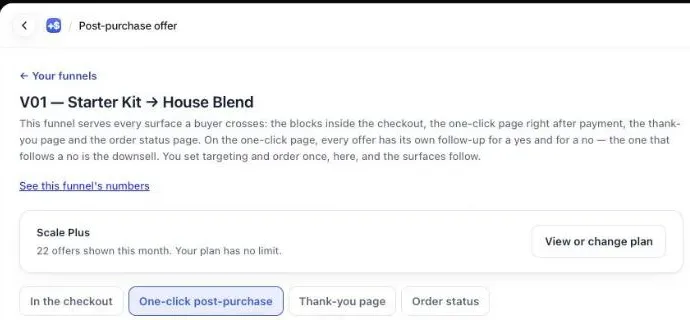
The order status page chapter of our guide walks through the same steps with the editor screens.
A sequence across both pages
A Sequence block shows several offers one at a time, and the buyer pays once at the end. A saved sequence can be used on both the thank-you page and the order status page. The order status page picks up after what the buyer already added on the thank-you page, and if you A/B test the sequence, each order keeps the same version on both pages. A sequence always goes into the same order, so it has no “Always a new checkout” option.
Can I show different offers to buyers who bought on the thank-you page?
Yes. On the order status page, each block’s Show it to setting has four rules: Everyone, Buyers who bought on the thank-you page, Buyers who bought from a specific thank-you block and Buyers who bought nothing on the thank-you page. The rules read what the buyer added and paid for on the thank-you page of the same order.
This is how you avoid showing the same offer twice. A buyer who took the filters on the thank-you page doesn’t need them again on day three; show that buyer the grinder instead. A buyer who passed gets a second chance at a smaller offer.
When you add blocks for buyers who bought, move your existing blocks to Buyers who bought nothing on the thank-you page. Left on Everyone, they’d show to both groups.
These rules come with the Scale and Scale Plus plans. Without the Scale or Scale Plus plan, order status blocks go to every buyer, so keep the order status offer different from the thank-you offer by product rather than by rule. The free plan has one funnel, and that funnel serves every order.
The one-click rules from the thank-you page (who saw the one-click page, who accepted, who refused) don’t exist here. The order status page only knows the order, and a buyer who refused everything on the one-click page leaves no trace on it.
Does a countdown work on the order status page?
A countdown works on the order status page, and it counts from the moment the order was placed, not from the moment the page opens. Every visit and every device shows the same deadline, up to 72 hours. That makes it a real deadline, but it also means a timed block is gone well before most parcels arrive.
So split your blocks by purpose:
- A short window after checkout: give it a countdown, 24 or 48 hours. A buyer opening the shipping confirmation the next day sees the time that is really left.
- The delivery offer: no countdown. It has to be there on day five.
At zero, the setting When the countdown reaches zero picks one of three outcomes: Hide the block, Keep the block, at full price or Keep the block, show a message. In all three the discount really ends. If the order date can’t be read, the block shows without a timer rather than with a made-up one. The guide chapter on discounts, timers and social proof has the full countdown settings.
What happens with cash on delivery orders?
A cash on delivery buyer who taps Add on the order status page gets the item on the same order and pays for it at the door with the rest. There’s no payment page. The screen reads “Added to your order” and “You’ll pay for it together with the rest of your order.”
One detail matters on a COD store. Post Purchase Upsell Abakira allows one unpaid addition per order. On a COD order that addition stays unpaid until the courier collects, so after a first add, any other block on the page opens a new checkout instead. Put your strongest offer first. The same goes for the thank-you rules: a COD add counts as “bought” once the order is marked paid.
Our article on upselling cash on delivery orders covers the full COD path, and the guide chapter on what happens after the buyer taps Add covers unpaid orders and the price the buyer pays.
How do I know if the order status page is earning?
The Results screen of Post Purchase Upsell Abakira groups the thank-you and order status pages under “Thank-you and order status pages”, with the revenue and the number of orders behind each. An item added to the same order counts once the order is paid.
Read it after your usual delivery time has passed for a batch of orders, since the delivery offers only get their chance then. If the page earns little, change the product before the discount.
More techniques for the pages after checkout are on our method topic page.
Post Purchase Upsell Abakira runs the one-click page, the thank-you page and the order status page from one funnel. The free plan shows up to 100 offers a month; the listing has the current plans.
Set up an order status page upsell on Shopify
- Place the app block In Shopify admin, go to Settings, then Checkout, and click Edit next to your checkout configuration. Switch the page selector to Order status, open Apps in the editor sidebar, add Order status page offer from Post Purchase Upsell Abakira, and save.
- Open the Order status tab In Post Purchase Upsell Abakira, open your funnel and click the Order status tab.
- Add a product block Add a Single product, Carousel or Bundle block, pick the product and set its discount.
- Choose where the purchase goes Set Where the purchase goes. Leave the default, Same order, unless it has fully shipped, for most stores. Pick Same order, only until the first parcel ships if a partly shipped order must not get a late parcel.
- Decide on a countdown Leave the countdown empty for an offer meant for delivery day. Add one only for a short window, up to 72 hours after the order was placed.
- Test with a real order Place a test order, open its order status page from the confirmation email or from the order in your admin under More actions > View order status page, and tap Add. Then mark the order as fulfilled and reload the page to see the new checkout note.
Frequently asked questions
Do I need Shopify Plus for an order status page upsell?
No. App blocks on the Thank you and Order status pages work on every Shopify plan. Shopify Plus is only needed for blocks inside the checkout itself, before payment.
Will the offer show if I edited my Shopify notification emails?
Only if your edited templates still link to the order status page. Open Order confirmation, Shipping confirmation and Shipping update in Settings > Notifications and check that each one carries the Liquid variable order_status_url; add it back where it's missing.
Does the buyer have to log in to see the offer?
Not at first. Shopify lets a buyer open the order status page from the confirmation email for 3 weeks without logging in, in the same browser. After that, the buyer logs in or enters the order number with the email or phone number used at checkout.
Can the order status page show different offers than the thank-you page?
Yes. Each funnel in Post Purchase Upsell Abakira has a Thank-you page tab and an Order status tab, and the blocks in each are separate. You can repeat an offer on both pages or give each page its own.
What happens to a countdown when the buyer comes back a week later?
The block has already reached zero. Countdowns on the order status page run up to 72 hours from the moment the order was placed, so a week later the block is hidden, shown at full price, or replaced by your message, depending on the setting you chose.
How long does the Add button link stay valid?
The signed link behind the button expires 24 hours after the page built it. Every visit builds a fresh one, so a buyer who comes back from a shipping email days later gets a working button.
Related articles
Written by Abakira. We make small software: Shopify apps, web tools and iPhone apps. This article is about Post Purchase Upsell Abakira.