New year new me marketing ideas that outlast week three
New year new me marketing ideas for Shopify: put step two of a January buyer's program on the order status page, live before January 18, 2027.
2026-11-10 — Abakira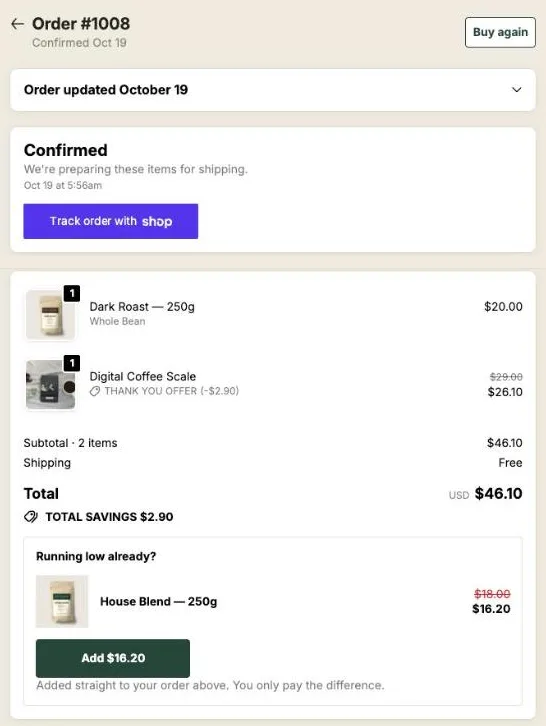
Most new year new me marketing ideas are about the first order: a resolution bundle, a sale, a countdown on January 1. The idea that lasts sells the second step of the program before the buyer quits, and on Shopify the place for it is the order status page, the page your order emails link to. Put the next step there by January 18, 2027, the Monday of the third week of January.
For a January 2027 calendar, that gives you three dates to work with: December 26 to switch the January setup on, January 18 to have the step-two offer in place, and January 31 to take it down. The rest of this page covers what to offer by type of program, how to set the blocks up in Post Purchase Upsell Abakira, and the settings that decide whether the item rides in the same parcel.
What are the best new year new me marketing ideas for an online store?
New year new me marketing ideas for an online store fall into two groups: the ones that win the first January order, and the ones that sell the second. Most published lists cover the first group. The table below sorts the usual ideas by the job they do and the page where they run.
| Idea | What it does | Where it runs |
|---|---|---|
| Resolution bundle (“starter kit”) | Turns a goal into one product to buy | Product page, collection page |
| Clearance of last year’s stock | Frees cash and shelf space after the holidays | Sale collection, email |
| Countdown flash sale on January 1 | Gives the first days a deadline | Home page banner, email, ads |
| Goal quiz | Routes a visitor to the right starter product | Landing page |
| 30-day challenge | Gives the buyer a plan to follow | Email series, social |
| Subscribe and save | Turns the first order into a recurring one | Product page, one-click page after payment |
| Referral offer | Gets the buyer to bring a friend into the program | Thank-you page, email |
| ”Year in review” email | Brings back last year’s customers | |
| Anti-resolution message (“no new you needed”) | Stands apart from the January noise | Ads, email, social |
| Next step of the program, offered before week three | Sells the second order to the January buyer | Order status page |
The first nine run before the buyer pays, in an email, or right after checkout. The last one sits on a page the buyer reaches from Shopify’s own order emails, while the first order is still on its way or just arrived. That’s the one this page is about. If you want the subscription and stock-up offers shown one tap after payment, our article on January sale ideas with subscribers and stock-ups covers them.
Why does the third week of January matter?
The third week of January matters because resolutions stall around then, and the date popularly called “Quitter’s Day” sits in it. That date, when New Year workout resolutions are said to drop off, was set at January 19 in 2020. In January 2027 that third week runs from Monday, January 18 to Sunday, January 24.
That date gives a January marketing plan its deadline. A starter kit bought on January 2 is a promise to keep going. The second purchase, the refill, the next band, the second month of beans, is what keeps the program alive for the buyer and turns a one-off January order into a customer. Once the program has stopped, the refill has no reason to exist.
So the offer for step two has to reach the buyer before January 18, while the first product is still in use. Here’s the arithmetic for a store that ships in two days and delivers in three to five:
| Order placed | Ships | Delivered | Days left before January 18 |
|---|---|---|---|
| December 28, 2026 | December 30 | January 2 to 4 | 14 to 16 |
| January 4, 2027 | January 6 | January 9 to 11 | 7 to 9 |
| January 11, 2027 | January 13 | January 16 to 18 | 0 to 2 |
An order placed on January 11 arrives in the third week itself. For that buyer, the step-two offer is useful on the page they open to track the parcel, before the product has even been unboxed.
Why put the next step on the order status page?
The order status page is Shopify’s page for one order: the items, the total and the fulfillment status. Shopify’s notification templates can link to it with the order_status_url variable, and the emails Shopify sends after an order lead back to the page where your offer sits.
Three things make it the right page for step two of a January program:
- It reaches every buyer. The one-click page after payment is limited to the payments Shopify allows there, mostly cards. The order status page exists for every order, PayPal, wallets and cash on delivery included.
- The item can join the order that’s already placed. In Post Purchase Upsell Abakira, an item added from the order status page goes into the original order while it hasn’t fully shipped, so it rides in the same parcel. After that, the buyer pays in a new checkout.
- It sells at a different moment from the thank-you page. The thank-you page shows once, right after paying. The order status page is linked from the order emails, which go out on the dates in the table above.
The guide chapter on the order status page shows the block in the checkout editor and the buyer’s side of the page.
What should the order status offer be for each January program?
The order status offer for a January program is the product the buyer needs to do week three and four: what runs out first, what comes next in difficulty, or the second month of the same thing. It should cost less than the starter purchase, so it reads as the next step rather than a new decision.
Here’s what we’d put in the block for the most common January programs:
| Program | Starter purchase | Order status offer | Block to use |
|---|---|---|---|
| Home fitness | Resistance band set, light | The next band up, or a heavier set | Single product |
| Running | Shoes or a first pair of tights | Socks and anti-chafe balm, together | Bundle (2 to 4 products) |
| Coffee at home | Pour-over starter kit | Month two of the beans, in 2 or 3 bags | Single product with Quantity tiers |
| Skincare routine | Three-step routine kit | The step that empties first, in full size | Single product |
| Supplements | 30-day pack | Days 31 to 90, as a 2- or 3-pack | Single product with Quantity tiers |
| Planner and habit journal | Undated planner | Refill pages, a pen set | Bundle |
| Dry January | Alcohol-free spirits sampler | The full bottle of the one in the sampler | Carousel |
| Sleep routine | Pillow spray, eye mask | Refill of the spray | Single product |
Two rules keep these offers honest:
- The offer follows from what’s in the order. A buyer of a light band set gets the next band; a buyer of the heavy set gets something else. That’s what funnel targeting is for, covered below.
- Small and close to the first product. A refill or the next level costs less than the starter purchase. Keep the bigger products for the thank-you page or for your own email.
When the program has a subscription, the order status block can carry it: choose the subscription plan on the product in the block. A subscription product always opens a new checkout, since Shopify can’t add a subscription to an order that’s already placed. The guide chapter on subscriptions has the details.
How do I set up a January order status offer?
A January order status offer takes two parts: one Shopify step to place the app block on the order status page, and one funnel in Post Purchase Upsell Abakira with the January blocks in its Order status tab. Shopify only shows an app on that page where you place it, so the first step comes first.
- Place the app block. In your Shopify checkout editor, switch to the Order status page, add the Order status page offer block from Post Purchase Upsell Abakira, and save.
- Create the January funnel. In the app’s funnel list, click Create a funnel and give it the program’s name. On a paid plan, set its condition to Order contains (the starter products), or to Order contains a product from a collection on the Scale plan. Move it above your everyday funnel. Funnels are checked from top to bottom, and the first one whose condition the order meets is the one shown.
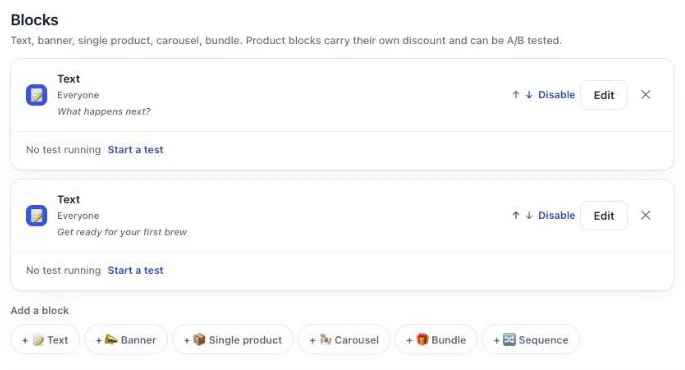
- Open the Order status tab. Each funnel has four tabs: In the checkout, One-click post-purchase, Thank-you page and Order status. The Order status tab holds up to 6 blocks.
- Add the next-step block. Under Add a block, pick Single product, Carousel, Bundle or Sequence. Choose the product and set its discount.
- Add quantity if the next step is a supply. Quantity tiers on an order status block take up to 3 tiers, from 2 to 9 units, each with its own discount.
- Set Where the purchase goes. See the next section.
- Add a Text block. One or two lines under the offer, more on that below.
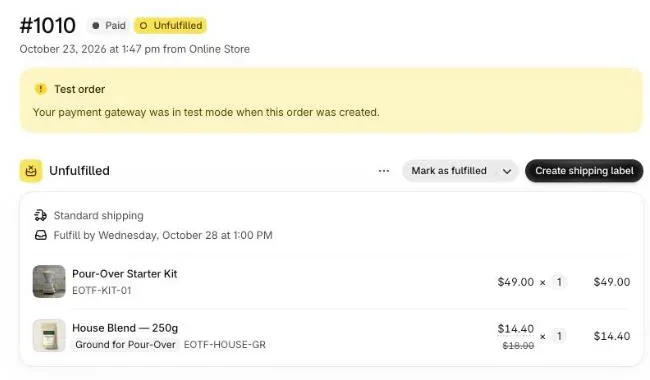
- Test it. Place a test order with a starter product. Open its order status page from the order in your Shopify admin, under More actions > View order status page, and tap Add. Then mark the order as fulfilled, reload the page, and read the line under the button again.
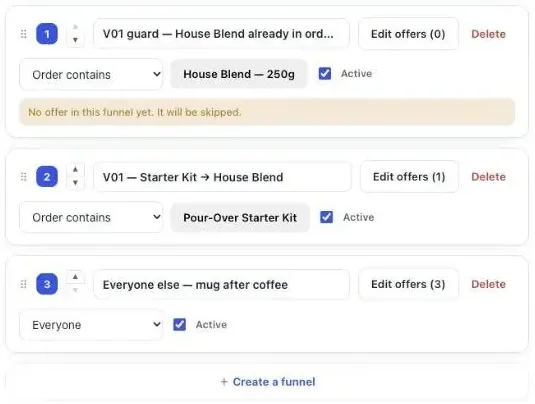
On the free plan, you run one funnel that serves every order, so the January blocks go in the Order status tab of that funnel and every buyer sees them. Pick a step-two product that fits most of your January orders. The chapter on multiple funnels and targeting explains the conditions and their plans.
Which block type fits which program?
Block types on the order status page match the shape of the next step. A Single product block sells one item, optionally with quantity tiers. A Bundle block adds 2 to 4 products in one tap, and one of them can be free at 100%. A Carousel shows several products side by side.
A Sequence shows up to 6 offers one at a time, with If they add it and If they say no thanks deciding which comes next, and the buyer pays once at the end. On the order status page, a sequence is always a saved one, shared with the thank-you page. It always goes into the same order, so once the order can no longer take additions, the sequence isn’t shown at all. Use it for the first days, while nothing has shipped, and keep a Single product block for the delivery week. The sequence block chapter explains the branches.
Where does the added item go if the order has already shipped?
An item added from the order status page goes where the block’s Where the purchase goes setting sends it. The app reads the order’s fulfillment status each time the page loads, before it draws the button, and the line under the button tells the buyer which of the two will happen: the same order, or a new checkout.
The three options, in the admin’s words:
| Order state | Same order, unless it has fully shipped (default) | Same order, only until the first parcel ships | Always a new checkout |
|---|---|---|---|
| Nothing shipped yet | Same order, same parcel | Same order, same parcel | New checkout |
| Partly shipped | Same order, next parcel | New checkout | New checkout |
| Fully shipped or delivered | New checkout | New checkout | New checkout |
For a January program the default fits most stores. In the shipping example above, an order placed on January 11 leaves on January 13, so for its first two days the next band or the second month of beans joins the same parcel. A buyer who opens the shipping update on January 17 gets a new checkout for the same product, with your usual shipping rates, and the discount still applies there through a Shopify discount function the app installs.
The line the buyer reads under the button is exact. For the same order: “Added straight to your order above. You only pay the difference.” For a new checkout: “Opens a new checkout. Your order above stays exactly as it is.” The order is checked again at the tap, so a tab left open while your warehouse shipped the order can’t add a line to it.
Our article on order status page upsells goes through each option by warehouse type, and the one on keeping the upsell in one parcel with a 3PL covers stores whose orders go to a warehouse system.
Should a January order status offer have a countdown?
A countdown on the order status page counts from the moment the order was placed, not from when the page opens, and it runs for 72 hours at most. That makes it a real deadline, the same on every visit and every device. It also means a countdown block has ended long before the third week of January.
For an order placed on Monday, January 4, 2027 at 9:00, a 72-hour countdown ends on Thursday, January 7 at 9:00. The parcel in our table above arrives between January 9 and 11. So split the January blocks by purpose:
- A first-days block with a countdown. 24 to 72 hours, for an add-on that can still ride in the same parcel: the socks with the shoes, the filters with the kit.
- The step-two block without a countdown. It has to be on the page on January 17, when the shipping update arrives.
At zero, When the countdown reaches zero offers three outcomes: Hide the block, Keep the block, at full price and Keep the block, show a message. For a January first-days block, Keep the block, at full price leaves the add-on on the page without the discount, and the discount really ends. The guide chapter on discounts, timers and social proof has the countdown settings.
How do I show a different block to buyers who already bought on the thank-you page?
Buyers who already bought on the thank-you page can get their own order status blocks on the Scale plan. Each order status block has a Show it to setting with four rules: Everyone, Buyers who bought on the thank-you page, Buyers who bought from a specific thank-you block and Buyers who bought nothing on the thank-you page.
For a January program this splits cleanly:
| Show it to | January block |
|---|---|
| Buyers who bought nothing on the thank-you page | The step-two product, discounted |
| Buyers who bought from a specific thank-you block | The step after that one: if they took the refill, offer the next level |
| Buyers who bought on the thank-you page | A Text block with the plan for week three, no product |
When you add blocks for buyers who bought, move your existing blocks to Buyers who bought nothing on the thank-you page. Left on Everyone, they’d show to both groups. The rules read what the buyer added and paid for on the thank-you page of the same order.
On the Pro plan and the free plan, these rules are paused and every order status block is shown to every buyer. There, keep the order status offer different from the thank-you offer by product: the thank-you page sells the add-on that rides along, the order status page sells step two.
What should the January block say?
The January block should talk about the program, not about the sale. The buyer opened the page to see where the parcel is; a heading that names week three and the next step is more useful there than “New Year deal”. Post Purchase Upsell Abakira lets you write the heading and subtitle of each block.
Headings and Text blocks we’d write, by program:
| Program | Block heading | Text block under it |
|---|---|---|
| Home fitness | ”Ready for the next band?" | "The next resistance level, for week three and after.” |
| Coffee at home | ”Your second month of beans" | "Two or three bags, in the same parcel if your order hasn’t left yet.” |
| Skincare | ”The step that runs out first" | "The full size of your step one, added to this order.” |
| Supplements | ”Days 31 to 90" | "Two more packs, priced per pack below.” |
| Planner | ”Refill pages for spring" | "Same format as your planner.” |
Write the “same order” promise only where the block is set to join the order, and keep it out of a block set to Always a new checkout. The line under the button already says which one happens; your words shouldn’t contradict it.
The Text block matters on its own. A buyer who doesn’t add anything still reads the line about week three, and that line keeps the page useful, which is the point of a page people open to track a parcel. Our article on upsell copywriting examples has more headlines by offer type.
What does the January calendar look like from December 26 to January 31?
The January calendar runs from the day after your last Christmas shipping date to January 31. Build the funnel and its blocks in December with the funnel inactive, switch it on when the Christmas setup comes down, check it on January 18, and switch it off when the month ends.
| Date (2026-2027) | What to do in Post Purchase Upsell Abakira |
|---|---|
| December 14 to 20 | Build the January funnel and its Order status blocks. Place a test order, then uncheck Active on the funnel. |
| December 26 (Saturday) | Switch off the Christmas funnel, tick Active on the January funnel. |
| January 1 to 7 | First-days block with a countdown, for add-ons that join the first parcel. |
| January 11 (Monday) | Check the Results screen: the first January orders have been delivered. If the step-two product hasn’t sold, change the product before the discount. |
| January 18 (Monday) | Start of the third week. The step-two block must be live without a countdown. |
| January 24 (Sunday) | End of the third week. |
| January 31 (Sunday) | Disable the January blocks or uncheck Active on the funnel. Your everyday funnel takes over. |
On the free plan, you have one funnel, so the January setup means changing the blocks in its Order status tab on December 26 and changing them back on January 31. The seasonal articles page has the Christmas and Valentine’s Day setups on either side of this one.
How do I know if the January order status offer is selling?
The January order status offer shows up on the Results screen of Post Purchase Upsell Abakira, which groups the thank-you and order status blocks under “Thank-you and order status pages”. The By product table lists, for each offered product, Saw it, Orders, Units, Revenue, Share and Clicks.
Read it twice in January. On January 11, the orders from the last days of December have been delivered, so the step-two block has had its chance. If Saw it is high and Clicks low, the heading or the product doesn’t match the program; change the product first. On February 1, compare the January funnel’s revenue with the everyday funnel’s to decide whether the setup comes back next December.
An item added to the same order counts once the order is paid. The guide chapter on reading your numbers explains each column.
Post Purchase Upsell Abakira runs the order status page, the thank-you page and the one-click page from one funnel. The free plan includes 100 offers shown a month on the one-click page; the listing has the current plans.
Set up a January next-step offer on the Shopify order status page
- Place the app block In your Shopify checkout editor, switch to the Order status page, add the Order status page offer block from Post Purchase Upsell Abakira, and save. Without this block on the page, nothing appears.
- Create the January funnel In the app's funnel list, click Create a funnel and name it after the program. On a paid plan, set Order contains to the starter products, or Order contains a product from to the starter collection on Scale, and move the funnel above your everyday funnel.
- Open the Order status tab Open the funnel and click the Order status tab. That tab holds up to 6 blocks for this page, separate from the thank-you blocks.
- Add the next-step block Click Single product, Bundle or Sequence under Add a block, choose the step-two product and set its discount. Add Quantity tiers if the next step is a supply for several weeks.
- Set Where the purchase goes Leave the default, Same order, unless it has fully shipped, for most stores. Choose Same order, only until the first parcel ships if your warehouse must not ship a late item from an order that has partly left.
- Leave the countdown empty on the delivery-week block A countdown here runs at most 72 hours from the moment the order was placed. Keep it for a short first-days block only, and leave the block that must still be there in the third week of January without one.
- Add a Text block for the week-three message Add a Text block under the offer with one or two lines about what to do when motivation drops, so the page helps even when the buyer doesn't add anything.
- Test with a real order Place a test order with a starter product, open its order status page from the order in your Shopify admin under More actions > View order status page, and tap Add. Then mark the order as fulfilled and reload the page: the line under the button now says a new checkout opens.
Frequently asked questions
Can I run a January order status offer on the free plan?
Yes. The free plan of Post Purchase Upsell Abakira runs one funnel, and the blocks in its Order status tab are shown to every buyer. The free plan also includes up to 100 offers shown a month on the one-click page. Targeting the January funnel to certain products comes with the paid plans, and the Show it to rules on the order status page come with the Scale plan.
Do buyers who paid with PayPal or Apple Pay see the order status offer?
Yes. The order status page is Shopify's page for every order, whatever the payment method, so a block placed there reaches wallet, PayPal and cash on delivery buyers too. Only the one-click page right after payment depends on the payment method.
Can I sell a monthly subscription from the order status page?
Yes. Pick the subscription plan on the product in the block. A subscription product always opens a new checkout, because Shopify cannot add a subscription to an order that is already placed. The buyer pays in that checkout, with the plan you picked on the product.
How do I take the January blocks down in February?
Click Disable on each January block in the Order status tab, or uncheck Active on the January funnel in the funnel list. Both keep the blocks and their settings, so you can switch them back on next December.
How do I check that my shipping emails link to the order status page?
Open each notification you send in Settings > Notifications and check that it still uses the order_status_url variable, which returns the link to that order's status page.
Can the order status page show a different offer from the thank-you page?
Yes. Each funnel has a Thank-you page tab and an Order status tab, and their blocks are separate. On the Scale plan, the Show it to setting on the order status page can also hide a block from buyers who already bought on the thank-you page.
Related articles
Written by Abakira. We make small software: Shopify apps, web tools and iPhone apps. This article is about Post Purchase Upsell Abakira.