How to sell dead stock on Shopify after the holidays
Sell dead stock on Shopify without a sitewide sale: find it in Analytics > Reports, then offer it after payment as a mystery box or a $0 gift.
2026-11-09 — Abakira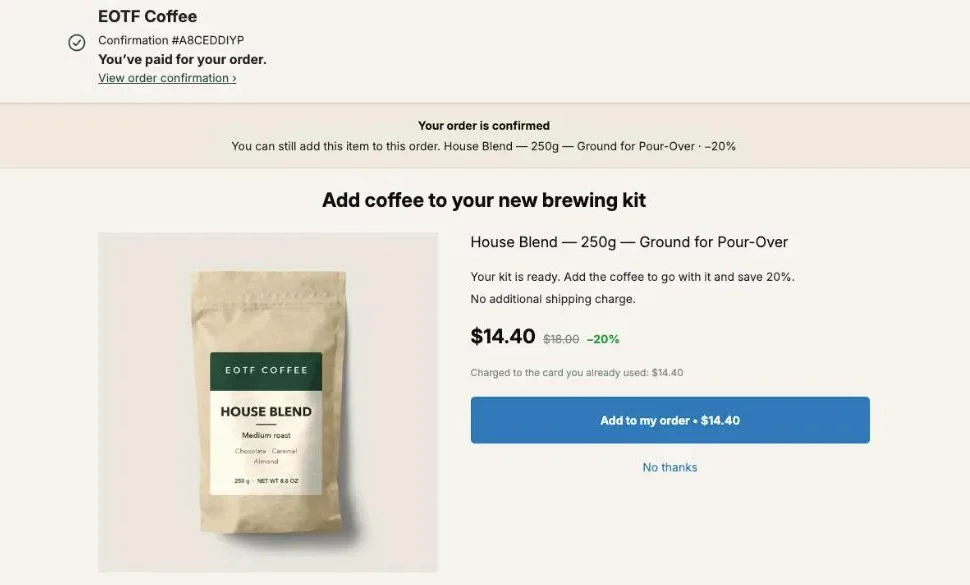
To sell dead stock on Shopify, first list the products with near-zero sales in Analytics > Reports (sell-through, days of stock, ABC grade), then move them through the channel that fits each one: targeted markdowns, bundles with best-sellers, a free gift, a liquidator or an outlet. One more place to sell it is the page right after payment, where a mystery box of old stock or a $0 gift above an order total joins the order the buyer just paid for, in the same parcel, without a clearance banner on your storefront.
January is the month to do it: the holiday orders are out, and the reports show what December didn’t sell. The first half of this page covers the usual ways to clear it. The second half is the post-purchase setup, step by step, in Post Purchase Upsell Abakira.
What counts as dead stock on a Shopify store?
Dead stock on a Shopify store is inventory that stopped selling and isn’t expected to start again: last season’s colors, discontinued scents, the size nobody orders, holiday packaging in January. It ties up cash you paid upfront and shelf space you pay for every month, and its value drops the longer it sits.
Slow stock is different. A product that sells two units a month when you ordered for twenty is slow; a product that sold nothing since September is dead. The difference matters because slow stock can be fixed with better placement, and dead stock needs a reason to buy it that it doesn’t have today: a lower price, a pairing, or a different buyer.
Set one rule and apply it to every product. “No sale in 90 days” is a common line for things that should sell monthly. Seasonal products are judged against their season, so the Christmas mugs only become dead stock if they’re still there in late January.
How do I find dead stock in Shopify reports?
Dead stock in Shopify shows up in the inventory reports under Analytics > Reports. Three of them do most of the work: Products by sell-through rate, Inventory remaining per product and ABC product analysis. Read them together, because each one hides something the others show.
- From your Shopify admin, go to Analytics > Reports and open the inventory reports.
- Open Products by sell-through rate. It divides units sold by units sold plus units still in stock, over the most recent 30 days. Sort from lowest to highest; the products at or near 0% are your list.
- Open Inventory remaining per product. It estimates how many days of stock you have from the average daily sales of the last 28 days. A variant with no sales at all shows N/A, which is exactly the variant you’re looking for.
- Open ABC product analysis. It grades each variant by its share of revenue over the last 28 days: A for the top 80%, B for the next 15%, C for the last 5%. Dead stock sits in C, next to some products that are simply cheap.
- Open Month-end inventory value to put a dollar figure on what you found. It only counts variants that have a cost per item, so fill that field first. That number is what you’ll try to turn back into cash.
- Copy the list into a sheet with three columns: units on hand, cost per item, and regular price. Every decision below comes from those three numbers.
The sell-through and ABC reports read the last 28 to 30 days, so run them in early January: a product at 0% after the December rush is dead stock.
What are the ways to sell dead stock on Shopify?
The ways to sell dead stock on Shopify fall into two groups. Some keep the stock on your own store and sell it to your own customers, at a lower price or with a better reason to buy. The others move it off your books to someone else, faster and for less.
| Method | Who buys it | Where it runs |
|---|---|---|
| Targeted markdown | Your visitors | Product page, a clearance collection |
| Bundle with a best-seller | Your buyers of the best-seller | Product page, cart, thank-you page |
| Free gift with purchase | Buyers above an order total | Cart, one-click post-purchase page |
| Mystery box | Buyers who just paid | One-click post-purchase page |
| Offer after payment | Buyers who just paid | One-click page, thank-you page, order status page |
| Outlet store or wholesale | Other shoppers, other retailers | A separate store, B2B price lists |
| Liquidator | A bulk buyer | Off Shopify |
| Return to supplier | Your supplier | Off Shopify |
| Donation | A charity | Off Shopify |
Start at the top. The methods in the first rows keep the most of the original price, because the buyer is your own customer. Liquidators, donations and supplier returns are for what’s left once those have run.
How do I mark down dead stock without a sitewide sale?
Marking down dead stock without a sitewide sale means discounting the products on your list, and nothing else. Your best-sellers keep their price, so the markdown only costs you on stock that was earning nothing. Set a price floor first: cost plus shipping and packing, so no clearance order loses money.
A few rules keep the markdown honest:
- Use Shopify’s compare-at price, so the old price shows struck through on the product page. A buyer sees the saving without reading a banner.
- Group the products in one collection and give it a plain name, “Last of the 2026 colors” or “Old packaging, same product”. The reason tells the buyer why this price exists now.
- Mark down in steps. Start at 20%, check sell-through two weeks later, go to 35%, then 50%. Each step only applies to what didn’t move at the last one.
- End on a date. A clearance with no end date is a second catalog at a lower price.
One thing to check before a markdown: margin per order. A $9 clearance item shipped alone with free shipping can cost more to send than it brings in. That’s the argument for selling dead stock as an addition to an order that ships anyway, further down this page.
How do bundles and free gifts move slow stock?
Bundles and free gifts move slow stock by attaching it to a product that already sells. The buyer comes for the best-seller; the dead stock item comes with it, at a deep discount or at no charge. The best-seller carries the demand, and the old item gets a reason to be bought.
Price the bundle so the saving lands on the dead item. A best-seller at $40 plus a dead stock item with a regular price of $16 can sell at $46: the best-seller stays at full price and the old item goes for $6. If the $16 item cost you $5, those $6 turn it back into cash instead of a write-off.
A free gift works the same way with a condition attached: spend over a set amount, get the item free. It’s the most direct way to turn an order total into a clearance tool. On Shopify you can run it in the cart with a discount, or after payment, which the setup below covers. Our article on free gift tiers on Shopify goes further, with a bigger gift at each order level, and the Black Friday bundle ideas show how to build sets that carry a slower product.
When should dead stock go to a liquidator, an outlet or a donation?
Dead stock should leave your store when your own customers have had their chance at it. Run markdowns, bundles and after-payment offers first. What’s left after four to six weeks of that goes to a buyer outside your store, where you trade most of the price for speed and for the space back.
- An outlet store or wholesale. A second Shopify store, or a B2B price list on your own, keeps clearance prices away from your main brand. It’s worth it when dead stock is a steady stream rather than a one-off January problem.
- A liquidator. A bulk buyer takes everything in one shipment. You get a small share of the cost back, quickly, and the problem is gone.
- A return to the supplier. Ask your supplier whether they take unsold stock back for credit against your next order. Ask before you mark anything down.
- A donation. You get no cash, but the stock leaves and the shelf frees up. Check the tax treatment with your accountant before you count on a deduction.
Write off what can’t be sold, given or returned. Keeping it costs storage, insurance and counting time every month.
Why sell dead stock after payment instead of in a clearance collection?
Selling dead stock after payment puts it in front of a buyer who has already paid full price for something else. A clearance collection sits in your navigation, where every visitor sees it, including those about to buy at full price. An after-payment offer is shown once, to one buyer, at the moment the order is placed.
The offer also changes what the clearance item costs to ship. On the one-click post-purchase page, the item joins the order that was just paid, charged to the card the buyer already used, and goes out in the same parcel. You can say so on the page: add “No additional shipping charge.” to the offer text, and turn on Show the price summary so the Shipping line reads Free. That’s the margin problem from the markdown section, solved: the $9 item no longer ships alone.
And the buyer gets something no clearance page offers: one tap, no new checkout, no address to type. Three shapes of offer suit dead stock on this page: a mystery box, a $0 gift above an order total, and a discounted single item or bundle on the thank-you page for buyers the one-click page doesn’t reach.
How do I sell a mystery box of dead stock after checkout?
A mystery box of dead stock is a Shopify product of its own, filled at packing time with items from your dead stock list, and offered on the one-click post-purchase page at a fixed price. The buyer gives up choosing the items; in exchange, the box costs less than the regular price of what’s inside.
Set it up in six steps:
- In Shopify, create a product called “Mystery box” with a photo, a weight, a regular price and tracked inventory. Set the quantity to the number of boxes you can actually fill.
- In Shopify admin, open Settings, then Checkout, then Post-purchase page, and select Post Purchase Upsell Abakira. Without it, the one-click page never shows.
- In the app, open a funnel. On the One-click post-purchase tab, add an offer, choose A product under What this offer proposes, and pick the Mystery box.
- Under Discount type, choose Fixed amount and enter the amount that brings the box to the price you want. A box with a regular price of $40 and a fixed amount of $15 sells at $25. The app refuses anything above the price, with the message “A fixed discount cannot be higher than the price”.
- Write the offer text in numbers: “3 items from our 2026 range, worth at least $40.” If your buyers would care, also say what the box never contains, such as a size or a scent they didn’t pick, or two of the same item.
- Place a test order paid by card, tap Add to my order, and check in your Shopify admin that the box sits on the same order as the first purchase.
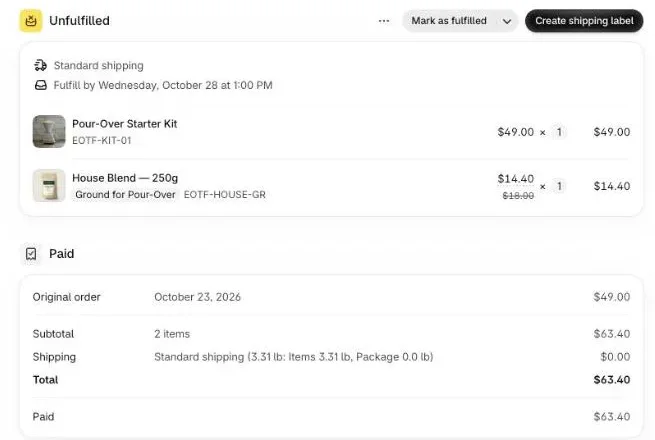
When you pack the box, adjust the inventory of the items you put in it, so your reports stay right. When the boxes run out, the app stops showing the offer, because it hides offers on products that are out of stock. If the last box goes while another buyer is looking at the offer, that buyer reads “This item just sold out. Your original order remains confirmed and paid.”
For dead stock that’s a consumable rather than a surprise, quantity tiers do the job a box does for mixed items. An offer on the one-click page holds up to 5 tiers, from 2 to 20 units, each with its own discount, so a buyer can take 3 or 6 of the old-packaging item at once. On the same page, a bundle offer sells the main product with one or two others at a single discount, up to 90%. Our article on how to price a post-purchase upsell covers where to set the box’s price against the order it follows.
How do I give a dead stock item free above an order total?
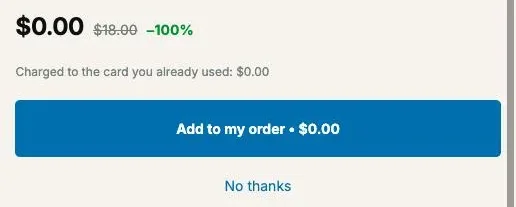
A dead stock item given free above an order total is a one-click offer at $0.00, shown only to orders over the amount you set. The buyer taps Add to my order and the item joins the paid order at no charge. It turns old stock into a reward for a bigger basket rather than a discount on it.
- Create a funnel and name it after the rule, for example “Free tote over $60”.
- On the One-click post-purchase tab, add an offer, choose A product and pick the dead stock item.
- Under Discount type, choose Percentage and enter 100 in Value. A Fixed amount equal to the price gives the same $0.00 line.
- Set the funnel’s condition to Order total is at least and enter 60. The admin’s help line says what it’s compared with: “Compared with the order total the buyer pays, in their checkout currency.”
- Put this funnel above your catch-all funnel. The app checks funnels from the top and serves the first one whose condition the order meets, one funnel per order.
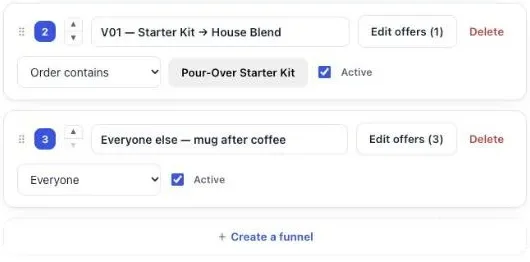
Conditions on funnels, by order total or by product in the order, come with the Pro plan and above. On the free plan, your one funnel is shown to every buyer, so a $0 gift there goes to everyone up to the monthly limit of 100 offers shown. That still works for clearance if the item is cheap and you have plenty of it. Our guide chapter on multiple funnels and targeting explains the order of funnels in detail.
The condition “Order contains” opens a second clearance route. A funnel for buyers of the brewer can offer last season’s filters; a funnel for buyers of the new scent can offer the old one. The pairing logic from the bundle section, applied to the moment after payment.
How do I reach buyers who skip the one-click page?
Buyers who skip the one-click page still reach the thank-you page and the order status page, and Post Purchase Upsell Abakira puts blocks on both. Shopify shows the one-click page mostly to card payments, so buyers paying with PayPal or a wallet go straight to the thank-you page, where a dead stock offer can wait for them.
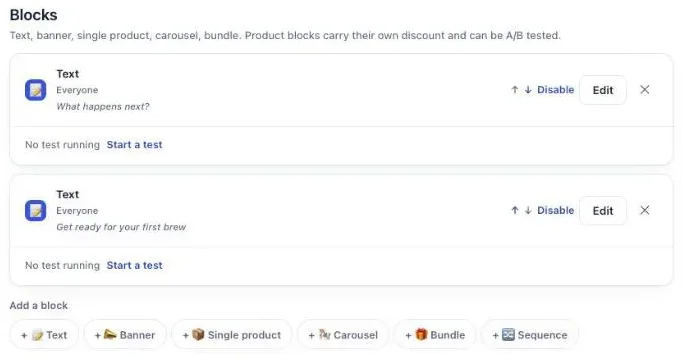
Two blocks suit dead stock:
- Single product shows one item with its own discount. On the thank-you and order status pages, a percentage on a single product goes up to 90%; to give the item away, use a fixed amount equal to its price.
- Bundle holds 2 to 4 products, each with its own discount, and inside a bundle an item can go to 100%. Pair a best-seller at a small discount with the dead stock item at no charge.
On these pages, the setting Where the purchase goes decides whether the item is added to the order already placed or bought in a new checkout. And a block can be aimed at Buyers who did not see the one-click page, so a buyer who already saw the mystery box isn’t offered the same stock twice. That rule comes with the Pro plan and above; on the free plan, a thank-you block shows to every buyer. The thank-you page chapter of our guide has the full setup.
How do I see which dead stock items actually sold?
Dead stock sales show up in the app’s Results screen, in the By product table, which counts paid orders over a recent period, every page included. The columns are Saw it, Orders, Units, Revenue, Share and Clicks, so you can tell a product nobody saw from one buyers saw and passed on.
Compare those numbers with your clearance sheet every week. Three outcomes are possible:
- Seen often, rarely taken. Lower the price one step, or rewrite the offer text so it says in numbers what the buyer saves.
- Taken, and units dropping. Leave it running until the stock reaches the number you’re happy to keep, then switch the offer to the next item on your list.
- Rarely seen. The funnel holding it doesn’t match many orders. Move it up the list, or loosen its condition.
Update the stock column in your sheet as boxes and gifts ship. The goal is a list that gets shorter every week, not a single big number at the end of January.
When should a January dead stock offer go live?
A January dead stock offer should go live the day after your last Christmas shipping date. Before that, the post-purchase page is better used for gift orders that still need to arrive on time. After it, new orders are for the buyer, and a mystery box or a free extra item has no delivery deadline to beat.
Build the funnel in December and leave it inactive, so going live is one checkbox. Run the reports in the first week of January, fill the mystery boxes from what they show, and set the box quantity to what you packed. If you also sell consumables, the January sale and subscription offers show how to pair a clearance with a subscription or a stock-up on the same page. The other seasonal setups are on the seasonal articles page.
Post Purchase Upsell Abakira has a free plan with 100 offers shown a month on the one-click page. The listing has the current plans and what each includes.
Sell a dead stock mystery box on the one-click post-purchase page
- Create the box as a product In Shopify, create a product called Mystery box with a photo, a weight, a regular price and tracked inventory set to the number of boxes you can fill from your dead stock.
- Select the app on the post-purchase page In Shopify admin, open Settings, then Checkout, then Post-purchase page, and select Post Purchase Upsell Abakira.
- Add the offer In the app, open a funnel, stay on the One-click post-purchase tab, add an offer, choose A product under What this offer proposes and pick the Mystery box.
- Set the price Under Discount type choose Fixed amount and enter the amount that brings the box down to the price you want. A fixed discount higher than the price is refused when you save.
- Write the offer text Say what the box contains in numbers: how many items, from which range, and the minimum regular value.
- Test with a card Place a test order paid by card, tap Add to my order and check that the box sits on the same order in your Shopify admin.
Frequently asked questions
How long before slow stock counts as dead stock?
Pick one number and apply it to every product. A common line is no sale in 60 to 90 days for items that should sell every month. Seasonal products get judged against their own season: a Christmas item unsold in November is a problem, the same item unsold in March is just out of season.
Should the mystery box be cheaper than the items inside?
Yes, and the offer should say so in numbers. Price the box below the regular price of what goes in it, and write the floor in the description, for example three items worth at least $40. The buyer is trading choice for price, so the price has to carry the offer.
Can I put dead stock in a bundle with a best-seller on the thank-you page?
Yes. The Bundle block on the thank-you and order status pages holds 2 to 4 products, and each item carries its own discount. Put the best-seller at a small discount and the dead stock item at a deep one, up to 100% inside a bundle, so the slow item rides along with the product people already want.
What happens if the dead stock item sells out while the offer is live?
Post Purchase Upsell Abakira hides an offer whose product is out of stock. If the last unit goes between the moment the offer appears and the tap, the buyer reads: This item just sold out. Your original order remains confirmed and paid.
Can I run a dead stock offer on the free plan?
Yes. The free plan runs one funnel with one offer level on a live store, up to 100 offers shown a month on the one-click page. That funnel is shown to every buyer. Targeting by order total or by product, and a second offer after a no, are on the paid plans listed on the App Store page.
Related articles
Written by Abakira. We make small software: Shopify apps, web tools and iPhone apps. This article is about Post Purchase Upsell Abakira.