Upsell copywriting examples for after checkout on Shopify
Upsell copy for Shopify's post-purchase page: headlines by niche, the shipping line that starts tickets, and the default buyer texts you can rewrite.
2026-11-05 — Abakira, updated 2026-11-11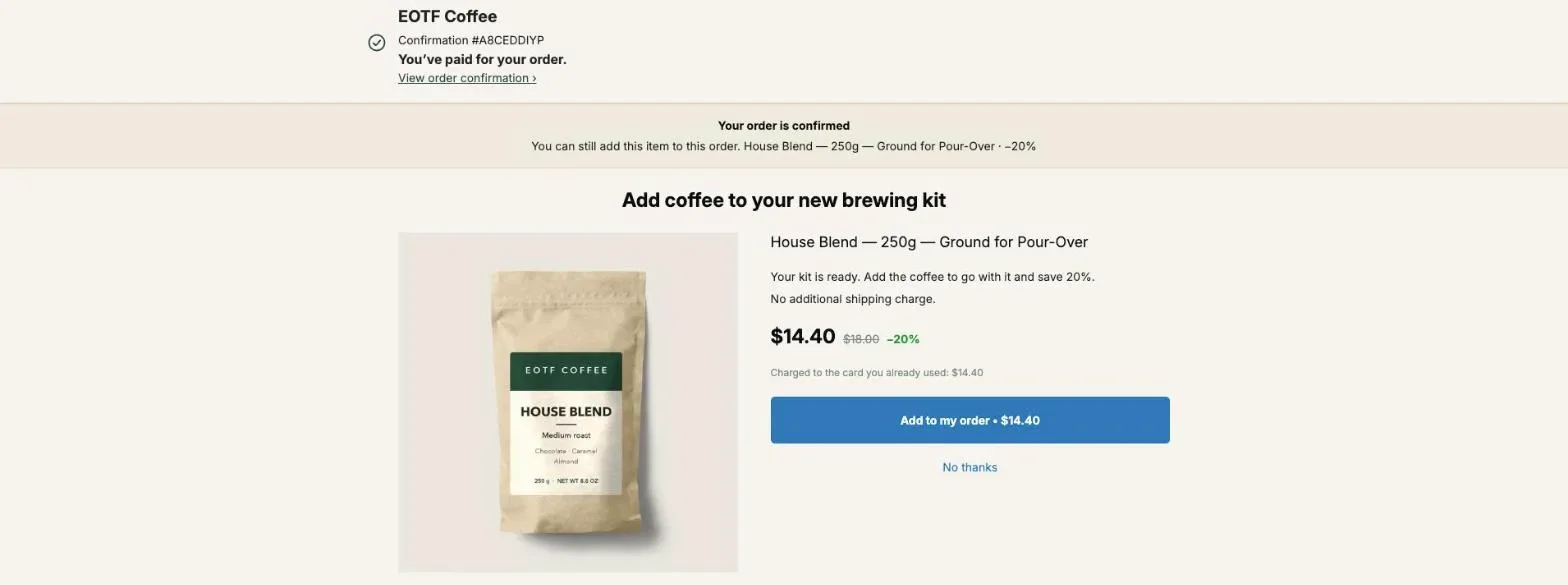
Good upsell copy after checkout names the item, says why it belongs with what the buyer just bought, and states exactly what gets charged and how. On Shopify’s post-purchase page the buyer has already paid, so the copy has one job: make a single yes-or-no decision easy, in two or three lines, without a word that makes them doubt their order went through.
Below are the examples we use, sorted by where each line sits on the page, with the wording that sells, the wording that starts support tickets, and the default buyer texts Post Purchase Upsell Abakira ships in 33 languages.
What makes upsell copy work on the post-purchase page?
Upsell copy works on the post-purchase page when it treats the buyer as someone who has already said yes. The order is paid, the card is on file, and the offer adds one item to that order. The copy doesn’t need to build trust or explain the brand. It needs to connect the new item to the one they chose, give the price, and get out of the way.
That changes the usual copywriting advice in three ways.
First, short beats long. A sales page argues for a product the visitor has never seen. Here the buyer is holding a confirmation and a timer may be running, so every extra line pushes the button lower on a phone. Post Purchase Upsell Abakira caps the argument at 6 lines for exactly that reason: past that, the button falls below the fold.
Second, the reason comes from the first purchase. “You bought X, so Y” is the strongest structure on this page because the buyer just told you what they care about. A generic “You might also like” ignores the only piece of information you have.
Third, the money has to be unambiguous. Shopify’s guidelines for this page ask apps to be transparent about every cost and forbid wording that makes the offer feel compulsory or puts the status of the order in doubt. Copy that blurs either of those is the copy that comes back as a refund request.
Where does each line of upsell copy go?
Each line of upsell copy on the one-click page has a fixed slot. In Post Purchase Upsell Abakira, the per-offer copy lives in a section called Your words on this page, with four fields, and a separate Buyer page holds the texts every offer shares. Knowing which slot carries what keeps you from repeating the same sentence three times.
| Slot | What it’s for | Limit in the app | Who writes it |
|---|---|---|---|
| Promise line | One sentence at the top of the page, next to the countdown when there is one | 140 characters | You, per offer |
| Selling headline | The reason to add the item, shown above the product name | 90 characters | You, per offer |
| Product name and price | The title and price from your catalog | Always shown, not editable here | Shopify catalog |
| Your argument | Short paragraphs or bullets under the name | 600 characters, 6 lines | You, per offer |
| Badges | Short labels, green, amber or red, or an image | 3 badges, 28 characters each | You, per offer |
| Charge note | How the money is taken | Keep {amount} so the price shows | Buyer page, shared |
| Buttons | Accept and decline | Not editable (Shopify rule), translated | The app |
The headline never replaces the product name. Shopify requires the offer to show the same product title, price and image as your store, so the app always renders the name under your headline. Write the headline as the reason, not as a second title. “Add coffee to your new brewing kit” works above “House Blend 250g Ground for Pour-Over”. “House Blend Coffee” above the same name says it twice.
The argument field accepts a small markup of its own: **bold**, ~~struck out~~, a line starting with a dash becomes a bullet, --- draws a separator, and {success:…}, {warning:…} and {critical:…} color a passage green, amber or red. Those three are the only colors the post-purchase page can paint.
What are good upsell headline examples?
A good post-purchase upsell headline ties the offer to the order in one line: what they bought, what this adds. Here are examples by niche, each built the same way. The first column is the order, the second is the offer, the third is the headline we’d write.
| They bought | The offer | Selling headline |
|---|---|---|
| Pour-over starter kit | A bag of ground coffee | Add coffee to your new brewing kit |
| Pour-over starter kit | A digital scale | Weigh your next brew to the gram |
| Cleanser | The matching moisturizer | The step that comes after your cleanser |
| Running shoes | Two pairs of running socks | Socks made for the shoes you just picked |
| Dog harness | A matching leash | Clip a leash to your new harness |
| One month of a supplement | A second month | Keep going past day 30 |
| Phone case | A screen protector | Your case covers the back. This covers the front |
| Candle | A wick trimmer | Trim the wick, get a cleaner burn |
Two patterns run through all eight. The headline is about the buyer’s next moment, not about the product’s features. And none of them shouts. There’s no “Wait”, no “Don’t miss out”, no exclamation mark, because the page doesn’t need to stop someone who is leaving; they’re already on it.
The second row is the “next problem” idea. How to find that next problem for each product is covered in what to upsell after a purchase. A scale doesn’t go with a kit the way coffee does; it solves the question the buyer runs into once they use the kit, which is how much coffee to use. That makes it a strong second offer, shown to buyers who accepted the coffee. In Post Purchase Upsell Abakira that second offer goes under If accepted in the funnel tree, which is a paid-plan feature (the free plan serves one offer). The chapter on the accept and decline tree shows how the branches are laid out.
How do I write the argument under the headline?
The argument under an upsell headline should answer, in two or three lines, the only questions the buyer has: why this item, why now, and what it costs on top. A formula that covers all three: one line linking the item to the order, one line on what it changes for them, one line on price or delivery.
The live offer on our demo store does it in two lines:
Your kit is ready. Add the coffee to go with it and save 20%. No additional shipping charge.
More examples in the same shape:
Your cleanser does the first step. This one locks in the moisture after it.
- Same formula family, no reaction surprises
- No additional shipping charge
One 250 g bag makes about 16 cups at 15 g a cup. Add a second now for {amount} instead of {price}.
The harness you picked has a D-ring on the back. This leash clips straight onto it.
Prices belong in tokens, not in typed figures. Post Purchase Upsell Abakira replaces {product} with the product name, {price} with its regular price, {amount} with the price after your discount, and {save} with what the buyer saves (for a 20% offer, {save} becomes 20%). A figure you type by hand stays the same when you change the discount next month; a token never contradicts the real price printed two lines lower. If a token has no value for an offer, the app hides the whole line rather than showing a sentence with a hole in it. A token the app doesn’t know, such as {prix}, is refused at Save with the message “Unknown: {prix}. Only {product}, {price}, {save} and {amount} exist.”
Which upsell words create support tickets?
The upsell words that create support tickets are the ones a buyer can read two ways. A line the merchant writes about the added item can be read as a statement about the whole order, or about whether the order went through at all. Each line below is clear to the person who wrote it and ambiguous to the person paying.
| Wording to avoid | How the buyer can read it | Write this instead |
|---|---|---|
| Free shipping | The whole order now ships free | No additional shipping charge |
| Your order isn’t complete yet | My order didn’t go through | Your order is confirmed. You can still add this item |
| Join the club and save 20% | The offer does not say it renews | 20% off every delivery. Renews until you cancel |
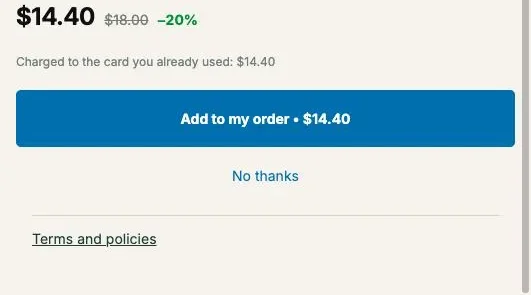
“Free shipping” leads the list. Next to a new item, it reads as a promise about the whole order, not about the one item you are adding. “No additional shipping charge” says only what is true of the added item. That’s the line on our demo offer.
Our guide puts it plainly: every refund request in this category starts with a buyer who did not understand what one tap was going to do. If accepting starts a subscription, if the price is a member price, if the item ships later than the rest, write it in the argument.
The order-status row comes straight from Shopify’s guidelines for this page, which list “Use misleading language that makes the upsell offer feel compulsory or introduces doubt about the status of the order” as something not to do. Every default text in Post Purchase Upsell Abakira is written to that rule. The error messages tell the buyer that the original order remains confirmed and paid.
How do I write urgency without exclamation marks?
Urgency on the post-purchase page works through a real deadline stated calmly, not through punctuation. Shopify’s guidelines for this page show “Wait! Before time runs out!” as an example of what not to write, and Post Purchase Upsell Abakira refuses an exclamation mark in any offer text at Save with the message “Shopify does not allow exclamation marks on this page.”
The refusal covers the ASCII ”!” and the full-width ”!” used in Chinese and Japanese, in the promise line, the headline, the argument and the badges. It’s better to hear it from the admin than from a reviewer.
What replaces it is a countdown that actually ends. When you turn on Show a countdown on an offer, the buyer reads “{time} left to add it”, and when the timer reaches zero the offer is declined and the buyer moves on. Because the deadline is real, the copy can state it without any pressure words: “The offer closes when the timer ends.” Or, in the promise line of a kit offer: “Add it before the timer ends and it ships with your kit.” Our article on post-purchase countdown timers covers how long to set it.
What do the default buyer texts say, and when should I change them?
The default buyer texts in Post Purchase Upsell Abakira are the shared lines every offer uses: the confirmation at the top, the offer description, the charge note, the label on the order and the error messages. They’re prefilled in every language your store publishes, and the Buyer page in the app menu lets you rewrite any of them, per language, except the two buttons.
Here are the English defaults, word for word, as of November 2026:
| Field on the Buyer page | Default text |
|---|---|
| Confirmation heading | Your order is confirmed |
| Confirmation subtext | You can still add this item to this order, without paying again. |
| Offer description — percentage | {value}% off, added to the order you just placed. No new payment details to enter. |
| Offer description — fixed amount | {value} off, added to the order you just placed. No new payment details to enter. |
| Charge note | Charged to the card you already used: {amount} |
| Order label — percentage | Post-purchase offer (-{value}%) |
| Item sold out | This item just sold out. Your original order remains confirmed and paid. |
| Payment declined | The extra payment was declined by your bank. Your original order remains confirmed and paid. |
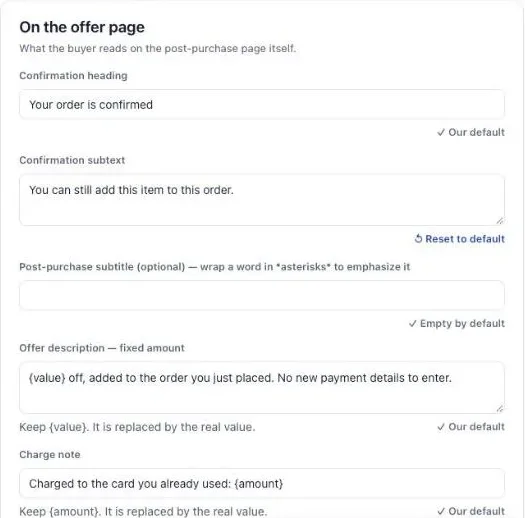
When should you change them? When your brand voice is far from ours, or when a detail of your store matters to the buyer. A store that ships the added item separately should not keep a line suggesting it rides along. A store that writes to its buyers informally can rewrite “Your order is confirmed” as something warmer, as long as it still says the order is confirmed.
Leave the {value} and {amount} tokens in. The admin shows “Keep {amount}. It is replaced by the real value.” under the field, and a charge note without the amount stops telling the buyer what they’ll pay.
To edit a text:
- Open Buyer page in the app menu.
- Pick the language if your store publishes more than one.
- Rewrite the field. “Our default” turns into a Reset to default link, so you can go back in one click.
- Click Save. The admin confirms with “Saved. Buyers see it on the next eligible orders.”
Every field on that page refuses an exclamation mark too, with “Shopify does not allow exclamation marks on this page. Remove the “!”.”, and a field whose default isn’t empty can’t be saved empty.
The two buttons, “Add to my order” and “No thanks”, stay as they are. Shopify’s guidelines say merchants can’t change the button text on this page, and the app translates both into each buyer’s language for you. That’s why the persuasion has to happen in the headline and the argument: the button only confirms what the copy already said.

What does the buyer read on the order afterwards?
After the buyer accepts, the added line carries a discount label on the order itself, and that label stays on the order: it’s in the order summary on the thank-you page, right under the item. In Post Purchase Upsell Abakira the default is “Post-purchase offer (-{value}%)”, which prints as “Post-purchase offer (-20%)” on a 20% offer.
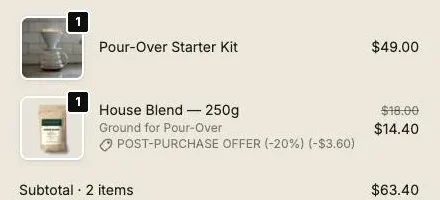
This label is copy too, and it’s the line a buyer reads when they check their order days later and wonder why there’s a second item on it. Make it say where the item came from. Two rewrites that keep the token:
- “Added after checkout (-{value}%)”
- “Kit owner price (-{value}%)”
The label is edited on the Buyer page under On the order, with separate fields for percentage and fixed-amount discounts.
How do I write upsell copy for buyers in other languages?
Upsell copy for buyers in other languages splits in two in Post Purchase Upsell Abakira. Structural texts, the buttons, the price labels, the confirmations and the errors, are translated into 33 buyer languages and follow the language the buyer is browsing in. Your offer copy, the headline, argument, promise line and badges, is one text shown to every buyer, untranslated.
That’s deliberate. The app never guesses at your product wording in a language you can’t check, on a page where the buyer is about to be charged. In practice:
- Write the offer copy in the language most of your buyers read.
- Keep it short: the headline and the argument are one text for every buyer.
- Use tokens for figures.
{amount}always matches the price printed on the offer; a typed “$14.40” stays $14.40 whatever the page shows. - Rewrite the Buyer page texts per language when you want your voice there too. The page shows one set of fields for each language your store publishes.
The guide chapter on buyer wording lists every structural text the app translates and the few rules that differ from one page to the next.
How do I know which copy converts better?
The way to know which upsell copy converts better is to run two versions of the same offer to a split of buyers and compare revenue per buyer who saw it. In Post Purchase Upsell Abakira the copy is stored per version of an offer, so version B can keep the same product and discount and change only the headline or the argument.
Test the offer before the words, though. Settle the product and the discount first, then use the words to push a good offer further. Our guide to A/B testing a post-purchase upsell gives the order we test things in and the number of views a verdict needs. A/B testing is on the Scale plan; writing the copy itself is on every plan.
When you do get to copy, change one thing per test: the headline alone, or the argument alone. Two good candidates from this page are a headline about the next moment (“Weigh your next brew to the gram”) against one about the product (“A scale for pour-over”), and an argument with a price token against one without.
More ways to raise the order total around this page are in what actually raises average order value on Shopify, and the rest of our method articles are collected under upsell method.
Post Purchase Upsell Abakira has a free plan with up to 100 offers shown a month, and the offer copy and Buyer page work on it. The listing has the current plans.
Write the copy of a one-click upsell offer in Post Purchase Upsell Abakira
- Open the offer Open your funnel in Post Purchase Upsell Abakira and stay on the One-click post-purchase tab.
- Open the copy section On the offer, open the section called Your words on this page.
- Write the selling headline Fill in Selling headline with the reason to add the item, in 90 characters or fewer. The product name stays visible under it.
- Write the argument Fill in Your argument with two or three short lines. Start a line with a dash to make it a bullet, and use {amount} or {save} instead of typing a price.
- Add the promise line and badges if you need them Add a Promise line for the top of the page and up to three badges of 28 characters each.
- Check the preview and save Read the Preview next to the fields, fix anything the app flags, such as an exclamation mark or an unknown token, then click Save.
Frequently asked questions
How long should upsell copy be on the post-purchase page?
Short enough that the buy button stays on a phone screen. In Post Purchase Upsell Abakira the selling headline is capped at 90 characters, the promise line at 140, and the argument at 600 characters over 6 lines. Two or three lines of argument is usually all a one-product offer needs.
Can I bold or color part of the upsell copy?
Yes. In the argument field of Post Purchase Upsell Abakira, **bold** and ~~struck out~~ work, a line starting with a dash becomes a bullet, and {success:…}, {warning:…} or {critical:…} color a passage green, amber or red. Links, italics and other colors are not available on the post-purchase page.
Should the upsell copy repeat the product name?
The product name is always shown on the post-purchase page, because Shopify requires the offer to keep the title it has in your store. Your headline sits above it, so use the headline for the reason to add the item, not for the name.
Do I need to rewrite the default buyer texts before going live?
No. The defaults are written to pass Shopify's review rules and are translated into 33 buyer languages. Rewrite them when your brand voice is very different, or when your buyers need a store-specific detail, such as how a combined parcel ships.
Is offer copy available on the free plan?
Yes. The words on the offer and the Buyer page texts are on every plan, including the free plan, which shows up to 100 offers a month. A/B testing two versions of the copy needs the Scale plan.
Related articles
Written by Abakira. We make small software: Shopify apps, web tools and iPhone apps. This article is about Post Purchase Upsell Abakira.