Post purchase upsell countdown timer: how long, and at zero
A post-purchase countdown sells when zero means the offer is gone. Ours runs 30 seconds to 30 minutes, starts at 10, and declines the offer at 0:00.
2026-10-31 — Abakira, updated 2026-11-08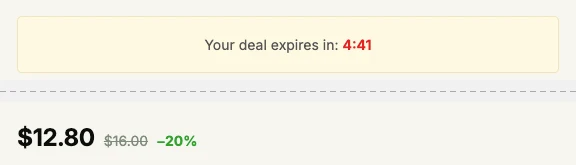
A post-purchase upsell countdown timer is a clock on the offer shown right after payment that tells the buyer how long the deal stays open. It sells when it is true: in Post Purchase Upsell Abakira the timer runs from 30 seconds to 30 minutes, starts at 10 minutes when you turn it on, and at 0:00 the offer is declined for real and the buyer moves on. Five to ten minutes is the range we recommend.
This page covers how long to run it, what has to happen at zero, what the buyer reads, how a timer behaves across a funnel of several offers, and how the thank-you and order status timers differ from the one on the one-click page.
What is a post-purchase upsell countdown timer?
A post-purchase upsell countdown timer is a running clock attached to one offer on the page Shopify shows between payment and the order confirmation. It gives the offer a visible end.
Shopify calls this page the post-purchase page and documents it as appearing “after the order is confirmed, but before the Thank you page.” In our admin it’s the One-click post-purchase tab of a funnel. Each offer on that tab has its own timer setting, so the first offer, its follow-up and its downsell can each run a different clock, or none.
The same idea exists on two other pages, the thank-you page and the order status page, but there the timer works differently, and we cover that further down.
How long should a post-purchase countdown run?
A post-purchase countdown should run five to ten minutes on most offers. That leaves the buyer time to read the offer, pick a variant or a quantity and tap the button, while the number on screen still looks like a deadline.
In Post Purchase Upsell Abakira the default is 10 minutes, and the accepted range is 30 seconds to 30 minutes. Here is how we think about that range:
- 30 seconds to 2 minutes. Only for an offer that needs no thought: a free item, one more of what they just bought, a single variant. Ours turns red at 30 seconds, so a one-minute timer spends half its life in red.
- 5 to 10 minutes. The default zone. Enough for an offer with variants, quantity tiers or a short argument written under the product.
- 15 to 30 minutes. For an expensive item or a bundle of several products, where the buyer may want to check sizes or compare.
There’s a second constraint that most guides skip. Shopify holds the order’s fulfillment while the buyer is on the post-purchase page, and its developer documentation says the hold “is lifted one hour after submission of the initial checkout” if the buyer never finishes the flow. In our app, each offer starts its own timer. A buyer can see up to three offers in a row (Shopify’s cap is three accepted offers per checkout), so three timers at 30 minutes add up to 90 minutes, and Shopify’s hold ends after one hour, so the order can move to fulfillment while the last offer is still open. Three timers at 10 minutes come to 30. We keep the sum of the timers along one path under an hour.
The admin enforces its own bounds. The field takes seconds in steps of 30, writes the minutes next to it (“600 seconds · 10 min”) and rejects anything outside the range with this message: “The countdown must last between 30 seconds and 30 minutes.”
What should happen when the countdown reaches zero?
When a post-purchase countdown reaches zero, the offer should end: the discounted price is no longer available and the buyer moves on. A timer that hits 0:00 and leaves the button working is a fake deadline. Post Purchase Upsell Abakira has no such option on the one-click page.
The admin says it in one line, under the Show a countdown checkbox:
The urgency is real: when it reaches zero, the offer is declined and the buyer moves on.
Concretely, at 0:00 the app does what it would do if the buyer had tapped No thanks. It follows the offer’s If declined branch: the next offer opens if you set one there, otherwise Shopify takes the buyer to the order confirmation. The original order is untouched either way.
Two details in the code protect the buyer:
- An acceptance in progress always wins. If the buyer taps Add to my order at 0:01, the app waits for Shopify to confirm the purchase before doing anything. The offer is never pulled out from under a buyer who already said yes, and that buyer follows the If accepted branch.
- A timer that can’t be read means no timer. A stored duration outside 30 to 1,800 seconds, or one that can’t be parsed, is treated as “no countdown”, never as zero. A clock shown at 0:00 by mistake would decline the offer before the buyer saw it.
Where does the buyer go after the timer runs out?
After the timer runs out, the buyer goes exactly where a “No thanks” would have sent them: to the offer under If declined, or to the order confirmation when that slot is empty. The timeout is a refusal, so your downsell gets its chance.
A buyer who let the clock run out sees the offer you set under If declined next, with its own timer if you gave it one. This is the reason the timer and the downsell work well together. The first offer runs, say, 10 minutes at 20% off. If the buyer lets it lapse, the downsell opens with a deeper discount and its own countdown, and the link under its button reads “See another offer” on any offer that has something set under If declined. Our article on how deep a downsell should cut has the margin math for that second price, and the guide chapter on the accept and decline tree shows how the branches are built.
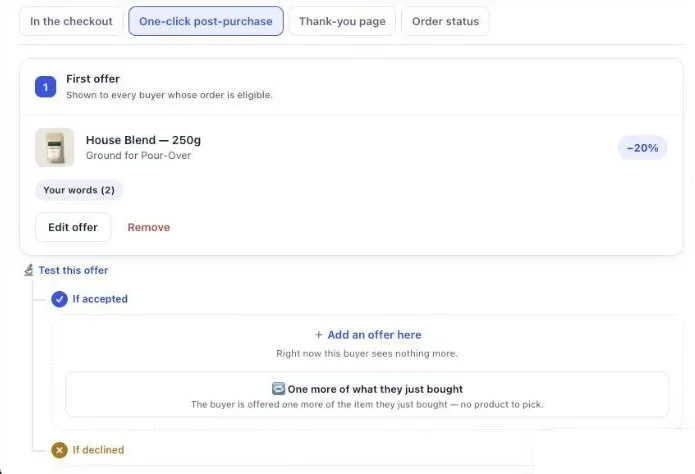
On the free plan a funnel has one offer, so a timeout there leads straight to the order confirmation. The branches under If accepted and If declined come with the paid plans.
How do I add a countdown timer to a post-purchase offer?
Adding a countdown to a post-purchase offer in Post Purchase Upsell Abakira takes one checkbox and one number, set offer by offer. The timer is available on every plan, the free one included. Here are the steps, with the labels exactly as they appear in the admin:
- Open your funnel, go to the One-click post-purchase tab and click Edit offer on the offer you want to time.
- In the Presentation section, tick Show a countdown. The field fills with 600 seconds.
- Type the duration you want, between 30 and 1,800 seconds.
- In Page layout, under Countdown, pick Inside a banner or On its own, between two lines.
- Look at what sits under If declined for this offer. That’s where a buyer whose timer ran out will land.
- Click Save.
To test it without waiting ten minutes, set the timer to 30 seconds, place an order paid by card and leave the page alone. You should see the banner turn red, reach 0:00 and hand over to the next offer or the confirmation. Then set the real duration back. The one-click page only appears after a card payment, so a test with a wallet or a manual payment method won’t show it.
What does the buyer read, and how should the countdown look?
The buyer reads “Your deal expires in:” followed by the time in red, translated into the buyer’s language. The time shows as minutes and seconds, like 9:59, and the default banner switches from amber to red when 30 seconds are left. You choose between two layouts, and the page has a few related settings worth knowing.
The settings, all in Edit offer:
| Setting | Where | What it does |
|---|---|---|
| Inside a banner | Page layout → Countdown | Full-width amber banner above the offer, red in the last 30 seconds. The default. |
| On its own, between two lines | Page layout → Countdown | A framed line with the time padded to two digits (09:59), so the width never jumps. |
| Promise line | Your words on this page | One line of your own, for example “Before you go: keep your 20% for good.” It “sits at the top of the page, next to the countdown when you use one.” |
| Amber, in the countdown banner / Green, with a check mark | Page layout → Promise line | Shares the countdown’s banner, or gets its own green one. |
| Hide the “order confirmed” banner | Page layout | Removes the “Your order is confirmed” banner at the top of the page, but only with the countdown shown on its own. |
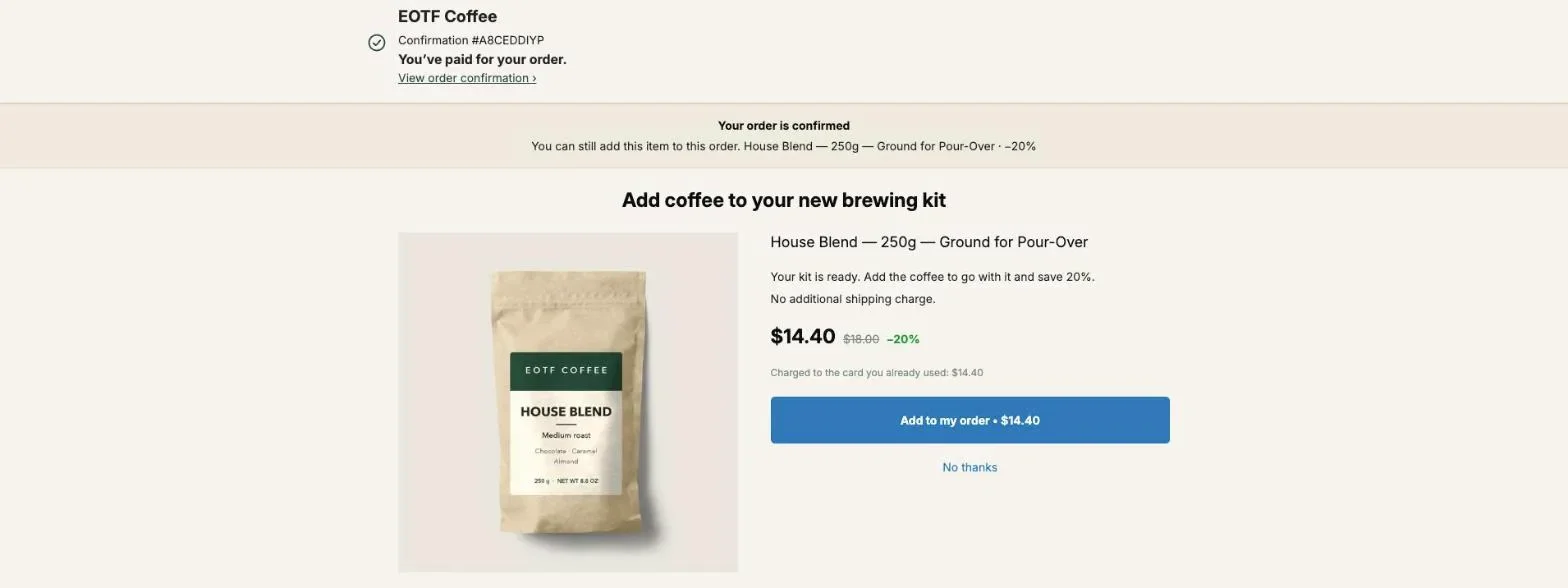
That last setting needs a word of explanation. Shopify’s App Store rules ask post-purchase apps to show one banner at the top of this page. Without a timer, that’s the “Your order is confirmed” banner you can see in the screenshot below. With the countdown set to On its own, between two lines, the timer takes that place and the confirmation banner can go, which gives the offer more room on a phone.
On wording, keep the promise line about the deal, not about the clock. The clock already says “expires”. A line like “Your 20% is for this order only” gives the reason for the deadline, and the deadline then reads as a fact rather than a trick. The guide chapter on dressing the one-click page covers the rest of the page’s text and images. For headlines that give a deadline without an exclamation mark, see our upsell copywriting examples.
Should every offer in the funnel have its own timer?
Every offer in a Post Purchase Upsell Abakira funnel can have its own timer, and each one restarts from its full duration when that offer opens. So the decision is per offer.
Put a timer on the offers where a deadline is the honest framing, and leave it off where the buyer needs to think, such as an upgrade to a subscription. A layout we like for a three-offer path:
- First offer: 10 minutes. The main proposition, the one with the most text to read.
- Downsell under If declined: 5 minutes.
- Follow-up under If accepted: no timer, or 5 minutes.
That path tops out at 15 or 20 minutes, comfortably inside Shopify’s one-hour fulfillment hold.
Can I use a countdown on the thank-you and order status pages?
A countdown works on the thank-you and order status pages too, but it measures something else. There the timer belongs to a block, it can run up to 72 hours, and it’s counted from the moment the order was placed, not from when the page opens.
A buyer who reloads, or opens the order status link from their email on another device, sees the same deadline. That makes it a real sales window rather than a session clock, which fits these pages because buyers come back to them. Our Christmas shipping cutoff article uses exactly that: let buyers add to their order until the parcel leaves.
In the block editor on the Thank-you page or Order status tab:
- Fill Countdown (empty = none) with Hours and Minutes, up to 72 hours.
- Optionally fill Countdown wording (optional). The placeholder shows the format: “You have {countdown} left to add these to your order.”
- Choose When the countdown reaches zero: Hide the block, Keep the block, at full price, or Keep the block, show a message. The default message is “This offer has ended.” and Message when the offer has ended replaces it.
- Tick Show a progress bar under the countdown if you want a bar that empties as the time runs.
In all three end modes the discount really stops. Keeping the block at full price is a good choice for a product people want anyway, such as a refill: the deadline ends the deal, not the sale.
The two kinds of timer side by side:
| One-click post-purchase page | Thank-you and order status blocks | |
|---|---|---|
| Range | 30 seconds to 30 minutes | Up to 72 hours |
| Default | Off; 10 minutes once ticked | Off until you fill in a duration |
| Counted from | The offer appearing | The order being placed |
| Field | Seconds, in steps of 30 | Hours and minutes |
| At zero | Offer declined, buyer moves on | Hide, keep at full price, or show a message |
Shopify’s rule 5.6.6 bars countdown timers from the checkout, so the checkout blocks in our app have no timer field.
How do I tell a timeout from a “No thanks” in my numbers?
Post Purchase Upsell Abakira records a timeout as its own event, called expired, separate from a buyer who tapped No thanks. A buyer who let the clock run out didn’t really refuse the offer. Keeping the two apart stops the timer from inflating the number of buyers who actively said no.
For a merchant using Shopify Flow, the timeout also fires our Upsell offer declined trigger with the one-click surface, the same trigger a “No thanks” fires. A workflow that tags the order or notifies your team on a refusal will therefore also run when the timer expires.
To judge whether a timer helps, compare the offer’s acceptance rate over a few weeks with and without it, at the same discount. The chapter on reading your numbers explains what each figure on the Results screen counts. And the guide’s chapter on discounts, timers and social proof puts the timer next to the other two levers merchants reach for first.
The countdown is one of several method articles on raising order value after checkout, and our page on what raises average order value on Shopify shows where it sits among the rest.
Post Purchase Upsell Abakira has a free plan with the countdown included, up to 100 offers shown a month, and the listing has the current plans.
Add a countdown timer to a one-click post-purchase offer
- Open the offer In Post Purchase Upsell Abakira, open your funnel, go to the One-click post-purchase tab and click Edit offer on the offer you want to time.
- Turn the countdown on In the Presentation section, tick Show a countdown. The field fills with 600 seconds, which is 10 minutes.
- Set the duration Type a value between 30 and 1800 seconds. The admin shows the minutes next to the field and refuses anything outside that range.
- Choose how it looks In Page layout, under Countdown, pick Inside a banner or On its own, between two lines.
- Decide where a timeout leads Check what sits under If declined for this offer: that is where a buyer goes when the timer reaches zero. With nothing there, the buyer goes to the order confirmation.
- Save and test Click Save. For the test, set the timer to 30 seconds, place an order paid by card, let the timer run out, then set it back to your real duration.
Frequently asked questions
Is the countdown shown in the buyer's language?
Yes. The words around the time, Your deal expires in: in English, come from the app's buyer translations and follow the language of the buyer's checkout. Only the text you write yourself, such as the promise line, stays as you typed it.
Can I set the countdown in minutes instead of seconds?
On the one-click page the field takes seconds, in steps of 30, and the admin writes the minutes next to it, for example 600 seconds · 10 min. Thank-you and order status blocks take hours and minutes.
Is the countdown included in the free plan?
Yes. The countdown is available on every plan, including the free one, which shows up to 100 offers a month with one offer per funnel. Follow-up offers under If accepted and If declined need a paid plan; the listing has the details.
What happens if the buyer clicks Add to my order at 0:01?
The purchase goes through. Post Purchase Upsell Abakira never expires an offer while an acceptance is being processed: the timer waits for the result, and the buyer moves on as someone who accepted.
Can I put a countdown on an offer inside the Shopify checkout?
No. Shopify's App Store requirements forbid countdown timers in checkout UI extensions, so the option only exists on the one-click page, the thank-you page and the order status page.
Related articles
Written by Abakira. We make small software: Shopify apps, web tools and iPhone apps. This article is about Post Purchase Upsell Abakira.