Downsell on Shopify: how deep to cut after a buyer says no
A Shopify downsell re-offers the item a buyer just declined, cheaper. Our starter funnel goes from 15% to 25% off. Here is the margin math behind the gap.
2026-10-29 — Abakira, updated 2026-11-09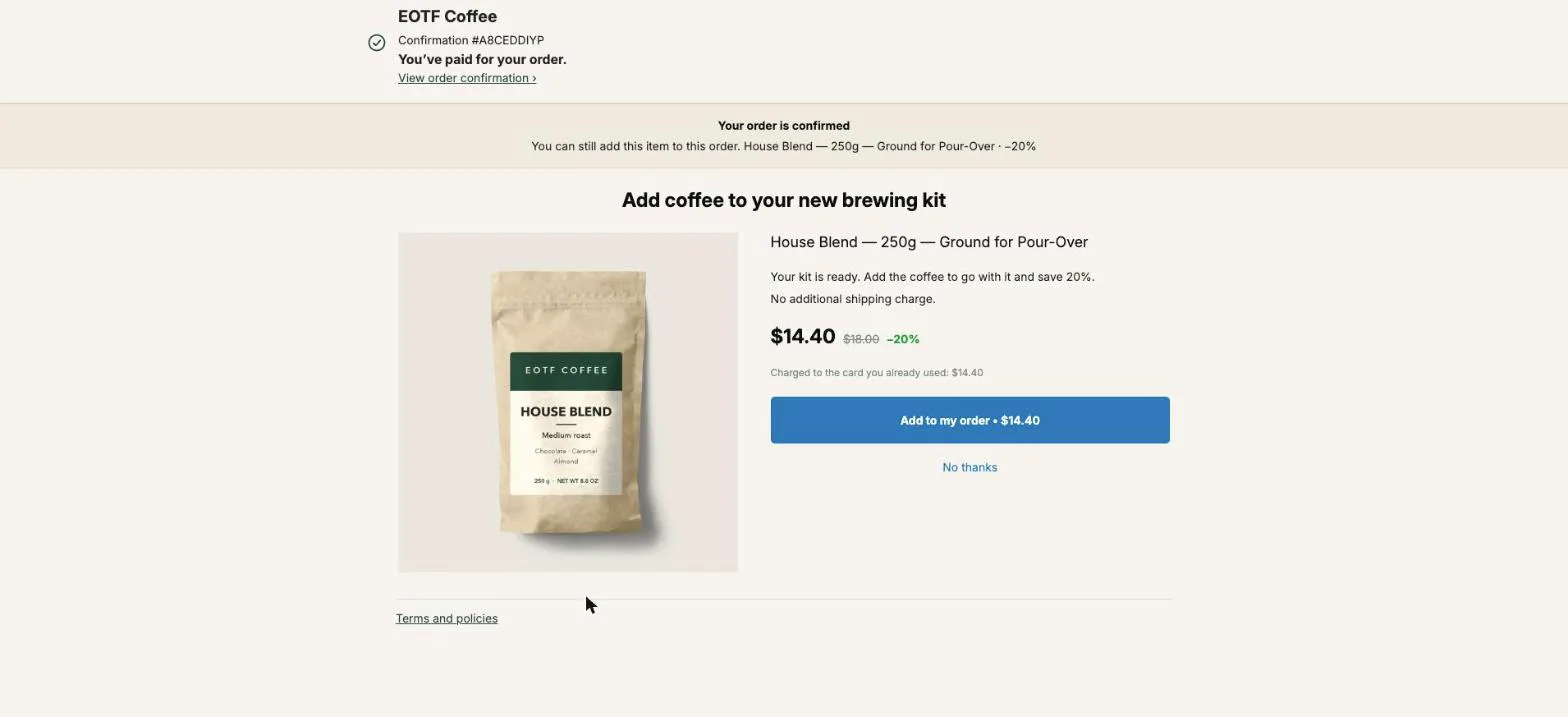
A downsell on Shopify is the cheaper offer you show to a buyer who just said no to your first one. The cleanest version is the same product at a deeper discount, shown right after payment on the one-click post-purchase page: in our starter funnel, the first offer is a best-seller at 15% off, and a buyer who declines sees that same product at 25% off. The gap is 10 points, and it costs nothing on the buyers who already said yes, because they never see it.
This guide covers what a downsell is on Shopify, where it can run, how big the gap between the two prices should be, the margin math that sets your ceiling, and how to build one in Post Purchase Upsell Abakira.
What is a downsell on Shopify?
A downsell on Shopify is a second, cheaper offer shown only to buyers who declined the first one. It answers the refusal instead of ignoring it: the buyer looked at the product and said no to the price, so the downsell changes the price, or the size, and asks again. Buyers who accepted the first offer never see it.
That last part is what separates a downsell from a discount. A sitewide 25% off reaches everyone, including people who would have paid full price. A downsell reaches exactly one group: people who were shown the item at one price, in the minute after paying for an order, and turned it down.
Downsells come in a few shapes:
| Downsell type | First offer | Shown after a no | Fits best |
|---|---|---|---|
| Same product, deeper discount | House Blend at −15% | House Blend at −25% | Consumables, best-sellers |
| Smaller version | Full-size bottle | Travel size | Beauty, food, anything sold in sizes |
| Strip the bundle | Kit plus refills | Refills alone | Stores that sell kits |
| Cheaper product | A $30 accessory | A $10 accessory | When the first offer may simply have missed |
This page is about the first row, because it’s the one every store can run with the products it already has, and because it’s the one where the discount gap decides everything.
Where can a downsell run on a Shopify store?
A downsell on Shopify runs best on the one-click post-purchase page, the page Shopify shows between payment and the order confirmation. That page reacts to the buyer’s answer: accept leads to one next offer, decline leads to another. As of October 2026, Shopify lets a buyer accept at most three post-purchase offers per checkout.
Shopify only shows that page in certain cases. The first payment has to be a credit card: Apple Pay, Klarna, Affirm, gift cards and other methods skip it. Orders for local delivery, orders with duties and multiple currencies, orders from point of sale or any channel other than the Online Store, and orders under $0.50 skip it too. You also have to select your upsell app as the post-purchase app in Shopify’s checkout settings; our guide covers turning on the one-click page step by step.
The buyers who skip it all reach the thank-you page. That’s where a second-chance offer goes for them, and we come back to it below.
Why offer the same product again instead of something else?
The starter funnel re-offers the same product at 25% because the buyer has already seen it; only the price changes. The photo, the name and the product stay the same, and the downsell asks one new question: is it worth it at this number?
That’s the reasoning built into the starter funnel of Post Purchase Upsell Abakira. When a store installs the app, it reads the last 60 days of orders and picks a best-seller priced at or under the average order, then builds three offers:
The admin explains each pick in plain words. The downsell line reads “If the buyer declines: {product}, −25% (same product, bigger discount)”, with your product’s name in place of {product}. The funnel is created switched off, and nothing reaches a buyer until you click Turn on this funnel.
The accepted branch goes sideways on purpose. Someone who just took the coffee doesn’t need the same coffee again at a better price; they get the product most often bought with it, or your next best-seller when nothing pairs. The declined branch stays on the same product, because the only thing that changed is the price.
How big should the gap between the two discounts be?
The gap between the first discount and the downsell is the number that decides how different the second offer looks. Our starter funnel uses a 10-point gap, 15% then 25%. On an $18 item that’s $15.30, then $13.50: a buyer sees $1.80 more off, on top of the $2.70 already offered. The downsell’s price depends on the first one, and how to price the first upsell shows how to set it per order shown.
Here’s how the common gaps look on that same $18 bag of House Blend from our demo store:
| First offer | Downsell | Gap | Prices shown | Extra saving the buyer sees |
|---|---|---|---|---|
| −10% | −15% | 5 points | $16.20 → $15.30 | $0.90 |
| −15% | −25% | 10 points | $15.30 → $13.50 | $1.80 |
| −20% | −30% | 10 points | $14.40 → $12.60 | $1.80 |
| −15% | −30% | 15 points | $15.30 → $12.60 | $2.70 |
A 5-point gap on an $18 item is 90 cents. On cheap items a fixed amount often reads better than a percentage: “$5 off” is a cleaner message than 25% off $18, and it’s only 50 cents apart.
The upper end isn’t a matter of taste. It’s set by your margin.
How do I know the downsell is still profitable?
A downsell is profitable as long as the discounted price still covers the product’s landed cost, the payment fee on the added amount, and any extra packing cost. The item joins an order that’s already shipping, so there is no second label to buy. Everything above those costs is margin you would not have had, since the buyer had already said no.
Take the $18 bag again and say it costs you $6 landed. Here’s what each discount leaves, before the card fee:
| Discount | Price | Margin per bag at $6 cost | Share of full margin kept |
|---|---|---|---|
| None | $18.00 | $12.00 | 100% |
| −15% | $15.30 | $9.30 | 78% |
| −25% | $13.50 | $7.50 | 63% |
| −30% | $12.60 | $6.60 | 55% |
| −35% | $11.70 | $5.70 | 48% |
| −50% | $9.00 | $3.00 | 25% |
To find your own ceiling, use this:
Maximum discount = (price − landed cost − payment fee − extra packing) ÷ price
Then stay well under it. At −50%, this bag still makes $3, but a single return or a broken bag wipes out the margin of several downsells. Our rule of thumb: keep at least half of your full margin on the downsell. For this bag that means staying at −30% or less, which still leaves $6.60 of the $12.00.
Two things make this math kinder than it looks. First, the downsell never touches the buyers who accepted the first offer, so the deeper discount isn’t given away to people who would have paid more. Second, the buyer only sees the downsell price on the page right after paying for this order. It isn’t a price on your product page, and it isn’t a code anyone can share.
Why does the decline link matter for the downsell?
The decline link under the Add to my order button is the door to the downsell. A buyer who can’t find it closes the page and never sees the second offer. Shopify’s rules for post-purchase offers require the decline option to stay visible on post-purchase offers, so the job is to make it clear, never to make it hard to find.
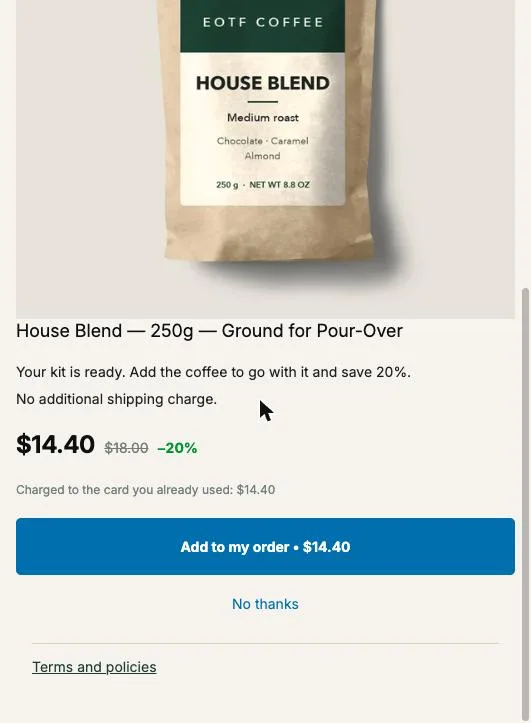
In Post Purchase Upsell Abakira the button texts come from Shopify’s rules and the app’s buyer translations, not from the merchant. The app changes one of them for you. When an offer has nothing under If declined, the link reads “No thanks”. When you put a downsell there, the same link reads “See another offer”.
If you add a countdown to the first offer, the same path applies when the timer runs out. The setting’s help text says it directly: “The urgency is real: when it reaches zero, the offer is declined and the buyer moves on.” Moving on means moving to the downsell. For durations and what each page does at 0:00, see how long a post-purchase countdown should run.
How do I set up a downsell on Shopify step by step?
Setting up a downsell on Shopify takes an app whose post-purchase page has branches, because that page is drawn by the app you select in your checkout settings. In Post Purchase Upsell Abakira, every offer has two slots under it, If accepted and If declined. The downsell goes in the If declined slot, with the same product and a deeper discount.
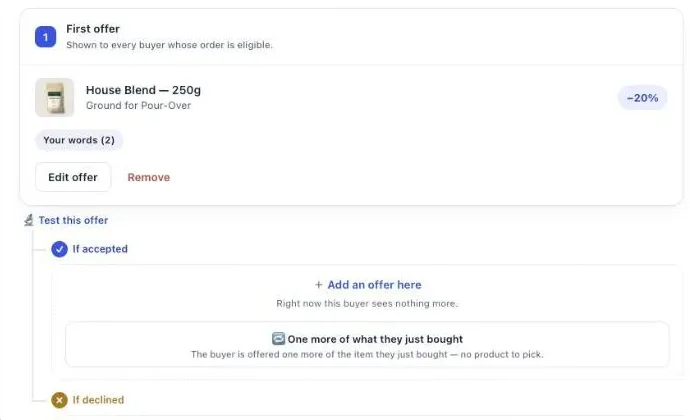
- Open your funnel and go to the One-click post-purchase tab. If you have no funnel yet, click Generate a starter funnel. It builds the first offer, the accepted follow-up and the downsell from your products, and you can skip to step 5.
- Under the first offer, find the If declined slot and click Add an offer here.
- Pick the product you offered first, with the same variant, so the buyer recognizes it.
- Under Discount, choose Percentage or Fixed amount, and enter a Value deeper than the first offer; the starter funnel uses 10 points more. Check it against your margin ceiling.
- Rewrite the offer’s words. A downsell that looks identical to the first offer, only cheaper, wastes the second look. Say what changed: “This price is for this order only” is enough.
- Click Save, then turn the funnel on.
- Place a test order paid by card, click See another offer on the first offer, and check the downsell price. Then look at the order in your Shopify admin: if you accept, the item is on the same order, not a new one.
The accept and decline tree chapter of our guide shows what the buyer sees on each branch. The app shows whatever you put in that slot, so the same product at a deeper discount is exactly what it serves.
Can the downsell have its own downsell?
The downsell can have its own follow-up, because every offer in the tree has the same two slots. A funnel holds up to three levels: one first offer, two second offers, four third offers, seven in all. A single buyer sees at most three of them, one per level, depending on how they answer.
A sensible third level under the downsell changes the product, not the price again. If a buyer refused the coffee at 15% and at 25%, the coffee isn’t what they want today. A cheaper item, like paper filters or a sample size, asks a different question.
Two levels is where most stores should start. Go to three once your numbers show the second level still converting. On the thank you page, the same logic runs as a sequence of up to six offers paid once at the end. The full tree, branch by branch, is in our guide to the post purchase upsell funnel.
What about buyers who never see the one-click page?
Buyers who pay with PayPal, Apple Pay or another non-card method never see the one-click page, so they never meet the first offer or the downsell. They do reach the thank-you page, which every buyer sees. That page can show its own offer, and with the block’s Where the purchase lands setting on Added to the same order, the item joins the order they just placed.
In Post Purchase Upsell Abakira, each thank-you page block has a Show it to setting. Two of its options matter here:
- “Buyers who did not see the one-click page” reaches the PayPal and wallet buyers. It’s the safety net on the Pro plan and above. On the free plan, thank-you blocks are shown to every buyer, so a block set to Everyone reaches the PayPal and wallet buyers there too.
- “Buyers who refused everything” reaches buyers who saw the one-click page and took nothing. Its help text is precise: “Not seeing it is not refusing.” That makes it a second-chance downsell: the same product, one step cheaper again, or a smaller size, shown on the page they land on next.
The second option is part of the paid plans. Our thank-you page upsell guide covers how an item added there joins the order the buyer just placed.
How do I know if my downsell is working?
A downsell is working when the margin it adds exceeds zero, since an empty slot earns nothing. Read it on the Results page: each step of the funnel shows how many buyers saw it and how many accepted, so the downsell has its own line, tagged Downsell, next to the first offer.
Three readings matter:
- How many buyers reach the downsell. It’s everyone who declined the first offer, so if the first offer converts poorly, the downsell gets most of the traffic. That’s normal.
- The downsell’s acceptance rate on its own. It’s measured only on buyers who already said no once, so don’t compare it with the first offer’s rate as if they faced the same crowd.
- Margin, not revenue. A downsell that sells often at −50% can earn less than one that sells half as often at −25%. Multiply each acceptance by your margin per unit from the table above.
On the Scale plan you can also test two downsell discounts against each other with Test this offer, for example −25% against −30%, and let the app tell you when it has enough data to call a winner. Once the first offer has a winner, the downsell is usually the next page worth A/B testing. The chapter on reading your numbers explains each line of the Results page.
What does a downsell need on each plan?
A downsell needs a funnel with a second level, and in Post Purchase Upsell Abakira the second and third levels are on the paid plans. The free plan serves the first offer only, up to 100 offers shown a month. If you generate the starter funnel on the free plan, all three offers are saved, and the admin says the two follow-ups switch on when you upgrade.
That means the free plan is a good place to find your first offer: the product and the discount that buyers take most often. The downsell comes once that offer is settled. The plans chapter of the guide lists what each plan adds, and the listing has current prices.
If you want the wider picture first, our page on what raises average order value on Shopify sorts every technique by where it happens, and the other method articles go deeper on tiers, decoys and gifts.
Post Purchase Upsell Abakira has a free plan that runs on a live store, and the listing has the current plans.
Set up a downsell after the first post-purchase offer
- Open the funnel In Post Purchase Upsell Abakira, open your funnel and go to the One-click post-purchase tab. If you have no funnel yet, click Generate a starter funnel: it builds the first offer and its downsell from your own products.
- Add an offer under If declined Under your first offer, find the If declined slot and click Add an offer here.
- Pick the same product Choose the product you offered first, with the same variant.
- Set a deeper discount Under Discount, choose Percentage or Fixed amount and enter a Value deeper than the first offer (the starter funnel uses 10 points more), without going past your margin ceiling.
- Rewrite the offer text, save and turn the funnel on Change the offer's words so the buyer sees why this one is different, for example a line saying the price is for this order only. Click Save, then turn the funnel on.
- Test it Place a test order paid by card, click See another offer on the first offer and check that the downsell appears at the new price.
Frequently asked questions
Is a downsell the same thing as a cross-sell?
No. A cross-sell offers a different product that goes with the order. A downsell only exists after a refusal: it is the cheaper offer shown to the buyer who just said no to the first one, usually the same product at a bigger discount or a smaller version of it.
Can I run a downsell on a store that takes cash on delivery?
Not on the one-click page, which Shopify only shows after a credit card payment. On a cash on delivery store, the thank-you page is where the second offer goes, and the added item can be paid at the door with the rest of the order.
Should the downsell use a percentage or a fixed amount?
Either works. A percentage is easier to keep consistent across products. A fixed amount gives you a round number on a cheap item, for example $5 off an $18 bag instead of 25%, which comes out at $4.50. Post Purchase Upsell Abakira refuses a fixed amount bigger than the product's lowest price.
Can the downsell have its own countdown?
Yes. Each offer has its own Show a countdown setting, from 30 seconds to 30 minutes. When it reaches zero, the offer counts as declined and the buyer moves to the offer set under If declined, or to the order confirmation if there is none.
What if the buyer declines the downsell too?
The downsell has its own If declined slot, so you can set a third offer, often a cheaper product. Shopify lets a buyer accept at most three post-purchase offers per checkout, and a buyer who declines everything goes to the order confirmation with the original order untouched.
Related articles
Written by Abakira. We make small software: Shopify apps, web tools and iPhone apps. This article is about Post Purchase Upsell Abakira.