Post purchase upsell funnel: what to offer on each branch
A post purchase upsell funnel is a yes/no tree: 3 levels, 7 offers, 3 seen per buyer. What goes on each branch, plus a quantity ladder built on one product.
2026-11-09 — Abakira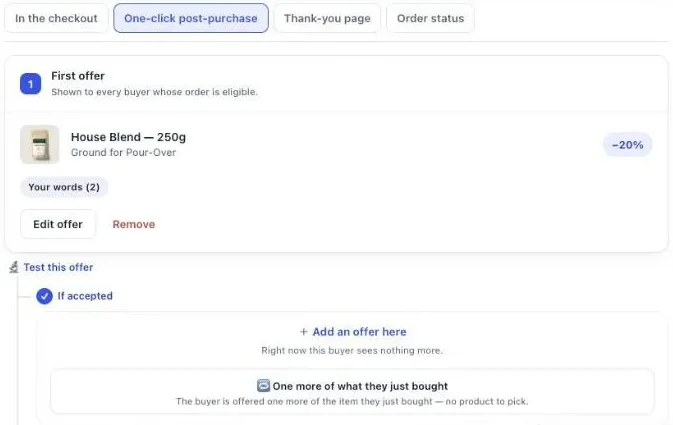
A post purchase upsell funnel is a short decision tree shown after the buyer pays: one first offer, then a different next offer for buyers who accept and for buyers who decline. In Post Purchase Upsell Abakira the tree goes three levels deep, holds up to seven offers, and any one buyer sees at most three of them. The craft is in deciding what each branch says.
This guide covers the shape of the tree, what belongs on the yes branch, the no branch and the third level, and one complete build: a quantity ladder on a single coffee product, with the price at every step.
What is a post purchase upsell funnel?
A post purchase upsell funnel is a set of offers shown on the page between payment and the order confirmation, where each answer decides the next screen. Accept leads to one follow-up, decline leads to another. The item joins the order the buyer just paid, charged to the same card, with no second checkout.
The word “funnel” gets used loosely. Some apps run a list: offer 1, then offer 2 whatever the buyer said. Others run priority rules, where a decline simply falls through to the next rule. A tree is different. Every offer has two children of its own, so the buyer who said yes and then no gets a different third screen from the buyer who said no and then yes.
That matters because those two buyers have nothing in common. One just added coffee and turned down filters. The other refused the coffee and took the cheaper version. A condition that only reads “the last answer” can’t tell them apart; a tree can, because the path is the structure.
If you are new to the page itself, our post purchase upsell guide for Shopify covers where it appears and who sees it. This article is about the tree.
How many offers can a post purchase upsell funnel hold?
A post purchase upsell funnel in Post Purchase Upsell Abakira holds seven offers across three levels: one first offer, two second offers, four third offers. One buyer sees at most three, one per level. The depth follows Shopify, which lets a buyer accept at most three post-purchase offers per checkout.
The editor labels the offers the way you’d read the tree: the first offer is 1, the second level is 2A (after a yes) and 2B (after a no), and the third level runs 3A to 3D, accepted branches first.
You don’t have to fill all seven. An empty slot is a valid ending: the editor marks it “Right now this buyer sees nothing more,” and that buyer goes to the order confirmation. Start with two or three offers and grow a branch at a time. When all seven slots are taken, the editor says: “Your funnel is full: 7 offers across 3 levels, the most Shopify allows.”
What should the first offer in the funnel be?
The first offer in a post purchase upsell funnel is the only one every eligible buyer sees, so it carries most of the funnel’s traffic. The editor describes it as “Shown to every buyer whose order is eligible.” Pick a product your buyers already take often, priced well under the order they just paid.
That’s the rule our Starter funnel follows when it builds a funnel for you. It reads your last 60 days of orders, takes a best-seller, and offers it at 15% off. If the store has no sales yet, it picks from your catalogue instead: in stock, with a photo, priced around half the median price of your catalogue. The admin explains every pick in one line, for example “Offer 1, right after payment: House Blend, −15% (your best-seller).”
Two kinds of first offer work for most stores:
- A companion to what’s in the cart: filters for a coffee kit, a case for a phone. Our guide chapter on what to offer goes through how to choose one.
- More of what they just bought, when the product is consumed and reordered. The editor has a shortcut for it, “One more of what they just bought,” which offers the item from the order without you picking a product. The same product upsell article covers that case.
The first offer also sets the price anchor for everything below it. A downsell is “cheaper than offer 1”, and a bigger tier on the yes branch is “more of offer 1”, so settle this offer before you build the rest.
What goes on the branch after a yes?
The branch after a yes holds offer 2A, shown only to buyers who just accepted offer 1. Its admin description reads “Shown only to buyers who just accepted an offer.” This buyer has said yes once in the last minute, so 2A can ask for more: a companion to what they added, or a larger quantity of it.
There are two good directions here, and they suit different products.
Go sideways. The buyer took the coffee; offer the filters. The accept and decline tree chapter of our guide calls this going adjacent: related to what they just took, not the same thing again and not something random. Our Starter funnel does exactly this. Its 2A is “a product often bought with” offer 1, at 15% off, or your next best-seller when nothing pairs.
Go up in quantity. For a consumable, the buyer who took one bag at a discount is the buyer most likely to want a month’s supply. That’s the yes step of the quantity ladder further down: same product, a bigger tier at a deeper unit discount.
What doesn’t belong on 2A is the same product at a better price than the one just accepted: the buyer would see, one screen later, that saying yes cost them more than waiting.
What goes on the branch after a no?
The branch after a no holds offer 2B, shown only to buyers who declined offer 1. The editor’s description says it directly: “Shown only to buyers who just declined — this is your downsell.” A refusal means the price was wrong or the product was wrong, so 2B changes one of the two and asks again.
Change the price. Same product, deeper discount. Our Starter funnel puts offer 1’s product at 25% off here, ten points deeper than the first ask, and labels it “same product, bigger discount”. The margin math behind the size of that gap is in our article on how deep to cut a downsell on Shopify.
Change the size. Fewer units, or a smaller format. On a quantity ladder this is the natural move: the buyer said no to three bags, so 2B offers one or two.
Change the product. Something cheaper and different, when you think the first product simply missed.
The editor makes the first two quick. In an empty slot, the buttons “Copy the ✓ accepted offer” and “Copy the ✗ declined offer” copy the sibling branch, and the help line under them reads “Same product and discount. Lower the price after copying — that is what makes a downsell.” When the copied offer has children of its own, the copy brings them along.
On the buyer’s side, the link under the button tells them a second chance is coming. When an offer has something under If declined, the link reads “See another offer” instead of “No thanks”.
What belongs on the third level?
The third level of a post purchase upsell funnel holds up to four offers, 3A to 3D, one for each combination of the first two answers. A buyer reaches it only after two screens, so a third offer earns its place when it asks a new question, usually a cheaper product rather than a third price on the same item.
Here’s how we fill it on a coffee store, read by route:
| Offer | Route | What the buyer has told you | What we put there |
|---|---|---|---|
| 3A | yes, yes | Took two offers already | A cheap companion they don't have yet, like $8 paper filters at 20% off ($6.40) |
| 3B | yes, then no | Wanted offer 1, not more of it | The same companion: $8 paper filters at 20% off ($6.40) |
| 3C | no, then yes | Price-sensitive, but buying | The same companion: $8 paper filters at 20% off ($6.40) |
| 3D | no, no | Declined the same product twice | A different, cheaper product, or nothing |
Leaving 3D empty is a decision, not an oversight. A buyer who turned down the coffee at two prices has answered the coffee question, and the next screen they see is their order confirmation. If you do fill it, switch product.
Three screens is a ceiling. Our guide’s advice is to settle on two levels and add the third once your numbers show the second still converting; the Results page shows that per offer, as described below.
What is a quantity ladder funnel?
A quantity ladder funnel is a post purchase upsell funnel built on one product where only the quantity moves. The first offer proposes a stock-up, a yes leads to a bigger quantity, and a no leads to a smaller one. Product, photo and story stay the same on all three screens, so each screen asks one question: how many?
It fits products people use up and reorder: coffee, supplements, pet food, skincare refills, filters. And it fits the moment. On the page right after payment, the buyer has already chosen the product, the card is already on file, and the extra units ship with the order they just placed.
In Post Purchase Upsell Abakira every offer on the one-click page can carry Quantity tiers: up to five of them, each from 2 to 20 units, each with its own discount. One unit is always offered at the offer’s own discount. The buyer picks from a Quantity menu that lists “1 unit” first, then each tier with its discount, for example “3 units · −25%”. The decoy pricing article shows how to arrange tiers inside one offer; the ladder spreads them across the tree.
How do I build a quantity ladder in Post Purchase Upsell Abakira?
Building a quantity ladder in Post Purchase Upsell Abakira takes three offers on the One-click post-purchase tab: the stock-up offer first, a bigger tier under If accepted, a smaller step under If declined. All three use the same product. Each offer gets its own Discount and its own Quantity tiers, set in the offer panel.
- Open your funnel and click the One-click post-purchase tab. With no funnel yet, click Generate a starter funnel and edit its first offer.
- On the first offer, pick the product. Under Discount, choose Percentage and set Value to 15.
- Open Quantity tiers, click Add a tier, and enter 3 units at 25. The buyer now sees “1 unit” and “3 units · −25%” in the Quantity menu.
- Under Your words on this page, write a Selling headline that names the stock-up, for example “Stock up: 3 bags at 25% off”. The headline sits above the product name, which Shopify requires to stay visible.
- Under If accepted, click Add an offer here and pick the same product at 15%. Add one tier: 6 units at 35.
- Under If declined, click Copy the ✓ accepted offer. Change the Value to 25, then replace the 6-unit tier with 2 units at 30.
- Add a third level where you want one. On the ladder we put $8 paper filters at 20% off ($6.40) in 3A, 3B and 3C, and leave 3D empty.
- Read the What each buyer sees panel, click Save, then turn the funnel on and place a test order paid by card. Decline the first offer once on purpose to see the 2B screen.
The editor checks the ladder as you type. A tier quantity outside 2 to 20, or two tiers on the same quantity, is flagged on its line. And if a bigger tier carries a smaller discount than the one before it, you get this warning: “A tier with more units has a smaller discount than the one before it. Buyers would pay more per unit for buying more.”
How should the discounts climb across the ladder?
The discounts on a quantity ladder climb with the number of units, so the price per unit always rewards the bigger choice. The buyer compares unit prices across the menu, and every step down the tree should look like a better deal per bag than the step before, while each still clears your cost per bag.
Here is the whole ladder on the $18 bag, with the margin left per bag if the bag costs you $6 landed:
| Screen | Choice | Discount | Price per bag | Line total | Margin per bag at $6 cost |
|---|---|---|---|---|---|
| Offer 1 | 1 bag | 15% | $15.30 | $15.30 | $9.30 |
| Offer 1 | 3 bags | 25% | $13.50 | $40.50 | $7.50 |
| 2A, after a yes | 6 bags | 35% | $11.70 | $70.20 | $5.70 |
| 2B, after a no | 1 bag | 25% | $13.50 | $13.50 | $7.50 |
| 2B, after a no | 2 bags | 30% | $12.60 | $25.20 | $6.60 |
Three things to check on your own numbers. First, the deepest tier still has to make money per unit; at 35% this bag keeps $5.70 of its $12 full margin. Second, the yes branch can go deeper than the first offer because it’s selling twice as many units in one parcel. Third, 2B’s single bag at 25% matches offer 1’s 3-bag unit price, which is the point: the buyer who refused the stock-up gets the stock-up price on one bag.
A buyer who takes 3 bags, then 6, then the $8 paper filters at 20% off ($6.40) on 3A adds $40.50 + $70.20 + $6.40 = $117.10 to one order. A buyer who declines everything leaves with the order they placed, untouched.
What does the buyer see on each screen?
Each screen of the funnel shows one product with its photo, its price after discount, the struck-through regular price, a line saying it will be charged to the card already used, an Add to my order button, and a decline link. With quantity tiers, a Quantity menu sits above the button, starting at “1 unit”.
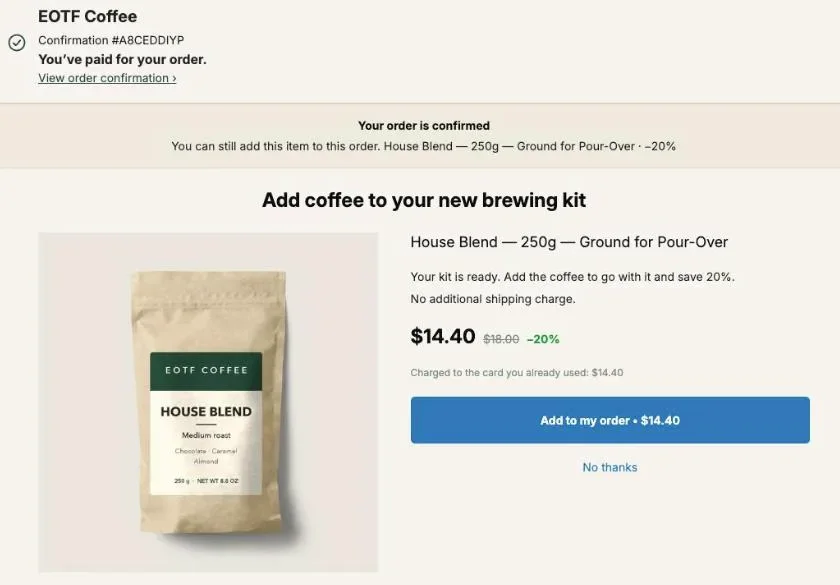
A few details shape how the ladder reads:
- The button price follows the menu. Pick “3 units · −25%” and the amount on Add to my order changes to the 3-bag total. The server only accepts a quantity that matches a tier you saved, so the buyer is charged exactly the price on screen.
- The decline link announces 2B. With an offer under If declined, it reads “See another offer”.
- A countdown counts as an answer. If you turn on Show a countdown, the help text spells out what zero means: “The urgency is real: when it reaches zero, the offer is declined and the buyer moves on.” Moving on means 2B. Our article on post-purchase countdown timers covers durations.
- The quantity doesn’t pick the branch. One bag or three, a yes is a yes, and the buyer goes to 2A.
Where do the extra units go?
The extra units from every accepted screen join the order the buyer just paid, as a new line on the same order. Post Purchase Upsell Abakira adds no shipping line for an accepted one-click offer, so the order keeps the shipping the buyer already chose, and the items go out together.
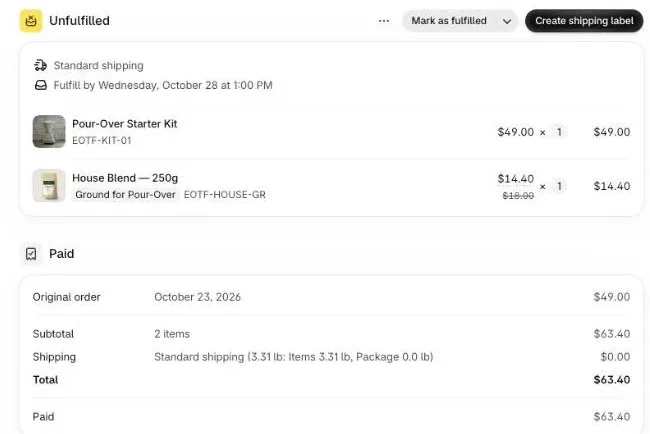
Each line keeps its discounted price, with the regular price struck through underneath, so your team sees what was sold through the funnel. If a warehouse picks your orders, our guide to keeping upsells in one parcel with a 3PL covers the timing.
How do I check every route before turning the funnel on?
Every route through a post purchase upsell funnel is listed in the editor’s What each buyer sees panel, under the hint “Every route a buyer can take, from the first offer to the end”. Each line shows the answers as ✓ and ✗, the offers seen on the way, and where it stops. A full tree has four routes.
Read it for two things. An empty answer is a route too: a ✗ with nothing after it means that buyer goes straight to the confirmation, and that’s where a missing downsell shows up. And the order of offers on a route should make sense read aloud: “3 bags, then 6 bags, then filters” is a story; “filters, then 6 bags” probably isn’t.
If you run several funnels, the Try a cart tool on the funnels list answers a different question: which funnel a given cart goes through. It runs on what’s on screen, before you save, with the same rules as the live checkout.
Then place a real test order paid by card and walk one route yourself, declining at least once.
How do I read the funnel’s results by branch?
The Results page reads a post purchase upsell funnel offer by offer, under the same labels as the editor: Step 1, Step 2A, Step 2B and so on, each tagged Upsell or Downsell. Under each one, a line gives the reach and the take in the form “N saw it · N accepted”, with the drop-off from the step before.
Read the branches against their own audience. 2B is seen only by buyers who already declined once, so its acceptance rate isn’t comparable with offer 1’s. The page’s own legend puts it this way: “Drop-off is the honest signal — it is why the downsell earns its own line.”
For a ladder, the By product table adds the units. Its columns are Saw it, Orders, Units, Revenue, Share and Clicks, so a 6-bag tier that sells shows up as units, not only orders. The chapter on reading your numbers explains each line.
To compare two versions of one step, such as 6 bags at 35% against 4 bags at 30% on 2A, use Test this offer under that offer. It runs up to four versions, gives a first verdict after 100 views per version, and ranks by revenue per view by default. A/B testing is on the Scale plan; our article on A/B testing a post-purchase upsell walks through it.
Which plan runs a three-level funnel?
A three-level funnel runs on the Pro plan and above, which serve all seven offers. The free plan runs on a live store with one funnel and its first offer, up to 100 offers shown a month, which is enough to settle your first offer before you build branches under it.
Nothing you build is lost on the way. If you generate the Starter funnel on the free plan, all three offers are saved, and the admin says: “Your plan shows offer 1 only. The two follow-up offers are saved and switch on when you upgrade.” Several funnels, each aimed at its own products or order totals, are on the paid plans as well. The plans chapter of the guide lists what each plan adds; the App Store listing has current prices.
Buyers who pay with PayPal, Apple Pay or another method that skips the one-click page land on the thank-you page instead. A thank-you block can show them an offer there. Aiming it at “Buyers who did not see the one-click page” comes with the Pro plan and above; on the free plan, a thank-you block shows to every buyer. For a branching run of offers on that page, see the thank you page upsell sequence, which goes up to six offers and charges once at the end.
More techniques for the funnel’s offers are on the method page of the blog.
Post Purchase Upsell Abakira has a free plan that runs on a live store, and the listing has the current plans.
Build a quantity ladder post purchase upsell funnel
- Open the One-click post-purchase tab In Post Purchase Upsell Abakira, open your funnel and click the One-click post-purchase tab. If you have no funnel yet, click Generate a starter funnel and edit its first offer.
- Set the first offer as the stock-up offer Pick the product, set Discount to Percentage with a Value of 15, then open Quantity tiers, click Add a tier and enter 3 units at 25. Write a Selling headline that names the 3-bag price.
- Fill the If accepted slot with a bigger tier Under If accepted, click Add an offer here, pick the same product at 15%, and add one tier: 6 units at 35.
- Fill the If declined slot with a smaller step Under If declined, click Copy the accepted offer, then lower it: Value 25 for one unit, and replace the 6-unit tier with 2 units at 30.
- Add a third level only where it changes the product Under the second-level offers, add a cheaper companion product, such as $8 paper filters at 20% off ($6.40), in 3A, 3B and 3C, and leave 3D empty.
- Check every route, then save Read the What each buyer sees panel, which lists every route from the first offer to the end. Click Save, turn the funnel on, and place a card-paid test order.
Frequently asked questions
Can the same product appear on several branches of one funnel?
Yes. Nothing is excluded automatically, so the product from offer 1 can come back under If declined at a deeper discount, or under If accepted with bigger quantity tiers. Each offer has its own discount and its own tiers. The Copy the accepted offer and Copy the declined offer buttons in the empty slot save you from picking the product again.
Does the quantity the buyer picks change which branch they go down?
No. A buyer who adds 1 bag and a buyer who adds 3 bags have both accepted, so both see the offer set under If accepted. Only the answer, accept or decline, picks the branch.
What happens when a countdown runs out on a funnel offer?
The offer counts as declined. The setting's help text says it plainly: when it reaches zero, the offer is declined and the buyer moves on. Moving on means the offer under If declined, or the order confirmation if that slot is empty.
Can a buyer choose a size or flavor inside the funnel?
Yes. When an offer has several variants selected, the buyer gets a Choose an option menu above the button, up to 25 variants per offer. Quantity tiers sit in their own Quantity menu next to it, so the buyer can pick the grind and the number of bags on the same screen.
Can I run a different funnel for each of my best-sellers?
Yes, on the paid plans. Each funnel gets a condition, such as a product in the order or a minimum order total. Buyers are checked against your funnels from top to bottom and the first match is shown, so a funnel with no condition goes last as the catch-all.
Related articles
Written by Abakira. We make small software: Shopify apps, web tools and iPhone apps. This article is about Post Purchase Upsell Abakira.