Upsell sequence on Shopify: up to six offers, one payment
A Shopify upsell sequence on the thank you page shows one offer at a time, lets each answer pick the next, and charges once at the end. Up to 6 offers.
2026-11-01 — Abakira, updated 2026-11-08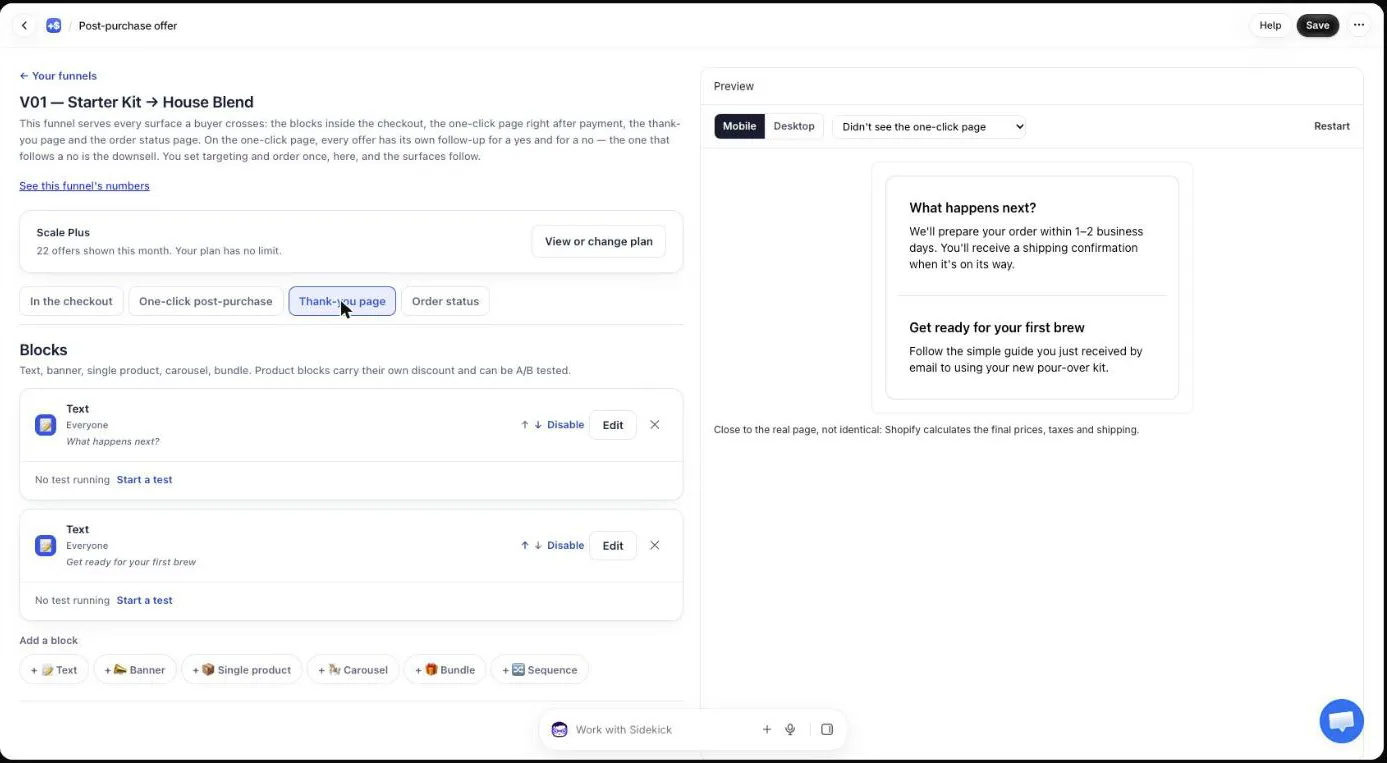
An upsell sequence on Shopify is a run of offers shown one at a time, where the buyer’s answer to each offer decides which one comes next. On the thank you page, Post Purchase Upsell Abakira runs up to 6 offers this way and charges nothing along the path: every item the buyer added goes into the order they just placed in one edit, and they pay once at the end.
That last part is what changes the economics. Each yes doesn’t trigger its own payment or its own order. One payment, one parcel, and a buyer who said yes to two offers out of three pays a single difference. Below is how the sequence behaves for the buyer, how to build one, how to price each step, and what keeps it from ever charging twice.
What is an upsell sequence on Shopify?
An upsell sequence on Shopify is a chain of offers where each step depends on the previous answer. A yes leads to an offer that goes with what was just added. A no leads to something cheaper or different. The classic shape is upsell, then downsell after a refusal, then a small add-on for buyers who refused both.
Offers can show in three places after the cart: inside the checkout (Shopify Plus only), on the one-click post-purchase page between payment and confirmation, and on the thank you page. A sequence runs on the thank you page, and on the order status page too. The thank you page is the one every buyer reaches. For where each page fits, our page on which page to build first after checkout sorts them by how your buyers pay.
How is a thank you page sequence different from a one-click funnel?
A thank you page sequence differs from a one-click funnel in who sees it and in how the buyer pays. The one-click page charges the card already used, offer by offer, and Shopify shows it to card payments. The thank you sequence reaches every buyer, collects the yeses in a basket, and asks for one payment at the end.
Post Purchase Upsell Abakira has both, in the same funnel. Here is how they compare, as of November 2026:
| One-click funnel | Thank you page sequence | |
|---|---|---|
| Who sees it | Buyers Shopify shows the post-purchase page to, mostly card payments | Every buyer who reaches the thank you page |
| Offers you can build | 7: one first offer, two second offers, four third offers | Up to 6, linked by their paths |
| Offers one buyer can see | 3 at most, one per level | Depends on the paths you draw; a full branch can walk through all 6 |
| How a yes is paid | Charged to the card already used, right away | Added to a basket; one payment for everything at the end |
| Where the item goes | The same order | The same order, in one edit |
| Plan | First offer free, second and third levels on paid plans | The Sequence block is on every plan |
The two work together. A card buyer can take an offer on the one-click page and still see a sequence on the thank you page; a PayPal or Apple Pay buyer skips the first and gets the second. If you already run a one-click funnel, the accept and decline tree chapter of our guide covers its three levels, and our article on how deep to cut a downsell covers the price gap on that page.
What does the buyer see during the sequence?
The buyer sees one offer at a time, with an Add button that shows the price and a No thanks link. Whatever they tap, the next offer replaces the current one without reloading the page. After the first yes, a list titled “Added to your order” appears under the offer, with each item and its price, and a Pay button with the total.
The buyer-facing wording, word for word in English:
- The button on a single product reads “Add {amount}”, and on a bundle “Add {amount} ({n} items)”.
- The refusal reads “No thanks”.
- The basket heading reads “Added to your order”, and the payment button “Pay {amount}”.
- The line under it reads “You pay once for everything you added, on the next page.”
The Pay button stays secondary while offers remain and turns into the main button when the sequence ends. A buyer who has added what they want can pay early; whatever they had added goes in. On a single product offer, the buyer can also pick the variant before adding it, so a coffee offer can let them choose the grind.
These lines are translated into the buyer’s language by the app. The one under the Pay button can be hidden per block with Show the line under the payment button; if you hide it, say somewhere else in the block that the buyer pays once at the end.
What can each offer in a Shopify upsell sequence be?
Each offer in a sequence is a Single product with its own discount, or a Bundle of 2 to 4 products added with one tap. A sequence holds up to 6 offers, and the editor shows “6 offers at most” once you reach it. Six offers is enough for three steps with a branch at each one, like the four-offer example below.
You choose the type under Offer type:
- Single product: one product with its own discount, from 1% to 90%.
- Bundle: 2 to 4 products added together with one tap.
The 90% ceiling on a single product is the same as on a thank you page product block: a 100% discount on a lone item is almost always a typo. In a bundle, one item can be set to 100%, which is how you give the mug away with the filters.
Six offers on a path doesn’t mean six offers to every buyer. A buyer walks one branch, and on a three-level tree that’s three offers. You can draw a longer chain, offer 1 to 6 in a line, and a buyer who says no each time walks through all six. Keep that for cheap items that each make sense on their own.
How do I build an upsell sequence on Shopify?
Building an upsell sequence on Shopify with Post Purchase Upsell Abakira takes one block on the thank you page and a few minutes per offer. The thank you page app block has to be placed once in Shopify’s checkout editor; if you have never done it, the thank you page chapter walks through it.
- Open the tab. In the app, open your funnel and click Thank-you page.
- Add the block. Under Add a block, click Sequence. Pick + New sequence and fill Sequence name. Its help text says “Only you see it. It lets you pick this sequence again on another page.”
- Fill offer 1. It carries the label Shown first. Choose the Offer type, the product, and the discount. Offer title (optional) is a bold line above the product.
- Draw the two paths. Under If they add it and If they say no thanks, choose Show offer 2, Show offer 3 and so on, or End of the sequence.
- Add the next offers. Click Add an offer for each step. Each offer shows its paths in one line, for example “Added → Show offer 2 · No thanks → Show offer 3”.
- Fix what nothing reaches. An offer that no path leads to gets the label Never shown, and the editor explains: “Offer 3 is never shown: no other offer leads to it.” Point a path at it or remove it.
- Pick who sees it. Set Show it to (more on that below), then save and place a test order. Answer No thanks to the first offer once, so you see the second branch take its place.
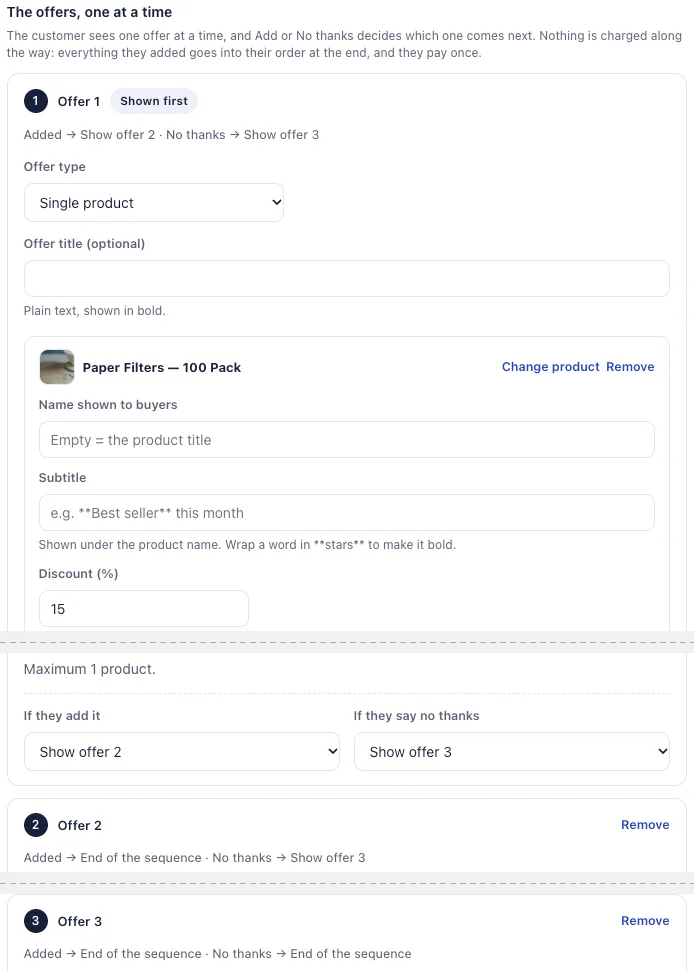
A path can only point further down the list. Offer 3 can lead to offer 5, never back to offer 1. The parser drops any path that points backwards and turns it into an end, so a buyer can’t loop through offers they already answered.
The sequence belongs to the store, not to one page. Once it’s named, you can pick it again on another funnel’s thank you page or on the order status page, and the admin lists where it runs under “Used on”. A change to the sequence applies to every page that uses it.
How should each step of the sequence be priced?
Each step of an upsell sequence should be priced from the answer that leads to it. After a yes, the buyer has just agreed to spend; the next offer can be a complementary product at a modest discount. After a no, the next offer should cost visibly less than the one refused, or be a different, cheaper product.
Here is a four-offer sequence built from our demo coffee store’s catalog, with the prices the buyer would see:
| Offer | Product | List price | Discount | Price shown | Reached by |
|---|---|---|---|---|---|
| 1 | House Blend | $18.00 | 20% | $14.40 | Every buyer |
| 2 | Digital Coffee Scale | $29.00 | 10% | $26.10 | Yes to offer 1 |
| 3 | Paper Filters | $8.00 | 15% | $6.80 | No to offer 1 |
| 4 | Everyday Coffee Mug | $16.00 | 25% | $12.00 | Yes to offer 1, no to offer 2 |
The possible baskets are $40.50 (coffee and scale), $26.40 (coffee and mug), $14.40 (coffee alone), $6.80 (filters) or nothing. Each one is paid with a single tap on Pay.
Three choices in that tree are deliberate:
- The scale gets the smallest discount. It comes right after a yes, from a buyer who just added coffee, so it doesn’t need a deep cut.
- The no-branch drops to a cheap item, filters at $6.80. They ask a much smaller question than the $14.40 bag.
- Offer 4 rescues the scale refusal with a mug at 25%. Same buyer, a yes already in the basket, a cheaper complement.
If you want the downsell to be the same product cheaper instead, our downsell article has the margin table for the gap between the two discounts. For the first price itself, start from how to price a post-purchase upsell.
Why charge once at the end instead of after each yes?
Charging once at the end means a buyer who says yes three times meets one payment page, not three. The yeses sit in a basket while the buyer answers, and the app sends one payment link at the end.
In Post Purchase Upsell Abakira, the yeses sit in the basket while the buyer answers. When they tap Pay, the app replays their path on our server against the sequence as it was served, builds the list of lines, and adds them all to the existing order in a single Shopify order edit. A buyer who paid upfront, by card or wallet, then pays the difference once, on Shopify’s own payment page. Nothing the browser sends sets a price: the discount for each line comes from the server.
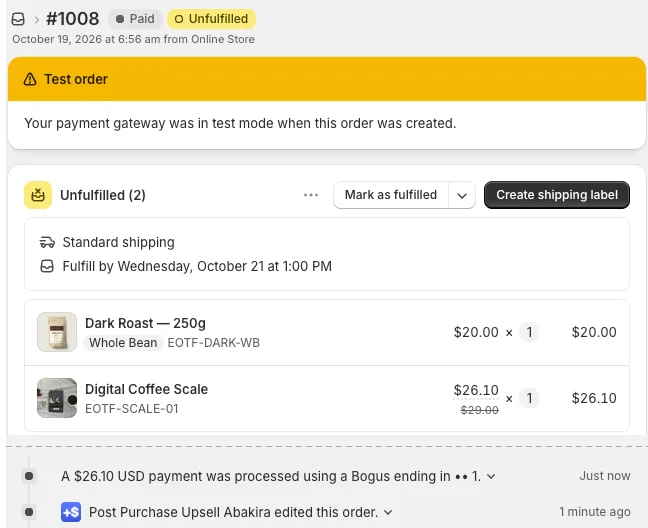
For your warehouse it’s still one order, one picking list and one label. If a 3PL pulls your orders, our article on keeping the upsell in one parcel with a 3PL explains when the added lines are pushed.
What happens if the buyer reloads the page or leaves halfway?
The buyer’s path survives a reload. Post Purchase Upsell Abakira saves each answer on our server as the buyer goes, so reloading the thank you page brings back the offer they had reached and the basket they had built. A declined offer doesn’t come back, and an offer they already paid for is never charged again.
The same saved path works across pages. A sequence can also run on the order status page, the page behind the link in the confirmation email: add a Sequence block in the funnel’s Order status tab and pick the same sequence. A buyer who closes the thank you page halfway and opens their order the next day picks up where they stopped. What was already added and paid is counted as done, and only the rest of the path is offered.
Two guards keep this from ever billing twice:
- The payment link works once. Each link carries a signature over the order and what it adds, and the app marks it used before editing the order. Tapping it a second time, or opening it in a second tab, adds nothing.
- A stale link is refused. The link records how much of the path was already paid when it was made. If the buyer paid in between, the old link no longer matches and the app refuses it.
Which orders get the sequence?
The sequence shows on every order that can still take an addition. Orders that cannot are skipped: cancelled, fully shipped, or already carrying an added item waiting for payment. A sequence never falls back to opening a new checkout. The editor says it plainly: “When the order can no longer take additions, the sequence is hidden. It never opens a new checkout.”
Two more cases make it step aside rather than show something wrong. If the app can’t read the live prices of the products in it, the sequence isn’t served on that load. And if one offer’s product is out of stock or can’t be sold in the buyer’s currency, that offer counts as a no for the buyer, and the If they say no thanks path takes over. The buyer sees the next offer, never a gap.
If you want buyers on those orders to see something anyway, put a plain product block on the same page. Product blocks can open a new checkout when the order can’t be edited.
Who should see the sequence?
The sequence has its own Show it to setting, like every thank you page block, with five rules: Everyone, Buyers who did not see the one-click page, Buyers who accepted a specific offer, Buyers who accepted at least one offer and Buyers who refused everything. Each rule decides whether this sequence appears for a given order.
On the free plan, thank you blocks, the sequence included, go to every buyer, so set the sequence to Everyone. Sorting buyers by what happened on the one-click page comes with the Pro plan and above. There, three setups work well:
- Buyers who did not see the one-click page: the whole sequence for PayPal, wallet and iDEAL buyers, who never had a post-purchase offer.
- Buyers who refused everything: a cheaper sequence for card buyers who said no on the one-click page. Start it below the price they refused.
- Buyers who accepted at least one offer: a short sequence of accessories for what they just took.
On the order status page, blocks can also follow the thank you page of the same order, for example Buyers who bought nothing on the thank-you page. Those rules are on the Scale plan.
How do I test which sequence sells more?
Testing a sequence in Post Purchase Upsell Abakira means testing the whole thing. The A/B test of the whole sequence runs up to four versions, each a complete sequence with its own steps, products, discounts and paths. Each order gets one version, the same on the thank you page and on the order status page.
The results come by version, all pages together, under the sequence. The admin defines its terms: “A view is a buyer who saw the sequence; an order is a paid order.” Compare revenue per view, not acceptance on the first offer: a version with a lower first-step acceptance can still earn more if its second step sells the scale.
Sequence tests are on the Scale plan. On other plans the sequence runs its first version, and a test you set up stays saved, paused, until the plan includes it. The A/B testing chapter of our guide explains how versions are assigned and how much data a verdict needs.
One habit makes the test readable: change one thing per version, the second offer or a discount, not both. When version B wins, you know which change did it.
More techniques for raising the order after payment are on our method topic page, and the sequence block chapter of the guide is the short reference.
Post Purchase Upsell Abakira includes the Sequence block on every plan.
Build a thank you page upsell sequence on Shopify
- Open the Thank-you page tab In Post Purchase Upsell Abakira, open your funnel and click the Thank-you page tab.
- Add a Sequence block Under Add a block, click Sequence, then pick + New sequence and give it a Sequence name only you will see.
- Fill offer 1 Choose the Offer type, Single product or Bundle, pick the product and set its discount. Offer 1 carries the Shown first label.
- Set both paths Under If they add it and If they say no thanks, choose Show offer N or End of the sequence.
- Add the next offers Click Add an offer for each next step, up to six, and set their paths the same way.
- Fix any Never shown offer If an offer carries the Never shown label, point a path from an earlier offer to it or remove it.
- Pick who sees it and save Set Show it to, keep Where the purchase goes on a same-order option, save, and place a test order to walk one path.
Frequently asked questions
Can a buyer pay before the sequence is over?
Yes. As soon as the buyer adds one offer, an Added to your order list appears under the current offer with a Pay button showing the total. It stays secondary while offers remain and becomes the main button when the sequence ends. Paying early sends everything added so far in one order edit.
Does a sequence work for buyers who paid with PayPal or Apple Pay?
Yes. The sequence lives on the thank you page, which every buyer reaches whatever the payment method. It only needs an order that can still take additions: not cancelled, not fully shipped, and without an earlier added item still waiting for payment.
Can I put the same product in two offers of one sequence?
Yes. Each offer has its own product and its own discount, so the same product can come back further down a branch at a deeper discount, as a downsell after a no. The editor only requires that every path points further down the list.
What happens if a buyer reloads the page in the middle of the sequence?
The answers already given are kept. The path is saved on our server, so a reload, or opening the order status page from the confirmation email, picks up at the offer the buyer had reached. An offer they declined does not come back.
Can a sequence include a bundle?
Yes. Each offer in a sequence is either a Single product or a Bundle of 2 to 4 products. A bundle offer is accepted with one tap and adds every product in it.
Related articles
Written by Abakira. We make small software: Shopify apps, web tools and iPhone apps. This article is about Post Purchase Upsell Abakira.