How to announce a price increase to customers on Shopify
Give the date, the new price and the reason, then turn the notice into a stock-up offer after checkout: 2 or 3 more units at today's price, same order.
2026-11-10 — Abakira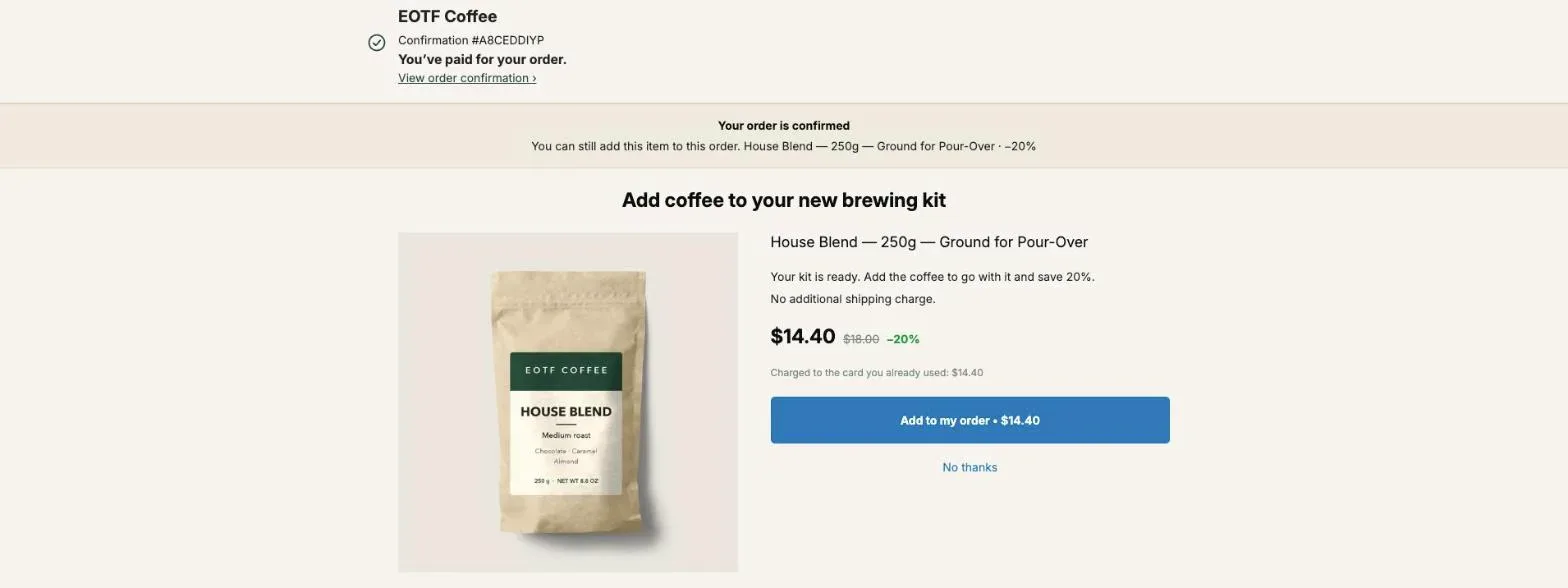
To announce a price increase to customers, tell them three things in the first two lines: the date it takes effect, the old price next to the new one, and the reason in one plain sentence. Send it by email to the people who buy that product, put it on the product page and in your announcement bar, and give returning buyers at least two weeks.
Then use the notice a second time. On the page right after payment, offer the buyer two or three more of what they just bought at today’s price, with the date of the increase written in the offer. The buyer has already chosen the product, the card is already charged, and the extra units ship in the same parcel. This page covers the announcement first, then that stock-up offer and how to build it in Post Purchase Upsell Abakira.
One rule before anything else: this only works when the increase is real and happens on the date you wrote. A deadline you don’t keep is a fake deadline, and a buyer who comes back on March 2 and finds the old price learns that your dates mean nothing.
How do you announce a price increase to customers?
A price increase announcement to customers works when it answers their questions before they ask them. Lead with the date and both prices, give the reason in one sentence, say which products are affected, and tell people what they can do before the date. Send it once by email, then leave it visible on the store until the change.
The order of the message matters more than the wording. Put the number first and the explanation after it, never the other way round:
- The date and the numbers. “On March 1, House Blend goes from $18 to $20 a bag.”
- Which products. Name them, or say “every coffee” if it really is every coffee. Don’t make a buyer guess whether their usual order is in.
- The reason, once. “Green coffee costs us more this year than last” is enough. A specific cause reads as honest; three paragraphs of justification read as an apology.
- What they can do. “Orders placed before March 1 are charged the current price.” This is the line that turns a bad news email into a reason to order.
- Who to ask. A reply-to address that a person reads, or your support page.
Brief whoever answers your inbox before the email goes out, with the date, both prices and the products.
How much notice should you give before raising prices?
Notice before a price increase should give a regular buyer time for one more order at the old price. On products people reorder every few weeks, two weeks is the floor and a month is better. On a product bought once a year, a short notice is fine, since nobody plans a purchase around it.
Short notice isn’t the problem in itself. The problem is a buyer who learns about the increase at checkout, when the price on their screen differs from the price in their head. Anyone who already buys the product should hear it from you first.
Pick the date before you write anything, and make it a date you control. If the increase depends on a supplier invoice you haven’t received, wait for the invoice. You’ll use the same date in the email, the banner, the product page and the offer after checkout, so it has to hold.
What should a price increase email say?
A price increase email should fit on one phone screen: the date and both prices in the subject or the first line, the products affected, one sentence of reason, and what the reader can do before the date. Send it on its own, not tucked into a newsletter, so the subject line can carry the news.
Here’s a version you can adapt:
Subject: House Blend goes to $20 on March 1
Hi [first name],
On March 1, House Blend goes from $18 to $20 a bag. Our green coffee costs more this year and we’d rather raise the price than change the beans.
Every order placed before March 1 is charged the current $18.
If you have questions, reply to this email. I read every one.
[Your name], [store name]
That’s 60 words. It names the product, the date, both prices and the reason, and gives the reader something to do. It doesn’t apologize three times, and it doesn’t promise “the same great quality” in a sentence nobody believes.
Who should get the price increase email first?
The price increase email should go first to the customers who bought the products that change price. They are the ones who’ll notice the new number. In Shopify, a customer segment built on the products_purchased filter finds them, and you can send the announcement to that list from your email tool.
Shopify’s segment editor writes the filter like this, with the product’s ID from its admin URL:
products_purchased MATCHES (id = 2012162031638)Add a date range to reach only recent buyers, for example products_purchased MATCHES (id = 2012162031638, date BETWEEN 2026-05-01 AND today). Everyone who bought the coffee since May gets the email; someone who bought once in 2023 doesn’t need it first. Send the general announcement to the rest of your list a few days later, if at all.
Where should the price increase appear on your store?
A price increase should appear on the store in two places until the date: the announcement bar across the top of every page, and the description of each product that changes price. The announcement bar catches visitors who missed the email; the product page answers the buyer who checks before ordering.
If your theme has an announcement bar, open the theme editor, select the announcement bar section and add your text, linking it to the product or to a page that explains the change.
On the product page, a single line under the price is enough: “From March 1, $20. Orders before then are charged $18.” Keep the wording identical to the email. A buyer who reads “$20” in the email and “$19.99” on the page will ask you which one is true.
How does a stock-up offer after checkout work?
A stock-up offer after checkout shows the buyer more of the product they just paid for, at today’s price, on the page between payment and the order confirmation. The date of the increase is written in the offer. Accepted, the units join the same order, charged to the same card, packed in the same parcel.
This is where the announcement starts earning money instead of just limiting complaints. The stock-up offer reaches every buyer who orders in that window, at the moment they’ve already said yes to the product.
A “buy now before prices go up” campaign with a storefront discount gives that discount to every order in the window, including the buyers who would have ordered at full price. The offer after checkout skips that: the front-end price doesn’t move, and the reason to buy more is the date, not a coupon.
Three bags taken now are three bags sold at today’s price instead of risking a lost order after the change.
What numbers make a stock-up offer worth it?
A stock-up offer is worth it when each added unit still earns money at your new cost. The buyer saves the price increase, so the offer itself needs only a token discount. Here’s the House Blend example, going from $18 to $20 on March 1, with a 1% offer and tiers at 2% and 3%:
| Added after payment | Discount | Line total | Per bag | Same bags after March 1 | Buyer saves |
|---|---|---|---|---|---|
| 1 bag | 1% | $17.82 | $17.82 | $20.00 | $2.18 |
| 2 bags | 2% | $35.28 | $17.64 | $40.00 | $4.72 |
| 3 bags | 3% | $52.38 | $17.46 | $60.00 | $7.62 |
Of the $7.62 a three-bag buyer saves, $6.00 comes from the increase and $1.62 from the discount. That’s the point of the offer: the saving is real without you cutting the price.
Check your side. Say a bag used to land at $7.00 and now lands at $8.50: you still keep $8.96 a bag at the top tier, with no extra shipping since the bags go in the parcel the buyer already paid for. If the new cost leaves you less than you’re willing to keep, drop the 3-bag tier and stop at two.
How do I set up the stock-up offer in Post Purchase Upsell Abakira?
You set up the stock-up offer in Post Purchase Upsell Abakira as a repeat offer on the one-click page: the app reads the item from the paid order, so you pick no product. Choose the repeat type, a small percentage and two quantity tiers, then write the date of the increase in the promise line.
- Open your funnel and select the One-click post-purchase tab. Click Edit offer on the first offer, or Start with one more unit on an empty funnel.
- Under What this offer proposes, choose One more, same variant. The admin describes it as “One more of the exact item they just bought”: same flavor, same grind, same size, at the price they just paid. Pick One more, any variant instead if buyers might want a different size.
- Set Discount type to Percentage and enter 1. The one-click offer needs a discount above zero; the buyer’s real saving is the increase.
- Under Quantity tiers, click Add a tier: 2 units at 2, then 3 units at 3. Give each tier a bigger discount than the one before it; if a bigger quantity carries a smaller discount, the admin warns you: “A tier with more units has a smaller discount than the one before it. Buyers would pay more per unit for buying more.”
- Write the date in Your words on this page (next section).
- Under Who sees this offer, choose Order contains and pick the products whose price goes up. Product targeting comes with the Pro plan and above; on the free plan the offer is shown to every eligible buyer, which works when the increase covers the whole catalog.
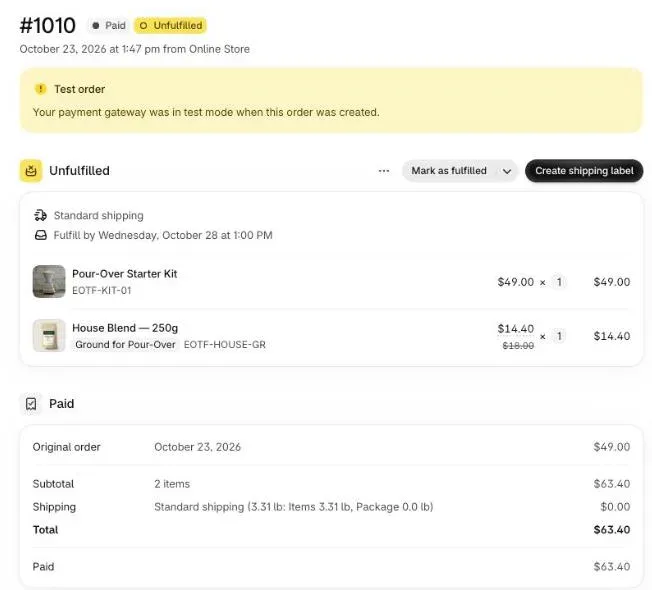
- Save, place a test order with a card, pick 3 units and tap Add to my order. The extra units appear as a new line on the same order in your Shopify admin.
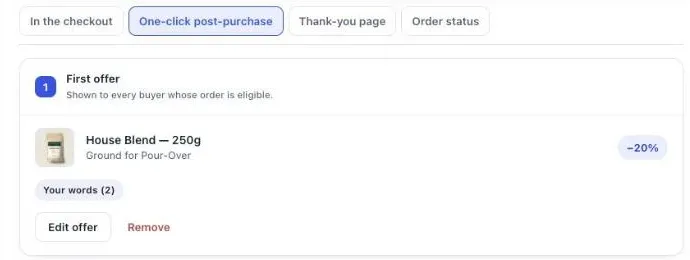
If the order holds several products, a “One more” offer re-offers the line with the highest unit price. On a store where someone bought a $49 brewing kit and an $18 bag of coffee, the offer is built on the kit. If the kit isn’t going up, use A product instead and pick the coffee yourself.
How do I write the date of the increase into the offer?
The date of the increase goes in the offer’s Promise line, the sentence at the top of the page, under Your words on this page. Write the date, the old price and the new one. The promise line takes up to 140 characters, and Shopify doesn’t allow exclamation marks anywhere on this page.
A promise line that does the job:
House Blend goes from $18 to $20 on March 1. Stock up at today’s price.
That’s 71 characters. Under it, the Selling headline (up to 90 characters) and Your argument (up to six lines) carry the rest:
- Selling headline: “Two more bags before the new price”
- Your argument: ”- Same coffee, same parcel, no new checkout”
- Your argument: ”- {amount} a bag today, $20 from March 1”
{amount} is replaced by the real price after your discount, so the figure in your text never contradicts the price shown on the page. You can also write a badge, up to three per offer and 28 characters each, such as “New price March 1”, and color it amber with {warning:…} in the text or in the badge’s colour setting. Amber, green and red are the only three colors this page can show.
Leave the countdown off. The app’s timers count from the moment of the order (30 seconds to 30 minutes on the one-click page), so they measure the buyer’s session. A date written in words says exactly when the price changes.
How do I reach buyers who skip the one-click page?
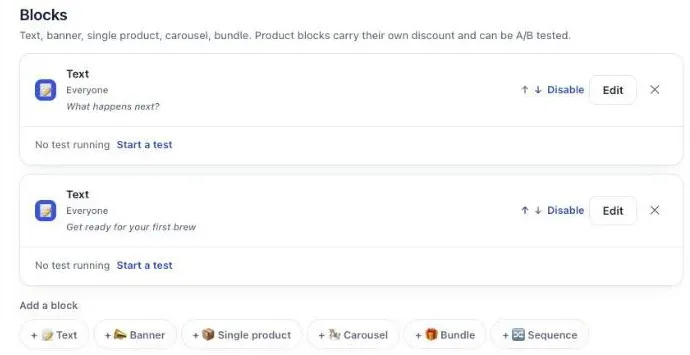
The thank-you page reaches the buyers who paid with PayPal, Apple Pay or a gift card, since Shopify shows the one-click page after card payments. A Single product block on the thank-you page carries the same stock-up offer, with its own quantity tiers, and a Banner block above it states the date of the increase.
On the thank-you page, the setup changes in three ways:
- You pick the product. A thank-you block shows the product you choose, so build one block per product that’s going up, or one for your best seller.
- 0% is allowed. A block’s Discount (%) takes any whole number from 0 to its maximum, so the offer can run at exactly today’s price. Its Quantity tiers run from 2 to 9 units, each with a discount from 1 to 90%.
- The date goes in a banner. Add a Banner block with Banner colour set to Warning (orange) and the same sentence as your promise line.
Set Where the purchase goes to Same order, unless it has fully shipped: the units join the order the buyer just placed, in the same parcel. To keep card buyers from seeing the offer twice, aim the blocks at Buyers who did not see the one-click page. That rule comes with the Pro plan and above; on the free plan, a thank-you block shows to every buyer. The thank-you page chapter of our guide walks through each block.
When should the stock-up offer come down?
The stock-up offer comes down on the date of the increase, the same day the new price goes live. After that, “stock up at today’s price” is false, because today’s price is the new one. Put a reminder in your calendar the day you publish the offer.
On that day, three things change together:
- The product prices in Shopify.
- The announcement bar and the line on each product page.
- The offer after checkout: switch the funnel back to your usual offer, or keep the repeat offer and replace the promise line with something that’s true without a date.
If the increase gets postponed, update the promise line the same day you decide. And if the date moves twice, drop the date from the offer until it’s settled.
For a regular stock-up offer with a real discount and no date, see the same product upsell on Shopify. For a quantity ladder built around a sale instead of a price change, Black Friday quantity discounts after checkout uses the same tiers with deeper cuts.
How do I know the stock-up offer earned money?
You know the stock-up offer earned money when the Results screen shows it adding revenue on the products that went up. In Post Purchase Upsell Abakira, the By product table lists, for each product offered, how many buyers saw it, the orders and units it added, and the revenue.
The columns read Saw it, Orders, Units, Revenue, Share and Clicks. On a stock-up offer, read Units against Orders: if units are close to twice the orders, buyers are taking the 2- and 3-bag tiers; if they’re equal, nearly everyone takes one bag and the top tier can go. The chapter on reading your numbers explains the rest of that screen.
Shopify accepts at most three post-purchase offers per checkout. If a buyer takes the stock-up offer, use the If accepted branch, on a paid plan, for something next to the product (filters after coffee) rather than a fourth bag. For more on what to put in each slot, see the guide chapter on what to offer after checkout, or browse the other upsell methods on this blog.
Post Purchase Upsell Abakira has a free plan with up to 100 offers shown a month, repeat offers and quantity tiers included. The listing has the current plans.
Turn a price increase into a stock-up offer after checkout
- Open the one-click offer In Post Purchase Upsell Abakira, open your funnel, select the One-click post-purchase tab and click Edit offer on the first offer, or Start with one more unit on an empty funnel.
- Pick the repeat type Under What this offer proposes, choose One more, same variant so the buyer gets more of the exact item they paid for, at the price they just paid.
- Set a small discount Set Discount type to Percentage and enter 1. The saving the buyer gets is the coming price increase, not this number.
- Add two quantity tiers Under Quantity tiers, click Add a tier and enter 2 units at 2, then 3 units at 3. Give each tier a bigger discount than the one before it; the admin warns you when a larger quantity carries a smaller discount.
- Write the date in the promise line Under Your words on this page, write the date and both prices in the Promise line, for example: House Blend goes from $18 to $20 on March 1. Stock up at today's price.
- Target the products that change price Under Who sees this offer, choose Order contains and pick the products whose price goes up. This needs the Pro plan or above.
- Test it Place a test order with a card, pick 3 units, tap Add to my order and check in your Shopify admin that the extra units sit on the same order.
Frequently asked questions
How much notice should I give before raising prices?
Give returning customers at least two weeks, and a month or more when the product is something they reorder on a schedule. The date has to be in the first message, along with the old price and the new one, so nobody has to work it out.
Can I show the stock-up offer only on the products that are going up?
Yes. In Post Purchase Upsell Abakira, set Who sees this offer to Order contains and pick the products whose price changes. Product targeting comes with the Pro plan and above. Targeting by collection, with Order contains a product from, comes with Scale.
What discount should a stock-up offer carry?
A small one. The buyer's saving is the price increase itself, so 1 to 3% on top is enough to label the line. On the one-click page the offer needs a discount above zero, and each quantity tier should carry a bigger discount than the one before. A thank-you page block can run at 0%.
Should the stock-up offer have a countdown?
Leave the countdown off and write the date in words. The app's timers count from the moment of the order, from 30 seconds to 30 minutes on the one-click page and up to 72 hours on the thank-you page, so they measure the buyer's session, not the days left before your new price.
What if I postpone the price increase?
Change the promise line and any banner on the same day you change the plan. An offer that names a date you no longer intend to keep turns an honest notice into a fake deadline. If the new date is not set yet, switch the offer back to your usual one.
How many units can a buyer add in one go?
On the one-click page an offer takes up to five quantity tiers, each between 2 and 20 units. On the thank-you page and the order status page a product block takes up to three tiers, from 2 to 9 units. For a stock-up, two tiers (2 and 3 units) fit a phone screen without scrolling.
Related articles
Written by Abakira. We make small software: Shopify apps, web tools and iPhone apps. This article is about Post Purchase Upsell Abakira.