Thank you page upsell on Shopify, added to the same order
A Shopify thank you page offer can join the order the buyer just placed: one order, one parcel, only the difference to pay. Setup, offers and settings.
2026-10-28 — Abakira, updated 2026-11-08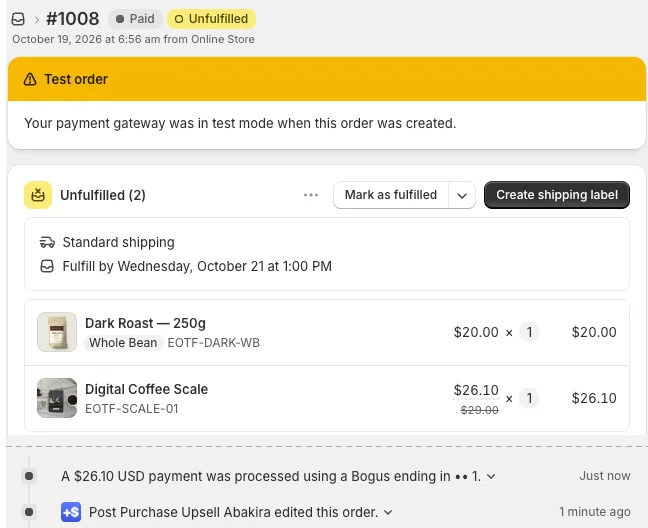
A thank you page upsell on Shopify is an offer shown on the order confirmation page, the page every buyer reaches after paying. With Post Purchase Upsell Abakira, the item the buyer adds there goes onto the order they just placed: one order, one parcel, and the buyer pays only the difference. It works whatever they paid with, card, PayPal, Apple Pay, iDEAL or cash on delivery.
On our test order #1008, a scale at $26.10 instead of $29.00 joined a $20.00 order, and only $26.10 was charged. Some thank you page offers open a cart or a new checkout instead, which makes a yes a second order with a second shipping fee. Below is how the same-order version works, how to set it up in about ten minutes, which offers to put there, and which settings change the result.
What is a thank you page upsell on Shopify?
A thank you page upsell on Shopify is a product offer placed on the order confirmation page, the page that shows “Thank you” with the confirmation number. Shopify shows it after every completed checkout, so every buyer sees it once, and again on the order status page behind the link in the confirmation email. To decide which page to build first, start from how your buyers pay and which page to build first after checkout.
Two pages can follow a Shopify checkout, and they get confused all the time.
| One-click post-purchase page | Thank you page | |
|---|---|---|
| When it appears | Between payment and the confirmation | After the confirmation, every time |
| Who sees it | Buyers who paid by credit card, in the cases Shopify allows | Every buyer, whatever the payment method |
| How the buyer pays for the extra item | Charged to the card already used, one tap | Same order with a balance to pay, or a new checkout |
| Where you set it up | Settings > Checkout > Post-purchase page | The checkout editor, Thank you page |
The thank you page is the only one of the two with no eligibility problem. A buyer who paid with a wallet, PayPal, a gift card or on delivery never sees the one-click page, as our article on why Apple Pay, PayPal and Google Pay orders skip the post-purchase page explains. That buyer still lands on the thank you page.
Why add the thank you offer to the existing order?
Adding the thank you offer to the existing order keeps one order, one picking list and one shipping label. The buyer pays the item’s price and nothing else, with no second shipping fee, and your warehouse packs it in the parcel that was going out anyway. A second order means a second parcel and a second label.
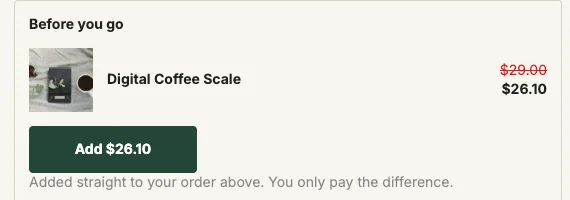
There’s also the buyer’s side. With a new checkout the buyer would type the address again and pay shipping again. With the same-order button, the line under it reads “Added straight to your order above. You only pay the difference.” and nothing else is asked.
How does a thank you page item get onto the same order?
A thank you page item gets onto the same order through Shopify’s order editing: the app opens an edit on the existing order, adds the product, applies its discount to that line, and commits. The order total goes up and Shopify shows a balance due on it. No second order is ever created. If a buyer writes to you instead, here’s how to add a product to an existing order in the Shopify admin and collect the balance.
In Post Purchase Upsell Abakira, the tap on Add goes through four Shopify operations in a row, in this order:
orderEditBeginopens an editable copy of the order.orderEditAddVariantadds the product.orderEditAddLineItemDiscountapplies the block’s discount to that line only.orderEditCommitwrites the change into the real order, with a staff note that reads “Added from the thank you page offer (Abakira Post Purchase Upsell).”
What happens next depends on what the buyer still owes:
- The order was fully paid (card, PayPal, a wallet): the buyer is sent to Shopify’s own payment page for the difference. Only the added line is due.
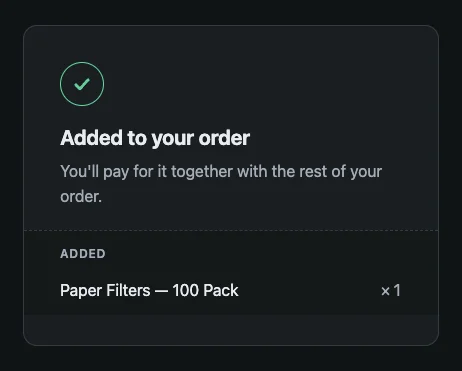
- The order was not paid yet (cash on delivery, bank transfer): no payment page. The buyer reads “Added to your order” and “You’ll pay for it together with the rest of your order.” The courier collects one amount for one parcel. Our article on upselling cash on delivery orders covers that case in detail.
We ran it on test order #1008 on our demo coffee store on October 19, 2026. The order held a $20.00 Dark Roast. On the thank you page, a Digital Coffee Scale was offered at $26.10 instead of $29.00. After the tap, the Shopify order showed both lines, the scale at $26.10 with $29.00 crossed out, then, in the timeline, a $26.10 payment and the entry “Post Purchase Upsell Abakira edited this order.” One order number, two lines, one parcel to pack.
Why the button is a signed link
The Add button is a link built by our server, and it is signed with the order, the products, the quantities and the discount. The browser can’t change the price or the product: everything comes from the signature. Order numbers are easy to guess, and an unsigned link would let anyone put a line on a stranger’s order. The link expires 24 hours after the page built it, and reopening the page builds a fresh one.
How do I set up a thank you page upsell on Shopify?
Setting up a thank you page upsell on Shopify takes two parts: placing the app block once in Shopify’s checkout editor, then building the offer in the app. Shopify only shows an app on the thank you page where you place it, so skipping the first part means nothing appears, with no error anywhere.
- Place the block. In Shopify admin, go to Settings > Checkout and click Edit next to your checkout configuration. Select the Thank you page, click Add block, choose Thank you page offer from Post Purchase Upsell Abakira, and click Save. Shopify allows this on every plan from Basic up, Plus is not needed.
- Open the funnel. In the app, open your funnel and click the Thank-you page tab.
- Add a product block. Under Add a block, pick Single product, Carousel or Bundle, choose the product and set its discount.
- Pick who sees it. Set Show it to. For a first block, choose Buyers who did not see the one-click page.
- Pick where the purchase goes. Leave Where the purchase goes on Same order, unless it has fully shipped, the default.
- Check the preview. The preview next to the settings has a case selector. Switch it to Didn’t see the one-click page to see what a PayPal or wallet buyer will get.
- Save and test. Pay a test order with a method that skips the one-click page, such as a manual payment method, tap Add, and open the order in your Shopify admin. You should see one order, the new line with its discount, and the app’s edit in the timeline.
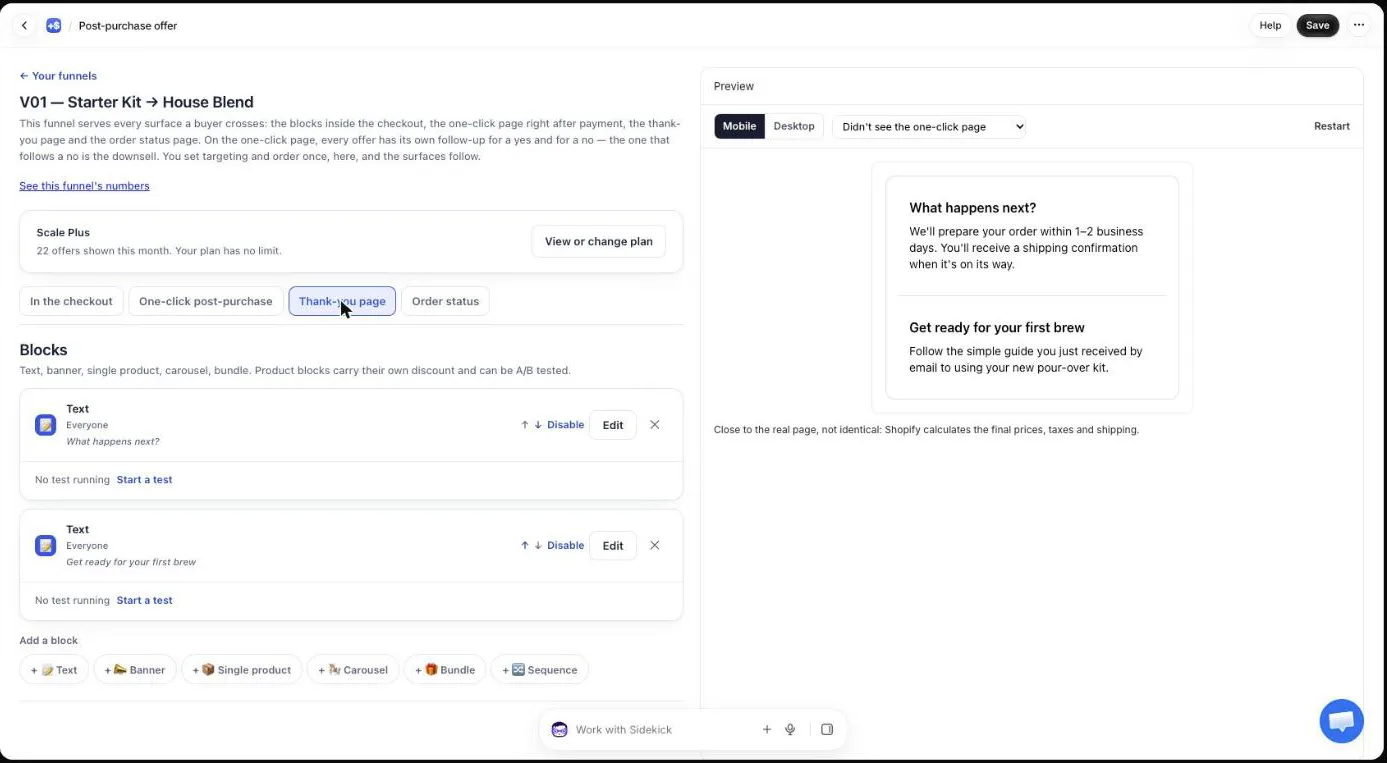
The thank you page chapter of our guide has every block setting in reference form.
What blocks can a thank you page hold?
A thank you page in Post Purchase Upsell Abakira holds up to 6 blocks, shown in the order you set. Six block types exist: Text, Banner, Single product, Carousel, Bundle and Sequence. Product blocks carry their own discount per product, and their quantity selector goes from 1 to 5.
| Block | What it shows | Limits and use |
|---|---|---|
| Text | A heading and a paragraph | What happens next, delivery times, care instructions |
| Banner | A coloured message, in four tones | A shipping cutoff, a short notice |
| Single product | One product with its discount | The repeat item, the obvious accessory. Discount up to 90% |
| Carousel | Up to 8 products, as a list or a horizontal carousel | Refills in several flavours or sizes |
| Bundle | 2 to 4 products added together | ”Complete the set”. One item in the bundle can be free, at 100% |
| Sequence | Several offers one at a time, paid once at the end | A short run of offers. It has its own guide chapter on the sequence block, and our article on building a thank you page upsell sequence walks through the paths and pricing |
The 90% ceiling on a single product is deliberate: 100% on a lone card is almost always a typo. Inside a bundle, a free item is a decision you make product by product, so 100% is allowed there.
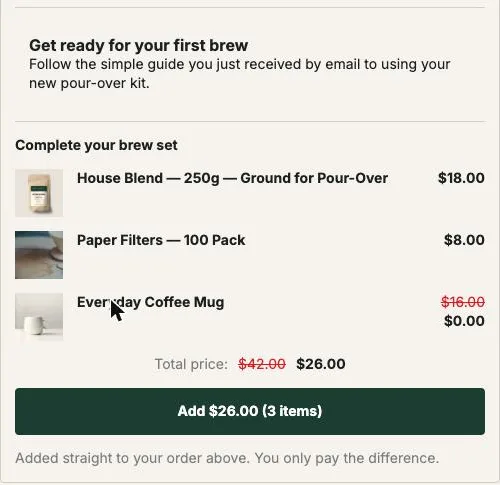
A bundle enters the order as one edit with several lines. One tap, one payment for the difference, all three items in the same parcel.
What should I offer on the thank you page?
The best thank you page offer is a product the buyer will need soon because of what they just bought: a refill, a consumable, the accessory that goes with it, or one more of the same item at a clear discount. The offer has to make sense at a glance, from the photo, the name and the price.
Four offers to put on this page:
- One more of the same, at 40% off. A Single product block with the product the buyer just bought, at 40%. It’s the simplest setup there is. On a store with one hero product, one block covers everyone. With several products, make one funnel per product with the condition Order contains, each with its own block; conditions are on the paid plans.
- The consumable that runs out. Filters for a coffee kit, refills for a diffuser, blades for a razor. A $12 refill under a $40 order.
- The finishing piece, as a bundle. Two to four items that complete what was bought, with the cheapest one free. “Complete your brew set” in the capture above does exactly that.
- A cheaper item after a no. A buyer who declined a $40 add-on on the one-click page can get a $12 one here, with the rule Buyers who refused everything.
Leave the confirmation itself alone. The page still has to say the order went through and what happens next. A Text block set to Everyone above the offer (“What happens next?”) answers that, and the offer sits under it.
Who should see each thank you block?
Each thank you block in Post Purchase Upsell Abakira has a Show it to setting with five rules: Everyone, Buyers who did not see the one-click page, Buyers who accepted a specific offer, Buyers who accepted at least one offer and Buyers who refused everything. Each block checks its own rule, so several blocks can show at once.
The rule to start with is Buyers who did not see the one-click page. On the Pro plan and above it reaches every buyer the one-click page skipped. For those buyers, the thank you page is the only post-payment page with an offer on it. The other rules use what the buyer did on the one-click page a few seconds earlier: an accessory for someone who took the main offer, a cheaper item for someone who declined everything.
On the free plan, thank you blocks are shown to every buyer, so use one block set to Everyone with an offer different from the one-click offer. Sorting buyers by what happened on the one-click page (did not see it, accepted, refused) comes with the Pro plan and above. For a sale weekend, our Black Friday thank you page setup walks through which rule to give each block during BFCM.
Which “Where the purchase goes” setting should I pick?
The Where the purchase goes setting decides, block by block, whether the item joins the existing order or opens a new checkout. It has three options, and the default, Same order, unless it has fully shipped, is the right one for most stores.
| Option in the admin | What it does | Pick it when |
|---|---|---|
| Same order, unless it has fully shipped (default) | Added to the order the buyer placed, in the same parcel. If everything already shipped, the buyer pays in a new checkout | Most stores |
| Same order, only until the first parcel ships | Added while nothing has shipped. As soon as one parcel has left, even for part of the order, the buyer pays in a new checkout and gets a separate order | Warehouses that ship within hours and split orders |
| Always a new checkout | The buyer always pays in a new checkout and gets a separate order, with your usual shipping rates | Items that ship from somewhere else, or that you want as a separate order |
When a new checkout opens, the buyer doesn’t type a discount code. The button carries a marker that a Shopify discount function created by the app recognises, and the discount lands on the product in the checkout by itself. The function only touches carts that come from a thank you block, and only the products configured in it, so it never discounts the rest of your store.
A few cases always open a new checkout, whatever the setting: a product sold as a subscription, a cancelled order, an order that is fully shipped, and an order that already carries an added item still waiting for payment.
The line under the button
Under the Add button, one sentence tells the buyer which of the two happens. For the same order it reads “Added straight to your order above. You only pay the difference.” For a new checkout it reads “Opens a new checkout. Your order above stays exactly as it is.” You can hide it per block with Show the line that says what the button does, but that hides the sentence, not the behaviour, so say it somewhere else in the block.
How does a card buyer pay for the item added from the thank you page?
A card buyer who taps Add is sent to Shopify’s payment page for the difference, and the line sits on the order with a balance due until it is paid. Post Purchase Upsell Abakira holds one unpaid addition per order, so while that balance is open, no other block adds to the same order.
Shopify only creates the payment link after the edit is committed, so the line exists before it’s paid. If the buyer leaves the payment page, the line stays unpaid on the order, and two moments follow:
- When the page loads again (the buyer comes back to the thank you page or opens the order status page), every product block switches to a new checkout. The line under the button, unless you hid it, says so: “Opens a new checkout. Your order above stays exactly as it is.”
- When the buyer taps a button that was already on screen before the first addition, for example in a tab left open, the app refuses the edit. The screen is headed “An item on this order is waiting to be paid”, reads “Finish that payment first.”, and nothing more is added.
Once the balance is paid, the blocks go back to adding to the same order. Two taps a fraction of a second apart are also handled: the app takes a lock on the order before editing, and the second request gets “Another item is being added to this order”.
For orders that were never paid upfront, cash on delivery and bank transfer, the screen Buyer page has a setting called “Email the buyer when they add an item to an order they haven’t paid yet”. It is off by default. A buyer who paid by card never gets that email, since they pay the difference on the payment page instead.
If a warehouse system pulls your orders, the added line waits for payment before it is pushed. Our 3PL article on keeping the upsell in one parcel explains the timing.
How do I add urgency without a fake timer?
A product block on the thank you page can carry a countdown of up to 72 hours, counted from the moment the order was placed, not from when the page opens. A reload or a second device shows the same deadline, and the order status page shows the same one too, so the timer is real.
At zero, you choose what happens: the block disappears, stays at full price, or shows your message in place of the button. In all three, the discount really ends. Because the deadline is tied to the order, a buyer who opens the order status page from the confirmation email the next day sees the same offer with the time that is really left.
How do I know if the thank you page upsell is working?
The Results screen of Post Purchase Upsell Abakira, under “What your offers earned”, reads your Shopify orders and shows a Thank-you page tile with the revenue from that page and the number of orders behind it, apart from the one-click page. An item added to the same order counts once the order is paid.
Compare two numbers each month: the revenue on the Thank-you page tile against your one-click total, and the number of orders behind that tile against your share of orders paid without a card. If most of your orders skip the one-click page and the thank you page still earns little, change the product before you change anything else. On the Scale plan, each product block can run an A/B test with several versions, and each buyer keeps seeing the same one.
Does the order status page work the same way?
The order status page works the same way: you place the Order status page offer block once in the checkout editor, build blocks in the funnel’s Order status tab, and an item added there joins the same order under the same rules. Buyers reach it from the link in the confirmation email. Our guide to the order status page upsell, from confirmation to delivery covers what to offer as the parcel moves.
On the Scale plan, order status blocks can also follow what happened on the thank you page of the same order: Buyers who bought on the thank-you page, Buyers who bought from a specific thank-you block and Buyers who bought nothing on the thank-you page. That last rule lets you show a second offer only to buyers who passed on the first.
If your thank you page used to run tracking or survey code pasted into Additional Scripts, that code stopped on non-Plus stores on August 26, 2026; our article on thank you page scripts ending in August 2026 lists what to check. App blocks like this one are the format Shopify supports now.
More offers and price tests are on our method topic page.
Post Purchase Upsell Abakira runs the one-click page, the thank you page and the order status page from one funnel. The free plan shows up to 100 offers a month and includes thank you blocks; the listing has the current plans.
Set up a Shopify thank you page upsell that adds to the same order
- Place the app block in Shopify In Shopify admin, go to Settings, then Checkout, click Edit on your checkout configuration, select the Thank you page, click Add block and choose Thank you page offer from Post Purchase Upsell Abakira. Click Save.
- Open the Thank-you page tab of a funnel In Post Purchase Upsell Abakira, open your funnel and click the Thank-you page tab.
- Add a product block Under Add a block, click Single product, Carousel or Bundle, pick the product and set its discount.
- Choose who sees it Set Show it to. On a first setup, choose Buyers who did not see the one-click page.
- Choose where the purchase goes Leave Where the purchase goes on Same order, unless it has fully shipped, or pick Same order, only until the first parcel ships if your warehouse ships within hours.
- Save and place a test order Click Save, then pay a test order with a method that skips the one-click page, tap Add on the thank you page and open the order in your Shopify admin.
Frequently asked questions
Do I need Shopify Plus for a thank you page upsell?
No. Shopify allows app blocks on the Thank you and Order status pages from the Basic plan up. Shopify Plus is only needed for blocks inside the checkout itself, before payment.
Does the buyer get a second order confirmation email?
Not when the item goes onto the same order. Post Purchase Upsell Abakira edits the existing order, so there is no second order and no second confirmation. A buyer who paid by card pays the difference on Shopify's payment page. For orders paid on delivery or by bank transfer, you can choose in the Buyer page screen whether the buyer is emailed the updated order; it is off by default.
What does the buyer see after tapping Add and leaving the payment page?
The line stays on the order with a balance due, because Shopify only creates the payment link once the edit is committed. Post Purchase Upsell Abakira keeps one unpaid addition per order: when the page loads again, the blocks open a new checkout and say so under the button. A button that was already on screen before the first addition shows "Finish that payment first." and adds nothing.
Can the thank you page offer the same product the buyer just bought?
Yes. A Single product block can show any product, including the one in the order. Pair it with a funnel whose condition is Order contains that product, so each product gets its own repeat offer. Targeting with conditions is on the paid plans.
How long does the Add button keep working?
The link behind the button is signed and expires 24 hours after the page built it. Reopening the thank you or order status page builds a fresh link, so a buyer coming back the next day still gets a working button.
Can I show different thank you offers to buyers who took or refused the one-click offer?
Yes. Each block has a Show it to setting with five rules: Everyone, Buyers who did not see the one-click page, Buyers who accepted a specific offer, Buyers who accepted at least one offer and Buyers who refused everything. On the free plan, blocks are shown to every buyer; sorting by what happened on the one-click page comes with the Pro plan and above.
Related articles
Written by Abakira. We make small software: Shopify apps, web tools and iPhone apps. This article is about Post Purchase Upsell Abakira.