How to add a product to an existing order on Shopify
Add a product to a placed Shopify order with Edit, then collect the balance by invoice. Or let buyers add it themselves from the thank-you page.
2026-11-03 — Abakira, updated 2026-11-08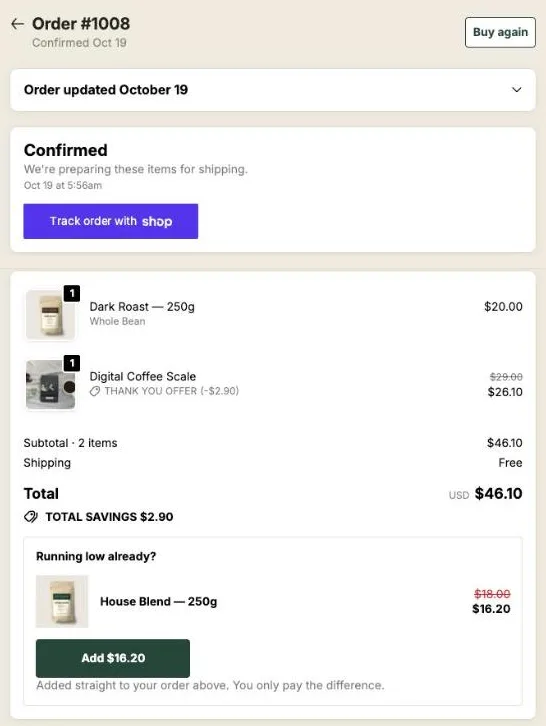
To add a product to an existing order on Shopify, open the order in your admin, click Edit, add the product and click Update order. The order now shows a balance due, which you collect by sending the buyer an invoice from Collect payment > Send invoice. If you’d rather the buyer adds the product without writing to you, Post Purchase Upsell Abakira puts an Add button on the thank-you page and the order status page that runs the same Shopify order edit and sends the buyer to pay only the difference.
The first way is a support task. The second one is a sale you didn’t have to ask for.
| Edit in the Shopify admin | Buyer adds it with Post Purchase Upsell Abakira | |
|---|---|---|
| Who starts it | You or your staff, after a request | The buyer, by tapping Add |
| Where | Orders > the order > Edit | Thank-you page and order status page |
| How the buyer pays a card order | An invoice email with a checkout link | Sent straight to Shopify’s payment page for the difference |
| Cash on delivery order | The balance waits like the rest of the order | The item joins the order, paid at the door |
| Discount on the added item | A manual line discount you type | The offer’s discount, applied by the app |
| What the order shows | ”Reason for edit” note, if you wrote one | A staff note and a line discount named “Thank you offer” |
How do I add a product to an existing order in the Shopify admin?
Adding a product to an existing order in the Shopify admin goes through the order editor, which any store owner or staff member with the Edit orders permission can open. It works on desktop and in the Shopify mobile app. You add catalog products or custom items, review the new total, and save the edit with Update order.
The steps on desktop, as of November 2026:
- In your Shopify admin, go to Orders and click the order.
- Click Edit.
- Add the product: search for it, select it, and click Done.
- To add more of an item that’s already on the order, raise its Quantity instead of adding the same variant a second time.
- For something that isn’t in your catalog (a gift note, a sample, a fee), click Custom item, fill in the name, price and quantity in the Add custom item dialog, and click Add item.
- Optionally write a note in Reason for edit. Customers don’t see it, but your team will, months later, when someone asks why the order has five lines instead of four.
- Review the changes and click Update order.
On the mobile app the buttons read Add product and Add custom item, then Review changes and Update order.
What happens to the payment after I add a product?
After you add a product to a Shopify order, the order total goes up and the order summary shows an amount to collect. Shopify doesn’t charge the buyer by itself. You collect the balance with an invoice and checkout link, a card payment you enter, or by marking it as paid.
The three options sit under Collect payment on the order:
- Send invoice. Write a message, click Review invoice, then Send invoice. The buyer gets an email with a link to a checkout where they enter their billing details and pay the balance. You can set payment terms, such as due on receipt or due on fulfillment, and add a payment reminder for the due date or for when the payment is overdue.
- Pay by credit card. If the buyer gives you their card details, enter them and click Charge. This option needs Shopify Payments.
- Mark as paid. For a balance settled outside Shopify, by bank transfer or in person.
Two side effects are worth knowing before you send that invoice. The checkout the buyer lands on doesn’t offer accelerated checkouts, so the one-tap Shop Pay or Apple Pay they used the first time isn’t there. And collecting a payment after an edit can change the order’s fraud analysis indicators.
If the edit lowers the total instead (you removed an item or reduced a quantity), the summary shows a refund owed. Issue the refund after you update the order; sending the buyer a notification doesn’t refund anything. An edit that leaves the total unchanged, like a free custom item at $0, needs no payment step at all.
Which Shopify orders can take an added product?
Most unfulfilled online store orders can take an added product, in the store’s currency, by a staff member with the Edit orders permission. Before you promise a buyer anything, check the order against the list below, because a few payment methods, delivery methods and order sources keep the editor closed or limit what it can change.
What to check:
- Fulfilled items. You can add new items to an order with fulfilled lines, but fulfilled items can’t be removed or have their quantity changed. On an order that carries taxes and duties, any fulfilled line closes the editor completely.
- Payment method. Orders paid with Shop Pay Installments can’t be edited. Refund and create a new order instead. Orders still in pending payment may not let you edit items and discounts.
- Local delivery. Orders with local delivery as the delivery method can’t be edited.
- Imported or app-created orders. Orders imported into your admin can’t be edited; orders created by an app can only be edited by that app. Orders converted from draft orders can be edited.
- International currencies. Editing an order placed in another currency is only available to some stores. Without it, the route is a refund and a new draft order in the buyer’s market.
- Bundles. You can’t add a product bundle while editing, and you can’t raise a bundled item’s quantity above what was ordered.
- Point of Sale. In-store pickup orders are edited from the Shopify admin or the Shopify app, not from the POS app.
New items and raised quantities become items to fulfill. If a 3PL or a fulfillment app pulls your orders, confirm it picks up edits before you rely on them; an app that ignores edits can ship the original order without the added line.
What about discounts, shipping and taxes on the added item?
The added item on a Shopify order edit gets the discounts you apply by hand, ships under the shipping charge already on the order, and is taxed when you click Update order. Discount codes and automatic discounts can’t be added during an edit, but some existing ones are recalculated on the new line.
The details from Shopify’s editor:
- Discounts you can apply: a manual discount on a single line, and one custom discount on the whole order.
- Discounts you can’t touch: discount codes, automatic discounts, script discounts and shipping discounts can’t be added, edited or removed.
- Discounts that follow the new item: a percentage discount on the whole order is recalculated when you add items. A fixed-amount code on specific products or collections is recalculated only when it can be used more than once per order.
- Shipping: rates aren’t recalculated. If the extra item adds weight, add a custom shipping charge yourself.
- Taxes and duties: recalculated when you click Update order. Shopify doesn’t calculate them on custom items.
- Reports: an edit made after the day of the order appears as a separate order in Orders over time, Sales over time and Average order value over time.
That recalculation cuts both ways. If the buyer used a 10% code on the whole order, a product you add with your own 15% line discount gets both. Keep that in mind when you price the addition.
Can the buyer add a product to their order without contacting me?
A buyer can add a product to their own Shopify order when an app places an offer on the thank-you or order status page and runs the edit for them. Post Purchase Upsell Abakira does this with Shopify’s own order editing: the item lands on the original order, in the same parcel, and the buyer pays only the difference.
Under the hood, the app uses Shopify’s order editing in four steps: begin an edit, add the variant, add the line discount, commit. It asks Shopify for the write_order_edits permission to do that and nothing broader. It doesn’t hold write_orders, so it has no permission to cancel an order or change its address.
The two pages reach buyers at different moments:
- The thank-you page is shown once, right after payment, to every buyer whatever they paid with. It’s the moment for “you forgot the filters”.
- The order status page is reopened from Shopify’s order and shipping emails, sometimes days later. It’s the moment for the refill. Our article on the order status page upsell covers what to offer as the parcel moves.
The thank-you page upsell that joins the same order has the offer ideas for the first page. Here we stick to what happens to the order.
What does the buyer see after tapping Add?
The buyer sees a line under the button before tapping, then a confirmation page. That line says which path will happen: “Added straight to your order above. You only pay the difference.” when the item goes onto the order, or “Opens a new checkout. Your order above stays exactly as it is.” when it can’t.
After the tap, what happens depends on what the buyer still owed on the order:
- Paid by card or wallet. Nothing was owed, so the balance is exactly the new line. The app sends the buyer straight to Shopify’s payment page for that amount. No invoice email, no waiting for you.
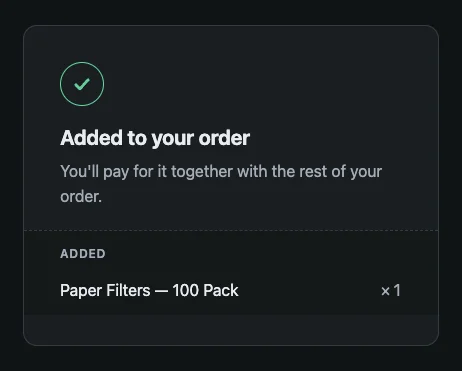
- Cash on delivery or bank transfer. The whole order was already owed, so the app never sends the buyer to pay online. The page reads “Added to your order” and “You’ll pay for it together with the rest of your order.”
On order #1008 of our demo store, the buyer tapped Add $26.10 for a Digital Coffee Scale listed at $29.00, paid on Shopify’s payment page, and the order timeline recorded exactly one $26.10 payment. Not $46.10, not a second order.
The title and success messages of that page can be rewritten in the app, on the Buyer page, under After the buyer clicks Add. The error messages stay ours, because they describe what the app actually did.
What do I see on the order in my admin?
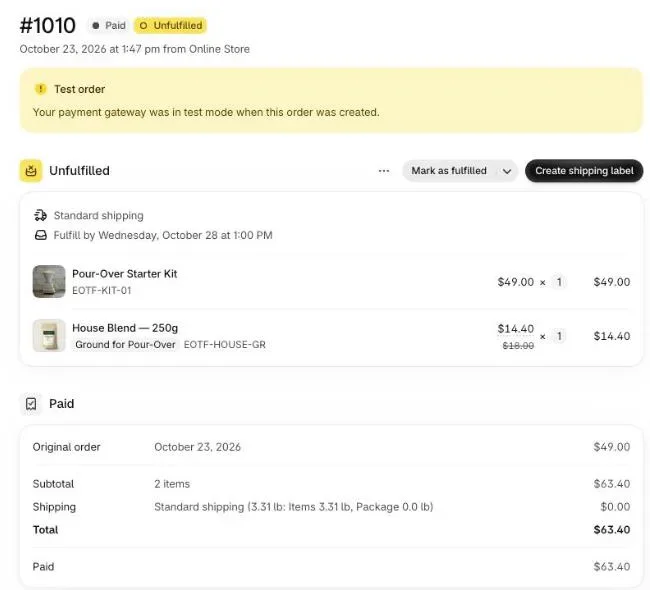
The order in your Shopify admin shows the added product as a normal line, with its discount, in the same unfulfilled group as the rest. The timeline records that Post Purchase Upsell Abakira edited the order and, for a card buyer, the payment of the difference. Nothing to merge, no second order to cancel.
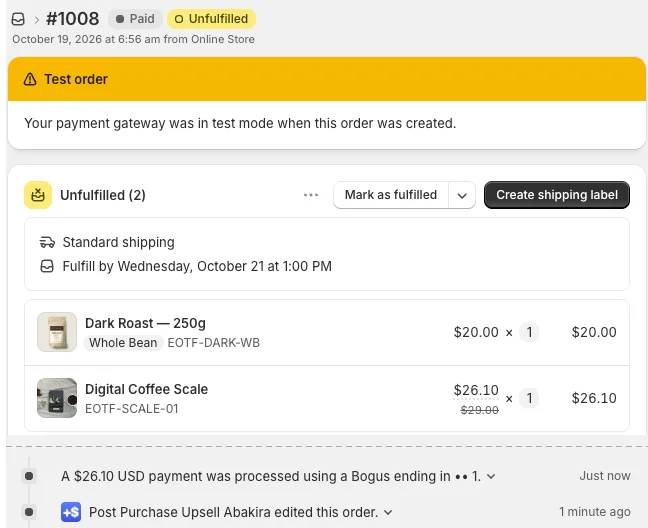
Two things identify the line later. The edit carries a staff note that reads “Added from the thank you page offer (Abakira Post Purchase Upsell).” And the line discount is named “Thank you offer”, the same label the buyer sees next to the item on the order status page.
Where does the item go when a buyer taps Add: the same order or a new checkout?
Post Purchase Upsell Abakira adds the item to the same order by default and opens a new checkout only when the order can’t safely take it: the order was cancelled, it has shipped, the product is a subscription, or an earlier addition is still unpaid. The block’s Where the purchase goes setting decides how shipped orders are handled.
The three settings, word for word from the block editor:
| Order state | Same order, unless it has fully shipped (default) | Same order, only until the first parcel ships | Always a new checkout |
|---|---|---|---|
| Nothing shipped yet | Added to the order | Added to the order | New checkout |
| Partly shipped | Added to the order | New checkout | New checkout |
| Fully shipped | New checkout | New checkout | New checkout |
| Cancelled | New checkout | New checkout | New checkout |
| An earlier addition still unpaid | New checkout | New checkout | New checkout |
The app reads the order before it draws the button, so the line under the button is already right. It reads the order again at the tap. If your warehouse shipped the order while the tab sat open, the buyer gets “This order has already shipped” and nothing changes. A cancelled order gets “This order has been cancelled”.
When a new checkout does open, the discount still applies. The button carries the offer, and a discount function installed by the app applies the price in the checkout, without a code to type. The guide chapter on same-order additions, cash on delivery and the price you show lists every case.
How do I let buyers add products to their order with Post Purchase Upsell Abakira?
Letting buyers add products to an existing order takes two steps: place the app block once in Shopify’s checkout editor, then build the offer in the app. Shopify shows apps on the thank-you and order status pages on every plan from Basic up, so this doesn’t need Shopify Plus.
- Place the block. In Shopify admin, go to Settings > Checkout and click Edit next to your checkout configuration. Use the page selector at the top of the editor to pick the Thank you page, add the Thank you page offer app block, and save. Do the same on the Order status page with Order status page offer.
- Open your funnel in the app. Its tabs are In the checkout, One-click post-purchase, Thank-you page and Order status.
- Add a product block. Under Add a block, pick Single product, Carousel or Bundle, choose the product and set the discount. A page holds up to 6 blocks, and a Bundle adds up to 4 products in one tap.
- Check Where the purchase goes. The default, Same order, unless it has fully shipped, fits most stores.
- Test it. Place a test order, tap Add on the thank-you page, and open the order in your admin: one order, the new line with its discount, the staff note on the edit.
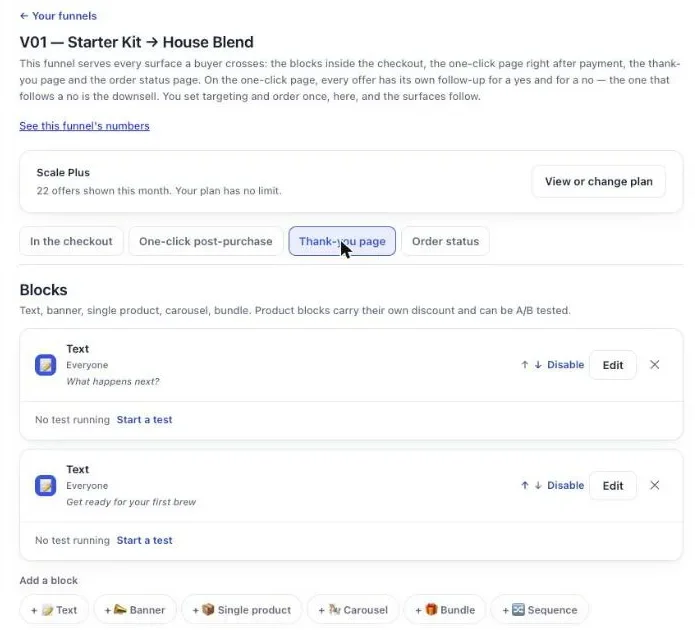
The thank-you page chapter of our guide walks through the checkout editor screens, and the order status page chapter does the same for the second page.
How does the app keep an order from being edited twice?
Post Purchase Upsell Abakira keeps an order from being edited twice with three guards: a lock while an edit runs, a limit of one unpaid addition per order, and a signed link behind each button. A buyer who double-taps, refreshes, or opens the page on two devices can’t stack lines or pay twice.
- One edit at a time. While an addition is being written, the order is locked. A second tap during that moment gets “Another item is being added to this order” and “Nothing more was added, and nothing was charged for this one.”
- One unpaid addition per order. If a card buyer taps Add and closes the payment page, the line stays on the order as a balance due, and the next block opens a new checkout instead of adding a second unpaid line. On a cash on delivery order the first addition stays unpaid until the courier collects, so put your strongest offer first.
- Signed links that expire. The amount, variant and discount behind the button come from our server, signed, and the link is valid for 24 hours. Every visit to the order status page builds a fresh one.
- Email link scanners. Some mail systems open every link in an email to check it. When the app recognizes that pattern, it shows a confirmation page with an Add to my order button instead of editing, so a scanner never adds anything.
If you take discount codes, one more setting matters. When the app adds a line, Shopify can apply the order’s discount code or an automatic percentage discount on all products to it as well, as described above. The setting Buyers pay the price shown, even with a discount code, on the Buyer page (Scale and Scale Plus plans), lowers the app’s own discount by what Shopify is about to apply, so the buyer pays the price the block showed.
Cash on delivery stores have a few more details to read, in our article on upselling cash on delivery orders. More techniques for the pages after checkout are on our method topic page.
Post Purchase Upsell Abakira adds products to the existing order from the thank-you page and the order status page. The free plan shows up to 100 offers a month; the listing has the current plans.
Add a product to an existing order in the Shopify admin
- Open the order In Shopify admin, go to Orders and click the order you want to change.
- Click Edit Click Edit at the top of the order page to open the order editor.
- Add the product Add a product, search for it, select it and click Done. To add more of an item already on the order, change its quantity instead. For something outside your catalog, click Custom item, enter a name, price and quantity, and click Add item.
- Leave a reason Optionally type a note in Reason for edit. Customers don't see it.
- Update the order Review the changes and click Update order. The order summary now shows the amount to collect.
- Collect the balance Click Collect payment, then Send invoice, write your message, click Review invoice and then Send invoice. The buyer gets a link to a checkout for the balance. Use Mark as paid instead if you were paid outside Shopify.
Frequently asked questions
Does the buyer get an email when a product is added to their order?
With Post Purchase Upsell Abakira, a buyer who paid by card gets no extra email: they are already on Shopify's payment page for the difference. For orders paid on delivery or by bank transfer, the Buyer page has a setting, Email the buyer when they add an item to an order they haven't paid yet, which is off by default.
Does adding a product change the shipping cost of the order?
No. Shopify does not recalculate shipping rates when an order is edited. In the admin you can add a custom shipping charge if the new item needs one. Post Purchase Upsell Abakira never adds a shipping line: the item joins the parcel that is already planned.
Will the added product show up as a separate sale in my reports?
Only when the edit happens after the day the order was placed. Shopify then shows the edit as a separate order in Orders over time, Sales over time and Average order value over time.
Can I add a subscription product to an order that was already placed?
No. Shopify can't add a subscription to a placed order. Post Purchase Upsell Abakira detects this and opens a new checkout for subscription products instead of editing the order.
How long does the buyer have to add a product?
The Add button on the thank-you and order status pages carries a signed link that stays valid for 24 hours after the page built it. Each visit to the order status page builds a fresh one, so a buyer coming back from a shipping email days later still gets a working button.
Can I swap a product in an existing order instead of adding one?
Yes, from the admin. Shopify's way to swap is to remove the unwanted item and add the new one in the order editor. A fulfilled item can't be swapped this way, because fulfilled items can't be removed or have their quantity changed.
Related articles
Written by Abakira. We make small software: Shopify apps, web tools and iPhone apps. This article is about Post Purchase Upsell Abakira.