Order confirmation email upsell that adds to the same order
Your Shopify order confirmation email can link to the order status page. Put an Add button there, reword the link, and the item joins the same order.
2026-11-12 — Abakira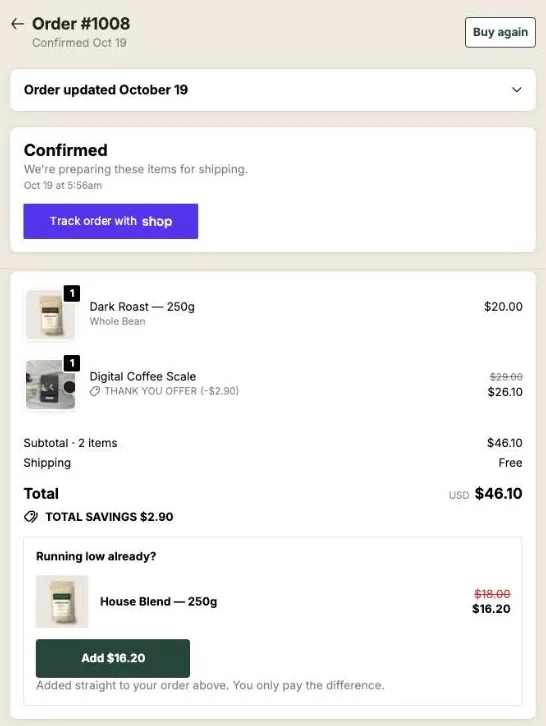
An order confirmation email upsell works best as a link, not a product grid. Shopify’s Order confirmation email can carry {{ order_status_url }}, the link to that order’s status page; put an offer with an Add button on that page and reword the link so the buyer knows it’s there. With Post Purchase Upsell Abakira, a tap on Add puts the item into the order the buyer already placed, discounted, in the same parcel.
That’s the whole technique. The rest of this page covers the four pieces: the template check, the wording, the offer on the page, and what happens after the tap.
Why link the email to the order status page instead of selling inside it?
An order confirmation email is a snapshot. Its prices are fixed when it’s sent, and any product link in it leads to a new cart, so an accepted offer becomes a second order with its own shipping. The order status page is live: the price is read when the buyer opens it, and Add can edit the order itself.
Here is the difference side by side.
| Product shown inside the email | Offer on the order status page, linked from the email | |
|---|---|---|
| Price | Fixed when the email was sent | Read from your store on every visit |
| What a click does | Opens a cart or product page | Adds the item to the order already placed |
| Parcels | A second order, a second parcel | Same order, same parcel while it can still ship together |
| Payment | A full new checkout | Only the difference, or nothing upfront on cash on delivery |
| Countdown | Fixed text in the inbox | Counts from the moment the order was placed |
| Changing the offer | Edit the template, affects future emails only | Change the block, every past email now leads to the new offer |
The last row matters more than it looks. Every confirmation email you’ve sent this month links to the same page, so swapping a product in the app changes the offer behind all of them at once.
There used to be a third way: pasting an upsell script into the order status page through Additional Scripts. That route closed for non-Plus stores on August 26, 2026, as our article on the end of thank-you page scripts explains. App blocks are what remain, and they’re what this setup uses.
Can Shopify’s order confirmation email link to the order status page?
Yes. Shopify’s order confirmation can include a link to the order status page, and the variable {{ order_status_url }} returns the link to the order status page for this order. If the link is missing from your template, add the variable yourself.
To check yours:
- In Shopify admin, go to Settings > Notifications.
- Under Customer notifications, click Order confirmation.
- Click Edit code and search the template code for
order_status_url. - If it isn’t there, add it back. Do the same check on any shipping email you customized.
Keep {{ order_status_url }} exactly as written; everything around it is yours to reword.
As of November 2026, the link opens the page without a login for 3 weeks in the same browser, and for 2 weeks across up to 5 browsers. After that the buyer has to log in. So the email keeps working as a way back to your offer well past the first day.
How do I word the link so buyers know an offer is waiting?
The link text in the confirmation email should say what the page holds for this order, in plain words, next to the usual “view your order” job. A buyer who reads “your order and a refill at 10% off, added to the same parcel” has a reason to tap that a bare “View order” doesn’t give.
In the template, the change is one line. Keep the variable, change the words:
<a href="{{ order_status_url }}">See your order, plus a refill we can still pack with it</a>A few rules we follow when writing it:
- Promise only what every order will see. The template is the same for every order. If your order status blocks are targeted, or a block hides itself when its countdown ends, a promise like “20% off inside” will be wrong for some buyers. “Something for this order” or “a matching add-on” stays true.
- Name the parcel. “Ships in the same box” is the concrete benefit, and it’s true when the block’s purchase goes to the same order (more on that below).
- Keep tracking in the sentence. The buyer opens this page to check on the order. The offer rides along; it doesn’t replace that job.
- Test before saving. Shopify’s editor has Preview and Send test email. Send the test, open it on your phone, tap the link.
If your shipping emails use the same link, reword those too. Each shipping email is another visit to the same page, and a different moment in the order’s life.
How do I set up the offer the email points to?
The offer the email points to is an app block on Shopify’s order status page. Post Purchase Upsell Abakira adds one called Order status page offer; you place it once in the checkout editor, then build what it shows in the app’s Order status tab. Without the placed block, Shopify shows nothing from the app on that page.
- In your checkout editor, switch the page to Order status, add Order status page offer, and save.
- In Post Purchase Upsell Abakira, open your funnel and click the Order status tab.
- Under Add a block, pick Single product, Carousel or Bundle. A Text or Banner block can sit above it.
- Choose the product and its discount. A block can also run at full price.
- Set Where the purchase goes (next section).
- Place a test order and open the page from the confirmation email.
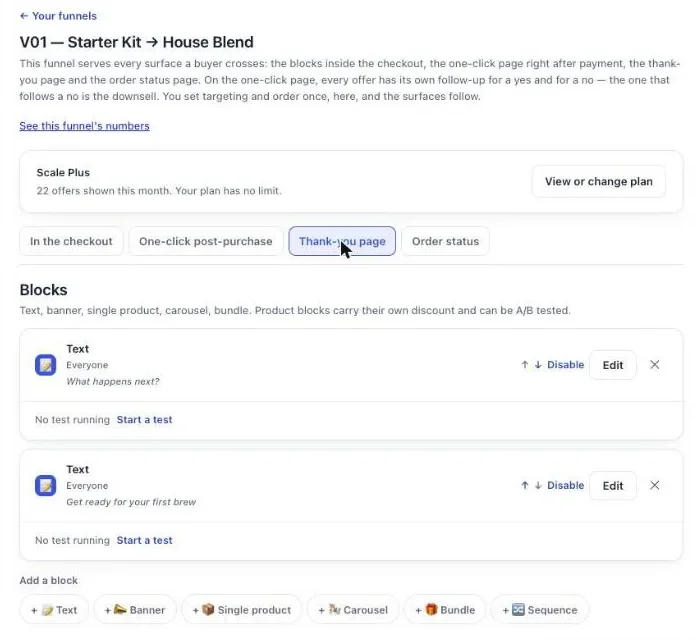
A Sequence block also works on this page. It shows several offers one at a time and the buyer pays once at the end; the same saved sequence can run on the thank-you page too, and the order status page picks up where the buyer stopped.
The order status page chapter of our guide has every setting of these blocks with the editor screens.
What should the confirmation email offer be?
The best offer behind a confirmation email is something that fits in the parcel that hasn’t shipped yet, so the strongest pitch is the add-on that rides along in the same box: the consumable, the accessory, the second unit of what was just bought.
Three formats fit well here:
- A single product at a small discount. One choice, one tap. On our coffee demo, that’s House Blend under a pour-over kit order.
- A bundle. On the thank-you and order status pages, a Bundle block holds 2 to 4 products at one price, added with one tap.
- Quantity tiers. A product block can offer up to 3 Quantity tiers, from 2 to 9 units, each with its own discount. That turns “add one more” into “add three, save more.”
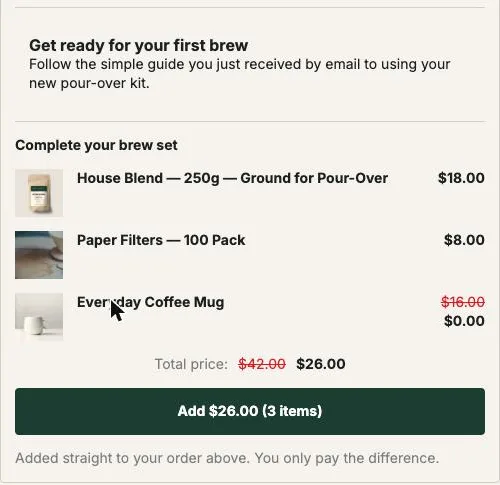
Don’t repeat the thank-you offer word for word. The buyer saw it seconds after paying. If you’re on a plan without the Show it to rules, use a different product on each page; with them, see the section on shipping emails below. Our list of what to upsell after a purchase has product ideas by store type.
What happens when the buyer taps Add from the email?
When a buyer taps Add on the order status page opened from the email, Post Purchase Upsell Abakira opens a new tab and edits the order already placed. A buyer who paid online lands on Shopify’s payment page for the difference. A cash on delivery buyer sees “You’ll pay for it together with the rest of your order.”
The link behind the button is signed and valid for 24 hours from the moment the page built it. Every visit builds a fresh one, so a buyer coming back from a shipping email a week later gets a working button.
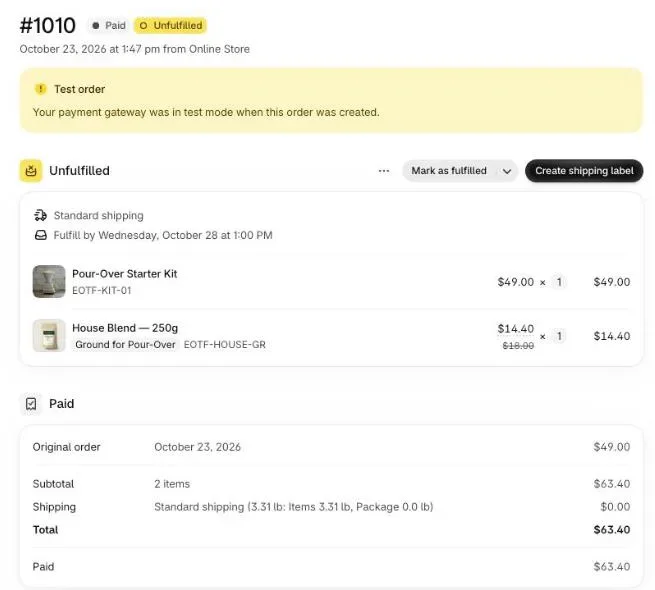
The block’s Where the purchase goes setting decides what happens once the warehouse has started on the order:
| Setting | Before anything ships | After part of the order ships | After everything ships |
|---|---|---|---|
| Same order, unless it has fully shipped (default) | Same order | Same order, later parcel | New checkout |
| Same order, only until the first parcel ships | Same order | New checkout | New checkout |
| Always a new checkout | New checkout | New checkout | New checkout |
For an offer linked from the confirmation email, the default is the right one on most stores: the item stays on the order until everything has shipped.
The app also refuses to double up. Only one addition runs on an order at a time; a second tap meanwhile gets “Another item is being added to this order”. A reload of a link that already went through says “This item is already in your order” and “Nothing more was added.”
Can an email security scanner add items to the order?
An email security scanner can’t add items through Post Purchase Upsell Abakira. Some company mail systems open an email’s links, and the links on the pages behind them, before anyone reads it. Opened that way, the Add link edits nothing: the scanner gets a page that asks “Add this offer to your order?” and waits for a click.
We built this in September 2026, after reading the request headers of real Add-link openings. A scanner announces that it opened the page directly while also claiming to come from another page; a buyer’s tap comes from your store’s page. When that signature shows up, the app shows the confirmation page instead of editing the order. The page says “Nothing is added until you confirm.” and has one button, Add to my order. A person taps it. A scanner doesn’t.
A missing header is never treated as suspicious, so a buyer on an older browser isn’t blocked. And the scanner never takes the buyer’s place: the check runs before the one-addition-at-a-time lock, so the real tap that comes after still goes through.
This matters because the confirmation email is now a way into a page with a button that changes the order. Without the check, a corporate mail filter could leave an unpaid line on an order before the buyer ever opened the email.
Should the email offer have a countdown?
A countdown on the order status page counts from the moment the order was placed, up to 72 hours, so every buyer who arrives from the confirmation email sees the time that’s really left. It doesn’t restart on each visit. A buyer who opens the email an hour after ordering sees a 48-hour timer at 47 hours, on any device.
When the timer hits zero, When the countdown reaches zero offers three outcomes: Hide the block, Keep the block, at full price or Keep the block, show a message. In all three, the discount really ends. If the order date can’t be read, the block shows without a timer rather than a made-up one.
Our rule of thumb for an email-linked offer: give the add-on for the first parcel a 24 to 48 hour window, matched to how long you take to pack, and leave the delivery-day offer without a countdown. If you mention the deadline in the email text, use the same number you set in the block, since both count from the order. The countdown timer article compares this with the one-click page, where a timer runs 30 seconds to 30 minutes.
What if my shipping emails carry the same link?
If your shipping confirmation and shipping update emails carry {{ order_status_url }}, they lead to the same order status page, so the same blocks show again later in the order’s life. That’s useful, and it’s also a reason to plan which buyer sees what on each visit.
On the Scale and Scale Plus plans, each order status block has a Show it to setting with four rules: Everyone, Buyers who bought on the thank-you page, Buyers who bought from a specific thank-you block and Buyers who bought nothing on the thank-you page. A buyer who took the add-on on the thank-you page then gets a different offer when the shipping email brings them back. On other plans, every order status block shows to every buyer.
Our article on the order status page upsell goes deeper into offers timed to delivery, cash on delivery stores and the shipping stages.
How do I know if the email is earning?
The Results screen of Post Purchase Upsell Abakira groups the thank-you and order status pages under “Thank-you and order status pages”, with the revenue and orders behind them. Its By product view covers the last 30 days. An item added to the same order counts once the order is paid.
Two checks tell you whether the email itself is doing the work:
- Change one thing at a time. Reword the email link, wait a full delivery cycle, then compare the page’s revenue with the cycle before. Don’t change the product in the same week.
- A/B test the block, not the email. Product blocks can carry an A/B test with up to 4 versions on the Scale plans, which tells you whether the offer is the problem before you blame the wording.
On the free plan, order status offers are a cheap experiment in another way too: the plan’s limit of 100 offers a month counts the one-click post-purchase page only. Blocks on the order status page don’t use it up. The free plan has one funnel, and its order status blocks show to every buyer, which fits a confirmation email that every buyer receives.
More setups that connect Shopify’s own tools to the pages after checkout are on our integrations topic page.
Post Purchase Upsell Abakira runs the one-click page, the thank-you page and the order status page from one funnel. The listing has the current plans.
Turn the Shopify order confirmation email into an upsell
- Place the order status app block In your checkout editor, switch to the Order status page, add the Order status page offer block from Post Purchase Upsell Abakira, and save.
- Build the offer In Post Purchase Upsell Abakira, open your funnel, click the Order status tab, add a Single product, Carousel or Bundle block, pick the product and set its discount.
- Choose where the purchase goes Leave Where the purchase goes on Same order, unless it has fully shipped, so the item ships in the same parcel while it still can.
- Check the link in the email In Shopify admin, go to Settings > Notifications. Under Customer notifications, click Order confirmation, then click Edit code and search the template code for {{ order_status_url }}. If it isn't there, add it back.
- Reword the link Change the text around {{ order_status_url }} so the buyer knows the page holds something for this order, then click Preview and Send test email before you save.
- Test with a real order Place a test order, open the confirmation email, follow the link, and tap Add. Check in your admin that the item sits on the same order.
Frequently asked questions
Can I put the upsell product directly inside the Shopify confirmation email?
You can add a product image and link to the template by hand, but an email can't edit the order. Its price is frozen at the moment it was sent, and a click on it starts a new cart. A link to the order status page reaches a live offer whose Add button joins the order the buyer already placed.
Does the order status link in the email expire?
As of November 2026, Shopify lets a buyer open the order status page from the confirmation email for 3 weeks without logging in in the same browser, and for 2 weeks across up to 5 browsers. After that the buyer has to log in.
Do order status page offers count toward the free plan limit?
No. The free plan of Post Purchase Upsell Abakira shows up to 100 offers a month, and only offers on the one-click post-purchase page count toward that limit. Blocks on the thank-you and order status pages don't use it up.
What if I send my order confirmation from an email marketing app instead of Shopify?
The technique is the same: the email needs the link to that order's order status page. Check that your app's order data includes that link before you turn off Shopify's own Order confirmation, and send yourself a test order to see where the button leads.
Can buyers who paid with PayPal or cash on delivery add the offer?
Yes. The order status page is shown for every order, whatever the payment method. A buyer who already paid online is sent to Shopify's payment page for the difference, and a cash on delivery buyer pays for the added item at the door with the rest of the order.
Will the email offer still work after the order ships?
That depends on the Where the purchase goes setting of the block. With Same order, unless it has fully shipped, the item joins the order until everything has left; after that, the buyer pays in a new checkout. With Always a new checkout, every purchase is a separate order.
Related articles
Written by Abakira. We make small software: Shopify apps, web tools and iPhone apps. This article is about Post Purchase Upsell Abakira.