Shipping protection on Shopify: how to price and offer it
Shipping protection on Shopify is an opt-in checkbox with its price shown. Start near $3, raise it $1 a week, and pre-tick it only when it is free.
2026-11-04 — Abakira, updated 2026-11-08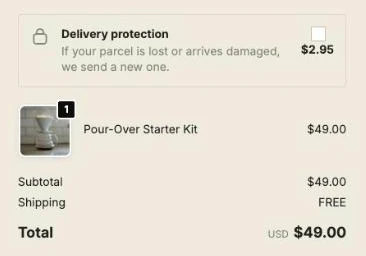
Shipping protection on Shopify is an optional line the buyer ticks at checkout to cover a parcel against loss, theft or damage. The price is shown before the tick, and on any app from the Shopify App Store the box starts empty unless the protection is free. The price that works is found by testing: start near $3 and raise it $1 a week. Stop when checkout conversion drops below the baseline and go back one price step. Operators who run it this way report 20 to 30 percent of buyers ticking it at $2 to $4.
The rest of this page covers the weekly price ladder, the arithmetic that tells you when a price is too high, the pre-tick rules, and the setup we built in Post Purchase Upsell Abakira for Shopify Plus checkouts.
What is shipping protection on Shopify?
Shipping protection on Shopify is a paid add-on line that the buyer adds to the order at checkout. In return, the store replaces or refunds a parcel that is lost, stolen or arrives damaged. It is a product in your catalog with a price, and it joins the same order as everything else.
There are two ways to run it. A third-party protection app sells the cover and handles the claims. Or you run it yourself: the protection is a product you price, the fee is yours, and you pay for the reshipments. This page is about the second way, because it’s the one where the price is yours to set.
It’s also different from the insurance Shopify includes on labels. As of November 2026, Shopify adds up to $200 USD of insurance on each eligible label bought in Shopify, if Shopify Payments is active, the store is on Grow, Advanced or Plus, and the parcel ships from the United States. That cover is for you, on the label. The buyer never sees it and never pays for it.
Should I sell shipping protection or not?
Shipping protection is worth selling when the fee adds more per checkout than it costs you in lost orders. One camp reports 20 to 30 percent of buyers taking protection priced $2 to $4, close to pure margin. The other sees a clear drop in checkout conversion and sells gift wrap, express shipping or a warranty instead.
Both camps are describing real stores. The difference is the price and the basket. A $3 line on a $49 order is 6 percent of the total; on a $150 order it’s 2 percent. A $6 line on a $25 order is a quarter of the basket. The same fee can be noise on one store and a real ask on another.
So don’t pick a camp. Run the protection, measure checkout conversion at each price, and let your own numbers decide. If conversion drops at every price you try, switch the slot to another add-on. A gift wrapping upsell or an extended warranty sold after checkout raises the order value without touching the checkout at all.
How much should I charge for shipping protection?
Shipping protection should start at about $3 and climb $1 a week. Stop when checkout conversion drops below the baseline and go back one price step. The safe range is $2 to $4; the ladder below tells you where conversion starts to slip on your store. Keep it flat: one amount, the same on every order.
Prices ending in .95 or .98 work like any other retail price. Start at $2.95 or $2.98, then $3.95, $4.95 and so on.
A flat price also keeps the setup simple. In our block, the protection is one product variant with one price, and the amount shown under the checkbox is read live from that variant. Changing the price in Shopify is the whole price change.
How do I run the weekly price ladder?
The weekly price ladder is a price test run in sequence: one price per week, raised by $1 each Monday, with two numbers written down at the end of each week. One week per step means each price sees every day of the week once, so a busy Sunday doesn’t make one price look better than the next.
- Week 1: set the protection product to $2.95. Note your checkout conversion rate (orders divided by checkouts reached) for the week before, as the baseline.
- At the end of each week, write down two numbers: checkout conversion, and the share of orders that include the protection line.
- Raise the price by $1 in Shopify, in the product’s price field.
- Stop when checkout conversion drops below the baseline and go back one price step. Leave the price there. Retest once a year, or when your average order value moves.
Don’t run the ladder during a sale, a launch or Black Friday. The traffic changes too much from one week to the next to read anything.
How do I know the price is too high?
The price is too high when protection revenue per checkout goes down, or when checkout conversion drops by more than the protection brings in. Protection revenue per order is the price multiplied by the share of buyers who tick. A higher price only pays if the take rate falls slower than the price rises.
Take a starting point of $2.95 with 25 percent of buyers ticking: that’s $0.74 per order. Here is the take rate each higher price needs just to match it:
| Price | Take rate needed to match $0.74 per order |
|---|---|
| $2.95 | 25.0% (starting point) |
| $3.95 | 18.7% |
| $4.95 | 14.9% |
| $5.95 | 12.4% |
| $6.95 | 10.6% |
The take rate is the easy number to watch. Conversion is the one that matters. On a store with a $60 average order, losing 1 percent of 1,000 checkouts is 10 orders and $600 of sales. At $0.74 per order, protection brings in $740 on the same 1,000 checkouts. So a one-point conversion drop eats almost all of it. If conversion moves at a new price step, the price is too high, whatever the take rate says.
To compare two prices at the same time instead of week by week, our block can be shown to one test group only. In the checkout editor, the block has an “A/B test — cart attribute name” field and an “A/B test — value to match” field, filled with what your A/B testing tool writes on the cart. The control group gets an untouched checkout, and nothing is added to their cart.
When can the shipping protection checkbox start ticked?
A shipping protection checkbox starts ticked when the protection is free; a priced one starts empty with its price shown beside it, as Shopify’s App Store requirement 1.1.9 asks. In the EU, article 22 of the Consumer Rights Directive lets buyers reclaim an extra payment agreed through a pre-ticked default.
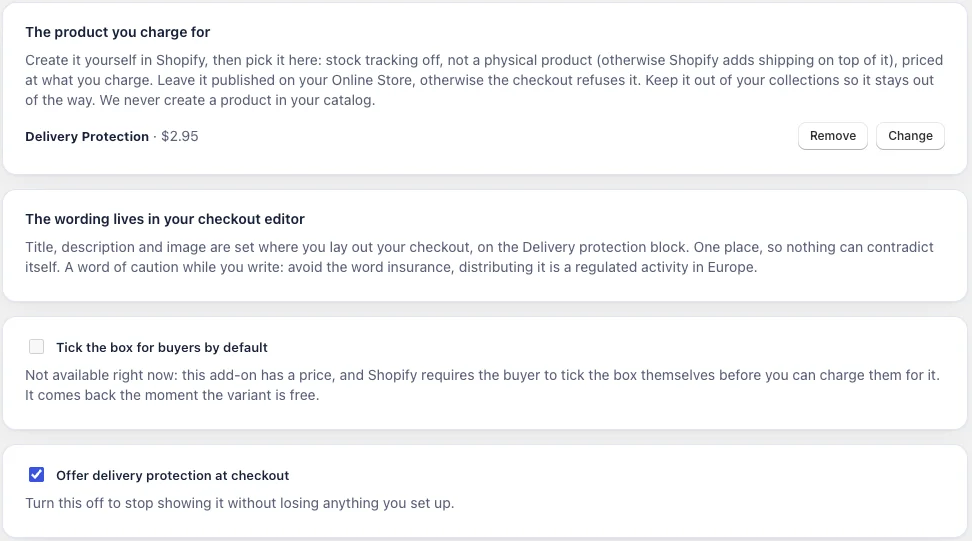
So in Post Purchase Upsell Abakira, the setting “Tick the box for buyers by default” only works on a free protection product. On a paid product the app shows it unavailable, with this text:
Not available right now: this add-on has a price, and Shopify requires the buyer to tick the box themselves before you can charge them for it. It comes back the moment the variant is free.
The check isn’t a one-off. When you save, the app reads the variant’s real price from Shopify’s Admin API and only stores a pre-tick if that price is zero. When you change the product’s price later in Shopify, the app is told and sends the updated settings to the checkout, so raising a free protection to $2.95 switches pre-ticking off by itself. If the app can’t read the price at all, it doesn’t assume the product is free: the setting stays unavailable.
Where should the protection checkbox go in the checkout?
The protection checkbox goes where the buyer is already thinking about delivery: right below the shipping methods, or in the order summary next to the total. Inside the Shopify checkout, app blocks only render on Shopify Plus stores, so the checkbox needs a Plus checkout.
Our Delivery protection block is placed by default below the shipping methods section, and you can move it anywhere in the checkout editor. Our demo store has it at the top of the order summary, as in the image at the top of this page.
Apple Pay, Google Pay and Meta Pay buyers who use the express buttons skip the checkout page, so they never see the checkbox. Buyers who go through the checkout page, including those paying with iDEAL, do.
How do I add shipping protection to a Shopify Plus checkout?
Shipping protection in a Shopify Plus checkout takes a product you create, an app that adds it as an opt-in line, and a block placed in the checkout editor. In Post Purchase Upsell Abakira this is the Delivery protection block, on the Scale Plus plan, set up from the app’s Checkout page.
- Create the protection product in Shopify. Price it at your first ladder price, $2.95 for example. Turn off “This is a physical product” and stock tracking. Set it to Active, publish it to your Online Store, and leave it out of your collections so it stays out of sight.
- Pick it in the app. Open the Checkout page, and under The product you charge for, click Choose the product.
- Turn it on. Tick Offer delivery protection at checkout and save.
- Place the block. Open your checkout editor in Shopify and add the Delivery protection block where you want the checkbox. Without this step, nothing you set in the app is shown.
- Write the text on the block (next section), then place a test order with the box ticked and one with it unticked.
The app never creates a product in your catalog, but it reads the one you picked and warns you on the Checkout page when something will break at checkout. The three warnings are “This product is not published, so it cannot be sold”, “This product is a draft or archived” and “This product is marked as physical”. The first one matters most: an unpublished product makes the checkout answer “Unavailable product” and drop the line, on every order.
The full settings, with screenshots, are in the guide chapter on delivery protection in the checkout. For the product offers that can sit next to it in the same checkout, see checkout upsells on Shopify.
What should the shipping protection text say?
Shipping protection text should say what happens to the parcel, in one line, with the price in it. “If your parcel is lost or arrives damaged, we send a new one” tells the buyer the outcome. Avoid the word insurance: distributing insurance is a regulated activity in Europe, and store-backed protection isn’t insurance anyway.
On our block, the title and description are written in the checkout editor, on the block itself. The title takes up to 120 characters and the description up to 400. Type {price} anywhere in either one and it’s replaced by the live price of the protection variant, in the buyer’s checkout currency. That’s what makes the weekly ladder painless: you change one price in Shopify and the text follows. Leave the title empty and buyers read a default “Delivery protection” in their own language.
Whatever the title says, the amount is also printed in bold under the checkbox whenever the protection costs something. When it’s free, the box stands alone, with no amount.
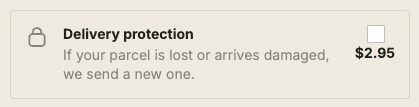
You can also put your own image on the left of the line: upload it in Shopify under Content, then Files, and paste its URL in the block’s Image URL field. Left empty, the block uses the protection product’s own image, then a lock icon. The checkout has no shield icon, so upload one as an image if you want a shield.
What happens if the buyer removes everything but the protection?
When a buyer goes back to the cart, deletes every product and returns to checkout, the protection line can be left alone in the cart. Our block removes it. It waits 400 milliseconds, reads the live cart again, and removes the protection only if nothing else is there, so no order goes through with protection and nothing to protect.
The rule is strict in the other direction. If any other line is in the cart, or a line can’t be read, the block leaves the cart as it is. Removing a product the buyer wanted would be worse than letting one odd order through.
How do I handle claims so the protection keeps selling?
Shipping protection keeps selling when claims are honored quickly and without argument: the buyer reports a missing or broken parcel, you send a new one or refund it. Sell it only if you honor it: the fee is a promise, and the buyer paid for it.
Write the claim path down before the first sale. Where the buyer writes (your support email or contact form), what they send (order number, a photo for damage), how long you wait before treating a parcel as lost, and what you do: reship or refund.
Then check the arithmetic with your own numbers. Say 1,000 orders, 25 percent take protection at $2.95: that’s 250 protected orders and $737.50 collected. If 3 percent of them file a claim and a reshipment costs you $25 in product and postage, claims cost $187.50. You keep $550. If your claim rate or reshipment cost is much higher, the ladder is the place to fix it: the price goes up, or the protection goes away.
Protection is one of several add-ons that raise the order value without a discount. The others, and how they stack, are in our guide to increasing average order value on Shopify. More pricing and offer techniques are on our method topic page.
Post Purchase Upsell Abakira has a free plan that shows up to 100 offers a month on a live store; the Delivery protection block comes with the Scale Plus plan. The listing has the current plans.
Add priced shipping protection to a Shopify Plus checkout
- Create the protection product In Shopify, create a product priced at your starting price, for example $2.95. Turn off This is a physical product and stock tracking, set it to Active, publish it to the Online Store and keep it out of your collections.
- Pick it in the app In Post Purchase Upsell Abakira, on the Scale Plus plan, open the Checkout page and, under The product you charge for, click Choose the product and select it.
- Turn the protection on Tick Offer delivery protection at checkout and save. Leave Tick the box for buyers by default off: on a paid product the app keeps it unavailable.
- Place the block Open your checkout editor in Shopify and add the Delivery protection block where you want the checkbox, then save the checkout.
- Write the title with the price token On the block, write a title and description. Type {price} where the amount should appear, so the text follows every price change.
- Raise the price once a week Every week, raise the product price by $1 in Shopify and write down checkout conversion and the share of orders that include protection. Stop when checkout conversion drops below the baseline and go back one price step.
Frequently asked questions
Is shipping protection the same as shipping insurance?
Not when you run it yourself. Store-backed shipping protection is a promise from your store: if the parcel is lost, stolen or damaged, you send a new one or refund it. No insurer is involved. Avoid the word insurance in the checkbox text, because distributing insurance is a regulated activity in Europe.
Doesn't Shopify already include shipping insurance?
Shopify includes up to $200 USD of insurance on each eligible shipping label bought in Shopify, when Shopify Payments is active, the store is on the Grow, Advanced or Plus plan, and the parcel ships from the United States. That covers you, the merchant, on the label. It is not something the buyer chooses or pays for at checkout.
Should I charge shipping protection on subscription renewals?
Charge it on the first order only. A protection fee that comes back on every renewal reads as a hidden line, and recurring fees of that kind push subscribers to cancel.
Where do buyers see the protection checkbox?
On the checkout page, wherever you placed the Delivery protection block. Every buyer who goes through the checkout page sees it, including those paying with iDEAL. Buyers who pay with the Apple Pay, Google Pay or Meta Pay express buttons skip the checkout page, so the block is not shown to them.
Can I offer shipping protection for free?
Yes. Price the protection product at zero and the checkbox shows without an amount. Free is also the one case where the box can start ticked, both under Shopify's App Store rules and under EU consumer law.
Will Shopify charge shipping on the protection line?
It can, if the protection product is set up as a physical product. Turn off This is a physical product and stock tracking on the product, and keep it active and published to your Online Store.
Related articles
Written by Abakira. We make small software: Shopify apps, web tools and iPhone apps. This article is about Post Purchase Upsell Abakira.