One click upsell on Shopify: how it works, how to set it up
A one click upsell adds an item to the order the buyer just paid, charged to the same card. How Shopify runs it, who sees it, and a setup in five minutes.
2026-10-28 — Abakira, updated 2026-11-08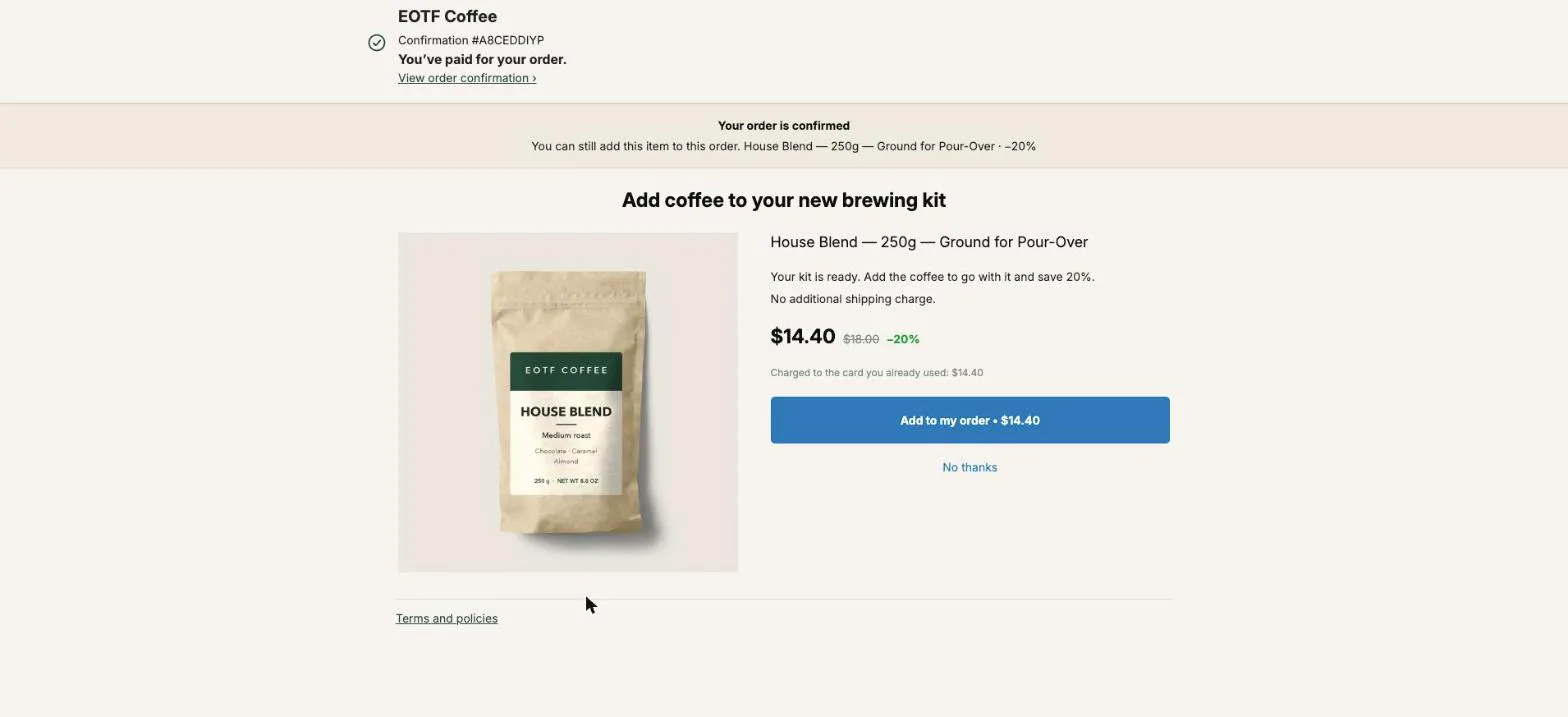
A one click upsell is an offer shown right after payment that the buyer accepts with a single tap, with no card or address to type again. On Shopify it lives on the post-purchase page, between the payment and the thank-you page, and the accepted item is added to the order the buyer just paid, charged to the same card. One order, one parcel, one total.
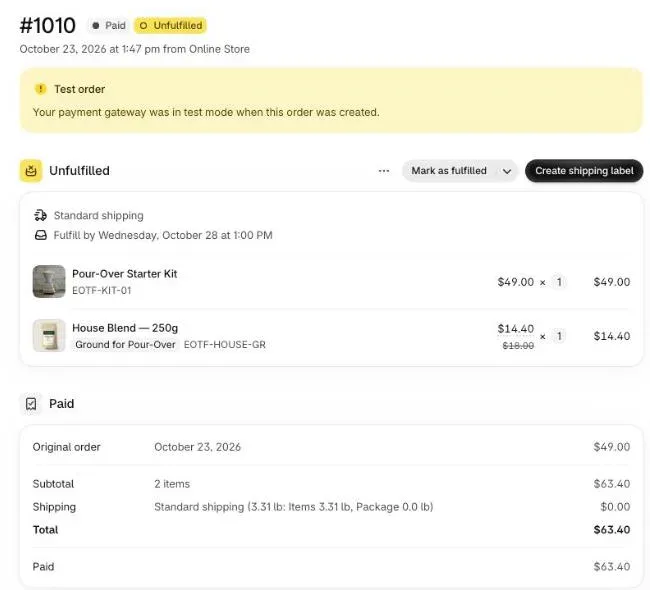
This page covers what happens behind that tap, which buyers Shopify shows the page to, how to put a working one click upsell on your store in about five minutes with Post Purchase Upsell Abakira, and what to offer first. Our examples come from our coffee test store, where test order #1010 on October 23, 2026 went from a $49.00 kit to $63.40 with one tap. For the whole picture, from the four pages to pricing and measurement, see our post purchase upsell guide for Shopify.
What is a one click upsell on Shopify?
A one click upsell on Shopify is a post-purchase offer: after the buyer pays, Shopify shows a page owned by an app, with one product, one price and one button. Tapping it adds the item to the paid order and charges the card already used. Declining sends the buyer to the thank-you page. Nothing about the first order changes either way.
The word “one click” is about effort, not about the number of offers. The buyer can see a second and a third offer after the first, each accepted with its own single tap. What makes it one click is that the payment details are already there: the card was stored when the buyer paid, before the page appeared.
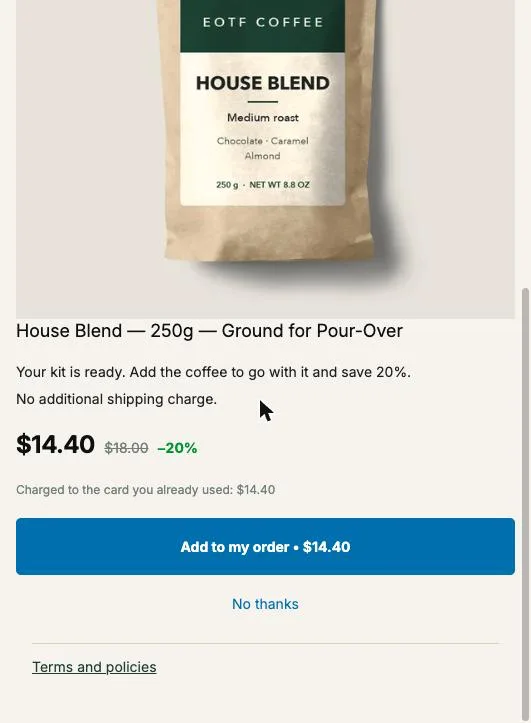
Here is the page as our buyer saw it on the coffee store. The header says the order is paid. The offer says exactly what will be charged, and to which card.
It is a different thing from an order bump (a checkbox in the checkout, before payment) and from a thank-you page offer (shown on the next page, which usually needs a second tap and, on a card order, a payment for the difference). The comparison table further down puts the four side by side, and our page on order bumps on Shopify covers the checkbox version.
What happens between the tap and the order?
A one click upsell on Shopify runs in four steps between the tap and the updated order. The app’s page asks the app’s server to sign the offer, Shopify checks that signature, applies the new line and charges the stored card and adds the line to the same order. The buyer only sees a button turn into the thank-you page. The page itself is drawn by the app’s Shopify post-purchase extension, from components Shopify fixes.
In more detail, this is the sequence Shopify documents for its post-purchase extensions, and the one our app follows:
- The buyer taps Add to my order. The page sends the app’s server a token that Shopify issued for this checkout, plus which offer was tapped.
- The app’s server signs a changeset. A changeset is the list of changes to make to the order: add this variant, this quantity, with this discount. The server signs it with the app’s secret key, so Shopify can verify that the edit really comes from the app.
- Shopify calculates and applies it. Shopify calculates the price of the purchase with the change, then applies it.
- The buyer moves on. After the yes, the buyer sees the next offer in the funnel, or the thank-you page if there is none.
The result is one order. This is order #1010 in our Shopify admin after the buyer tapped: the kit at $49.00 and the coffee at $14.40, under one total of $63.40, in the same unfulfilled shipment.
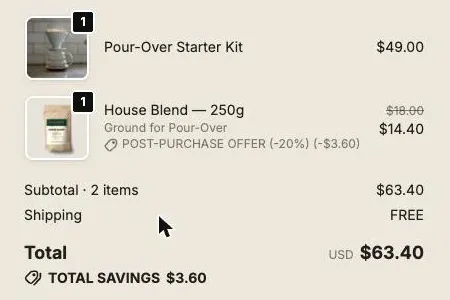
On the thank-you page that follows, the buyer sees both lines in the summary. The added one carries the discount label our app signs with it: “Post-purchase offer (-20%)”.
Why is the offer signed by the server and not by the browser?
The one click upsell offer is signed by the app’s server because the server is the only place the price can’t be edited by the buyer. If the browser told the server “add this item at 90% off”, a buyer with developer tools could write their own discount. So the browser only says which offer was tapped, and the server reads the rest from its own database.
Here is what our server does with each request, as written in its code:
- The store comes from Shopify’s token, never from the request. A buyer can’t pick another store’s offers.
- The offer must belong to the funnel actually served to this order. The server replays the same funnel selection as the page did, so an offer from another funnel, or one paused by a plan change, is refused rather than swapped for something else.
- The discount is read from the saved offer. The browser never sends it.
- The variant is checked against the list you allowed on the offer. The buyer can only pick a size or flavor you ticked.
- The quantity is checked against your saved quantity tiers, and the discount comes from the matching tier, never from a calculation in the browser.
- On a “one more of what they just bought” offer, the item is read from the order lines Shopify signed. Whatever the browser sends, the buyer can only be offered what they just bought.
You don’t configure any of this. It matters when you choose an app, because a one click upsell is a place where real money moves on a card without a checkout page around it.
How many offers can I chain in a one click upsell funnel?
A one click upsell funnel in Post Purchase Upsell Abakira is a tree three levels deep: a first offer, two follow-ups, then four, so up to seven offers configured (1, then 2, then 4), of which any single buyer sees at most three. The depth follows Shopify’s limit: a buyer can accept at most three post-purchase offers per checkout.
The tree matters because a yes and a no call for different follow-ups. After the first offer there are two branches, If accepted and If declined, each with its own next offer. A buyer who said yes to the coffee can be offered filters. A buyer who said no can be offered the same coffee at a deeper discount.
Our server counts the offers already accepted on the order before it signs anything. So no fourth changeset is ever signed. If an order has no add-on left, the page shows “You’ve reached the maximum number of add-ons for this order.” and the button is disabled.
Three is a ceiling. Our guide chapter on what to show after a yes, and after a no explains when a second and third offer are worth the extra screen.
Which buyers see a one click upsell on Shopify?
A one click upsell on Shopify is shown only to buyers whose first payment was a credit card. As of October 2026, Shopify skips the post-purchase page for wallets such as Apple Pay and Google Pay, installment services such as Klarna and Affirm, gift cards, and any payment method other than a card. Orders under $0.50, local delivery orders and orders with duties or multiple currencies don’t get it either.
So the share of your buyers who can see a one click upsell is roughly your share of card orders. Open your last 50 orders in Shopify, count the ones paid by card, and you have your number. Our guide chapter who will actually see your offers walks through it, and the full list of exclusions is in why Apple Pay, PayPal and Google Pay orders never see your post-purchase offer.
The buyers the page skips still land on the thank-you page. That is where their offer goes: a block under the order summary, which can add the item to the same order. On cash on delivery stores it is the main surface, as our article on upselling cash on delivery orders shows.
How do I set up a one click upsell on Shopify in five minutes?
A one click upsell on Shopify needs three things: an app with a post-purchase extension, that app selected for the post-purchase page in Shopify’s checkout settings, and at least one switched-on offer. With Post Purchase Upsell Abakira the offer is prepared for you from your own sales, so the setup is mostly checking and clicking.
- Install the app. On a store with no funnel yet, the first time you open it the app reads your products and your last 60 days of orders and builds a Starter funnel. While it works, the screen says “Building your starter funnel”.
- Select the app in Shopify. Go to Settings, then Checkout, then the Post-purchase page section, and select Post Purchase Upsell Abakira. Only one app can hold this page. Skip this and nothing you build will ever appear, with no error to tell you why. The app’s Setup page links straight to it (“Open checkout settings”). More on the post-purchase page setting in Shopify, including what to do when the section is missing.
- Read the three offers. The starter funnel is three offers: “Offer 1, right after payment” is your best-seller at 15% off. “If the buyer accepts” is a product often bought with offer 1, at 15% off. “If the buyer declines” is the same product as offer 1 at 25% off. Each line says why the product was picked, such as “your best-seller” or “often bought with offer 1”. Use Edit offers to change anything.
- Turn it on. The funnel is created switched off: “buyers see nothing until you turn it on”. Click Turn on this funnel.
- Buy something with a card. Place an order in your own store with a card, not Apple Pay or PayPal, or the page is skipped. Tap the offer at normal speed: the post-purchase window is short.
- Open the order in Shopify. One order, the upsell line at its discounted price, one total.
A store with no sales in the last 60 days still gets a starter funnel, picked from the catalogue instead: in stock, with a photo, priced around half of your median product price. The full walk-through, with the manual way of building a funnel, is in our guide chapter your first funnel in five minutes, and turning the one-click page on in Shopify covers step 2 in detail.
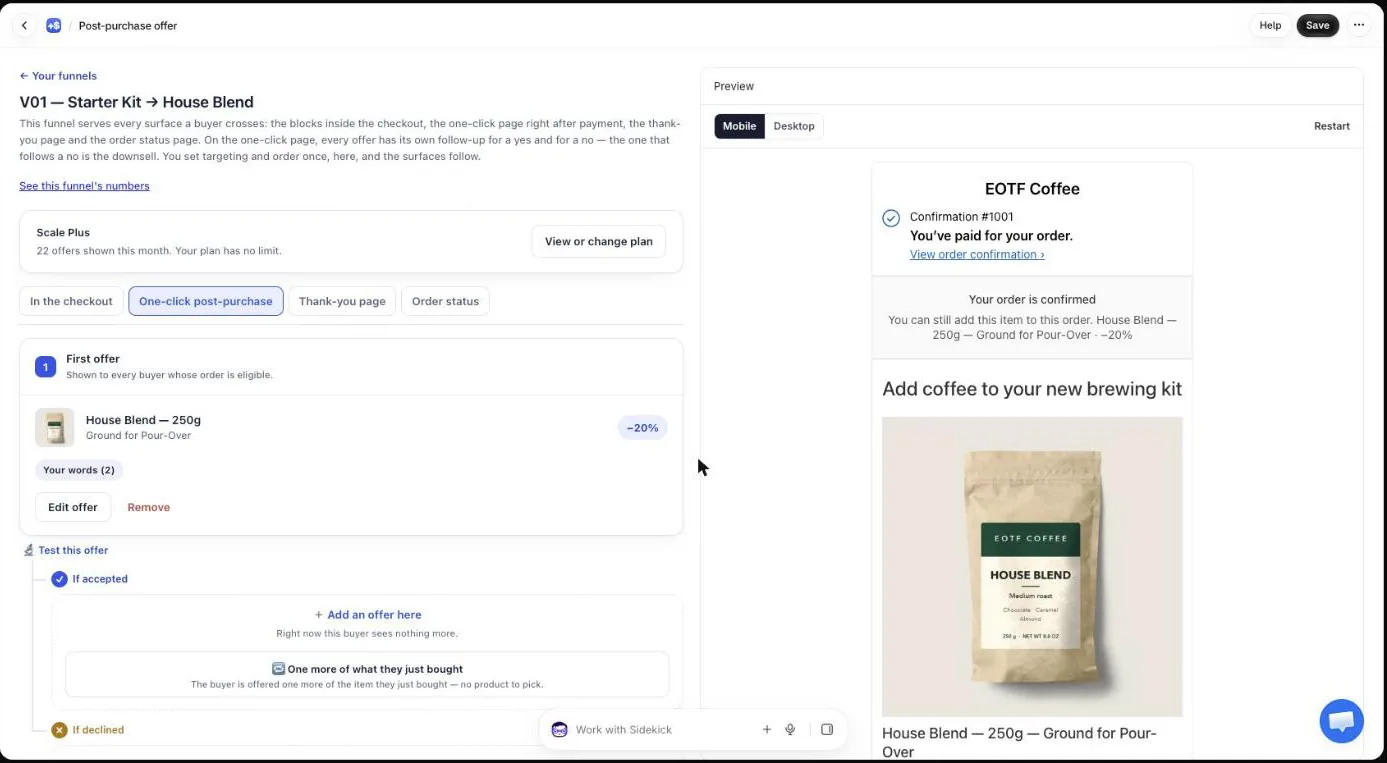
On the free plan, the first offer of one funnel is served, up to 100 offers shown per month; the two follow-ups are saved and switch on with a paid plan. The App Store listing has the current plans.
What should the first one click upsell offer be?
The first one click upsell offer should be a product the buyer already wants, at a price small next to what they just paid: your best-seller or more of the item in the order, at a real discount. The starter funnel uses 15% on offer 1 and 25% on the downsell, and keeps every offer priced under your average order (your median product price when there are no sales yet).
Two offers to start with.
Your best-seller. It sells because people want it, and the buyer may not have it yet. That is why the starter funnel puts it first, picked from units sold over 60 days.
More of what they just bought. In the funnel editor, under What this offer proposes, choose One more, any variant or One more, same variant. The app reads the item from the paid order, so there is no product to pick and the offer fits every order. On the post-purchase page, more of the same product usually beats a complementary item. Write it as a quantity, “Double your order”, and add quantity tiers (up to five, each with its own discount, up to 20 units) so the buyer picks ×2 or ×3 on the page. How to pick the item and the discount is covered in the same product upsell on Shopify.
Whichever you pick, three settings decide most of the result:
| Setting | Our default | Why |
|---|---|---|
| Discount on offer 1 | 15% | Starter funnel default |
| Price of the offer | Below your average order | Starter funnel default: every offer is kept under your average order |
| Discount on the downsell | 25% | Same product, bigger discount (the starter funnel’s downsell) |
For a downsell to make sense, the first discount has to leave room under it.
How is a one click upsell different from an order bump or a thank-you page offer?
A one click upsell happens after payment with no new payment step, while an order bump happens before payment inside the checkout, and a thank-you page offer happens one page later and reaches every buyer. The four ways to add something to a Shopify order differ by timing, by who sees them and by how the buyer pays.
| Order bump | Cart or product page upsell | One click upsell | Thank-you page offer | |
|---|---|---|---|---|
| When | In the checkout, before paying | Before checkout | After payment, before the thank-you page | On the thank-you page |
| Who sees it | Everyone who reaches checkout | Everyone browsing | Card payers only | Every buyer, any payment method |
| How the buyer pays | Part of the same payment | Part of the same payment | One tap, charged to the stored card | A tap, then the difference on a Shopify payment page for card orders; at the door on cash on delivery |
| Same order? | Yes | Yes | Yes | Yes, when the app adds it to the existing order |
| Shopify plan | Checkout blocks need Plus | Any plan, in your theme | Any plan | Any plan |
The best setups use two of them together: the one click upsell for card payers, a thank-you page block for everyone else. Our article on what actually raises average order value on Shopify sorts every technique by where it happens.
How do I make sure nobody taps the offer by mistake?
A one click upsell charges a card without a checkout around it, so the buyer must know the price before tapping. Our buyer page puts the amount in three places: the price with the old one struck through, the line “Charged to the card you already used: $14.40”, and the button itself, “Add to my order • $14.40”. The decline link, “No thanks”, stays on screen under it.
A few habits keep refunds away:
- Keep the decline visible. If there is a next offer after a no, the link reads “See another offer” instead of “No thanks”, so the buyer knows what the tap does.
- Write the offer in the buyer’s words. The headline and description above are the merchant’s text (“Add coffee to your new brewing kit”); every buyer-facing text on the page can be rewritten in the app’s Buyer page screen.
- Don’t offer what you can’t ship. If the item sells out between the page loading and the tap, nothing is added and the buyer reads “This item just sold out. Your original order remains confirmed and paid.”
Does the extra item ship in the same parcel?
The extra item from a one click upsell ships in the same parcel when it is added before you fulfill the order. Shopify holds fulfillment while the buyer is on the post-purchase page: the hold lifts when the buyer reaches the order status page, or one hour after checkout if they never finish the flow. The added line is part of the same order, so it goes out in the same shipment.
Stores that ship themselves from the Shopify admin get this for free. Stores whose warehouse imports orders through an API can see the order arrive before the upsell does. That case, and how to keep the extra item in the box, is covered in why a post-purchase upsell ships in a second parcel when you use a 3PL.
How do I know if my one click upsell is working?
A one click upsell is working when buyers who saw it accept it often enough to add revenue, judged against the buyers who saw the page, not against all your orders. Our app’s Results screen shows the extra revenue by surface and the conversion of each funnel, and the extra revenue figure is free on every plan.
Read it with your payment mix in mind. If a third of your orders are paid by card, two thirds of your buyers never saw the offer, and the per-order figure undersells it. Our guide chapter what this app does, and where your offers appear explains where each surface fits.
Once you have a baseline, change one thing at a time: the product, the discount, or the headline. On the Scale plans, A/B testing lets you show versions of an offer side by side to buyers at the same moment, which removes the guesswork of comparing one week to the next.
If you are moving from another post-purchase app, our article on switching post-purchase upsell apps shows the order to do it in. More methods sit on our methods page.
Post Purchase Upsell Abakira has a free plan that runs on a live store, up to 100 offers shown a month.
Set up a one click upsell on Shopify
- Install a post-purchase app Install Post Purchase Upsell Abakira from the Shopify App Store. On a store with orders and no funnel yet, the app builds a Starter funnel from your last 60 days of sales the first time you open it.
- Select the app for the post-purchase page In Shopify admin, open Settings, then Checkout, then the Post-purchase page section, and select Post Purchase Upsell Abakira. Without this step the page never appears.
- Check the three offers Read the Starter funnel: offer 1 is your best-seller at 15% off, the offer after a yes is a product often bought with it at 15% off, the offer after a no is the same product as offer 1 at 25% off. Click Edit offers to change any of them.
- Turn the funnel on Click Turn on this funnel. The funnel is created switched off, so buyers see nothing until you do.
- Place a test order with a card Buy something in your own store with a card, not a wallet, and tap Add to my order on the offer at normal speed.
- Check the order in Shopify Open the order in Shopify admin. The upsell item should sit on the same order, at the discounted price, with a single total.
Frequently asked questions
Does the buyer pay shipping again on a one click upsell?
No second checkout is opened, so there is no second shipping form. The item joins the same order.
Can I run a one click upsell and a thank-you page offer on the same order?
Yes. The one-click page comes first, then the buyer lands on the thank-you page. Post Purchase Upsell Abakira serves both from the same funnel, and on the free plan the thank-you blocks are shown to every buyer. Sorting by what happened on the one-click page comes with the Pro plan and above.
What if the upsell item sells out while the buyer is looking at it?
Nothing is added and the buyer reads: This item just sold out. Your original order remains confirmed and paid. The first order is never touched by a failed upsell.
Can two apps show one click upsells on the same store?
No. Shopify lets one app hold the post-purchase page at a time, chosen in Settings, then Checkout, then Post-purchase page. Switching apps is that one setting; the order to do it in is covered in our guide to switching post-purchase upsell apps.
Do I need Shopify Plus for a one click upsell?
No. The post-purchase page is not a Shopify Plus feature. It works on standard Shopify plans once an app with a post-purchase extension is installed and selected in your checkout settings. Offers inside the checkout itself are the part that needs Plus.
Related articles
Written by Abakira. We make small software: Shopify apps, web tools and iPhone apps. This article is about Post Purchase Upsell Abakira.