Shopify post-purchase page setting: find it and check it
Shopify keeps the post-purchase page off until you pick one app under Settings → Checkout. Where the setting is, why it hides, and how to confirm it took.
2026-10-31 — Abakira, updated 2026-11-08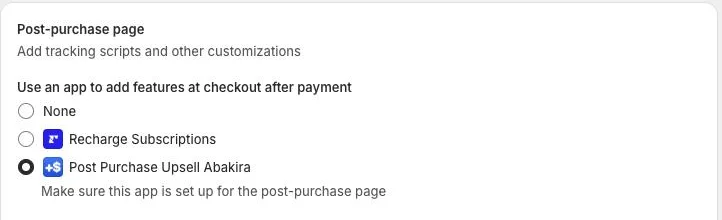
The Shopify post-purchase page setting is a single choice in Settings → Checkout, in the section called Post-purchase page: you pick the one app allowed to show a page between payment and the thank-you page, then save. Until an app is picked there, Shopify skips the page entirely, whatever offers you have built. It works on every Shopify plan from Basic up, not only Plus.
That covers where the setting is. The rest of this page covers what usually trips people up: the section that doesn’t appear, the second app that quietly holds the slot, and how to prove the setting took without waiting for a customer to complain. We show it on our coffee store, with the screens of Post Purchase Upsell Abakira as they looked on October 31, 2026.
Where is the post-purchase page setting in Shopify?
The post-purchase page setting lives in Shopify admin under Settings, then Checkout, in a section titled “Post-purchase page”. Inside it, a list headed “Use an app to add features at checkout after payment” shows “None” plus every installed app that can run the page. Buyers who pay by card see the page of the selected app.
Here is what the section looks like on a store with two eligible apps installed (the header image above is the same screen). Three things are worth reading in it:
- The heading, Post-purchase page, and a short line under it about tracking scripts and other customizations.
- The list of apps, with a None option at the top. With None selected, buyers go straight from payment to the thank-you page.
- Under the selected app, Shopify adds a note: “Make sure this app is set up for the post-purchase page”. It’s a reminder that selecting the app is half the job. The app still needs a live offer to show.
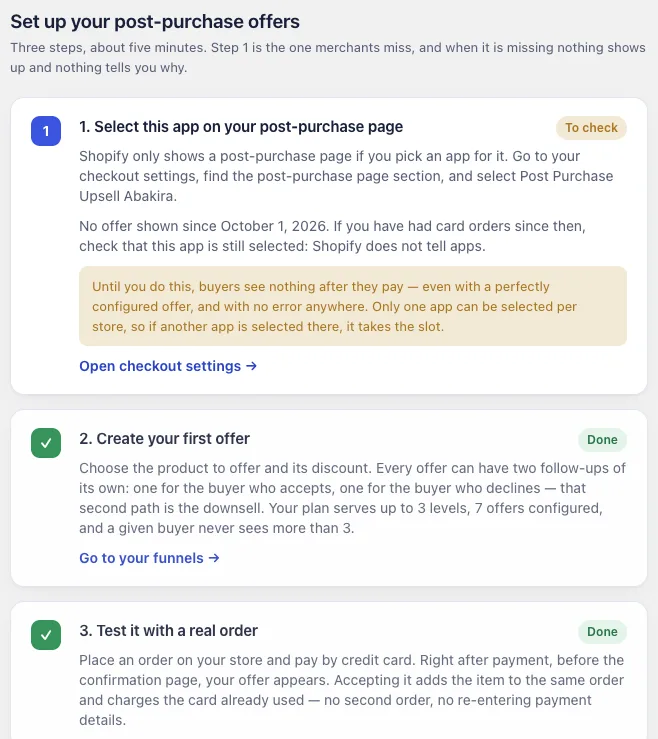
The direct address is your admin URL followed by /settings/checkout. Post Purchase Upsell Abakira links to that page from its Setup screen, under the step “1. Select this app on your post-purchase page”, with a link labeled Open checkout settings.
How do I turn on the post-purchase page, step by step?
Turning on the post-purchase page takes six steps and about a minute once a post-purchase app is installed: open Settings, open Checkout, find the Post-purchase page section, select the app, save, then confirm from the app. The page then appears on the next eligible order, without any theme change or code.
- Install a post-purchase app and open it once. Shopify only lists apps built with a post-purchase extension, and shows the section once the app’s own configuration is complete.
- In Shopify admin, click Settings, then Checkout.
- Scroll to Post-purchase page.
- Under “Use an app to add features at checkout after payment”, select your app. For us that’s Post Purchase Upsell Abakira.
- Click Save. The radio button alone changes nothing until the page is saved.
- Go back to the app and check the result: the Setup page turns step 1 green with the first offer a buyer sees, and the Setup checklist on the Funnels page also asks Shopify (next sections).
If you use Post Purchase Upsell Abakira, the app gives you the same instruction at the moment it matters. When it builds your starter funnel, the confirmation ends with: “Last step, in Shopify: Settings → Checkout → Post-purchase page, select this app. Shopify only shows the page once the app is selected there.” The full walkthrough, with the app’s three setup steps, is in the guide chapter on turning the one-click page on.
Why can’t I find the Post-purchase page section?
The Post-purchase page section only exists on stores where at least one installed app can run that page. If Settings → Checkout shows no such section, no eligible app is installed, the app was removed, or its setup in the app itself hasn’t been completed yet. Installing or reopening the app brings the section back.
Run through these in order:
- Is the app still installed? Open Apps in your admin. An app that was uninstalled, even by a teammate, takes its entry in the list with it.
- Did you open the app after installing it? Shopify shows the section only after the app’s setup is complete. Open the app once and let it finish its first screen.
- Is it really a post-purchase app? An upsell app that only works on product pages, the cart or the thank-you page never appears in this list, because it doesn’t run on the page between payment and confirmation. What a Shopify post-purchase extension can show, and what Shopify locks explains the difference.
- Are you on the right store? If you manage several stores, the Settings link at the bottom left belongs to the store open in the admin. It’s easy to install on a development store and look for the setting on the live one.
Can two apps use the post-purchase page at the same time?
No. Shopify lets exactly one app run the post-purchase page at a time, and the radio list in Settings → Checkout is how it enforces that. Selecting a new app switches the page away from the previous one on the next order. The old app stays installed and keeps its offers, it just stops being shown.
Install a subscription app, a survey app or a second upsell app, select it in the Post-purchase page section, and the first app goes quiet. The screen in the header image is a real example: Recharge Subscriptions sits right above our app in the list.
If you are moving from one upsell app to another, the switch itself is this one setting, but your funnels, thank-you blocks and history don’t move with it. Our article on switching post-purchase upsell apps gives the order to do it in and what to write down first.
Do I need Shopify Plus for the post-purchase page?
The post-purchase page does not need Shopify Plus. As of October 2026, post-purchase apps are available from the Basic Shopify plan upward. Plus only matters for offers placed inside the checkout itself, before payment. The page after payment and its setting are the same on every plan.
What differs between stores is not the plan but the payment mix, which is the next question.
How do I check that the setting was taken?
You check the post-purchase page setting from the app, not by trusting the radio button. The proof that counts is the first offer a buyer actually sees, which Post Purchase Upsell Abakira records. On the Funnels page the app also asks Shopify whether it is selected; that answer is a bonus signal and can come back empty.
Here is how each place in the app reports it, as of October 31, 2026.
| Where in the app | What it reads | What you see |
|---|---|---|
| Setup checklist on the Funnels page | Shopify's own answer to "is this app the post-purchase app in use?", asked each time the page loads, with a 2-second limit | A green step when Shopify answers yes. When Shopify says no: "Shopify says this app isn't selected as your post-purchase page yet. Pick it in Settings → Checkout, then Save." |
| Setup page, step 1 | The date of the last offer shown to a buyer | "Done" after the first offer seen, then the date of the last one. After 14 days with no offer shown, the step goes back to "To check" |
| Claude, connected through AI assistants | Offers seen first, then Shopify's answer, then your card orders of the last 7 days | Selected, not selected, or probably not selected, with the three steps to fix it |
Two details in that table come straight from how the app is written, and they matter when you read the screens.
A failed read never turns into a “no”. If Shopify doesn’t answer within 2 seconds, or answers with an error, the Setup checklist doesn’t claim the app is unselected. It falls back to the other proof and waits for the first offer a buyer sees. Telling you to redo a step you already did, because a request timed out, would send you hunting for a problem that isn’t there.
The 14-day rule on the Setup page. The Setup page judges step 1 by what buyers saw. Once an offer has been shown, step 1 stays “Done” and the page prints the date of the last one. If 14 days pass with no offer shown, step 1 switches to “To check”, prints the date of the last offer, and asks you to look at the setting again if card orders came in since then. Two weeks of card orders with no offer shown is the signal to open Settings → Checkout.
If you’ve connected Claude to the app (the AI assistants page in the app menu walks you through it), you can simply ask whether the app is selected on your post-purchase page. The assistant checks the same signals in the same order. When nothing has been shown yet and Shopify gives no answer, it only says “probably not selected” if an offer is live and at least 5 card orders came in over the last 7 days. Below that, it says it doesn’t know yet.
Which orders show the post-purchase page once it’s on?
Once the setting is on, Shopify shows the post-purchase page to orders paid by credit card on the Online Store channel, for $0.50 or more. Orders paid with a wallet such as Apple Pay or Google Pay, an installment service, PayPal, a gift card or cash on delivery go straight to the thank-you page, setting or not.
This matters for the setting because it changes how you read silence. A store where most buyers pay by PayPal can have the app correctly selected and still see few offers shown. Before you blame the setting, find out what your share of card orders is. The guide chapter on who will see your offers shows how, and our article on why Apple Pay and PayPal orders never see the offer covers the full list and how the thank-you page reaches the other buyers.
How do I test the setting with a real order?
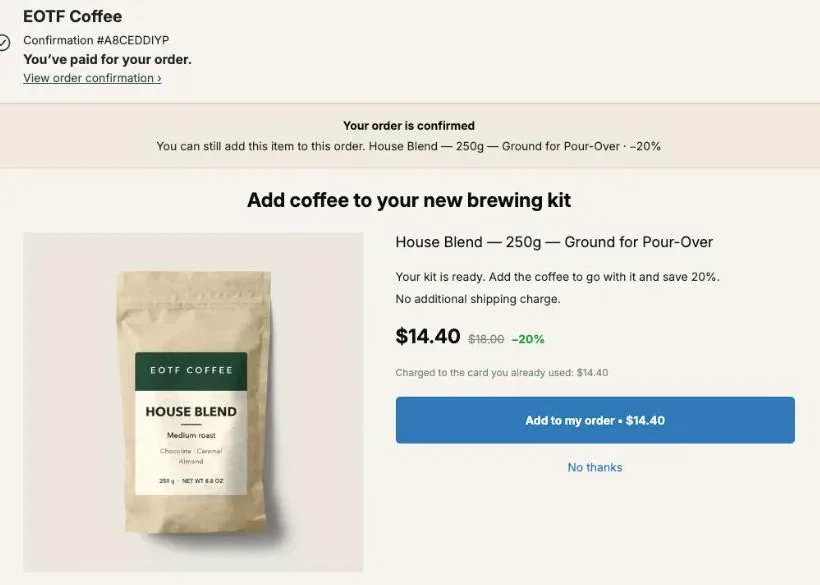
You test the post-purchase page setting by buying something in your own store with a card, with a funnel switched on in the app. If the setting is right, the offer page appears right after you pay and before the thank-you page. A wallet or PayPal test proves nothing, because Shopify skips the page for those payments.
- In the app, make sure a funnel is on. In Post Purchase Upsell Abakira the starter funnel is created switched off; the button that turns it on is Turn on this funnel.
- Use a product that matches the funnel. The starter funnel picks its offers from your own products and sales, so any product works.
- Pay with a card. On a development store, Shopify’s test payment gateway works. On a live store, use a real card and refund the order afterwards.
- Go through checkout at normal speed. The post-purchase window closes shortly after payment, so don’t leave the page open while you read something else.
- Accept the offer, then open the order in Shopify admin.
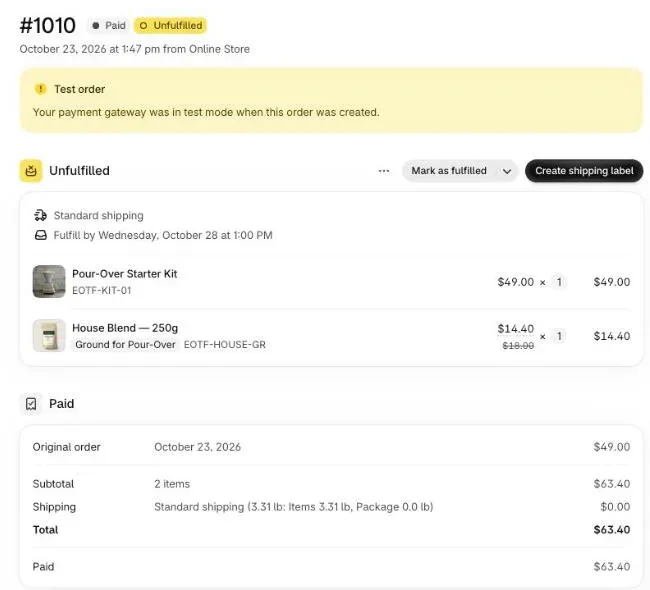
We ran exactly this on October 23, 2026. Test order #1010 started as a $49.00 pour-over kit. The page appeared after payment, one tap added a bag of coffee at $14.40 instead of $18.00, and the order in Shopify ended at $63.40: one order, two lines, one shipment, $0.00 extra shipping.
If you see the thank-you page directly instead, check the setting first, then the payment method you used, then whether the funnel is on. Those are the three places to look. The guide chapter on your first funnel walks through the same test from the app’s side, including the preview you can use before buying anything.
Why did offers stop showing when the setting is still on?
Offers can stop showing with the post-purchase page setting untouched for three reasons in Post Purchase Upsell Abakira: another app was selected in the meantime, the funnel was switched off, or the free plan reached its monthly limit of 100 offers shown. The Setup page and the usage line in the app tell these apart in a minute.
Another app took the slot. Open Settings → Checkout and look at which app is selected under Post-purchase page. This is the case the 14-day “To check” state on the Setup page is built for.
The funnel is off. Your funnel list shows which funnels are on. A funnel switched off by a teammate looks exactly like a missing setting from the buyer’s side.
Offers shown this month. The free plan shows up to 100 offers a month. The app shows the running count as “offers shown this month”, and when the limit is reached it says so: “You reached your free limit of 100 offers shown this month, so buyers currently see no offer. Your orders are unaffected.” Check the “offers shown this month” line in the app. The count resets on the 1st of the next month, and the paid plans have no limit (see the listing for current plans). It’s the one case where the setting is right, the funnel is on, and the page still doesn’t appear. If the app is selected and buyers still see nothing, run through our checklist for a post-purchase offer that is not showing.
Does the setting affect the thank-you and order status pages?
The post-purchase page setting only controls the page between payment and the thank-you page. Offers on the thank-you page and the order status page don’t use it: they are blocks you add in Shopify’s checkout editor, and every buyer reaches those pages, whatever the payment method. You can use them with the setting on, off, or held by another app.
That’s why a store that mostly takes wallet payments often starts on the thank-you page instead. The two work together: the one-click page for card buyers, a thank-you block for everyone else. Our comparison of where to upsell after checkout lays out what each page does best, and the method articles go through the offers themselves.
Post Purchase Upsell Abakira runs the one-click page, the thank-you page and the order status page from the same funnel, and has a free plan on the Shopify App Store.
Turn on the Shopify post-purchase page
- Install a post-purchase app Install an app built with a post-purchase extension, such as Post Purchase Upsell Abakira, and open it once so its setup is complete. Shopify only shows the Post-purchase page section after that.
- Open the checkout settings In Shopify admin, click Settings, then Checkout.
- Find the Post-purchase page section Scroll to the section titled Post-purchase page. The app choice sits under the line Use an app to add features at checkout after payment.
- Select the app Click the radio button next to the app you want, for example Post Purchase Upsell Abakira. Only one app can be selected.
- Save Click Save. Until you save, Shopify keeps the previous choice.
- Check it from the app Open the app. In Post Purchase Upsell Abakira, the Setup page turns step 1 green with the first offer a buyer sees, and the Setup checklist on the Funnels page also asks Shopify.
Frequently asked questions
Do I have to click Save after picking the app?
Yes. Picking the radio button only changes the form. Shopify keeps the old choice until you save the checkout settings page.
Does the post-purchase page setting change my thank-you page?
No. The setting only decides which app runs the one-click page between payment and the thank-you page. Offers on the thank-you and order status pages are blocks you add in the checkout editor, and they show whichever app is selected in the Post-purchase page section.
What happens to my offers in the old app when I select a new one?
They stay in the old app, untouched, and stop being shown. Select the old app again and its page comes back on the next eligible order. Nothing has to be uninstalled to switch.
Does the line about tracking scripts under Post-purchase page mean I have to paste a script?
No. The section in Settings → Checkout also mentions tracking scripts and other customizations, but the app that runs the page is chosen in the list under Use an app to add features at checkout after payment.
Can I select the app before I have built any offer?
Yes. With the app selected and no live offer, buyers go straight to the thank-you page as before. With Post Purchase Upsell Abakira, the starter funnel is created switched off, so selecting the app first changes nothing for buyers until you turn a funnel on.
Related articles
Written by Abakira. We make small software: Shopify apps, web tools and iPhone apps. This article is about Post Purchase Upsell Abakira.