Post purchase offer not showing on Shopify: the checklist
Nine checks, in order, that get a Shopify post-purchase offer on screen: the checkout setting, the funnel, its condition, the free allowance, the test order.
2026-11-05 — Abakira, updated 2026-11-08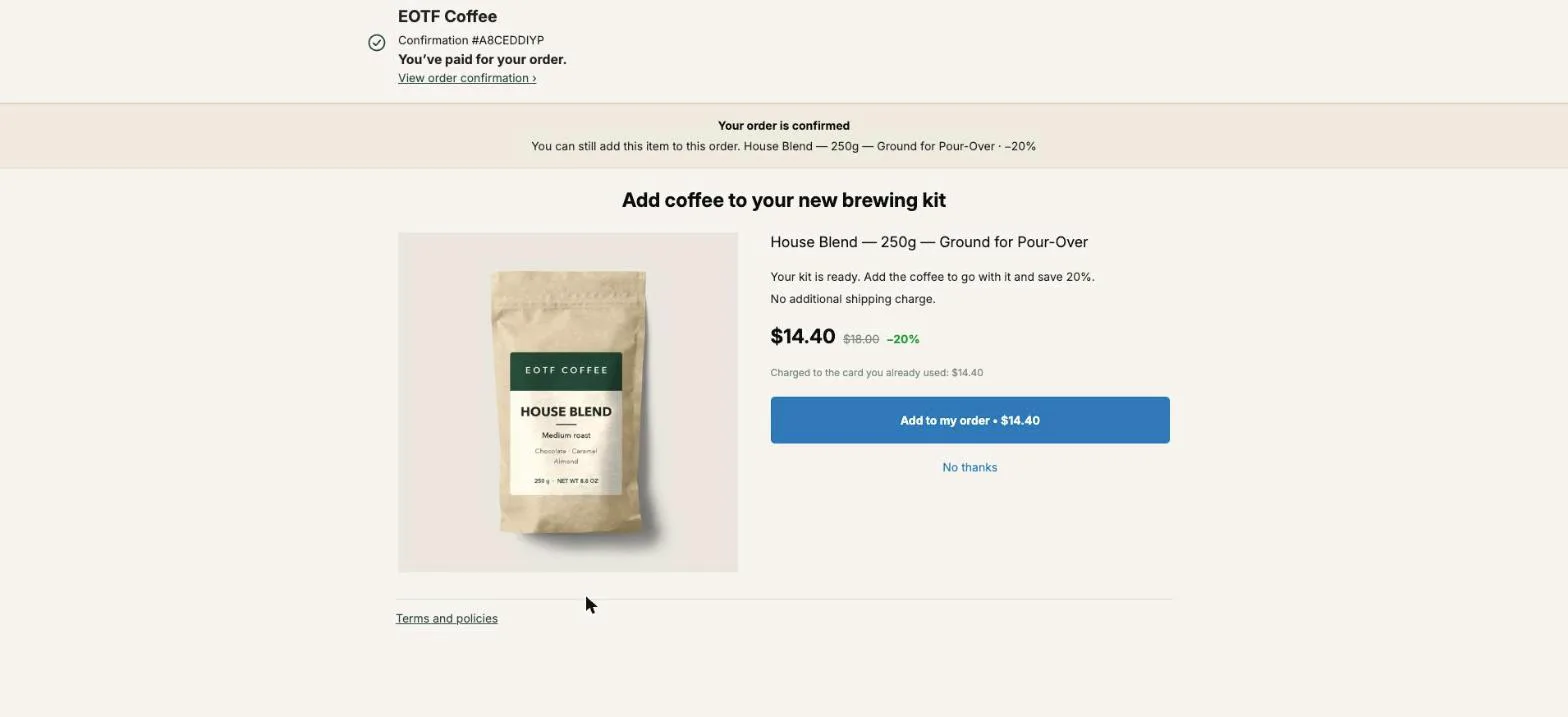
When a post purchase offer is not showing on Shopify, the cause is one of nine checks, and they go in a fixed order: the app selected under Settings → Checkout → Post-purchase page, a funnel that is switched on and has an offer, a condition your order actually meets, the free plan’s monthly allowance, the payment method, the shipping method, the way the test order was paid, what the offer itself proposes, and, for the thank-you and order status pages, a block placed in the checkout editor. Go top to bottom and stop at the first one that fails.
We wrote this list from the code of Post Purchase Upsell Abakira. When the app decides not to show a page, it records one of four reasons: no funnel matched the order, the matched funnel had no first offer, the first offer could not be served to that buyer, or the free allowance was used up. Shopify adds its own reasons on top, and those are the payment and shipping checks. Every check below tells you where to look and what you should see.
What is the fastest way to find why an offer is not showing?
The fastest way to find why a post-purchase offer is not showing is to run the checks in the order Shopify and the app apply them, and stop at the first one that fails. Each one takes about a minute. This table is the whole list; the sections after it explain each line.
| # | What to check | Where | What you should see |
|---|---|---|---|
| 1 | The app holds the post-purchase page | Shopify: Settings → Checkout → Post-purchase page | Post Purchase Upsell Abakira selected, then Save |
| 2 | The funnel is on and has an offer | App: your funnel list | Active ticked, “Edit offers (1)” or more |
| 3 | The order meets the funnel’s condition | App: Try a cart | ”This one is shown” next to your funnel |
| 4 | The free allowance is not used up | App: plan box above the funnels | ”N of 100 offers shown this month.” with N under 100 |
| 5 | The buyer paid by credit card | Shopify: the order’s payment line | A card, not a wallet, PayPal, gift card or COD |
| 6 | Standard shipping, one currency | Shopify: the order | A shipping address, no local delivery |
| 7 | The test order went through checkout | Your storefront | Card payment with the Test payment gateway |
| 8 | The offer can be served to this buyer | App: the funnel editor | A product to offer, shipping filled in for a subscription |
| 9 | Thank-you and order status blocks are placed | Shopify: checkout editor | ”Thank you page offer” and “Order status page offer” blocks |
Is Post Purchase Upsell selected as the post-purchase page?
Post Purchase Upsell Abakira only shows the one-click page once it is the app selected in Shopify admin under Settings, then Checkout, in the section called Post-purchase page. Shopify allows one app there per store. If “None” or another upsell app is selected, buyers go straight from payment to the thank-you page, whatever you built.
Select the app, then click Save. The radio button alone changes nothing until the page is saved. The full walk-through, with the screen, is in our article on where the Shopify post-purchase page setting lives and how to confirm it.
You don’t have to guess whether it took. The Setup card on the app’s home page has a step that reads “Pick this app in Settings → Checkout, under Post-purchase page”, and the app asks Shopify for the answer. When Shopify says no, the card says so in plain words: “Shopify says this app isn’t selected as your post-purchase page yet. Pick it in Settings → Checkout, then Save.” When Shopify doesn’t answer, the card shows “Can’t tell right now” instead of pretending. The step turns green with the first offer a buyer is actually shown. The guide chapter on turning the one-click page on shows the Setup page step by step.
If you are coming from CartHook, ReConvert or another app, our checklist for switching post-purchase upsell apps covers what else to move.
Is the funnel switched on, saved and holding an offer?
A funnel in Post Purchase Upsell Abakira is served only when three things are true: its Active box is ticked in the funnel list, its first offer exists, and your changes were saved. A starter funnel generated by the app is created switched off on purpose (“It’s switched off: buyers see nothing until you turn it on”), so a store that never clicked Turn on this funnel shows nothing.
Open the funnel list, the section titled “Funnels, in the order they are checked”. For each funnel, check:
- The Active box is ticked. An unticked funnel is off, and the app tells you so on its editor: “This funnel is inactive: no buyer sees it. Turn it on from the funnel list.”
- The button reads Edit offers (1) or more. A funnel with zero offers shows a yellow warning in the list, and on the one-click page it still takes the orders that meet its condition (see below).
- There is no “Unsaved changes” chip at the top. Changes in the admin reach buyers once you click Save.
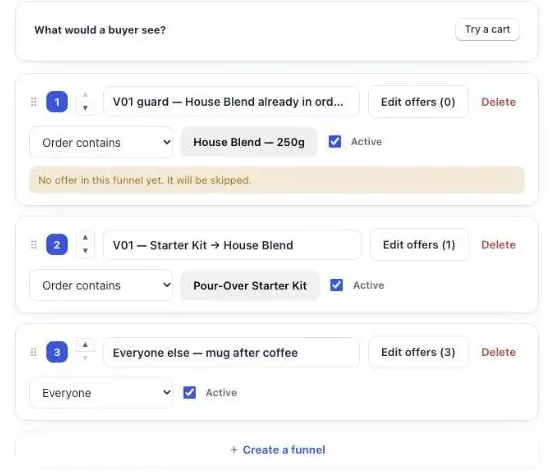
One detail about empty funnels matters more than it looks. On the one-click page, an empty funnel still claims the orders that meet its condition. The app picks the first active funnel whose condition the order meets, finds no first offer in it, and shows nothing. It does not fall through to the next funnel. We use that on our own coffee store as a guard: a funnel with “Order contains” House Blend and no offer sits at the top, so a buyer who already has coffee in the order is never offered more of it. If you didn’t mean to build a guard, give the funnel an offer or untick Active.
Does your test order meet the funnel’s condition?
Each order is checked against your funnels from top to bottom, and the first funnel whose condition the order meets is the only one used. A funnel set to “Everyone” matches every order, so any funnel placed below it is never reached. The app flags that case on the list with “Never shown: a funnel above applies to everyone. Move it down, or give it a condition.”
The two conditions are “Order total is at least” and “Order contains”. Both are read from the order Shopify signs at payment, not from anything in the browser. Three things trip merchants up here:
- The order is the one that counts, not the cart you had in mind. An “Order total is at least 60” funnel won’t show on a $49 test order.
- The wrong funnel wins. A broader funnel higher in the list takes the order first. Order specific funnels above general ones and keep “Everyone” last.
- The plan decides how many funnels run. Targeted funnels and up to 20 funnels are part of the paid plans (the listing has the details). On the free plan the first funnel in the list is the one served, and its condition is not applied, so it reaches every order. Funnels below it show “Paused: your plan serves the first 1 funnel(s). Nothing is lost.” That also means the top funnel has to be the one ticked Active: on the free plan, an unticked funnel at the top leaves nothing running.
You don’t need a real order to test this. Above the list, What would a buyer see? has a Try a cart button. Describe a cart (products and an order total) and each funnel gets a verdict: “This one is shown”, “Would match, but one above it wins”, “Its condition does not match this cart”, “Turned off” or “Paused by your plan”. If no funnel matches, it says “No funnel matches this cart. That buyer sees nothing after paying.” The simulator runs on what is on screen, before you save, with the same rules as the live checkout. The funnels and targeting chapter of the guide covers how to split funnels by product and order value.
Has the free plan reached its 100 offers this month?
The free plan of Post Purchase Upsell Abakira shows the one-click offer to up to 100 orders per calendar month. Once the 100th is reached, buyers see no one-click page until the 1st of next month, and their orders go through untouched. The plan box above your funnels shows the count, for example “37 of 100 offers shown this month.”
The app warns you before that happens. You get an alert in the admin and an email at 50, 70, 90 and 100 percent of the allowance, at most one email a day. At 100 percent the banner reads “Your offer is no longer being shown”. Two counting rules keep the allowance from being wasted:
- An offer is counted when the page is actually displayed to the buyer. Shopify asks the app for an offer during checkout, before the payment method is known, so wallet and cash on delivery orders are asked about too. Those never see the page and are not counted.
- An order that matches no funnel shows nothing and counts nothing.
A paid plan removes the limit; the App Store listing has the current plans.
Did the buyer pay with a method Shopify allows on the post-purchase page?
Shopify shows the one-click post-purchase page only when the order was paid with a credit card at checkout. Its developer documentation lists the cases where the page is not shown: installment and wallet checkouts such as Klarna, Affirm, Apple Pay and Google Pay, gift cards, and any payment method other than a credit card. No app setting changes that list.
So an offer that “never shows” on a store where half the buyers tap Apple Pay or PayPal is behaving exactly as Shopify built it for that half. Check the order’s payment line in Shopify admin: a card payment is the only kind that can see the one-click page.
The app’s own Setup page puts it in one line, word for word: “Test with a credit card only. Apple Pay, Google Pay, PayPal, Klarna, gift cards and cash on delivery never show the post-purchase page.” Our article on why Apple Pay, PayPal and Google Pay orders never see the post-purchase offer goes through the full list and shows where those buyers can still get an offer.
Could the shipping, currency or order total be excluding the order?
Shopify also excludes some orders by the way they are delivered, priced or sold. Its documentation names local delivery orders, orders with duties and multiple currencies, orders under $0.50, and orders from sales channels other than the Online Store, including point of sale. During flash sales, Shopify may briefly delay order creation and skip the page.
For a test, that means: use a shipping address and a standard shipping rate, not local delivery or pickup; check out in the store’s own currency; buy something worth more than $1 (the Test payment gateway needs at least that; Shopify’s own floor for the page is $0.50); and go through the Online Store checkout. A $0 test order, the kind you get with a 100 percent discount code, will never show the page.
How do I place a test order that should show the offer?
A test order that shows the offer is a card order on the Online Store checkout, paid through Shopify’s Test payment gateway with card number 1, for a cart that meets your funnel’s condition. On a development store, Shopify lets post-purchase extensions run without restriction, so that’s where we run every test, on our coffee store.
- Turn on the Test payment gateway. In Shopify admin, go to Settings, then Payments. Shopify asks you to deactivate the current card provider first, then choose Test payment gateway from the provider list, activate it and Save. Customers can’t place live orders while payments are in test mode, so do this on a development store, or switch back right after.
- Check the funnel. In the app, run Try a cart with the product you are about to buy and confirm “This one is shown” sits next to the funnel you expect.
- Buy the right product. Add it to the cart on your storefront and go to checkout. Fill in a shipping address and pick a normal shipping rate.
- Pay with card number 1. Choose Credit card. The Test payment gateway’s own instructions say to enter “1 to simulate an approved transaction”, then any future expiry date and any 3-digit security code. Click Pay now. Skip the express buttons at the top of checkout.
- Read the result. The offer appears between payment and the thank-you page. Accept it once, then open the order in your admin: the item should be on the same order, at the discounted price.
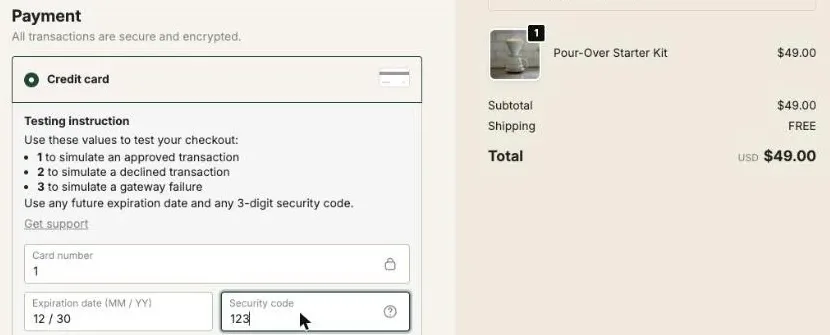
On our coffee store, test order #1010 went exactly this way in October 2026: a $49 Pour-Over Starter Kit paid with card 1, the House Blend offer at 20 percent off ($14.40 instead of $18.00), one tap on “Add to my order”, and one order of $63.40 in the admin with both lines. The header image of this page is the offer from that order.
Can the offer itself stop the page from appearing?
Yes. After a funnel is chosen, Post Purchase Upsell Abakira checks that its first offer can be served to this particular buyer, and if it can’t, the buyer sees no page at all. The app never swaps in a different offer. Four settings decide it, and each has a direct fix.
- “One more, any variant” and “One more, same variant” offer the item the buyer just bought, so the product is read from the order. They need a product line in the order to work from.
- A subscription offer needs both shipping amounts filled in, “Shipping on the first order” and “Shipping on every renewal” (enter 0 if shipping is free). The app won’t save it otherwise. It is also not shown to a buyer whose order already contains a subscription; a one-time offer is the one to place there.
- “Subscription upgrade” is “Shown only to buyers who just subscribed to this product, or to the product in this funnel’s condition”, and it needs a connected Loop subscription app, which is a paid-plan feature. Any other buyer sees nothing.
- “Show only these cards” hides the main offer and shows the grid cards alone. If none of those cards can be served, the page is skipped.
If your first offer is one of these, put a plain A product offer first and keep the special one as a follow-up, or test with an order that fits it.
Why is my thank-you page or order status page offer not showing?
Offers on the thank-you and order status pages don’t use the post-purchase page setting at all. Shopify only shows an app’s block where the merchant has placed it in the checkout editor, so the “Thank you page offer” block has to be added on the Thank you page, and the “Order status page offer” block on the Order status page. This is a one-time step, and it reaches every paid order, wallets and cash on delivery included.
Once the block is placed, check the funnel side:
- The funnel has blocks on that tab. Each funnel has a Thank-you page tab and an Order status tab. A buyer sees the blocks of the funnel their order goes through, and only those. The funnel list warns you when a funnel has none: “No thank-you offer here. Buyers who go through this funnel see nothing on the thank-you page.”
- The block is enabled. Each block has a Disable link; a disabled block stays saved and is not shown.
- The block’s audience fits your test. Under “Show it to”, a block set to “Buyers who refused everything” won’t appear for a buyer who accepted the one-click offer, and “Buyers who did not see the one-click page” won’t appear for a card buyer who saw it. “Everyone” is the setting for a first test. The rules based on what the buyer accepted or refused are part of the paid plans; “Everyone” and the fallback for buyers who didn’t see the one-click page are on the free plan.
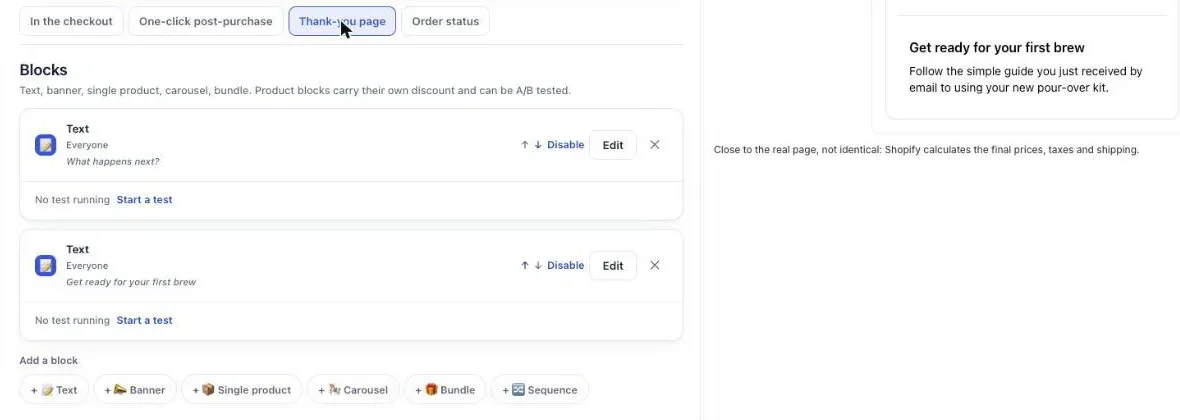
The Setup card on the app’s home page has a step for this too, “Place the thank-you block in the checkout editor”. While your blocks exist but no buyer has seen one yet, it says: “In the checkout editor, open the Thank you page and add “Thank you page offer”.” The thank-you page chapter of the guide shows the editor and the block options.
What does “offer shown” mean in the app’s numbers?
In Post Purchase Upsell Abakira, an offer counts as shown when the page or block is displayed in front of the buyer, not when Shopify asks the app for an offer. The difference is large on stores with many wallet orders, because Shopify asks for every checkout and only displays the page for card orders. So if your plan box still says “0 of 100 offers shown this month” after card orders came in, one of the checks above failed for those orders.
The app keeps a short trace of each refusal: no funnel matched, the funnel had no first offer, the first offer couldn’t be served, or the allowance was used up. If you’ve gone through all nine checks and a card order still showed nothing, write to us from the chat bubble in the app with the order number, and we’ll tell you which one it was.
Other situations where an offer or a page goes missing are collected on our situations topic page.
Post Purchase Upsell Abakira has a free plan with 100 one-click offers shown a month, and the thank-you page included.
Place a test order that should show your post-purchase offer
- Turn on the Test payment gateway On a development store, go to Settings, then Payments, deactivate the current card provider, choose Test payment gateway from the list of providers, activate it and save.
- Check the funnel In the app's funnel list, make sure the funnel you want to see is ticked Active, has at least one offer, and that Try a cart shows This one is shown for the cart you are about to buy.
- Buy the product in the funnel's condition Open your store, add the product your funnel is aimed at, and go to checkout. Fill in a shipping address and choose standard shipping, not local delivery.
- Pay with card number 1 Choose Credit card, enter 1 as the card number, any future expiry date and any three-digit security code, then click Pay now. Do not use an express button.
- Check the page and the order The offer should appear before the thank-you page. Accept it, then open the order in your Shopify admin and check the item is on the same order at the discounted price.
Frequently asked questions
Does the post-purchase page work on a Shopify development store?
Yes. Shopify's documentation says post-purchase extensions can be used without restrictions on a development store, which makes a development store with the Test payment gateway the cleanest place to check an offer before it goes live.
Can two post-purchase apps show offers at the same time?
No. Shopify lets one app hold the post-purchase page per store, chosen under Settings, then Checkout. Offers on the thank-you and order status pages don't depend on that choice: they come from blocks you place in the checkout editor.
Does an order that never saw the offer use up the free plan's allowance?
No. Post Purchase Upsell Abakira counts an offer when the page is actually displayed to the buyer. A wallet or cash on delivery order that Shopify never sends to the page, or an order that matches no funnel, costs nothing.
How many post-purchase offers can one buyer accept?
Three per checkout. That is Shopify's cap, and it is why a funnel in the app is built on at most three levels: a first offer, then one follow-up for a yes and one for a no at each step.
My offer showed during testing and stopped later. What changed?
Look at three things first: whether another app was selected under Settings, then Checkout, then Post-purchase page; whether the free plan reached its monthly allowance, which the funnel list shows; and whether a new funnel without a condition was added above the one you tested.
Related articles
Written by Abakira. We make small software: Shopify apps, web tools and iPhone apps. This article is about Post Purchase Upsell Abakira.