Cyber Monday upsell: one funnel per BFCM period, then switch
Build a Black Friday, a weekend and a Cyber Monday funnel before November 27, then switch with two checkboxes and Save. Each period keeps its own numbers.
2026-10-26 — Abakira, updated 2026-11-08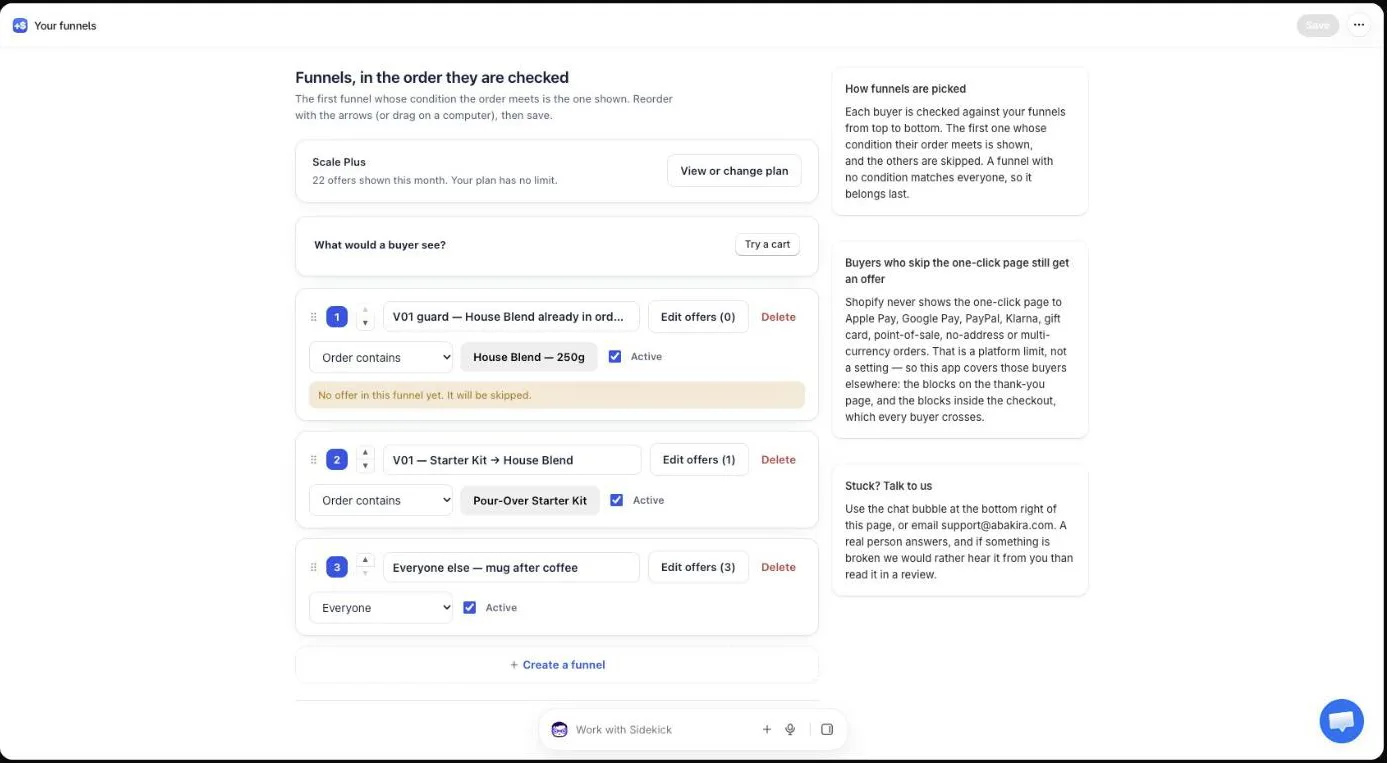
A Cyber Monday upsell works best when it’s built as its own funnel, ready before Black Friday, rather than the Black Friday offer left running for four more days. In Post Purchase Upsell Abakira you prepare one funnel per period (Black Friday, the weekend, Cyber Monday), keep them turned off, and switch on Friday, Saturday and Monday by ticking one Active checkbox, unticking another and clicking Save. Black Friday 2026 is November 27 and Cyber Monday is November 30.
Each switch takes effect on the next order, because the app picks the funnel when the buyer reaches the page after payment. And each period keeps its own line on the Results screen, so on December 1 you can see what Friday, the weekend and Monday each brought in, instead of one blended number.
Why run a different upsell for each BFCM period?
A different upsell for each BFCM period matches the offer after payment to the sale the buyer just used. Each period can carry its own storewide discount and hero product, and the post-purchase offer should follow them. An offer priced against Friday’s sale is too shallow if Monday’s sale goes deeper.
Three practical reasons.
The price you’re competing with moves. A post-purchase offer has to be 5 to 10 points deeper than the discount the buyer just got, or it reads as a price increase. If your sale is 25% off on Friday and 30% off on Monday, a 30% offer is a good deal on Friday and barely a deal on Monday. A separate Cyber Monday funnel carries its own discount, set once in advance.
Stock runs out on the product you offered. If the item you offer on Friday is your best seller, it’s the one most likely to run low. A weekend funnel built around a second product has the switch ready before that happens.
Your message changes. Friday is the start of the sale. Monday is the end. The words on the one-click page and on the order status page should say which one it is, and that’s easier to write into three funnels in October than to edit live on Monday morning.
How do I set up one funnel per period in Post Purchase Upsell?
Setting up one funnel per period in Post Purchase Upsell Abakira takes four funnels: the one you run all year, plus Black Friday, Weekend and Cyber Monday. Each period funnel has its own offers on the one-click page and its own blocks on the thank-you and order status pages. Build them in advance, then turn them off.
- Name your regular funnel. Open Your funnels and type a name in the Funnel name field, such as “Everyday”. An untitled funnel shows as “Funnel 1”, which is fine until you have five of them.
- Create the three period funnels. Click Create a funnel and name it “Black Friday”. A new funnel starts empty; its offers are added in the next step. Repeat for “Weekend” and “Cyber Monday”.
- Fill each funnel. Click Edit offers on each one and add the offer, for example One more, same variant. The funnel editor has one tab per page: One-click post-purchase, Thank-you page, Order status and, on Shopify Plus stores on the plan that includes checkout blocks, In the checkout. Offers and blocks belong to their funnel, so a block built in the Black Friday funnel is never shown to a buyer routed through Cyber Monday.
- Turn the period funnels off. Back on the list, untick Active on the three period funnels and click Save (top right). The banner reads “Funnels saved.”
Running several funnels is part of the paid plans, which allow up to 20. The free plan serves one funnel; on that plan you’d edit the same funnel’s offer at each period instead. Plan details are on the App Store listing.
What does the switching plan look like for 2026?
The switching plan for BFCM 2026 has four switches: Friday morning, Saturday morning, Monday morning and Tuesday morning. At each one, a single funnel is turned on and the previous one turned off, so exactly one period funnel is active at any time.
| When | Turn on | Turn off | What the active funnel does |
|---|---|---|---|
| Fri Nov 27, start of sale | Black Friday | Everyday | Offers more of the product just bought, priced below the sale |
| Sat Nov 28, morning | Weekend | Black Friday | Moves to a second product or a bundle |
| Mon Nov 30, morning | Cyber Monday | Weekend | Last-day wording, matched to Monday’s sale depth |
| Tue Dec 1, morning | Everyday | Cyber Monday | Back to your regular offers |
If you run an early-access sale for your email list before Friday, add a fifth funnel for it and a fifth switch. If a sale ends at midnight, make the switch the next morning, so every buyer who paid the sale price still sees an offer priced for that sale.
The switch is made by hand, so put it in the calendar of whoever is on duty that morning, with the funnel names written out. It’s two checkboxes and one button.
Why only one period funnel at a time?
One period funnel at a time keeps the list honest. The app serves the first active funnel whose condition the order meets, top to bottom, and a funnel set to Everyone matches every order. Two active funnels on Everyone means the lower one is never reached, and the list says so with the warning “Never shown: a funnel above applies to everyone. Move it down, or give it a condition.”
Turned-off funnels don’t trigger that warning. A list with Everyday, Black Friday, Weekend and Cyber Monday, three of them off, shows no error, which is what you want while they wait.
What should the Black Friday funnel offer?
The Black Friday funnel should offer a product that extends the order, at a discount deeper than the storewide sale. One option leaves the buyer nothing to decide: under What this offer proposes, pick One more, same variant, and the item is whatever the buyer chose at checkout. Another is a specific product that completes what they bought.
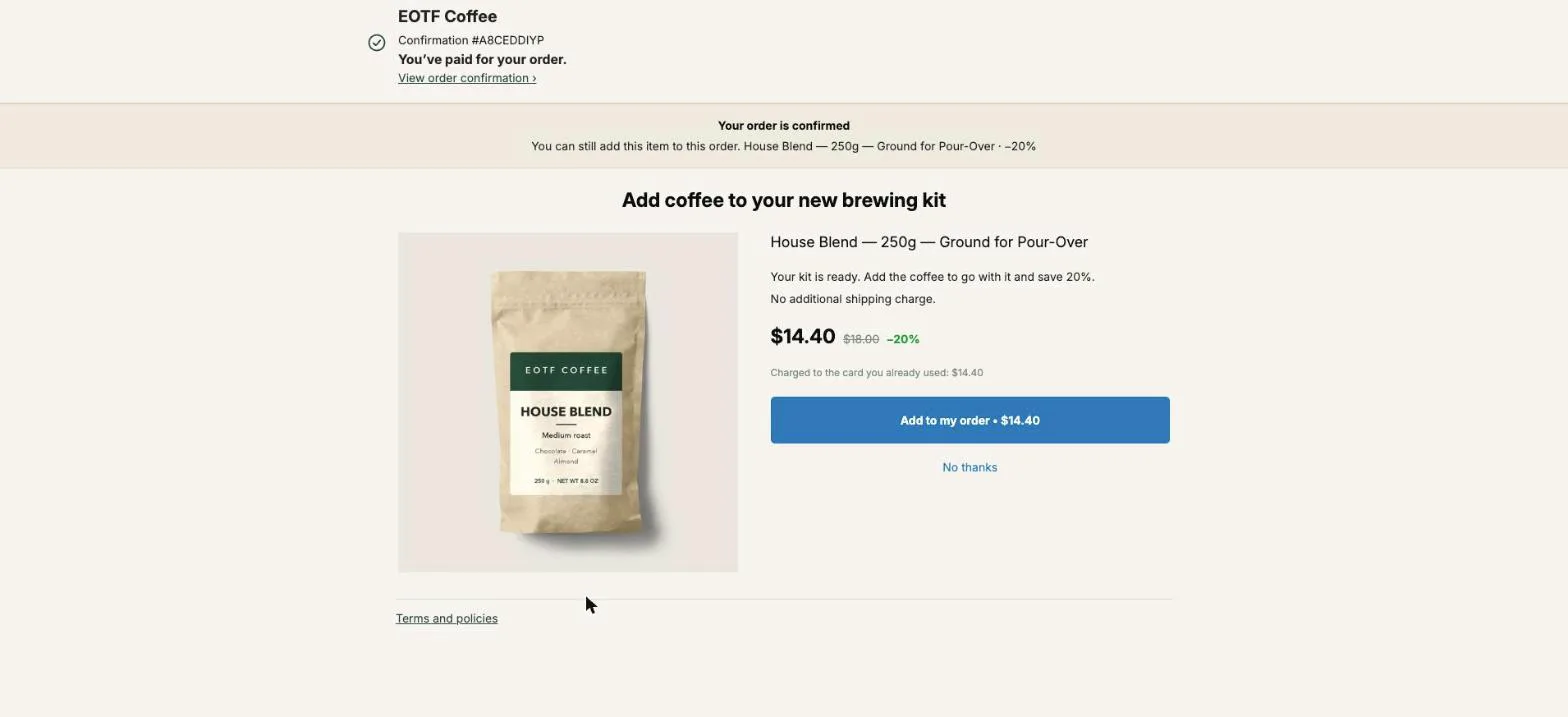
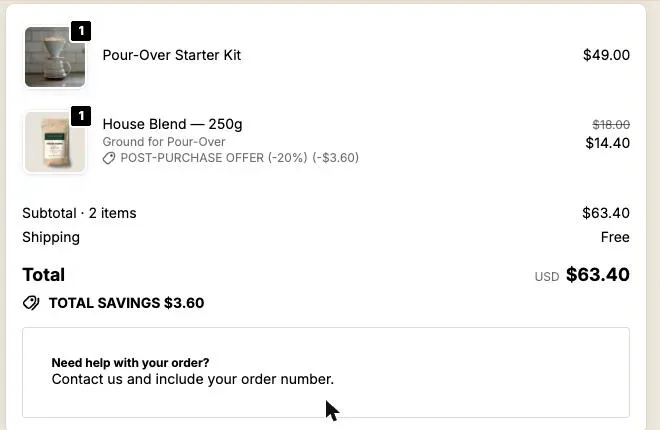
On our demo coffee store, a buyer who just paid for a Pour-Over Starter Kit sees House Blend 250 g at 20% off, shown at $14.40 instead of $18. The buyer sees “Charged to the card you already used: $14.40”, an “Add to my order” button and a “No thanks” link. A tap adds the bag to the paid order, in the same parcel.
The full set of Black Friday offers, from quantity ladders to a free gift, is in Black Friday upsell ideas for the page after checkout. If your Black Friday sale runs on a discount code, read Black Friday discount codes and post-purchase upsells before you price the funnel.
What changes in the weekend funnel?
The weekend funnel changes the product, not just the price. Build it around a second item: a companion to what was bought, a bundle, or quantity tiers on a consumable.
Three options that fit a weekend funnel on the one-click page:
- A companion product. Filters with a brewer, a refill with a starter kit. Pick the specific product so it doesn’t depend on what the buyer chose.
- Quantity tiers. On a consumable, a ladder priced per added unit. How to shift the cart ladder one step for the page after payment is covered in Black Friday quantity discounts after checkout.
- A gift with the order. A small item at $0, set with a 100% discount on the offer. The setup and the stock check are in the free gift after checkout.
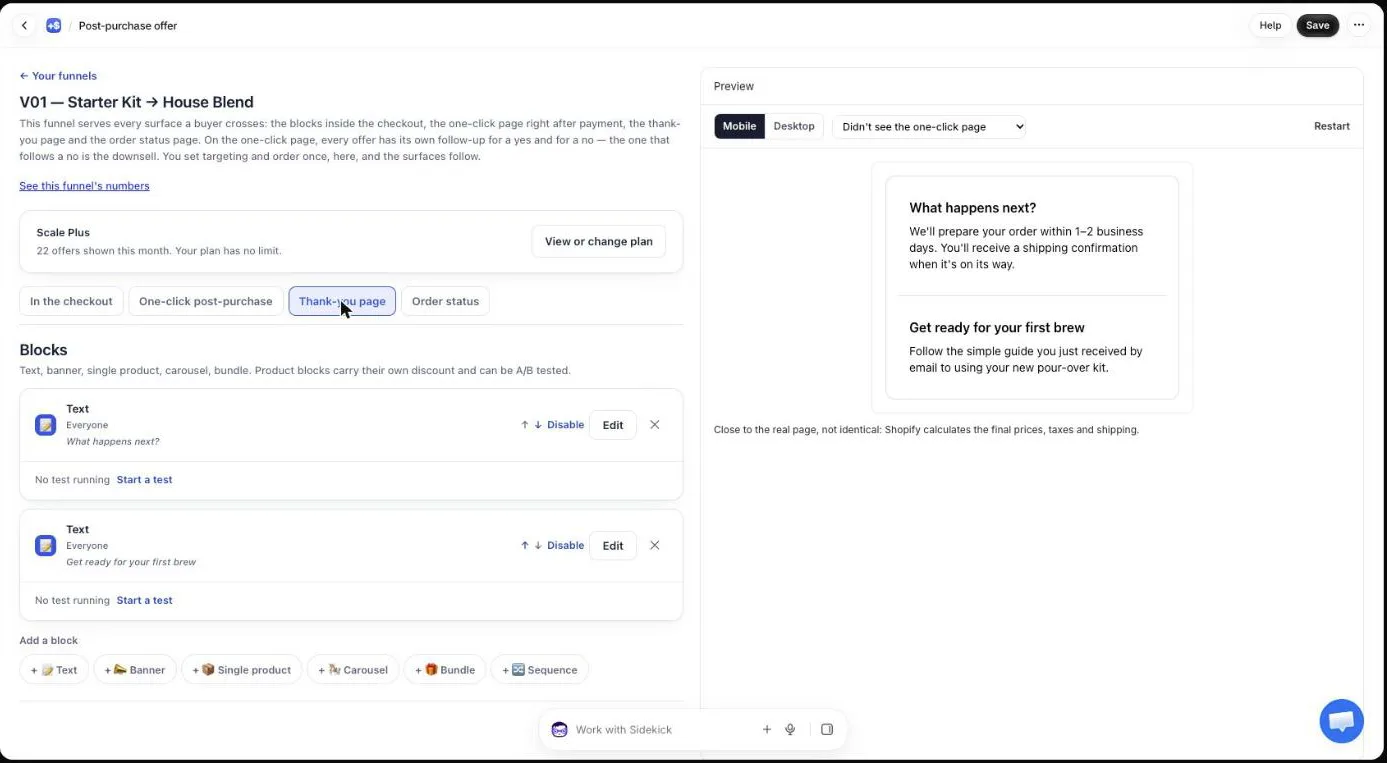
Keep the thank-you page blocks of the weekend funnel aimed at buyers who never reached the one-click page. Set Show it to on those blocks to “Buyers who did not see the one-click page”. Shopify doesn’t show the one-click page for PayPal, Apple Pay, Google Pay and other wallet payments, so those buyers meet the weekend offer on the thank-you page instead. The BFCM thank-you page article walks through those blocks.
How do I build the Cyber Monday upsell funnel?
The Cyber Monday upsell funnel is built like the others, with two differences: its wording says the sale ends today, and its order status blocks reach every buyer who opens their order page on Monday, including people who ordered on Friday. Build both on purpose.
The one-click offer: say it’s the last day
Each offer on the one-click page has its own Promise line, which sits at the top of the page, next to the countdown when you use one. On the Cyber Monday offer, write the deadline there, for example “Cyber Monday price, ends at midnight”. The Selling headline goes above the product name, which always stays visible.
If you add a countdown to this offer (Show a countdown), it lasts between 30 seconds and 30 minutes, counted from when the page opens. When it reaches zero, the offer is declined and the buyer moves on. That’s a deadline for this page, not for the day, so keep the day’s deadline in the Promise line.
Check the discount against Monday’s storewide sale. If Monday goes deeper than Friday, the Cyber Monday offer goes deeper by the same number of points.
The order status page: your reach back to the whole weekend
The order status page picks its funnel each time a buyer opens it, from the funnels active at that moment, using the order’s total and products. It doesn’t remember which funnel was active when the order was placed. So when you switch to Cyber Monday on Monday morning, a buyer who ordered on Friday and opens the page to track the parcel sees the Cyber Monday funnel’s order status blocks.
That makes the Cyber Monday funnel’s Order status tab your last call to everyone who bought since Friday. A Single product block or a Bundle block there carries Monday’s discount, and a Text block above it with a Heading such as “Cyber Monday ends tonight” says why it’s there.
Check Where the purchase goes on those product blocks. With “Same order, unless it has fully shipped”, the item joins the order the buyer already placed, in the same parcel, and a card buyer pays only the difference on a payment page. If a Friday order has fully shipped by Monday, the buyer pays in a new checkout instead, so the last call still sells. “Same order, only until the first parcel ships” switches to a new checkout as soon as one parcel has left.
One setting to get right here: the block countdown. On the thank-you and order status pages, a countdown runs up to 72 hours and is counted from the moment the order was placed, not from when the page opens. A 72-hour countdown on a Friday 9 a.m. order ends on Monday at 9 a.m. A buyer from Friday opening the page on Monday afternoon would find the block already expired, and with When the countdown reaches zero set to “Hide the block”, they wouldn’t see it at all. For a block meant for earlier buyers, leave Countdown (empty = none) empty and put the deadline in the heading.
On Scale plans, order status blocks can also be shown only to “Buyers who bought nothing on the thank-you page”, so someone who already took the weekend bundle isn’t offered the same set on Monday. The order status page chapter of our guide covers placing the block in Shopify’s editor. And for a Cyber Monday bundle priced to keep margin, see Black Friday bundle ideas, whose last row is a Cyber Monday last call.
How do I check a switch before it goes live?
You check a switch before it goes live with Try a cart, under “What would a buyer see?” at the top of the funnel list. Describe a cart (a total and its products) and the simulator marks each funnel: “This one is shown”, “Turned off”, “Its condition does not match this cart”, or “Would match, but one above it wins”.
The simulator runs on what’s on screen before you save. So on Sunday night you can tick Cyber Monday, untick Weekend, run a cart, read “This one is shown” next to Cyber Monday, and only then decide whether to save now or in the morning. It uses the same rules as the live checkout.
Inside each funnel, the editor preview has a menu to see the page as different buyers do, for example “Didn’t see the one-click page”. Run through the Cyber Monday funnel’s thank-you and order status tabs with it before the weekend starts.
Finally, the week before, place one test order on the Black Friday funnel with Shopify’s Test payment gateway, or with Shopify Payments test mode (Settings > Payments > Manage > Enable test mode). It’s the only way to see the one-click page with your real products and prices. Turn test mode off as soon as you’re done.
Can I combine period funnels with funnels by cart value?
Period funnels combine with cart-value funnels by doubling the funnels for each period. Put a targeted funnel such as “Black Friday, orders over $100” above “Black Friday, everyone”, and switch both together. Targeting by order total or by product comes with the paid plans.
The list for Black Friday would read, top to bottom:
- Black Friday, orders over $100 (Order total is at least 100): a higher-priced companion.
- Black Friday, everyone (Everyone): one more of the same product.
- Weekend, orders over $100 (off)
- Weekend, everyone (off)
- Cyber Monday, orders over $100 (off)
- Cyber Monday, everyone (off)
- Everyday (off)
At each switch, two checkboxes go on and two go off. That’s seven funnels, well inside the 20 the paid plans allow. Our guide chapter on different offers for different carts explains how the order of the list decides which funnel a buyer gets. Don’t go further than two levels per period: every split divides your data, and four days don’t give much of it.
How do I read each period’s results after Cyber Monday?
You read each period’s results on the Results screen, under “Which step converts”, where every funnel has its own row: how many buyers saw it, the share who accepted, and the revenue. Turned-off funnels keep their row, marked “turned off”, so Black Friday, Weekend and Cyber Monday sit next to each other on December 1.
The screen covers the last 30 days. Read it by December 25 if you want Black Friday still inside the window, and write the three rows down while they’re there.
This is also the answer to the usual worry about changing offers mid-sale: you lose track of what earned what. With one funnel per period, nothing is overwritten. Each period’s offer lives in its own funnel, and each funnel counts its own buyers. Click See this funnel’s numbers in any funnel editor for the step-by-step detail. Our guide chapter on reading your numbers explains each figure.
Keep the three period funnels after the sale, turned off. Next November they’re already built: change the products and the discounts, update the dates in the wording, and the switching plan is the same.
If you’re moving to Post Purchase Upsell Abakira from another app before the sale, the order to do it in is in how to switch post-purchase upsell apps. The other BFCM guides are on the seasonal topic page.
Post Purchase Upsell Abakira is on the Shopify App Store, with a free plan that shows 100 offers a month.
Set up one post-purchase funnel per BFCM period and switch between them
- Name your regular funnel In Your funnels, give the funnel that runs all year a name such as Everyday, so you can find it again on December 1.
- Create one funnel per period Click Create a funnel three times and name them Black Friday, Weekend and Cyber Monday. Build the offers and the thank-you and order status blocks inside each one.
- Turn the period funnels off Untick Active on the three period funnels and click Save. Buyers keep seeing the regular funnel until the sale starts.
- Check each funnel with Try a cart Under What would a buyer see?, click Try a cart, describe a typical order and confirm which funnel reads This one is shown.
- Switch at each period boundary Tick Active on the funnel for the new period, untick the one before it, and click Save. Do it on Friday, Saturday and Monday.
- Switch back on December 1 Tick Active on the regular funnel, untick Cyber Monday, click Save, then read each period's row on the Results screen.
Frequently asked questions
Does switching funnels change orders that were already placed?
No. An item a buyer already added stays on their order at the price they accepted. The switch only decides what the next buyer sees after paying, and which blocks appear when any buyer opens the order status page from then on.
Can I run a Black Friday and a Cyber Monday funnel on the free plan?
The free plan of Post Purchase Upsell Abakira serves one funnel and shows 100 offers a month. To prepare separate period funnels in advance, you need a paid plan, which allows up to 20 funnels. Plan details are on the App Store listing.
Should the Cyber Monday upsell be cheaper than the Black Friday one?
Only if your storewide sale gets deeper on Monday. The post-purchase discount should be 5 to 10 points deeper than the storewide discount the buyer just got. If Monday's sale is deeper than Friday's, raise the offer's discount by the same amount, or the offer reads as a price increase.
What should the funnel list look like on December 1?
Your regular funnel is active again, and the Black Friday, weekend and Cyber Monday funnels are turned off but not deleted. Turned-off funnels keep their row on the Results screen, so you can compare the four periods side by side, and you can reuse them next November.
Do I need a countdown on Cyber Monday offers?
On the one-click page, a countdown of 30 seconds to 30 minutes works on any period, because it starts when the page opens. On order status blocks, a countdown is counted from the moment the order was placed, so for a block meant for earlier buyers, write the deadline in the heading instead.
Related articles
Written by Abakira. We make small software: Shopify apps, web tools and iPhone apps. This article is about Post Purchase Upsell Abakira.