Black Friday discount code on Shopify: exact upsell prices
Set up BFCM codes on Shopify, then keep every upsell at its shown price: with a -20% sitewide code, our thank-you offer showed $49.95 and charged $49.95.
2026-10-24 — Abakira, updated 2026-11-08
A Black Friday discount code on Shopify is a code you create under Discounts, with a value, a scope, a usage limit and active dates, and the buyer types it at checkout. If that code is a percentage on all products, Shopify also applies it to any item added to the order after payment. To keep that item at the price your offer showed, the offer’s own discount has to shrink by exactly what the code takes, before the line is saved. Our test on October 5, 2026, with a -20% sitewide code: the offer showed $49.95, the order charged $49.95. All amounts are in US dollars.
This page covers both halves: building the BFCM codes themselves, and running post-purchase offers on top of them so that what the buyer reads is what the buyer pays.
How do I create a Black Friday discount code on Shopify?
A Black Friday discount code on Shopify is created in the admin under Discounts, then Create discount. You pick one of four types (Amount off products, Buy X get Y, Amount off order, Free shipping), choose Discount code rather than Automatic discount, and fill in value, scope, eligibility, limits, combinations and dates. Create it a week early and test it.
The steps, in the order the Shopify form asks for them:
- Discounts > Create discount. Pick the type. For a sitewide “20% off everything”, Amount off order and Amount off products set to all products both work.
- Method: Discount code. Name it something a buyer can remember and retype from an Instagram story.
BFCM20beatsX7K2-PQ9. - Discount value. Percentage or fixed amount. A percentage reads better on a sitewide sale; a fixed amount protects your cheaper items.
- Applies to. All products, specific collections, or specific products. A dedicated “Black Friday” collection keeps the scope clean and gives you a landing page to send traffic to.
- Minimum purchase requirements. None, a minimum amount, or a minimum number of items. A threshold just above your usual order value pulls carts upward.
- Customer eligibility. All customers, or segments such as email subscribers or past buyers.
- Maximum discount uses. A total cap, and “Limit to one use per customer” if the code is going to a list.
- Combinations. Tick the classes this code can stack with: product discounts, order discounts, shipping discounts. Leave all three empty and the code stands alone.
- Active dates. Set the start and end time to the minute, in your store’s time zone. Many stores keep the code alive through Cyber Monday and one or two days after for late buyers.
Then place a real order with it on your test gateway. Every code. The ten minutes this takes on November 20 are cheaper than the tickets on November 28.
Should you run a code or an automatic discount for BFCM?
A code and an automatic discount do the same arithmetic on Shopify, but they reach buyers differently. A code has to be typed, so it rewards the people you sent it to and lets you count channels. An automatic discount applies to everyone in the cart, with no friction, and is invisible until the cart shows it. Most stores run both.
| Discount code | Automatic discount | |
|---|---|---|
| Buyer action | Types the code at checkout | Nothing, it applies on its own |
| Best for | Email, SMS, influencer and affiliate codes you want to track | A sitewide sale shown on every page |
| Counting | Tracked by code | Tracked by discount title |
| Leak risk | Codes end up on coupon sites; cap uses or generate unique codes | None, everyone gets it anyway |
| Effect on an item added after checkout | Reapplied if it is a percentage on all products | Reapplied if it is a percentage on all products |
That last row is the one nobody plans for, and it decides how you set up your upsells for the weekend.
How do discount combinations work during Black Friday?
Discount combinations on Shopify follow three classes: product, order and shipping discounts. Each discount lists which classes it may combine with, and two discounts stack only if both allow it. Two percentage order discounts add up: 20% plus 10% takes 30% off, both calculated on the original subtotal. A product discount applies first, and an order percentage is then calculated on the reduced subtotal: 20% off a product, then 10% off the order, takes 28% off that product’s price.
A few rules worth writing on a sticky note before the weekend:
- Automatic discounts and codes can combine. If your automatic “20% off sitewide” allows order discounts and your email code
VIP10allows product discounts, a VIP buyer gets both. - Two product discounts on the same item don’t stack by default; the bigger one wins.
- Shipping discounts combine with the others only when both sides tick shipping.
- Know your floor. Price minus cost of goods minus fixed cost per order, divided by price, is the deepest total discount you can afford. A $100 product with $40 of goods and $15 of shipping and fees has a 45% ceiling. Add up every discount that can land on one order and keep it under that number.
Which Black Friday discounts carry over to an upsell after checkout?
Black Friday discounts carry over to a post-purchase upsell only in one case: the upsell adds the item to the existing order, and the discount is a percentage on all products. We placed five orders on September 27, 2026, one per discount type, and accepted an offer on each. Here is what Shopify did:
| Discount on the original order | One-click post-purchase page | Item added to the same order (thank-you page, same route as the order status page) |
|---|---|---|
| Code, -10% on all products | Not applied | Applied again |
| Automatic discount, -10% on all products | Not applied | Applied again |
| Code, $10 off the order (fixed amount) | Not applied | Not applied |
| Code, -10% on one product only | Not applied, even on that product | Not applied, even on that product |
| Code, $5 off each item | Not applied | Not applied |
So the one-click page, the one that appears between payment and the order confirmation, always charges exactly the offer price. Your BFCM code never touches it. You can put your deepest offer there without doing any arithmetic.
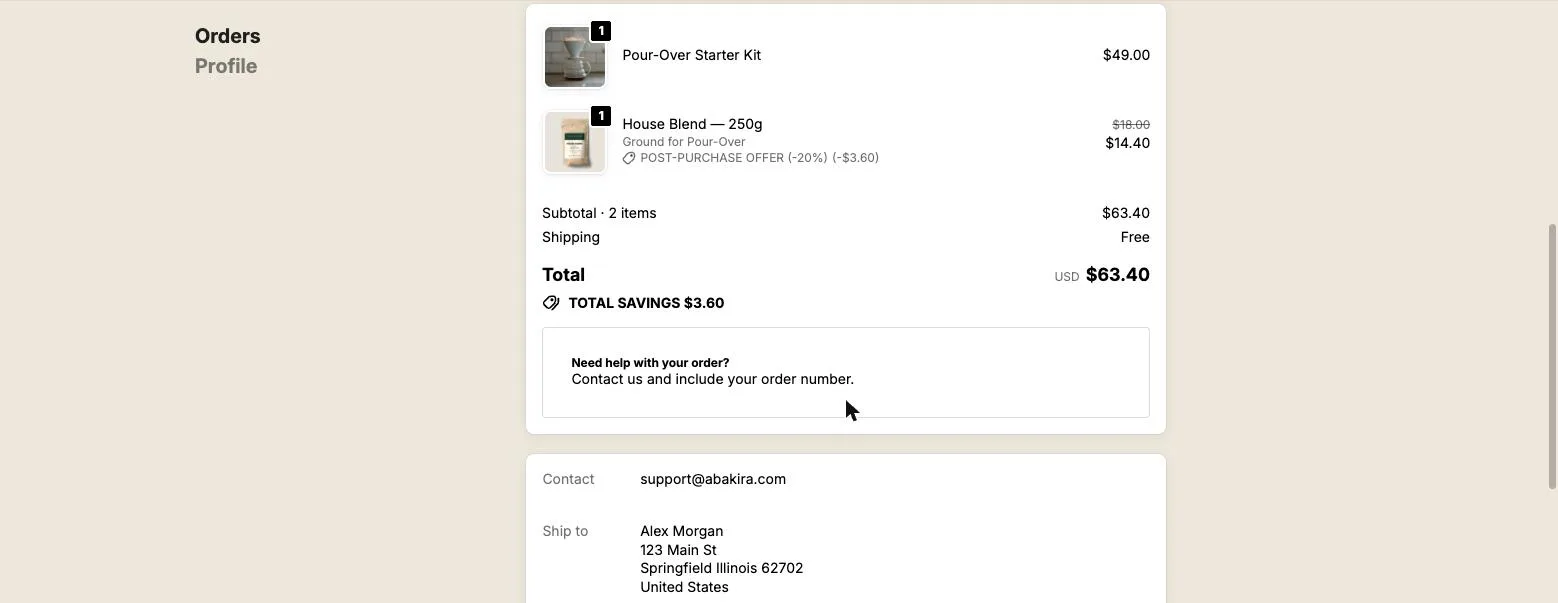
The thank-you page and the order status page are different. An offer there that adds the item to the order the buyer already placed goes through Shopify’s order editing, and order editing recalculates the order’s sitewide percentage discount over the new line. A “new checkout” offer is different again: in our tests, the next checkout started without the code, so the buyer would have to type it again.
What does the buyer pay when a Black Friday code is applied again?
The buyer pays less than the price your offer showed, and you absorb both discounts. Take a 4-pack at $79.95 with $30 off as a thank-you offer: the block shows $49.95. With a -10% sitewide code on the order, Shopify bills ($79.95 - $30) less 10%, which is $44.96. With a -20% code, it bills $39.96, a full $10 under what the buyer saw.
Nobody complains about paying less. But during Black Friday week your offers are built on thin margins already, and a 20% sitewide code turns a $30-off offer into roughly a 50% total discount on that pack. Over a weekend of orders, that difference is real money.
There’s a second cost. Buyers who notice the number change write in to ask which price is right, during the one week of the year your inbox is fullest.
And the code can’t simply be taken off the line. When an app asks Shopify to remove it, Shopify answers: “This discount was applied using a discount code and can’t be removed.” The code stays. What can move is the offer’s own discount.
How do you keep the upsell’s shown price equal to the price paid?
The upsell’s shown price stays equal to the price paid when the offer’s own discount is lowered by exactly what the BFCM code is about to take, before the order edit is saved. Shopify shows the code’s cut in the calculated edit, so the amount is known in advance. You only ever reduce the offer discount, never raise the price.
Here is the arithmetic, done by hand on the 4-pack with a -20% code:
- The buyer must pay $49.95. The code will take 20% of whatever is left after your discount, so the line has to sit at $49.95 / 0.8 = $62.4375 before the code.
- Your discount becomes $79.95 - $62.4375 = $17.5125, rounded up to the cent: $17.52. The line now sits at $62.43.
- Shopify takes 20% of $62.43, which is $12.486, and truncates its share to $12.48.
- $79.95 - $17.52 - $12.48 = $49.95. The price shown.
The rounding direction matters more than it looks. Rounded to the nearest cent, the discount came out at $17.51 and the buyer would have paid $49.96, one cent above the shown price. One cent too high is worse than one cent too low, so the rule is: always round your own discount up.
Merchants who do this manually have one shot at it: order edits are committed when the buyer taps, not in a quiet moment later. That’s why it belongs in the app, at the moment of the edit.
How do you turn this on in Post Purchase Upsell Abakira?
Post Purchase Upsell Abakira does this arithmetic on every thank-you and order status addition once the setting “Buyers pay the price shown, even with a discount code” is ticked. It sits on the app’s Buyer page. When it’s on, the app reads the code’s cut from Shopify’s calculated edit, lowers the offer discount, reads again, and only then saves the edit.
- In the app, open Buyer page.
- Scroll past the After the buyer clicks Add messages to the card with the setting.
- Tick Buyers pay the price shown, even with a discount code and click Save at the top right.
- Make a test copy of your Black Friday code in Shopify with the same percentage and the same “Applies to” scope.
- Place a test order with that code, tap the offer on the thank-you page, and compare the added line with the price the block showed.
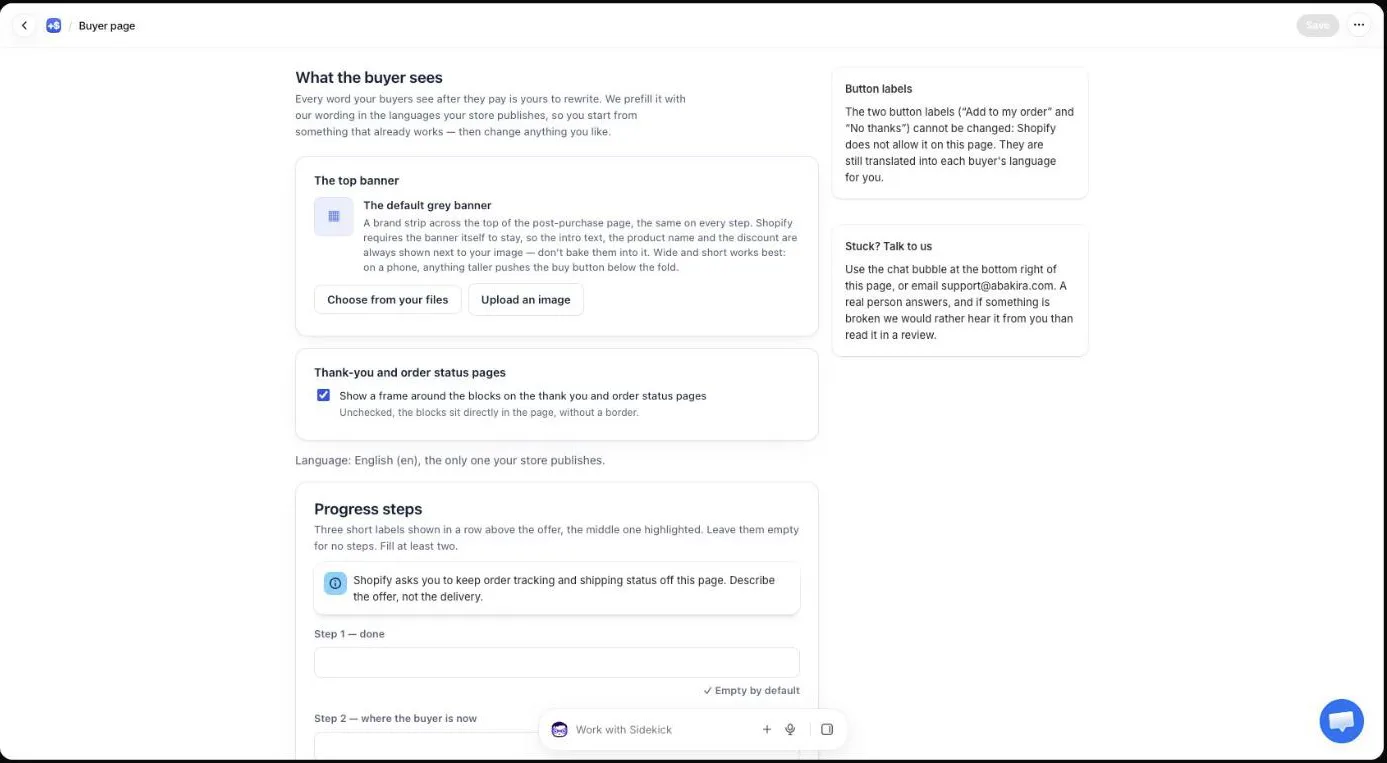
The help text under the checkbox says exactly what it does: “With this on, the offer discount is lowered by the same amount, so they pay exactly the price they saw.” The setting starts off and is part of the Scale and Scale Plus plans; the App Store listing has the current plans.
The same order and price chapter of our guide explains how items are added to the existing order in the first place, including cash on delivery orders.
What did our test orders show with the setting on?
Our test orders with the setting on charged the shown price on every addition where the offer discount was bigger than the code’s cut. We ran these on October 5, 2026, with a -20% order code that copies a real BFCM-style sitewide code, on order #1112.
| Addition | Price shown | Price paid |
|---|---|---|
| Thank-you page, 4-pack at $30 off | $49.95 | $49.95 (offer discount $17.52 + code $12.48) |
| Order status page, bundle of 4 with 2 free | $74.90 | $74.90 |
| Same 4-pack, quantity 2 | $99.90 | $99.89 |
| Offer at a fixed $5 off (smaller than the code’s cut) | $34.95 | $31.97 |
| Offer at 13% off (smaller than the 20% code) | $34.76 | $31.97 |
| Offer with no discount at all | $14.95 | $11.97 |
The first two rows are the normal case: exact to the cent. The $99.89 on quantity 2 is the best reachable result, because the offer discount is set per unit and two units can’t split a cent. Earlier, on September 29, a full buyer path with a -10% code on order #1107 showed a bundle at $74.90 and the payment page asked for $74.90.
What happens when the Black Friday code is bigger than the upsell discount?
When the Black Friday code takes more than the whole offer discount, Post Purchase Upsell Abakira gives up its entire discount on that line and the item is still added. The buyer pays slightly less than shown, as in the fixed $5-off row above: $34.95 shown, $31.97 paid. A sale is never refused because of the code.
In a bundle, the app first moves the shortfall onto the other lines of the same addition that still have discount to give back, so a bundle with one cheap line and one deeply discounted line can still land on its shown total.
One more guarantee: if Shopify’s rounding would ever make the buyer pay more than the shown price, the edit is redone without any adjustment. The buyer can pay a cent under. Never a cent over.
The practical takeaway for your BFCM planning: if your sitewide code is 25%, give your thank-you and order status offers more than 25% off. Then the app has room to absorb the code, and every buyer sees one price.
How should you plan upsell discounts around a 20% or 30% sitewide sale?
Upsell discounts around a 20% or 30% sitewide sale work best when each page gets a discount sized for what Shopify does there. The one-click page ignores the code, so its offer price is final. Thank-you and order status offers inherit sitewide percentage codes, so their discount has to be larger than the code for the shown price to hold.
A simple layout for the weekend (the offers themselves, product by product, are in Black Friday upsell ideas for the page after checkout):
- One-click post-purchase page: your strongest offer. A second unit of what they just bought, or a 3-pack, at a discount you chose with the BFCM margin in mind. The quantity ladder that works there is laid out in Black Friday quantity discounts after checkout. No code will touch it. Remember this page only appears for card payments; the Apple Pay, PayPal and Google Pay article explains which orders skip it.
- Thank-you page: the offer for everyone the first page missed, with a discount above your sitewide code. A 30%-off offer under a 20% code leaves 10 points of room.
- Order status page: buyers come back to it for tracking for days. A smaller add-on works well here, same rule on the discount.
- Fixed amount BFCM codes (“$10 off orders over $75”) don’t carry over to added items at all, so with that kind of promotion the shown price holds even with the setting off.
For the rest of the levers that move order value over the weekend, from the product page to after payment, see what actually raises average order value on Shopify. The thank-you page chapter of our guide covers placing the block in Shopify’s editor.
How do you test your BFCM codes and upsells before the weekend?
Testing BFCM codes and upsells means placing real orders on your test gateway with each code, then accepting each offer and reading the order in the admin. Do it at least a week before Black Friday, which falls on November 27 in 2026, so there’s time to fix anything before traffic starts.
- Copy each live code with a test name (
BFCM20TEST) and identical settings: value, Applies to, combinations. - Switch on your test gateway and place an order with the copy.
- Accept the one-click offer if your order paid by card, and check the price matches the offer.
- On the thank-you page, tap the offer. On the payment page for the difference, the amount should equal the block’s price.
- Open the order in your Shopify admin. On the added line you’ll see the offer discount, labeled “Thank you offer”, and the code. Line total after both should equal the shown price.
- Repeat with Apple Pay or PayPal if you accept them. Those orders skip the one-click page and go straight to the thank-you page, so that’s where their offer has to work.
- Delete the test codes, or leave them expired, so they don’t leak.
How do you see which Black Friday codes drove sales afterwards?
In Shopify, open Analytics, then Reports, set the date range to the sale weekend, and look at your sales broken down by discount. To read the upsell side, use the Results screen of the app, which groups the thank-you and order status pages together.
Other seasonal guides are collected on the seasonal topic page.
Post Purchase Upsell Abakira has a free plan that runs on a live store; the listing shows what each plan includes.
Keep thank-you and order status upsells at the price shown during Black Friday
- Open the Buyer page In Post Purchase Upsell Abakira, open the Buyer page from the app menu and scroll to the card under the After the buyer clicks Add messages.
- Tick the setting Tick Buyers pay the price shown, even with a discount code, then click Save at the top right.
- Create a test copy of your BFCM code In Shopify, go to Discounts, Create discount, Amount off order or Amount off products, and make a code with the same percentage and the same Applies to scope as your real Black Friday code.
- Place a test order with the code Order a product with the test code, pay with your test gateway, and tap the offer on the thank-you page.
- Compare the two numbers Open the order in your Shopify admin. The added line, after the Thank you offer discount and the code, should equal the price the block showed.
Frequently asked questions
Can a buyer enter more than one discount code on Shopify?
Yes, when the discounts allow it. As of October 2026, a Shopify checkout accepts up to five product or order discount codes plus one shipping code, and each one only combines with the classes ticked in its Combinations section. Leave Combinations empty on your main BFCM code and it stays alone.
Will a Black Friday code lower the price of a one-click post-purchase offer?
No. In our tests, five order-level and product-level discounts, codes and automatic, never touched the one-click post-purchase page. The buyer pays the price written on the offer, so that page needs no adjustment.
Does a fixed amount code like 10 off the order reach an item added after checkout?
No. A fixed amount off the order, a fixed amount per item, and a percentage limited to certain products all stayed off the added line in our tests. Only percentage discounts that apply to all products, typed or automatic, were applied again.
Can I delete the discount code from the added line in the Shopify admin?
No. Shopify refuses with the message This discount was applied using a discount code and can't be removed. The way to keep the price is to lower the offer's own discount before the line is saved, which is what the setting does.
Is Buyers pay the price shown switched on by default?
No, it starts off. It sits on the Buyer page of Post Purchase Upsell Abakira and is part of the Scale and Scale Plus plans. The current plans are on the App Store listing.
Related articles
Written by Abakira. We make small software: Shopify apps, web tools and iPhone apps. This article is about Post Purchase Upsell Abakira.