Shopify bundle upsell: sell the whole set after payment
Three ways to sell a bundle after a Shopify buyer has paid: a 2-3 product one-click offer, a 2-4 product grid card, and a thank-you block with a free item.
2026-11-13 — Abakira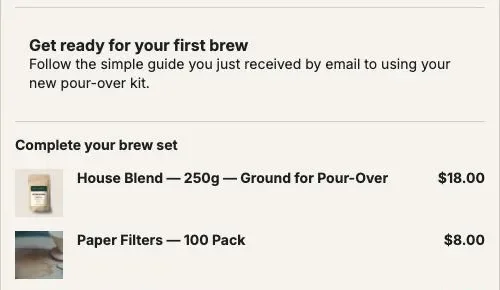
A Shopify bundle upsell after payment is a set of 2 to 4 products added to the order the buyer has just paid for, in one tap and at one price. Post Purchase Upsell Abakira sells it in three places: a Bundle offer on the one-click post-purchase page (the main product plus 1 or 2 others), a bundle card in the one-click Grid (2 to 4 products, each with its own discount), and a Bundle block on the thank-you or order status page (2 to 4 products, any of them free). The lines join the order the buyer just paid for.
A product-page bundle asks for a decision before payment. This page covers the other moment: the order is already paid and the set is added to it. All prices below come from our coffee demo store and are in US dollars.
What is a bundle upsell after checkout?
A bundle upsell after checkout is an offer that sells several products together once the first payment is done, instead of on the product page or in the cart. The buyer doesn’t build the set: you pick it from what they just bought, and the whole set goes into the existing order with a single button.
After payment the main product is already bought, so the set only has to complete it. On our demo store, the buyer of a $49 pour-over kit is offered coffee, filters and a mug.
Here a bundle is an offer made of normal products from your catalogue, each added to the order as its own line with its own discount.
Which bundle formats can I sell after payment?
Post Purchase Upsell Abakira has three bundle formats after payment: the one-click Bundle offer, the bundle card in the one-click Grid, and the Bundle block on the thank-you and order status pages. They differ in size, in how the discount is set and in where the buyer sees them. The table compares them as of November 2026.
| One-click Bundle offer | Bundle card in the Grid | Bundle block, thank-you and order status pages | |
|---|---|---|---|
| Where it shows | One-click post-purchase page, as the main offer | One-click page, stacked under the main offer | Thank-you page, order status page |
| Products | 2 to 3, the main product included | 2 to 4, the first one carries the card | 2 to 4 |
| Discount | One Bundle discount (%) for the set, 1 to 90 | Each product: its own discount (a percentage or a fixed amount) or Bundle rate | Bundle discount (%) 0 to 90, plus a Discount (%) per product from 0 to 100 (100 = free) |
| A set that saves nothing | Needs a rate above 0 | Refused at Save | Allowed |
| Buyer’s button | ”Add to my order • $35.70 (3 items)" | "Add • $37.40 (3 items)" | "Add $26.00 (3 items)“ |
| Countdown | The offer’s timer, 30 seconds to 30 minutes | The offer’s timer, 30 seconds to 30 minutes | Up to 72 hours, counted from the order |
The three formats are not rivals. The one-click offer makes the set the whole pitch. The grid card puts a set next to single products so the buyer can pick. The thank-you block reaches buyers after the one-click page, and the same block works on the order status page.
How do I set up a one-click Bundle offer?
A one-click Bundle offer is set up by choosing A bundle under What this offer proposes in the offer editor, then adding 1 or 2 products to the main one. The editor describes it in one line: “This offer sells the main product together with 1-2 more, in a single purchase at the bundle rate.”
The steps, in a funnel’s One-click post-purchase tab:
- Click Edit offer on the offer you want to turn into a set, or Add an offer here for a new one.
- Under What this offer proposes, pick A bundle.
- Choose the main product, then click Add a product to the bundle once or twice. The counter under the list reads “3 of 3 products in the bundle” when it’s full.
- Enter the Bundle discount (%), from 1 to 90. It applies to every line of the set.
- Write the heading and the description the buyer reads, then click Save at the top right.
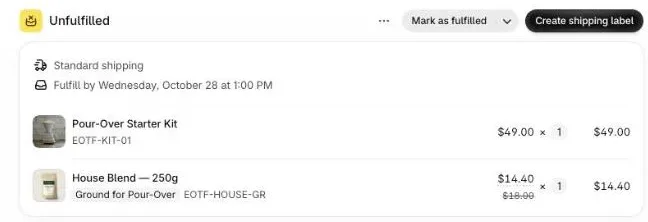
On our demo store, the set for a pour-over kit buyer is House Blend coffee ($18) as the main product, plus Paper Filters ($8) and the Everyday Coffee Mug ($16). That’s $42 at full price. At a 15% bundle discount, the three lines come to $15.30, $6.80 and $13.60, and the button reads “Add to my order • $35.70 (3 items)”. The page names the set after the main product (“House Blend — 250g bundle”) and adds the line “This bundle contains 3 items”.
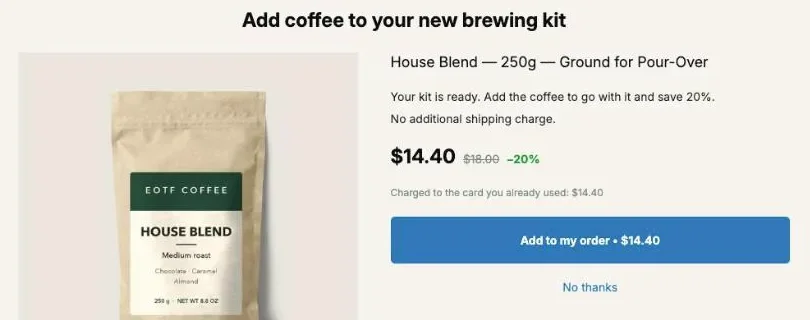
A Bundle offer is a one-time purchase: its price covers the main product and the others together. To test a set against a single product, build the set as a thank-you Bundle block: product blocks can be A/B tested, with up to 4 versions, on the Scale plans.
How does a bundle card in the grid work?
A bundle card in the grid is one card of the one-click page that sells 2 to 4 products together, under the main offer. Each product in the card carries its own discount, as a percentage or as a fixed amount, or follows the carrier’s rate. The buyer gets one button and one charge for the whole card.
The Grid section of the offer editor holds “up to 6 extra products shown under the main offer, each with its own discount and its own button”. The cards are stacked under the main offer, one below the other. A card can be a single product or a set: click Add a bundle card to the grid and the picker asks you to “tick 2 to 4 products: the first one carries the card”.
The first product is the carrier. Its discount is the card’s rate. Every other product has its own discount field: leave it empty and it shows Bundle rate (the product follows the carrier), or type a percentage or a fixed amount for that product alone. That’s how you price a set line by line, the way a shop would put it on a shelf.
Our demo card: Dark Roast ($20) carries it at 10% off, so $18.00. The Everyday Coffee Mug follows the Bundle rate and drops from $16.00 to $14.40. The Paper Filters get their own fixed $3 off, so $5.00. The card reads $44.00 struck through, $37.40 to pay, and the button says “Add • $37.40 (3 items)”. A Bundle title, shown above its products sits on top, for example “Your brew-bar starter set”.
The same 15% off the set, spread differently: the coffee at 10%, the mug at 10% and the filters at $5, $6.60 off $44.
Every bundle card needs a saving: a card whose total equals the list price can’t be saved.
If the page should sell only sets, tick Show only these cards. “The page skips the main offer and shows just the cards below, each with its own button.” Use it when you want two or three sets side by side instead of one hero product.
How do I build a bundle block on the thank-you page?
A bundle block on the thank-you page is a Bundle block in the funnel’s Thank-you page tab, holding 2 to 4 products at a bundle rate, with an optional per-product discount up to 100%. It shows only once the Thank you page offer app block is placed in Shopify’s checkout editor, and one tap adds every line to the order already placed.
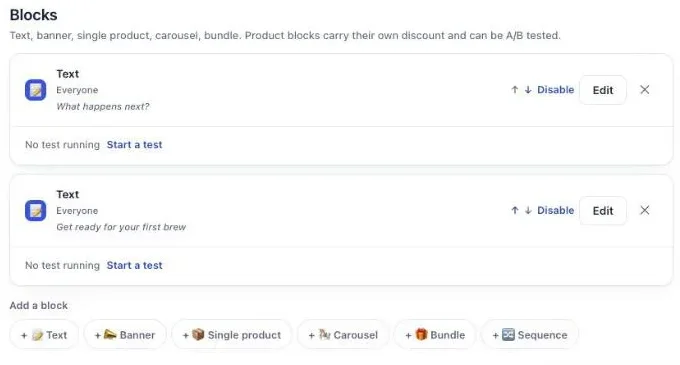
- In Shopify’s checkout editor, switch to the Thank you page and add the Thank you page offer block. Without it, nothing you build shows. The thank-you page chapter of our guide has the screenshots.
- In the funnel, open the Thank-you page tab, click Add a block, then Bundle.
- Click Add a product for each item of the set, 2 at least and 4 at most.
- Set Bundle discount (%) for the set, from 0 to 90. Here 0 is allowed: a block can sell a set at full price.
- On any product, set its own Discount (%), from 0 to 100. The editor’s help reads “100 means the item is free — that is a decision, so say it here.”
- Write the Heading and click Save at the top right.
On our demo store the block is titled “Complete your brew set”: House Blend $18, Paper Filters $8 and the Everyday Coffee Mug at 100% off. The buyer sees the total, $42.00 struck through, then $26.00, and a button that reads “Add $26.00 (3 items)”. Under it: “Added straight to your order above. You only pay the difference.”
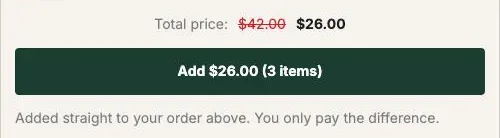
The block has a countdown of up to 72 hours, counted from the moment the order was placed, so the deadline is the same on every visit and every device. And it has a Where the purchase goes setting: “Same order, unless it has fully shipped” by default, “Same order, only until the first parcel ships”, or “Always a new checkout”.
The same block works on the order status page. Place the Order status page offer block in the checkout editor first, then build the set in the funnel’s Order status tab.
How should I price a bundle upsell?
A bundle upsell after payment is priced from the cheapest item up: give that item away or cut it deep, and leave the rest close to full price. A free cheapest item is the line that costs you the least. On our $42 coffee set, a free $8 item is 19% off; a free $16 mug is 38%.
Compare the three prices of the same $42 set (House Blend $18, Paper Filters $8, Everyday Coffee Mug $16):
| How the set is priced | Format | Buyer pays | Off the $42 list |
|---|---|---|---|
| 15% on every line | One-click Bundle offer | $35.70 | 15% |
| Filters free, the rest at full price | Thank-you Bundle block | $34.00 | 19% |
| Mug free, the rest at full price | Thank-you Bundle block | $26.00 | 38% |
The middle row is usually the right one. The free item is the cheapest and a consumable, so it is the line that costs you the least. The last row is the one in our screenshots, and it’s generous: keep it for a launch or a slow product you want to move.
Two rules hold for every format. First, every item is something the buyer of the main product will use; if you have to explain why an item is in the set, take it out. Second, the set costs less than the order the buyer just paid for. Our guide chapter on what to offer after checkout puts the target at about a quarter to a half of the order value, and explains why a set priced like a second order needs a second decision.
For the seasonal version of these numbers, with landed costs and margin per row, see Black Friday bundle ideas.
Which products make a good post-purchase bundle?
A good post-purchase bundle is built from the products that finish the job the main product started: the consumable, the accessory. The order tells you what’s missing, so the set should be different for each starter product rather than one set for the whole store.
Four shapes that work after payment:
- Complete the set. The kit buyer gets coffee, filters and a mug. The camera buyer gets a card, a strap and a spare battery.
- The refill pack. Two or three consumables the buyer will run out of: refills, filters, pods, blades.
- The upgrade set. The next tool up plus a consumable, for buyers who already own the basics.
- The pairing. A best-seller plus a product that sells slowly on its own, at a deeper rate on the slow one.
To show a different set to buyers of different products, the funnel needs the Order contains condition under Who sees this offer. It reads the order being placed, not the buyer’s past orders, and it takes up to 300 products. Targeting by product comes with the paid plans; on the free plan, one funnel shows its set to every buyer. Our guide chapter on different offers for different carts shows how funnels are checked in order.
What happens when the buyer declines the bundle?
When the buyer declines a one-click bundle, the funnel can show a follow-up offer in its If declined branch, and the best follow-up for a set is a smaller set. Take one item out instead of cutting the price of the whole bundle: offer the filters alone.
The decline branch is the second level of the funnel tree. The tree holds up to 7 offers across 3 levels, and levels 2 and 3 come with the paid plans. A few rules for a bundle downsell:
- Keep the item the buyer is most likely to need, usually the consumable.
- Drop the format: the downsell is a single product, not a smaller bundle at the same rate.
- Keep the discount on that one item at least as good as it was inside the set.
A buyer can accept up to three offers on the one-click page, and a bundle counts as one however many lines it holds. So a set in the first offer, and a single refill in the If accepted branch, still leaves room. Our article on how deep to cut a downsell covers the pricing of the second offer.
How do I know if the bundle upsell made money?
A bundle upsell made money when its revenue, minus the cost of every item in the set, beats what you gave away. In Post Purchase Upsell Abakira, the By product section of the Results screen counts bundles separately. Its note reads: “Paid orders over the last 30 days, every page. A bundle stays one line.”
Each line of an accepted bundle is matched back to the offer that sold it, so the set appears as one entry with its units and revenue, not as three unrelated products. The section covers the last 30 days only, so note the figures if you want a longer view.
Read three numbers:
- Sets sold divided by buyers who saw it. The bundle’s take rate. Divide by views, not by all orders.
- Margin per set. Revenue from the set minus the landed cost of all its items, the free one included.
- Which set won, when you run two. On the thank-you page, a Bundle block can be A/B tested on the Scale plans.
Before you trust the numbers, check that the funnel is ticked and switched on: Try a cart answers “Turned off” for a funnel that isn’t, and a set nobody can see sells nothing. For the rest of the order value picture, see what actually raises average order value on Shopify, and if you are comparing with a product-page bundle app, our Kaching alternative page sets the two approaches side by side. More techniques like this one are on the method page.
Post Purchase Upsell Abakira has a free plan with all three bundle formats; the listing has the current plans.
Add a bundle card to the one-click post-purchase grid
- Open the offer In Post Purchase Upsell Abakira, open your funnel, go to the One-click post-purchase tab and click Edit offer on the offer that should carry the bundle.
- Add a bundle card In the Grid section, click Add a bundle card to the grid. In the picker, tick 2 to 4 products. The first one carries the card.
- Set the carrier's discount Give the first product its discount, as a percentage or a fixed amount. This is the rate the other products follow when they are set to Bundle rate.
- Price each other product Leave a product's discount empty so it follows the carrier at the Bundle rate, or give it its own discount, for example a fixed amount off on the cheapest item.
- Name the bundle Fill in Bundle title, shown above its products, for example Your brew-bar starter set.
- Save and test Click Save at the top right. If the funnel is ticked and on, use Try a cart to check which buyers get it, then place a test order.
Frequently asked questions
How do I sell a plan after checkout?
Offer the product on its own with its plan attached. A bundle is always a one-time purchase, because a subscription would only cover the main product.
How do I A/B test a bundle?
Build the set as a Bundle block on the thank-you or order status page and start a test on it: up to 4 versions, on the Scale plans.
Does a bundle upsell work on the free plan?
Yes. The one-click Bundle offer, the bundle card in the grid and the Bundle block on the thank-you page are all available on the free plan, which runs one funnel with one offer level and shows up to 100 offers a month on the one-click page. Targeting a bundle at buyers of one product comes with the paid plans.
What happens if one product of the bundle runs out of stock?
On the thank-you and order status pages, a Bundle block is taken off the page as soon as one of its products reads as sold out. A grid bundle card whose products can't all be read with a live price is dropped as a whole. The buyer never sees a set at a total they can't pay.
Can I use a fixed amount off instead of a percentage in a bundle?
Yes, in a bundle card of the one-click grid: each product can take its own discount as a percentage or as a fixed amount, or follow the Bundle rate. The one-click Bundle offer uses a single percentage for the whole set.
Do bundle lines go into the same order?
Yes. A bundle accepted on the one-click page is charged to the card the buyer already used and added to the order just placed, in the same shipment. A Bundle block on the thank-you page adds its lines to the same order by default, and the buyer only pays the difference.
Related articles
Written by Abakira. We make small software: Shopify apps, web tools and iPhone apps. This article is about Post Purchase Upsell Abakira.