Free shipping threshold on Shopify: set it, then show it
Where Shopify keeps the free shipping threshold, how to price it from your median order, and how to show progress toward it inside the checkout.
2026-11-13 — Abakira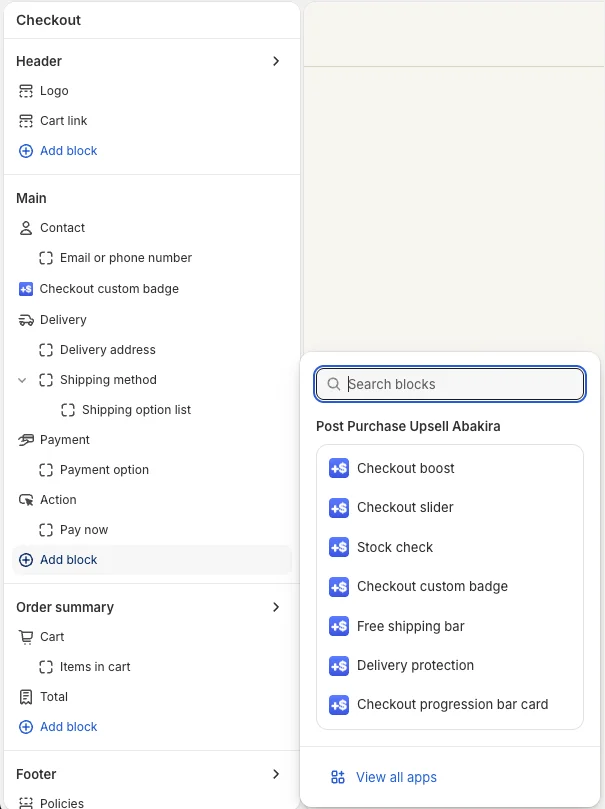
A free shipping threshold on Shopify is set in Settings > Shipping and delivery, on a shipping rate with Offer free shipping and a minimum order amount, or with a free shipping discount that has a minimum purchase amount. Set it above your median order, at least by your shipping cost divided by your margin: with a $49 median, $8 shipping and a 50% margin, that’s $49 + $16 = $65. Then show it everywhere the buyer decides, including the checkout on Shopify Plus.
The amount does half the work. A threshold the buyer never sees until the shipping line moves nothing, so the second half of this page is about display: in the cart, in the checkout, and what to offer once the order is paid. The examples use a coffee store: a $49 median order, $8 of shipping and a 50% margin.
Where do I set a free shipping threshold in Shopify?
The free shipping threshold in Shopify lives in two possible places: a shipping rate in Settings > Shipping and delivery, or a free shipping discount in Discounts. The shipping rate is the usual choice for a permanent threshold. The discount suits a dated promotion, or a threshold limited to some countries or customers.
To set it on a shipping rate (admin labels as of November 2026):
- In your Shopify admin, go to Settings > Shipping and delivery.
- In Shipping profiles, click the profile you want to edit.
- In the shipping zone, click Add shipping option and enter the Name buyers see at checkout.
- Choose a Rate type. With Order amount, enter a Minimum, a Maximum and a Price for each price range.
- Select Offer free shipping and enter the minimum order amount that qualifies.
- Click Done, then Save.
If you use price ranges, leave Maximum empty on the highest one. An order above a capped top range matches no rate, and the buyer gets a shipping error at checkout instead of free shipping.
To set it as a discount instead: go to Discounts, click Create discount, pick Free shipping, choose Discount code or Automatic discount under Method, then select Minimum purchase amount in the minimum requirements section. Two details matter for the amount you type. Shopify counts product prices only, never taxes. And a product already discounted by a code or automatic discount that combines with free shipping counts at its lower price, so a sitewide 20% off quietly raises the real threshold by a quarter.
How do I pick the free shipping threshold amount?
The free shipping threshold should sit above your median order by at least the extra spend that pays for the shipping you give away. That floor is your shipping cost divided by your contribution margin. A second starting point is 30% above the typical order; take whichever of the two is higher, round up to a reachable price, then test it.
Use the median order, not the average. A few large orders pull the average up and make the threshold look closer than it is for most buyers. Export your orders from the Orders page and sort the subtotals: the middle one is your median.
Here is the calculation for the coffee store in our examples. Shipping cost and margin are inputs you replace with your own.
| Step | Calculation | Result |
|---|---|---|
| Median order | One Pour-Over Starter Kit | $49.00 |
| Shipping cost you pay per parcel | Your carrier invoice | $8.00 |
| Contribution margin | After product cost and fees | 50% |
| Floor: extra spend that pays the shipping | $8.00 ÷ 0.50 | $16.00 |
| Threshold floor | $49.00 + $16.00 | $65.00 |
| 30% starting point | $49.00 × 1.30 | $63.70 |
| Threshold to test | The higher of the two, rounded | $65 |
Why the floor matters: a buyer who adds exactly $16 to reach $65 brings you $8 of margin and costs you the $8 of shipping they no longer pay. That buyer is break-even. Anyone who adds less than the floor, through a threshold set too low, costs you money on every order. And every order that was already above $65 now ships free with nothing added. Count those before you switch: if many of your orders already sit above the line, the threshold is too low to change behavior.
The 30% figure is a starting point to test, not a rule. It puts the line just beyond the typical basket, close enough that one more item crosses it. Your catalog decides the rest.
What should a buyer add to cross the threshold?
The free shipping threshold works when a product in your catalog closes the gap in one add. List the products priced between the gap and about one and a half times the gap. On the coffee store, the gap is $16, and the $16 Everyday Coffee Mug and the $18 House Blend both cross it from a single kit.
If nothing sits near the gap, you have three moves. Lower the threshold to match a product you already sell. Create a small product priced at the gap, like a refill or a sample pack. Or sell two units of a cheap item as a pair: two $8 filter packs land exactly on $65. Then put those products where the buyer sees them next to the progress message: in the cart drawer, and on Plus, in the checkout.
If the only way across is two or three adds, the threshold is set for your catalog’s convenience, not the buyer’s: bring it down to the next single product. Our guide to raising average order value on Shopify lists the other levers that move the basket before checkout, and low AOV on Shopify covers stores where the median order is under $30 and the gap is a large share of it.
Where should buyers see the free shipping threshold?
Buyers should see the free shipping threshold at every step where they can still add something: the announcement bar, the product page, the cart, and the checkout. The checkout is the last place the cart can change before payment. On Shopify, app blocks on the information, shipping and payment steps need Shopify Plus, so that step is covered in its own section below.
| Where | What to show | Who can do it |
|---|---|---|
| Announcement bar | "Free shipping over $65" | Every store, from the theme |
| Product page | The threshold near the price, and the products that close the gap | Every store, theme or app |
| Cart or cart drawer | A progress bar with the amount left, and an add-on priced at the gap | Every store, theme or cart app |
| Information, shipping and payment steps | A progress bar computed on the checkout subtotal | Shopify Plus only |
| Shipping line in the order summary | Shopify writes FREE once a free rate applies | Every store, automatically |
Every one of these must use the same number as your Shopify rate. A cart bar that says $60 while the rate starts at $65 sends a $62 cart to checkout expecting free shipping, and the shipping line shows a charge instead.
How do I show free shipping progress inside the Shopify checkout?
Free shipping progress inside the Shopify checkout comes from a checkout app block, available only on Shopify Plus. Post Purchase Upsell Abakira has one called Free shipping bar: a banner with a progress bar toward your amount, computed on the real cart, with one text before the amount is reached and another once it is. It comes with the app’s Scale Plus plan; the App Store listing has the current plans.
Like every checkout block, it shows nothing until you place it yourself in Shopify’s checkout editor:
- In your Shopify admin, go to Settings > Checkout and click Edit next to your checkout configuration.
- In the section where you want the bar, click Add block and pick Free shipping bar under Post Purchase Upsell Abakira.
- In Free shipping from (amount), type the amount of your Shopify rule, for example 65. Commas work too, so 49,90 is read as 49.90.
- In Currency of that amount, type the three-letter code, for example USD.
- Turn on Show before the amount is reached if you want the bar from the first item. Off, the banner only appears once the cart reaches the amount.
- Write the Text before the amount is reached and the Text once the amount is reached, then save.
The block cannot read your Shopify shipping settings, which is why you type the amount. The field description in the editor says it plainly: “this block cannot read them, so if you change your free shipping amount there, change it here too.” The bar compares your amount with the cart subtotal before shipping and taxes.
While you edit, the block shows the bar once reached, and, with Show before the amount is reached on, also the bar on a sample cart at 60% of your amount, captioned “Before the amount is reached (example: cart at 60%)”, then “Once the amount is reached”. Buyers only ever see one, the state of their own cart. With no amount entered, the editor shows “Enter your free shipping amount in this block’s settings to see the bar.” and buyers see nothing.
What does the free shipping bar do with other currencies?
The Free shipping bar only shows to buyers whose checkout currency matches the currency you entered. A buyer paying in euros never sees a $65 bar, because comparing euros with dollars would promise free shipping at the wrong amount. With the currency field left empty, the bar compares in whatever currency the checkout uses, so leave it empty only if you sell in one currency.
If you sell in several currencies, place the block once per currency. You can place the same block more than once in the checkout editor, and each copy is set up on its own. A USD copy at 65 and a EUR copy at the euro amount of your rule: each buyer sees the one in their currency and nothing else.
The editor also catches the most common mistake. If the checkout you’re editing is in euros and the block is set to USD, a red banner reads “This checkout is in EUR but the bar is set to USD: buyers paying in EUR won’t see it. Set the currency to EUR.” Without it, the bar would look right in the editor and stay invisible to every buyer.
What should the free shipping bar say?
The text of a free shipping bar should give the amount left in money, not a percentage, and say what happens next. The Free shipping bar takes up to 400 characters per state and four variables you can place anywhere: {{amount_left}}, {{threshold}}, {{subtotal}} and {{percent}}. Each amount is written in the checkout’s currency format.
Examples that work on the coffee store:
- Before:
Only **{{amount_left}}** left for free shipping.A $49 cart reads “Only $16.00 left for free shipping.” - Before, with the product named:
Add **{{amount_left}}** for free shipping. A mug or a bag of coffee gets you there. - Once reached:
You've unlocked **free shipping**.
Words between ** are bold, words between ~ are small, and Enter starts a new line. A variable the block doesn’t know is removed rather than shown raw, so a typo never reaches the buyer as {amout_left}. The percentage is rounded down, so a cart at 99.6% reads 99%, not 100%. Leave the reached text empty and the block disappears once the amount is reached.
Colors: the banner takes auto, info, success, warning or critical, which Shopify draws as grey, blue, green, yellow and red with the matching icon. By default it’s info before and success once reached. The bar itself follows the banner color with same_as_banner, or stays red with red; those are the only two bar colors Shopify allows in the checkout. Bar position puts the bar above or below the text.
How do I let buyers close the gap without leaving checkout?
Buyers close the gap without leaving checkout when the item that crosses the threshold is offered on the same page as the bar. With Post Purchase Upsell Abakira on Scale Plus, each funnel has an In the checkout tab for product offers, shown once you place the Checkout boost block in the checkout editor. Offer the product priced at the gap.
The bar is computed on the checkout subtotal, so when the buyer adds the offered item, the subtotal changes and the bar moves with it. On the coffee store, a $49 kit with the $16 mug offered in the checkout goes from “Only $16.00 left” to the reached text in one tap. Free shipping is already the reward, so the offer does not need a discount to get taken: price the product at the gap.
For the steps on checkout offers, including the version for stores not on Plus, see order bumps on Shopify and the guide chapter on checkout blocks.
What can I offer after the buyer pays?
After payment, the one-click post-purchase page can add an item to the order that was just placed, charged to the card the buyer already used, with no new checkout. For a store with a free shipping threshold, this is the place for the add-on that didn’t fit before payment: the order is already won, and the item joins the same order and the same parcel.
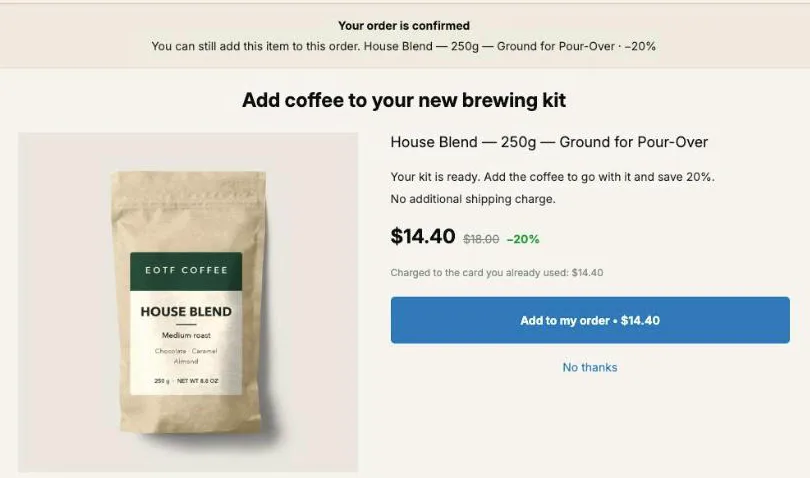
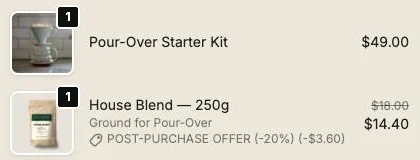
The offer copy is yours. In the coffee example, the line under the product reads “No additional shipping charge.”; write the line that fits your own parcel. In that example, the item rides in the parcel that was already going out. When the buyer taps Add to my order, the line joins the original order at its discounted price.
On the free plan, the app shows up to 100 offers a month on the one-click page, with one funnel shown to every order. To show a different offer to orders that already crossed your threshold, a paid plan adds funnel conditions such as Order total is at least, compared with the order total the buyer paid, in their checkout currency. Two funnels in the right order then split the store: orders of $65 and more get one offer, everyone else gets another. The guide explains how funnels and targeting work.
The one-click page only appears for payments Shopify allows there, mostly cards. The thank-you page reaches every paid order, and a product block there can carry the same add-on once you place the Thank you page offer block in the checkout editor.
How do I know the free shipping threshold is working?
A free shipping threshold works when average order value rises without the checkout completion rate falling, and margin per order goes up after shipping. Compare two periods of the same length before and after the change, outside any sale, and judge all three numbers together. A higher AOV with fewer completed orders can be a loss.
Track these five, from your Shopify reports and your carrier invoices:
- Average and median order value. The median tells you whether the typical buyer moved, not just a few big orders.
- Share of orders at or just above the threshold. Count the orders between $65 and $75 before and after. If that share doesn’t grow, buyers aren’t reaching for the threshold.
- Checkout completion rate. If it drops after the change, the threshold is too far from the typical cart.
- Shipping cost as a share of revenue. It goes up by design. It should go up less than margin.
- Margin per order after shipping. The number that decides.
If most orders already clear the line, raise it. If almost nobody reaches it, lower it to the next product that closes the gap. Move one step at a time, and change the amount in Shopify and in every bar the same day.
When should I change the threshold?
Change the free shipping threshold when one of its inputs changes: your carrier rates, your margin, your prices, or the product that used to close the gap. Rerun the floor calculation with the new numbers. A carrier increase from $8 to $10 at a 50% margin moves the floor from $16 to $20 above the median, and the $16 mug no longer pays for the parcel.
Check it before a sale too. A sitewide percentage off lowers the value of every cart, and with a free shipping discount that combines with the sale discount, products count at their discounted price. A $65 threshold during a 20% sale asks for $81.25 of products at full price. Either accept fewer qualifying orders for the sale, or lower the threshold for its dates and change it back after, in Shopify and in the bar.
The method pages of this blog are collected under methods for selling more per order.
Post Purchase Upsell Abakira has a free plan with up to 100 one-click offers shown per month. The listing has the current plans, including the one with the Free shipping bar.
Show a free shipping progress bar in the Shopify Plus checkout
- Set the threshold in Shopify In Shopify admin, go to Settings, then Shipping and delivery, open your shipping profile, click Add shipping option, choose a rate type, select Offer free shipping and enter the minimum order amount. Click Done, then Save.
- Open the checkout editor Go to Settings, then Checkout, and click Edit next to your checkout configuration.
- Add the Free shipping bar block In the section where you want the bar, click Add block and choose Free shipping bar under Post Purchase Upsell Abakira.
- Enter the amount and its currency In the block settings, type the same amount as your Shopify rule in Free shipping from (amount), and its three-letter code, for example USD, in Currency of that amount.
- Write the two texts Turn on Show before the amount is reached, write the text before the amount is reached using {{amount_left}}, and write the text once the amount is reached. Save the checkout.
- Check the bar in the editor With Show before the amount is reached on, the editor shows the bar on a sample cart at 60% of the threshold, then once the amount is reached. If it warns that the checkout is in another currency, fix the currency code.
Frequently asked questions
Does the free shipping threshold include taxes?
For a Shopify free shipping discount with a minimum purchase amount, no: Shopify counts product prices only, never taxes, and counts products at their discounted price when the other discount can combine with free shipping. The Free shipping bar in Post Purchase Upsell Abakira also compares against the cart subtotal before shipping and taxes.
Can I have a different free shipping threshold per country?
Shopify sets free shipping per shipping zone, and a free shipping discount can be limited to selected countries in its Countries section. To show each threshold in the checkout, place one Free shipping bar block per currency, each with its own amount and currency code. A buyer only sees the copy that matches their checkout currency.
Should the threshold be a round number?
Round up to a number a common product or pair of products can reach from your median order. A threshold of $65 on a $49 median works because a $16 mug or an $18 bag of coffee closes the gap in one add. A round $60 that no single product closes from $49 asks the buyer to assemble the gap from several items.
Can I show a free shipping bar in the checkout without Shopify Plus?
No. Shopify allows app blocks on the information, shipping and payment steps of checkout only on Shopify Plus. On other plans, show the threshold in the announcement bar, on product pages and in the cart through your theme or a cart app, and keep the checkout for the shipping line Shopify already shows.
What happens to the bar if I change my free shipping amount in Shopify?
Nothing, until you change it in the block too. The Free shipping bar cannot read Shopify's shipping settings, so the amount typed in the block must match your rate or discount. Change both the same day, or the bar will promise free shipping at the wrong amount.
Related articles
Written by Abakira. We make small software: Shopify apps, web tools and iPhone apps. This article is about Post Purchase Upsell Abakira.