One product store upsells: what to sell after checkout
Five offers a one-product Shopify store can sell after payment: more units, a warranty, gift wrap, a premium plan and a digital add-on, all on one funnel.
2026-11-14 — Abakira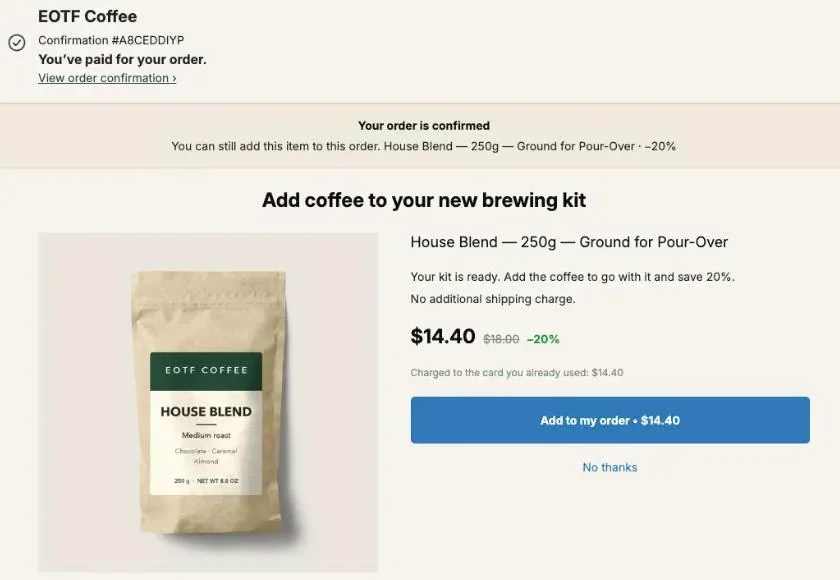
A one-product store can upsell after checkout by selling around its product instead of next to it: more units of the same item at a lower unit price, a warranty, gift wrap or premium packaging, a better version or a subscription, and a digital add-on. All five fit on the one-click page Shopify shows right after payment, and the accepted item joins the order the buyer just paid, in the same parcel.
With Post Purchase Upsell Abakira, a one-product store needs one funnel, and the free plan runs one funnel with one offer, up to 100 offers shown a month. Every order contains your product, so there is nothing to target: the offer can go to everyone. This page shows which offer to put first, which ones to chain behind it, and how to reach every buyer on the thank-you page.
What can a one-product store sell after checkout?
A one-product store can sell five kinds of offers after checkout, and none of them needs a new supplier except the digital file. Two of them are your own product again (more units, a better version), three are products you create in a few minutes in Shopify (a warranty, packaging, a digital file).
| Offer | What you create in Shopify | Setting in Post Purchase Upsell Abakira | Full guide |
|---|---|---|---|
| More of the same product | Nothing | One more, same variant, with Quantity tiers | Same product upsell |
| Warranty or protection plan | A product with one variant per coverage length | A product | Extended warranty upsell |
| Gift wrap or premium packaging | A product with a photo of your wrapped box | A product, or a Single product block on the thank-you page | Gift wrapping upsell |
| Better version or subscription | A premium variant, or a subscription plan from your subscription app | One more, any variant, or the offer's Subscription section | This page |
| Digital add-on | A product with Physical product turned off, plus a delivery app | A product | Digital product upsell |
The table is also the order in which we’d build them. The first row needs no new product at all. The last rows need a product created in Shopify, a photo and, for the digital file, an app to deliver it.
Why is the page after payment the right place for a one-product store?
The page after payment is where a one-product store has the most to offer, because the buyer has already chosen the product, the variant and paid for it. On the product page, a quantity offer competes with the decision to buy at all. After payment, that decision is behind them, and the only question left is whether they want more of it, or something that goes with it.
Three facts about Shopify’s one-click page matter here:
- No new payment form. The buyer taps “Add to my order” and the item is charged to the card they just used. The line under the price reads “Charged to the card you already used”, followed by the amount.
- Same order, same parcel. The accepted item is added to the paid order. You don’t pick and ship a second box.
- Up to three additions per checkout. Shopify accepts three post-purchase additions on one order, whatever app you use. Post Purchase Upsell Abakira counts the ones already accepted and switches the buttons off after the third.
A store with a full catalog can show a different accessory to every buyer. A one-product store has the advantage of knowing exactly what every buyer just bought, which makes the offer simple to write and the same for everyone.
How do I sell more of the same product after checkout?
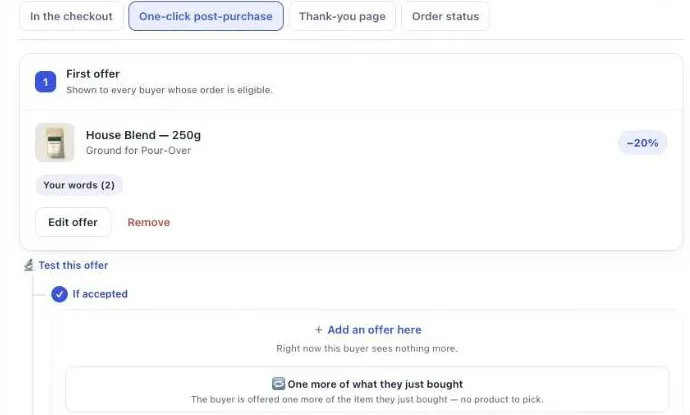
Selling more of the same product after checkout means offering another unit of the item in the order at a lower unit price. In Post Purchase Upsell Abakira the offer type is One more, same variant: the app reads the item from the paid order, so you don’t pick a product, and the buyer gets their own flavor, size or color back, with no choice to make.
On a funnel with no offer yet, the admin shows a button labeled Start with one more unit. Its help text says it plainly: “Nothing to choose: the offer proposes another unit of what the buyer just paid for. It works on any catalogue, and you can change it whenever you want.”
Build this offer first, as a ladder rather than a single unit:
- Set a percentage discount on the offer itself, 15 to 25% for the first extra unit.
- Under Quantity tiers, click Add a tier. Each tier has a Quantity and a Discount for this quantity.
- Add up to 5 tiers, each from 2 to 20 units. For example: 2 units at 20% and 3 units at 30%.
- Keep the discount growing with the quantity. If a bigger tier has a smaller discount, the admin warns you: “A tier with more units has a smaller discount than the one before it. Buyers would pay more per unit for buying more.”
The buyer then sees a Quantity menu under the product, with each tier’s price. Here is the math on a $40 product with a $12 landed cost, as an example to run with your own numbers:
| Tier | Discount | Buyer adds | Your margin on the added units | Order total (was $40) |
|---|---|---|---|---|
| 1 more unit | 20% (offer discount) | $32.00 | $20.00 | $72.00 |
| 2 more units | 20% | $64.00 | $40.00 | $104.00 |
| 3 more units | 30% | $84.00 | $48.00 | $124.00 |
The added units ship in the parcel of the paid order, with no additional shipping charge to the buyer. How deep to cut, which wording to use and how the offer behaves when the order holds two variants are all covered in our guide to the same product upsell on Shopify.
If your product comes in colors or sizes and a second unit is often a different one, choose One more, any variant instead. The buyer sees the same product with a variant picker, and only variants of that product can be added.
How do I sell a warranty or protection plan with a single product?
A warranty for a single product is a Shopify product of its own, with one variant per coverage length and the terms in its description, that the upsell adds to the order like any item. A one-product store needs only one warranty product, because there is only one thing to cover. Set it as the offer with What this offer proposes on A product.
The warranty fits a one-product store in two places:
- As the offer after a no. A buyer who declines more units can still be offered coverage on the unit they bought. Put the warranty under If declined of the first offer.
- As the offer after a yes. A buyer who just took three units has three units to cover. Put the warranty under If accepted, and say in the headline that it covers everything in the order if your terms say so.
The branches after the first offer come with a paid plan. On the free plan, choose one: the stock-up or the warranty. How to write the terms, price a 1-year, 3-year and lifetime plan, and check your payment provider’s rules before selling one is in our article on the extended warranty upsell on Shopify.
Can I sell gift wrap or premium packaging?
Gift wrap or premium packaging is a product you create in Shopify with a real photo of your wrapped box, a price and a SKU, so the warehouse sees the line on the order and knows which parcel to wrap. Gift wrap needs no new supplier: the materials are boxes, paper and a card.
Two places work:
- On the one-click page, as a follow-up offer with A product.
- On the thank-you page, as a Single product block. This block reaches every paid order, and the Where the purchase goes setting decides what happens on a tap: “Same order, unless it has fully shipped”, “Same order, only until the first parcel ships” or “Always a new checkout”. For packaging, “Same order, only until the first parcel ships” is the safe one: once a parcel has left, wrapping it is no longer possible.
Weight, SKU and how the warehouse spots the order are covered in gift wrapping upsells on Shopify. If your one product is often bought as a present, the gift-buyer version of the funnel is in selling more to gift buyers.
How do I offer a premium version of my only product?
A premium version of a single product can be sold after checkout in three ways in Post Purchase Upsell Abakira, depending on what “premium” means for you. The premium version is an addition, a subscription that takes the place of the one-time purchase, or a change to an existing subscription.
A premium edition as an extra unit. If your product has a deluxe variant (a bigger size, a better material, a limited color), offer it with A product and that variant, or with One more, any variant so the buyer can pick it. This suits products where a second unit has an obvious use. To let the buyer choose among variants you pick, see letting the buyer pick the variant.
A subscription in place of the one-time purchase. If your product is a consumable and your subscription app has created a plan for it, the offer’s Subscription section has a setting called Replace the one-time purchase with this subscription. The buyer adds the subscription in one click; the first delivery is the order already paid, the difference with the plan price is refunded to them, and the one-time item is restocked. It works on a single-product offer, without quantity tiers or extra cards, and it comes with the Scale plan.
A bigger plan for current subscribers. For buyers who just subscribed, the Subscription upgrade offer moves their next renewal to a larger variant or plan. “Nothing is added to the order and nothing is charged: their next renewal switches, on the same subscription.” It needs the Scale plan and Loop or Seal connected. The full method is in upgrading a subscription after purchase.
Can a one-product store sell a digital add-on?
A one-product store can sell a digital add-on after checkout as long as the file is about the product: a setup guide, a recipe book, a training plan, a video course on using it well. In Shopify it’s a product with the Physical product setting turned off, delivered by an app such as Shopify’s Digital Products app, and the upsell adds it to the order with no shipping line.
A digital add-on has a property the other four don’t: your cost per extra sale is close to zero once the file exists. It can sit at any point of the funnel, including after a buyer has declined everything physical. File delivery, inventory settings that make a tap fail, and the exact buyer wording are in our guide to the digital product upsell on a physical order.
Can I combine several add-ons in one offer?
Several add-ons can go in one offer in two ways in Post Purchase Upsell Abakira: a bundle, sold as one purchase at one discount, or a grid of separate cards under the main offer. Both keep the one-click page to one screen, which matters when you have three or four small add-ons and only three accepted additions per checkout.
| A bundle (offer type) | Grid (under the main offer) | |
|---|---|---|
| What the buyer sees | The main product plus 1 or 2 more, one price, one button | Up to 6 extra cards stacked under the main offer, each with its own price and button |
| Products | 2 to 3, main product included | 1 product per card, or a bundle card of 2 to 4 products |
| Discount | One rate, set in Bundle discount (%) | One per card |
| Counts against Shopify's 3 additions | Once | Once per card accepted |
For a one-product store, a bundle such as “one more unit, plus the warranty, plus the guide” turns three offers into one tap and one addition. The grid suits stores whose add-ons are small and unrelated, such as packaging, a refill and a guide, where the buyer may want one and not the others. More on bundles in bundle upsells after checkout.
In what order should the offers come?
The offers in a one-product funnel should start with the one that needs no new decision, then move to add-ons. In Post Purchase Upsell Abakira a funnel tree holds up to 7 offers on 3 levels: a first offer, then an If accepted and an If declined branch, each with its own follow-up. Any buyer sees at most 3 of them.
Here is the tree we’d start from on a one-product store:
| Level | If the buyer accepted the level before | If the buyer declined the level before |
|---|---|---|
| 1 | One more, same variant, with Quantity tiers | |
| 2 | Warranty covering the order | Digital guide at a low price |
| 3 | Gift wrap or premium packaging | Warranty |
The logic: the first offer is your own product, which the buyer has just judged worth paying for. A yes means a bigger order, so protection and packaging come next. A no on more units is a no on more of the physical product, so the follow-up drops to something cheaper and different. Our chapter on the accept and decline tree explains how each branch is built, and what to offer after checkout has the price-ratio rule for each step.
On the free plan the funnel serves the first level only, so put the stock-up there. Levels 2 and 3 open with the Pro plan.
How do I reach every buyer, whatever they paid with?
Every buyer can be reached with blocks on the thank-you page and the order status page of Post Purchase Upsell Abakira. Every paid order reaches the thank-you page, whatever the payment method, and a block there can add the item to the same order with the Where the purchase goes setting.
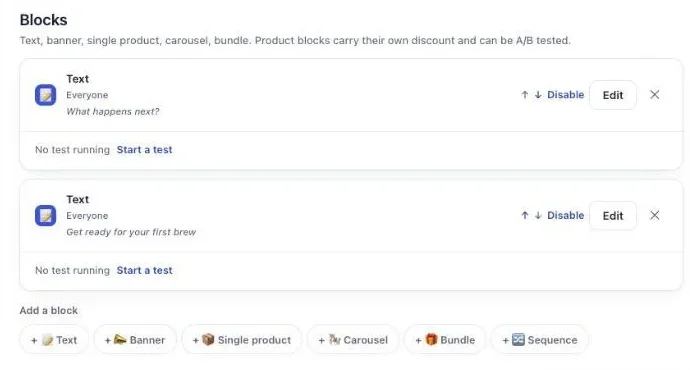
The thank-you page has its own tab in the funnel, with six block types: Text, Banner, Single product, Carousel, Bundle and Sequence. For a one-product store:
- A Single product block with your own product and Quantity tiers recreates the stock-up offer. On the thank-you and order status pages, a block takes up to 3 tiers, from 2 to 9 units.
- A Bundle block of 2 to 4 products sells the product plus its add-ons in one tap.
- A Sequence block shows one offer at a time, where Add or No thanks decides which comes next, and the buyer pays once at the end.
On the free plan, a thank-you block is shown to every buyer. With Pro and above, a rule under Show it to can aim it at “Buyers who did not see the one-click page”, so nobody gets the same stock-up offer twice. On the order status page, a rule can aim a block at buyers who bought, or bought nothing, on the thank-you page (“Buyers who bought on the thank-you page”, “Buyers who bought nothing on the thank-you page”); those rules come with Scale.
One step is easy to miss: the blocks appear only once they’re placed in Shopify’s checkout editor. Open the checkout editor, pick the Thank you page, add the Thank you page offer block; do the same on the Order status page with Order status page offer. The thank-you page chapter walks through it with screenshots.
How do I set it up, step by step?
Setting up post-purchase upsells for a one-product store in Post Purchase Upsell Abakira takes one funnel, the add-on products created in Shopify, and a test order. The order below gets an offer live on the free plan first, then adds the paid-plan branches and the thank-you block.
- Create the add-on products in your Shopify admin: the warranty, the packaging, the digital guide. Give each a title that reads well on its own, because the product title stays visible on the one-click page.
- Start the funnel. Open your funnel, select the One-click post-purchase tab and click Start with one more unit. Keep One more, same variant under What this offer proposes.
- Add Quantity tiers: Add a tier, then a Quantity and a Discount for this quantity for each step of the ladder.
- Write the offer under Your words on this page: a Selling headline and a few lines under Your argument. Say it’s the same item, cheaper than the first, in the same parcel.
- Add the follow-ups (paid plan): under If accepted and If declined, click Add an offer here and pick A product or A bundle.
- Add a thank-you block in the Thank-you page tab, then place the Thank you page offer block in Shopify’s checkout editor.
- Turn the funnel on and test. Check that the funnel is Active. Try a cart shows which funnel a described cart reaches; a funnel that’s switched off answers “Turned off”, so switch it on first. Then place a test order with a card and accept the offer.
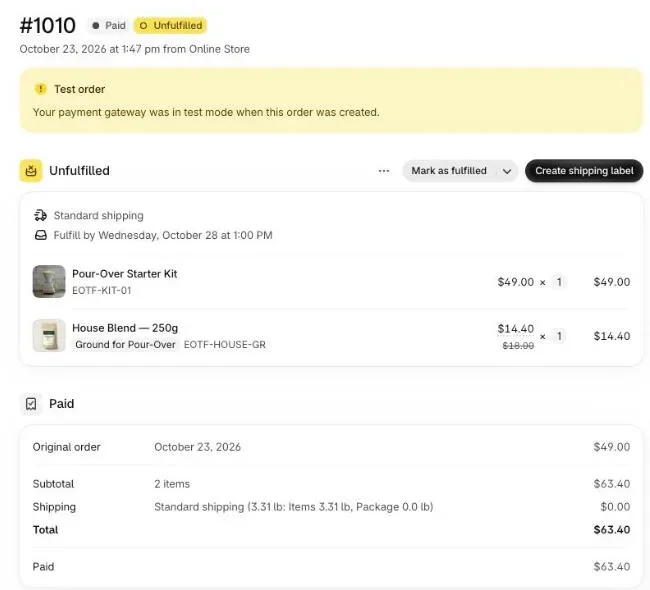
Open the order in your Shopify admin afterwards. The accepted item is a new line on the same order, with its discount, and the shipment is still one.
How do I know which add-on earns the most?
Which add-on earns the most shows on the Results screen of Post Purchase Upsell Abakira, in the By product table: paid orders over the last 30 days, on every page, with views, orders, units and revenue per product. A bundle stays one line, so a “unit plus warranty” bundle doesn’t get split across two rows.
On a one-product store, that table answers the questions that matter: does the stock-up sell more units at 2 or at 3, does the warranty earn more after a yes or after a no, and does the thank-you block add sales the one-click page didn’t. When two versions of an offer both look reasonable, test them: A/B tests run up to 4 versions and come with the Scale plan. How to read each figure is in the chapter on reading your numbers.
For the same method applied to whole catalogs, see how to increase average order value on Shopify, and other store types are grouped on our situations page.
Post Purchase Upsell Abakira has a free plan that shows up to 100 offers a month on the one-click page. The listing has the current plans and what each one includes.
Set up post-purchase upsells for a one-product Shopify store with Post Purchase Upsell Abakira
- Create the add-on products In your Shopify admin, create a product for each add-on you sell separately: the warranty, the gift wrap, the digital guide. Give each one a title that reads well on its own.
- Start the funnel with one more unit Open your funnel, select the One-click post-purchase tab and click Start with one more unit. Under What this offer proposes, keep One more, same variant.
- Add quantity tiers Under Quantity tiers, click Add a tier and enter a Quantity and a Discount for this quantity, for example 2 units at 20% and 3 units at 30%.
- Add the follow-up offers On a paid plan, click Add an offer here under If accepted and If declined and pick the warranty, the gift wrap or a bundle with A product or A bundle.
- Add a thank-you page block In the Thank-you page tab, add a Single product or Bundle block, then in Shopify's checkout editor add the Thank you page offer block to the Thank you page.
- Turn the funnel on and test Make sure the funnel is Active, use Try a cart to check which funnel a cart reaches, then place a test order with a card and open it in your Shopify admin.
Frequently asked questions
Does a one-product store need a paid plan to upsell after checkout?
No. The free plan runs one funnel with one offer on the one-click page and shows up to 100 offers a month. On a one-product store every order contains your product, so a funnel shown to everyone already reaches the right buyers. The If accepted and If declined branches, more funnels and targeting need a paid plan.
How many add-ons can one buyer accept after paying?
Shopify allows three accepted post-purchase additions per checkout. A bundle counts as one addition, whatever the number of products inside it, so a buyer can take a bundle and two more single offers.
Can I offer my product in another color or size after checkout?
Yes. Choose One more, any variant as the offer type. The buyer sees the product they just bought with a variant picker, and only variants of that product can be added.
Can I show a different offer to buyers who already bought a multi-pack at checkout?
Yes, with a funnel condition on Order total is at least, which comes with the Pro plan. Set the threshold just above your single-unit price: orders above it get the warranty or packaging funnel, everyone else gets the stock-up offer.
Does the upsell create a second order and a second shipment?
No. An item accepted on the one-click page is added to the order the buyer just paid, charged to the same card. On the thank-you and order status pages, the Where the purchase goes setting decides whether the item joins the same order or opens a new checkout.
Related articles
Written by Abakira. We make small software: Shopify apps, web tools and iPhone apps. This article is about Post Purchase Upsell Abakira.