Digital product upsell on Shopify, after the order is paid
Add a PDF guide or video course to a physical order right after payment: no shipping line, no stock to count, one tap on the card already used.
2026-11-13 — Abakira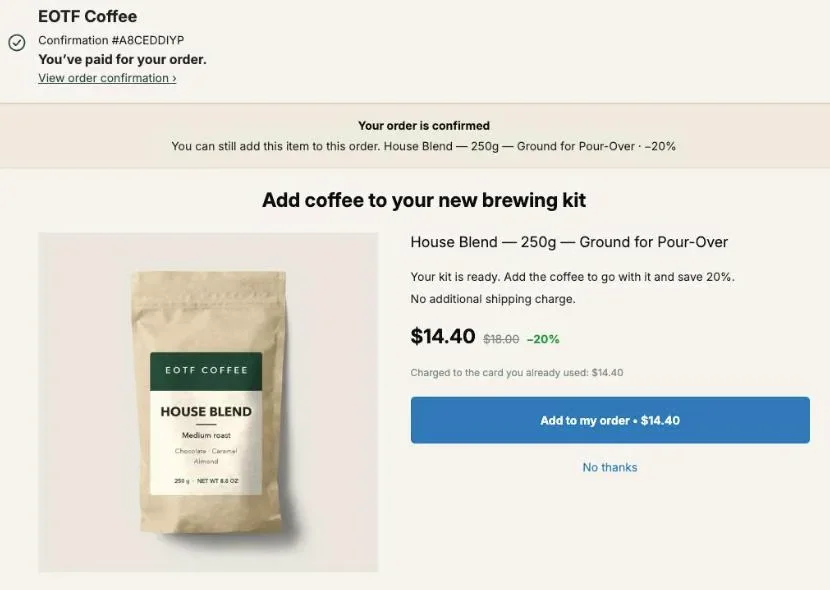
A digital product upsell on a physical Shopify order works best right after payment: the buyer has just bought the kettle, the supplement or the tool, and you offer the guide, program or video that helps them use it. In Shopify, the digital item is a product with the Physical product setting turned off, so adding it creates no shipping line and no stock to manage. With Post Purchase Upsell Abakira, the buyer adds it with one tap on the one-click page, charged to the card they already used, and it joins the same order.
Why upsell a digital product on a physical order?
A digital product upsell on a physical order adds revenue without adding a parcel, a picking step or a stock count. On a store that sells physical goods, a guide or course tied to what the buyer just bought is an add-on with no packing, no weight and no stock to count.
Compare two add-ons offered on the same $49 order, both at $12 regular price and 20% off on the one-click page:
| Physical add-on (a bag of coffee) | Digital add-on (a PDF brew guide) | |
|---|---|---|
| Price after 20% off | $9.60 | $9.60 |
| Cost of the item | $4.00 (example) | $0.00 per copy |
| Extra packing and weight | Yes | No |
| Payment processing on the extra charge | Yes | Yes |
| Gross margin before processing | $5.60 | $9.60 |
The digital line keeps the whole price before payment processing. It isn’t free money, though. Your payment provider still takes its fee on the added amount, the delivery app may have its own subscription, and the guide took someone days to write. Count those, and the guide still keeps more of its price than the physical add-on in the table.
For the full math on what an extra line earns once fees and costs are in, see contribution margin for ecommerce.
What kind of digital product sells after a physical purchase?
The digital product that sells after a physical purchase is the one that makes the item just bought work better or faster. It answers the question the buyer will have when the parcel arrives: how do I use this, set it up, or get results with it. A generic ebook unrelated to the order has no reason to be there.
Some pairings that follow that rule:
| Store sells | Digital add-on | Format |
|---|---|---|
| Pour-over kit, espresso machine | Brew guide with ratios and grind settings | |
| Supplements, protein | 4-week meal plan built around the product | |
| Home gym gear, resistance bands | Training program | Video course or PDF |
| Skincare set | Morning and evening routine guide | PDF or short videos |
| Sewing machine, craft kit | Pattern pack | Printable files |
| Dog harness, training treats | Leash training lessons | Video course |
| Garden seeds, planters | Planting calendar for the buyer's zone |
More pairing ideas by product type are in what to upsell after purchase.
How do I create a digital product in Shopify for an upsell?
A digital product in Shopify is a regular product whose Physical product setting is turned off in the Shipping section. Shopify then applies no shipping charge to it. The file itself is attached with a delivery app, because Shopify needs an app from the App Store to send a download link.
- In your Shopify admin, go to Products and create the product. Name it so it stands alone: “Pour-Over Brew Guide (PDF)” reads clearly on the offer page, where the product title stays visible under your headline.
- If the product has variants, open each one.
- In the Shipping section, turn off the Physical product setting.
- Set the price, upload an image (a cover of the guide or a frame from the course works better than a generic icon), and set the product to Active.
- Don’t track inventory on it. A digital item never runs out, and a tracked count that hits zero makes the buyer’s tap fail with “This item just sold out. Your original order remains confirmed and paid.”
- Attach the file in your delivery app and choose how it’s sent.
Shopify’s own Digital Products app (in Apps, then Digital Products) lets you attach files to a variant and choose whether customers are emailed automatically after payment or only once you mark the order as fulfilled. Each variant can hold up to 50 files and 5 GB. If you host the course on a course platform, set the delivery in that platform and check it on your test order.
What happens when a digital product is added on the one-click page?
On the one-click page, the digital product is added to the order the buyer just paid, through a Shopify changeset. Post Purchase Upsell Abakira’s changeset carries only the product and its discount; it never adds a shipping line. Shopify charges the difference to the card already used, and the guide appears as a new line on the same order.
What the buyer sees, word for word:
- The button reads “Add to my order • $9.60”, with the price filled in.
- Under the price: “Charged to the card you already used: $9.60”.
- The decline link reads “No thanks”.
If you switch on Show the price summary in the offer (its help text says “Subtotal, shipping and new total under the offer. Off by default.”), the buyer sees three lines read from Shopify’s own calculation: Subtotal, Shipping and Total. When nothing was added for shipping, the Shipping line reads “Free”. On a digital add-on that’s exactly what you want the buyer to see before tapping.
On the order, the discount shows under its own name, “Post-purchase offer (-20%)”, so you can tell at a glance which lines came from the upsell.
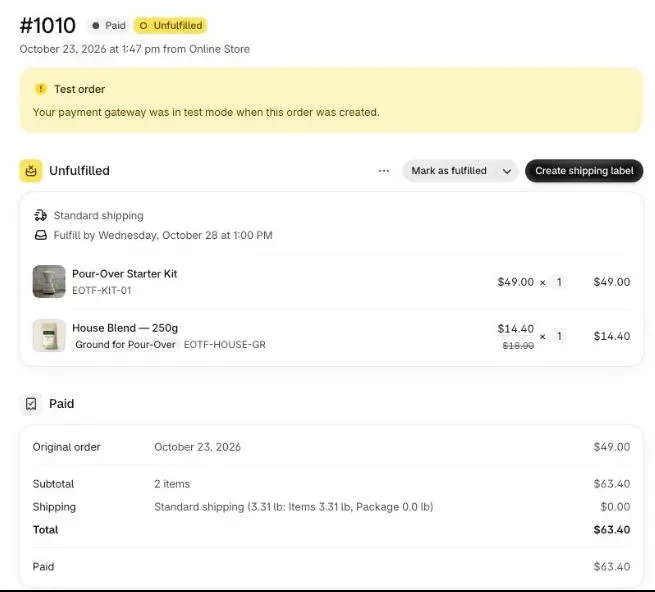
A buyer can accept up to 3 post-purchase additions per checkout, so a guide plus one physical refill fits easily.
How do I set up the digital product offer in Post Purchase Upsell Abakira?
Set up the digital product as the first offer of a funnel: choose “A product” under “What this offer proposes”, pick the guide, set a discount, and write a headline that names the physical item it goes with. The offer then shows on the one-click page to every buyer whose order reaches that funnel.
- On Your funnels, click Create a funnel, then Edit offers on it.
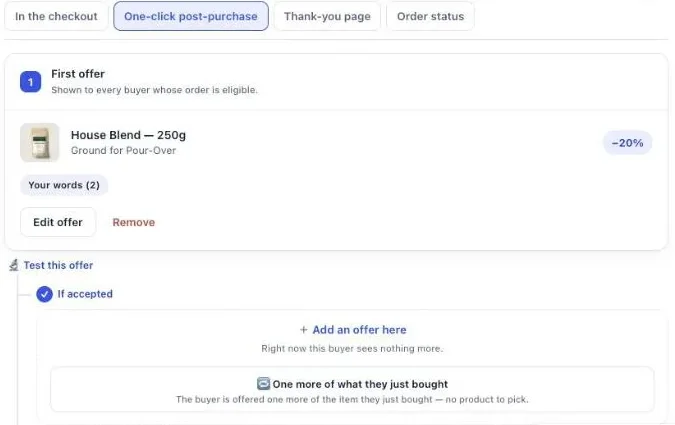
- On the One-click post-purchase tab, the first offer reads “Shown to every buyer whose order is eligible.”
- Under What this offer proposes, choose A product and pick the guide.
- If you sell the guide in two formats (PDF, or PDF plus videos), create them as variants and select both. The offer then shows “2 options the buyer can choose from”. You can select up to 25 variants.
- Under Discount, choose Percentage or Fixed amount. A discount is required: the app refuses to save a one-click offer at zero and says “The discount must be a number greater than zero.”
- In Your words on this page, write the Selling headline. “Get the brew guide for your new kit” ties the file to the box that’s on its way. Use Your argument for two short lines: what’s inside, and that the link arrives by email. No exclamation marks: Shopify doesn’t allow them on this page.
- Save, then click Try a cart on the funnel list to confirm which funnel a cart reaches. A funnel that isn’t turned on answers “Turned off”, so switch it on first.
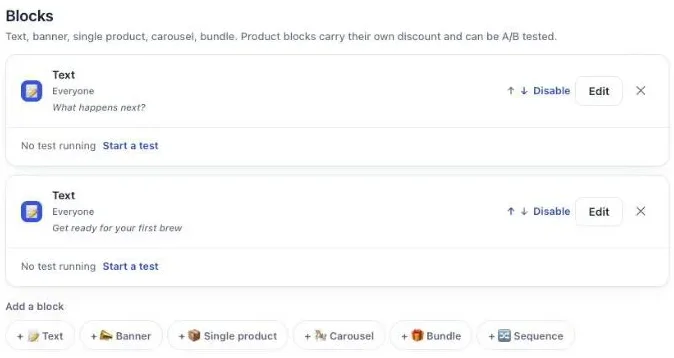
A countdown can sit inside a banner or on its own between two lines, from 30 seconds to 30 minutes. When it reaches zero, the offer is declined and the buyer moves on. For a $9 guide, two or three minutes is plenty.
The free plan of Post Purchase Upsell Abakira runs one funnel with one offer level for every buyer, and shows up to 100 one-click offers a month. That’s enough to test a single guide on a store where every order is a good match for it.
How do I show the guide only to buyers of the right products?
To show a digital guide only to buyers of the products it fits, give its funnel the condition “Order contains” and choose those products. Buyers whose current order doesn’t contain one of them never see the guide. Targeting by product, variant or order total comes with the Pro plan; on the free plan, the funnel goes to every buyer.
- In the funnel’s condition menu, choose Order contains, then Choose a product. You can pick up to 300 products, or a single variant if only one model gets the guide.
- If your guides follow your catalog structure, Scale adds Order contains a product from a collection.
- Move the funnel above any funnel set to Everyone. Funnels are checked from the top, and the first one whose condition the order meets is the one shown.
“Order contains” reads the order being placed, not the customer’s past orders. A returning buyer who bought the kit last month and a refill today sees the funnel that matches the refill.
When each product line has its own guide (a brew guide for the pour-over kit, a cleaning guide for the espresso machine), make one funnel per guide. The chapter on multiple funnels and targeting covers the order of funnels and the cases where one never shows.
Can I bundle a digital guide with a physical refill?
Yes. On the one-click page, an offer can be “A bundle”: the main product plus one or two more, 2 to 3 products in all, sold as a single purchase at one rate. A coffee refill plus the brew guide fits. The bundle counts as one addition toward Shopify’s limit of 3.
The bundle earns its place when the buyer would want both anyway. Half the bundle is physical, so it goes in the parcel and follows your normal fulfillment; the guide goes through your delivery app.
The other way to pair them is the accept/decline tree. Put the guide first, and under If accepted, add the refill. Under If declined, a cheaper format of the guide (PDF only, without the videos) gives a second chance at a smaller price. Offers beyond the first level need a paid plan. The accept and decline tree explains how the branches work, and downsells on Shopify covers what to put after a no.
Where else can I offer the guide so every buyer sees it?
The thank-you page reaches every buyer, whatever they paid with, and a Single product block there can add the guide to the order already placed, and the buyer pays only the added amount. The block shows once you’ve added the “Thank you page offer” block in Shopify’s checkout editor.
- In the funnel, open the Thank-you page tab and add a Single product block with the guide.
- Set Show it to to “Buyers who did not see the one-click page”, so nobody is offered the guide twice. That rule comes with Pro and above; on the free plan, the block is shown to every buyer.
- Keep Where the purchase goes on Same order, unless it has fully shipped. The guide joins the existing order. If the whole order has already shipped, the buyer pays in a new checkout instead, and with the Physical product setting off, that checkout carries no shipping charge.
- In Shopify, open the checkout editor, pick the Thank you page, and add the Thank you page offer block. Without it, nothing you set up on that tab is shown.
On the buyer’s side, the block says what the button does: “Added straight to your order above. You only pay the difference.” A card buyer goes to Shopify’s payment page for that difference.
The same block type exists on the order status page, behind the “Order status page offer” block in the checkout editor. A buyer who comes back to the status page days later can still add the guide, which suits a guide that helps when the parcel lands. The thank-you page chapter shows the block editor in full.
How does the buyer receive the file?
The buyer receives the file from your digital delivery app, not from the upsell app. Post Purchase Upsell Abakira puts the guide on the order; sending the file is the delivery app’s job, by its own settings. With Shopify’s Digital Products app, that’s an email after payment, or after you mark the order fulfilled.
The Digital Products app can also show a “Download Now” link on the Thank you and Order status pages, once you add its block in the checkout editor. That’s worth doing. Check on your test order that the link shows for the line the buyer added.
Before you send any traffic to the offer, place one test order, accept the guide on the one-click page, and check three things:
- The order in your admin has one extra line with the guide and its discount, and no new shipping line.
- The download email arrives for the added line, or the link appears on the thank-you page.
- The physical items still show as unfulfilled and go to your packer or 3PL as usual.
If the email doesn’t arrive, look at the delivery app’s settings for that variant (automatic or manual sending) before anything else.
How do I know if the digital upsell is earning?
A digital upsell is earning when its acceptance rate on the funnel holds steady and the revenue it adds stays well above the processing fees and the delivery app’s cost. The Results screen in Post Purchase Upsell Abakira shows conversions by funnel and, under “By product”, the guide’s own sales for the last 30 days.
Three numbers to read each month:
- Acceptance on the guide’s funnel. If it’s low, the pairing is off: the guide doesn’t match what’s in the order, or the headline doesn’t say why it helps.
- Which format sells. With a PDF and a video variant, the split tells you whether the higher price is worth producing.
- Refund requests on the guide. Read them next to its acceptance rate, and rewrite the guide before you send more traffic to it.
The guide chapter on reading your numbers explains each figure on the Results screen, and the chapter on what to offer has more on choosing the first offer. A digital add-on is one of several ways to raise order value without discounting your main products; the others are in how to increase average order value on Shopify, and more situations like this one are on the situations page.
Post Purchase Upsell Abakira has a free plan that runs on a live store. The listing has the current plans and what each one includes.
Upsell a digital product on a physical Shopify order
- Create the digital product In Shopify, go to Products and create the guide or course. In the Shipping section, turn off the Physical product setting, set a price and make the product Active.
- Attach the file with your delivery app Upload the file in your digital delivery app, such as Shopify's Digital Products app, and set its delivery method.
- Build the one-click offer In Post Purchase Upsell Abakira, click Create a funnel, then Edit offers. On the One-click post-purchase tab, set What this offer proposes to A product, pick the guide, set a discount and write a Selling headline that names the physical item it goes with.
- Target the products it belongs to On a paid plan, set the funnel condition to Order contains and choose the physical products the guide fits. On the free plan, the funnel is shown to every buyer.
- Add the thank-you page fallback In the funnel's Thank-you page tab, add a Single product block with the guide and keep Where the purchase goes on Same order, unless it has fully shipped. Add the Thank you page offer block in Shopify's checkout editor so the block appears.
- Place a test order Pay by card, accept the offer, and check the order in your admin: one order, the guide on its own line with its discount, and the download link delivered by your delivery app.
Frequently asked questions
Does a digital product added after payment change the shipping on the order?
Not when the product has the Physical product setting turned off in its Shipping section. Post Purchase Upsell Abakira only adds the product and its discount to the order; it never adds a shipping line. If you turn on Show the price summary, the buyer sees Shipping: Free under the offer when nothing was added.
Who sends the file to the buyer?
Your digital delivery app, not the upsell app. Shopify's own Digital Products app emails a link after payment when the variant is set to send automatically. Place a test order, accept the offer, and check that the link arrives for the added line before you go live.
Can I sell a digital product as the only item on the one-click page offer?
Yes. Choose A product as the offer type and pick the digital product. The offer needs a discount greater than zero to be saved.
Can I offer a PDF version and a video version of the same guide?
Yes. Create them as variants of one product and select both on the offer. The buyer then picks one on the page, and your discount applies to whichever one they choose. An offer can carry up to 25 variants.
What if the buyer already received the physical order when they see the offer?
On the thank-you and order status pages, the setting Same order, unless it has fully shipped adds the guide to the existing order. If the whole order has already shipped, the buyer pays in a new checkout instead. A product with no physical setting has no shipping charge in that checkout.
Related articles
Written by Abakira. We make small software: Shopify apps, web tools and iPhone apps. This article is about Post Purchase Upsell Abakira.