Part 4. Higher plans
13 Delivery protection and checkout upsells
An opt-in protection line and a short product list, shown while the buyer is still in the checkout. Shopify Plus only.
This chapter needs Shopify Plus. Checkout extensions do not render on other Shopify plans, whatever app you install. That limit belongs to Shopify. We keep these features in their own plan so that nobody pays for a screen they will never see.
Delivery protection
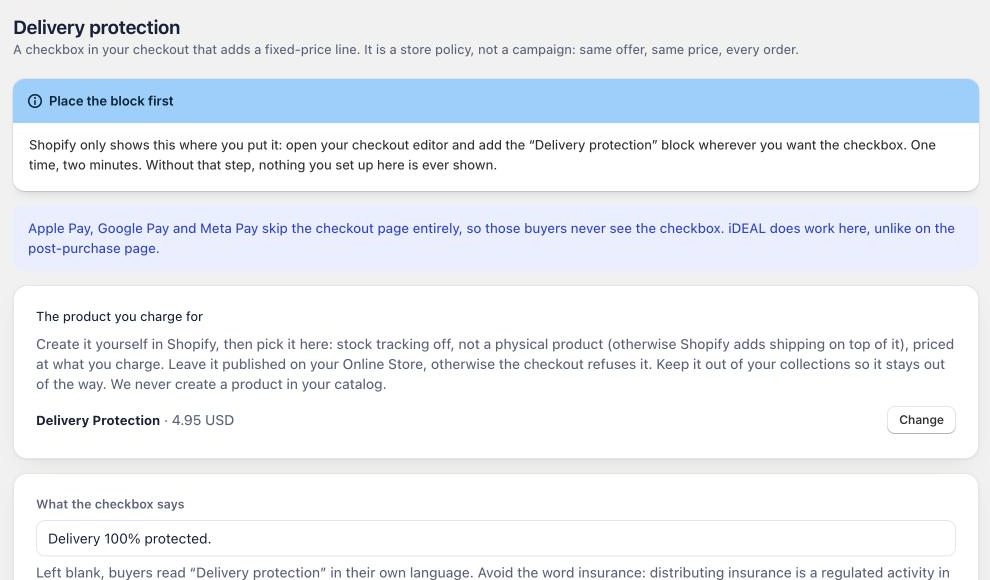
A checkbox in the checkout that adds a fixed-price line: cover against loss, damage or theft in transit. The buyer ticks it, the line joins the cart, and they pay for it with everything else.
You create the product yourself, so you decide what it costs and what it covers. Two rules for that product, both learned the hard way:
- Keep it published to your online store. Hiding it from every sales channel breaks the checkout. Shopify calls it unavailable and drops the line. Keeping it out of your collections is what keeps it out of sight, not unpublishing it.
- Make it a non-shippable product. A shippable protection product can attract a second shipping charge.
The app reads the product’s real state and warns you on the settings page if either rule is broken, rather than letting you find out at checkout.
Wording, image and colour
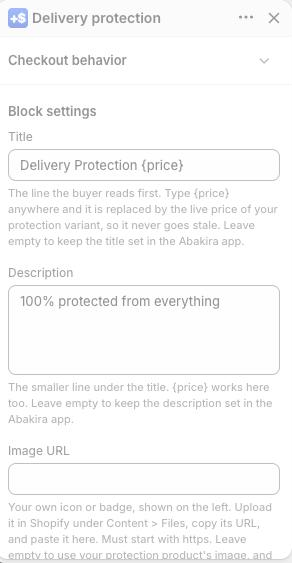
The text and the image are edited in the checkout editor, on the block itself, so you can see what you are changing while you change it.
- Title and description. Write
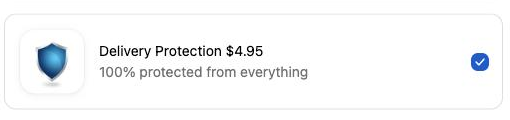
{price}anywhere in them and it is replaced by the live price of your protection variant, so it cannot go stale when you change the price. - Image. Upload it in Shopify under Content, then Files, copy its URL and paste it into the image field. Checkout blocks have no file picker, which is why it takes two steps. If you leave it empty, the product’s own image is used.
- Colour. The tick colour is not one of our settings, and it cannot be. Checkout blocks inherit your checkout branding, so you set it in Settings, Checkout, Customize, then Accent and buttons. Shopify labels that colour “links, selections and buttons”, and selections means the ticked box. Change it there and it matches every other control in your checkout, not just ours.
Pre-ticking it
You can have the box ticked by default. It lifts attachment noticeably, and in the European Union it is not allowed: a pre-ticked box adding a charge is not enforceable, and you would owe the refund. The setting is yours, the default is off, and the app tells you what you are turning on.
Running it as a test
The block can be limited to one group of buyers, using a cart attribute written by an A/B testing tool. Set the attribute name and the value to match, and only that group sees it. The control group gets an untouched checkout, and nothing is ever added to their cart, even with pre-ticking on. That last part matters, because a control group quietly buying protection would poison the comparison you are running.
Last updated